
Enabling SSH on Ubuntu 26.04 allows you to securely access your system remotely from any location. Whether you’re managing a headless server or need to administer your desktop from another machine, SSH server enable Ubuntu 26.04 is an essential skill for any Linux administrator. This guide walks you through the complete process of installing and enabling the OpenSSH server on Ubuntu 26.04 Resolute Raccoon.
Table of Contents
In this tutorial you will learn:
- How to install the OpenSSH server package
- How to enable and start the SSH service using systemctl
- How to verify that SSH is running and listening
- How to configure UFW firewall to allow SSH connections
- How to test your SSH connection from a remote machine

Software Requirements
| Category | Requirements, Conventions or Software Version Used |
|---|---|
| System | Ubuntu 26.04 Resolute Raccoon |
| Software | OpenSSH Server (openssh-server package) |
| Other | Privileged access to your Linux system as root or via the sudo command. |
| Conventions | # – requires given linux commands to be executed with root privileges either directly as a root user or by use of sudo command$ – requires given linux commands to be executed as a regular non-privileged user |
| Step | Command/Action |
|---|---|
| 1. Install OpenSSH server | sudo apt install openssh-server |
| 2. Enable and start SSH | sudo systemctl enable --now ssh |
| 3. Allow SSH through firewall | sudo ufw allow ssh |
| 4. Verify SSH is running | sudo systemctl status ssh |
Install OpenSSH Server on Ubuntu 26.04
The first step to enable SSH on Ubuntu 26.04 is installing the OpenSSH server package. Ubuntu does not include the SSH server by default on desktop installations, so you need to install it manually. The openssh-server package provides the sshd daemon that listens for incoming SSH connections.
- Update package repository: Before installing any new packages, update your local package index to ensure you get the latest available version.
$ sudo apt update
This command refreshes the package lists from the repositories configured on your system.
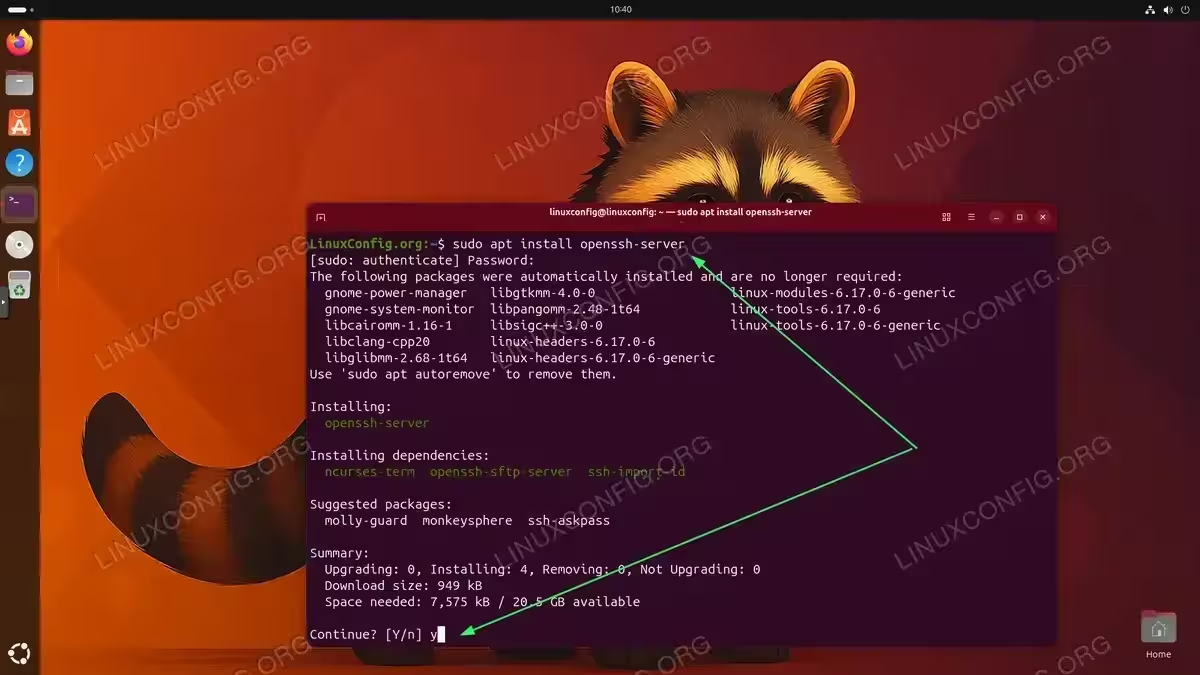
- Install the openssh-server package: Use apt to install the OpenSSH server package along with its dependencies.
$ sudo apt install openssh-server
The installation process will download and install the necessary components. On Ubuntu 26.04, this typically installs OpenSSH version 9.x or later.
INSTALLATION TIPS
On Ubuntu Server 26.04, the openssh-server package is often included during installation if you select the “OpenSSH server” option. You can verify whether it’s already installed by running dpkg -l | grep openssh-server.
Enable SSH Service on Ubuntu 26.04
After installation, you need to enable the SSH service so it starts automatically on boot and begins accepting connections immediately. Ubuntu 26.04 uses systemd as its init system, which provides the systemctl command for managing services.
- Enable and start SSH in one command: The most efficient approach combines enabling and starting the service.
$ sudo systemctl enable --now ssh
The
--nowflag tells systemd to start the service immediately while also enabling it for automatic startup on future boots.
Alternatively, you can perform these operations separately if you prefer more granular control:
$ sudo systemctl enable ssh
$ sudo systemctl start ssh
The first command creates the necessary symbolic links for the service to start at boot, while the second command starts the service immediately. After completing these steps, your Ubuntu 26.04 system will be ready to accept incoming SSH connections.
Verify SSH Status
Verifying that SSH is properly enabled and running is crucial before attempting remote connections. Systemd provides several ways to check the service status on Ubuntu 26.04.
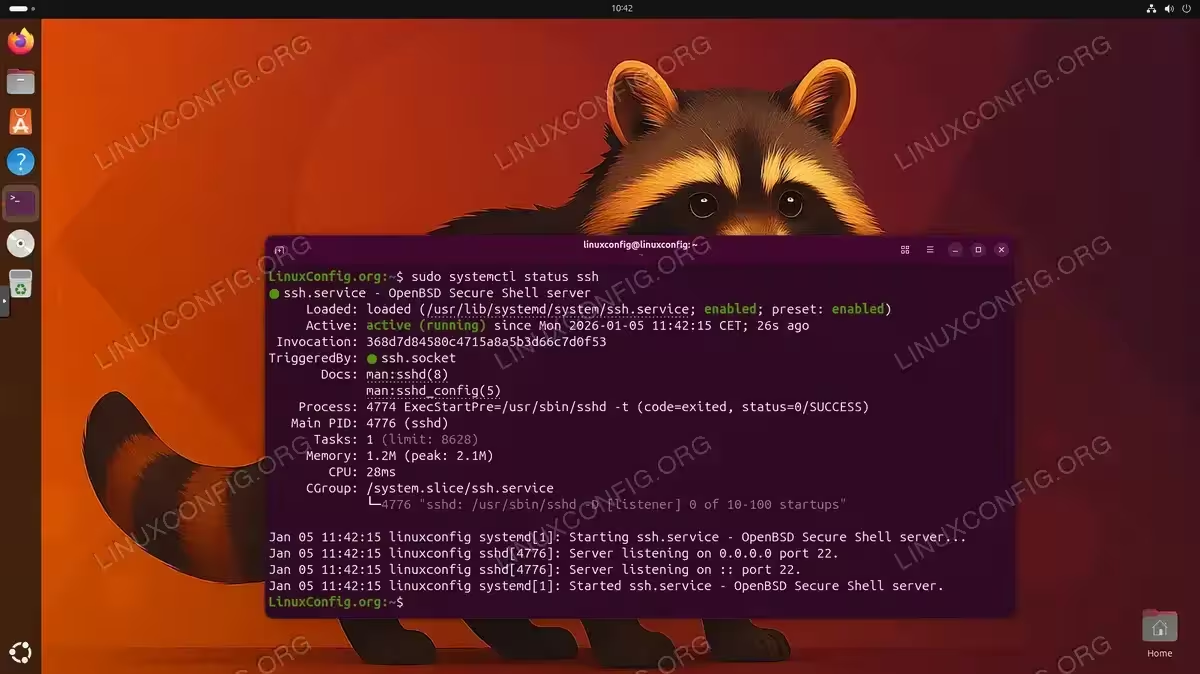
- Check the SSH service status: Use systemctl to display detailed status information.
$ sudo systemctl status ssh
You should see output indicating the service is “active (running)” along with recent log entries. The output also shows the process ID and memory usage.
- Verify SSH is listening on port 22: Confirm that the sshd daemon is listening for connections.
$ ss -tlnp | grep :22
This command should show sshd listening on port 22. If you’ve configured a custom port in your SSH configuration, adjust the grep pattern accordingly.
Configure Firewall for SSH on Ubuntu 26.04
If you have UFW (Uncomplicated Firewall) enabled on your Ubuntu 26.04 system, you must allow SSH connections through the firewall. Without this step, incoming SSH connections will be blocked even though the service is running.
- Check if UFW is active: First, determine whether the firewall is enabled.
$ sudo ufw status
If UFW is inactive, you can skip this section. However, enabling a firewall is recommended for security.
- Allow SSH connections: Add a rule to permit SSH traffic.
$ sudo ufw allow ssh
This command creates a rule allowing incoming connections on port 22. UFW includes an application profile for SSH, so you don’t need to specify the port number explicitly.
- Verify the firewall rule: Confirm the rule was added successfully.
$ sudo ufw status verbose
The output should show “22/tcp ALLOW IN Anywhere” or similar, indicating SSH traffic is permitted.
SECURITY ALERT
If you change the default SSH port from 22, you must update your firewall rule accordingly. Use sudo ufw allow [port]/tcp where [port] is your custom SSH port number.
Test SSH Connection
The final step is testing your SSH connection to ensure everything works correctly. You’ll need to know your Ubuntu system’s IP address and have an SSH client available on the remote machine.
- Find your server’s IP address: Determine the IP address of your Ubuntu 26.04 system.
$ ip addr show
Look for the inet address associated with your primary network interface (commonly eth0, enp0s3, or similar). For consistent remote access, consider configuring a static IP address.
- Connect from a remote machine: From another computer, use an SSH client to connect.
$ ssh username@server-ip-address
Replace “username” with your actual Ubuntu username and “server-ip-address” with the IP you found in the previous step.
- Accept the host key: On first connection, you’ll be prompted to verify the server’s host key fingerprint. Type “yes” to continue and enter your password when prompted.
If the connection succeeds, you’ve successfully enabled SSH on Ubuntu 26.04. You now have secure remote access to your system. For more advanced configuration options, including key-based authentication and security hardening, refer to the comprehensive SSH server setup guide.
COMPLETED
Congratulations! SSH is now enabled and running on your Ubuntu 26.04 system. You can manage your server remotely or restart the server via SSH when needed.
Conclusion
You have learned how to enable SSH server on Ubuntu 26.04 by installing the openssh-server package, enabling the systemd service, configuring the firewall, and testing the connection. These steps provide you with secure remote access to your Ubuntu system. Consequently, you can now manage your server from anywhere with network connectivity.
For production environments, consider implementing additional security measures such as key-based authentication, disabling password login, and changing the default port. The official Ubuntu OpenSSH documentation provides comprehensive guidance on securing your SSH server.
Frequently Asked Questions
- Why is SSH not installed by default on Ubuntu 26.04 Desktop? Ubuntu Desktop prioritizes security by not including server services that could expose your system to the network. The SSH server is available on demand through the openssh-server package, allowing users to enable it only when needed.
- How do I check if SSH is already enabled on my Ubuntu 26.04 system? Run
systemctl is-active sshto quickly check if the SSH service is running. Additionally,systemctl is-enabled sshtells you whether SSH will start automatically on boot. - Can I enable SSH on Ubuntu 26.04 without sudo access? No, enabling SSH requires administrative privileges because it involves installing system packages and managing systemd services. You need either root access or sudo privileges to complete these steps.
- What port does SSH use by default on Ubuntu 26.04? SSH uses port 22 by default. You can change this by editing the
/etc/ssh/sshd_configfile and modifying the Port directive, then restarting the SSH service. - How do I enable SSH on Ubuntu 26.04 Server during installation? During the Ubuntu Server installation process, you’ll see an option to install OpenSSH server. Select this option, and SSH will be installed and enabled automatically when the installation completes.
