
The sudo command on Ubuntu 26.04 allows regular users to execute commands with elevated privileges. This essential tool is fundamental to Linux administration, providing a secure way to perform system tasks without logging in as root. In this guide, you will learn how to use sudo Ubuntu 26.04 effectively, from basic command execution to advanced configuration options.
Table of Contents
In this tutorial you will learn:
- How sudo provides privilege escalation on Ubuntu 26.04
- Essential sudo command syntax and options
- How to run commands as root or other users
- Session timeout management and security practices
- Troubleshooting common sudo issues
Software Requirements
| Category | Requirements, Conventions or Software Version Used |
|---|---|
| System | Ubuntu 26.04 Resolute Raccoon |
| Software | sudo 1.9.x (pre-installed) |
| Other | User account that is a member of the sudo group. |
| Conventions | # – requires given linux commands to be executed with root privileges either directly as a root user or by use of sudo command$ – requires given linux commands to be executed as a regular non-privileged user |
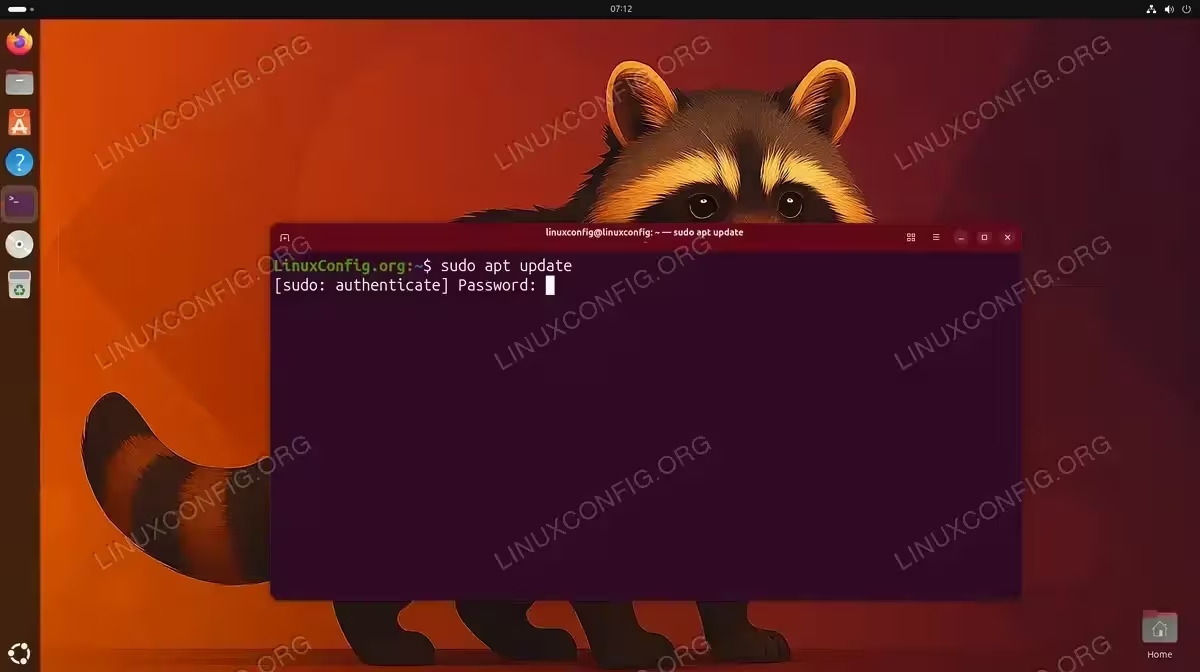
sudo command to run any command with root privileges. Enter your user password when prompted.
| Task | Command |
|---|---|
| Run command as root | sudo apt update |
| Run command as another user | sudo -u username command |
| Open root shell | sudo -i |
| Reset sudo timeout | sudo -k |
Understanding Sudo on Ubuntu 26.04
The name “sudo” stands for “superuser do” and the command serves as a gateway to administrative privileges on Ubuntu systems. Unlike logging in directly as root, sudo provides granular control over who can execute privileged commands and maintains an audit trail of all elevated actions.
On Ubuntu 26.04, the first user created during installation is automatically added to the sudo group, granting them the ability to use sudo. Additional users must be explicitly added to the sudoers configuration to gain these privileges. You can list users on your system to verify group memberships.
The sudo configuration is managed through the /etc/sudoers file, which defines policies for privilege escalation. This file should only be edited using the visudo command to prevent syntax errors that could lock you out of administrative access.
Basic Sudo Command Usage on Ubuntu 26.04
The fundamental syntax for sudo is straightforward. Simply prefix any command that requires elevated privileges with sudo:
$ sudo command [options] [arguments]
When you execute a sudo command, you will be prompted for your own user password (not the root password). After successful authentication, the command runs with root privileges.
- Update package lists: This common administrative task requires root access to modify the package cache.
$ sudo apt update
The package manager connects to repositories and refreshes available package information.
- Install software: Package installation modifies system directories that require elevated privileges.
$ sudo apt install htop
The system downloads and installs the specified package along with any dependencies.
- Edit system configuration files: Files in
/etctypically require root access for modification.$ sudo nano /etc/hostname
The text editor opens the file with write permissions that your regular user lacks.
Common Sudo Options
The sudo command provides several options that modify its behavior. Understanding these options helps you use sudo Ubuntu 26.04 more effectively in various scenarios.
Run Commands as Another User
The -u option allows you to execute commands as a user other than root:
$ sudo -u www-data whoami
www-data
This is particularly useful for testing permissions or running services that should operate under a specific user account.
Preserve Environment Variables
By default, sudo resets environment variables for security. Use -E to preserve your current environment:
$ sudo -E env | grep HOME
This option is helpful when scripts depend on user-specific environment variables.
Open an Interactive Root Shell
When you need to execute multiple commands with root privileges, opening a root shell is more efficient than typing sudo repeatedly:
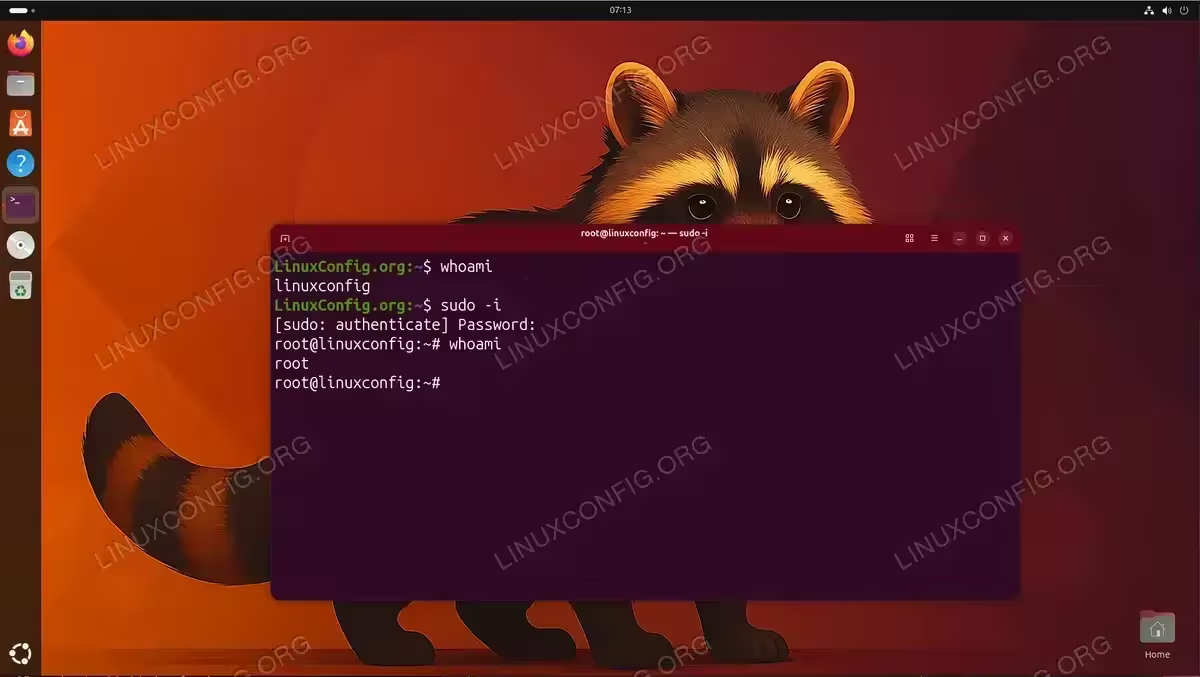
$ sudo -i
This command opens a login shell as root, loading root’s environment and changing to the root home directory. Alternatively, sudo -s opens a shell while preserving your current directory.
SECURITY NOTE
Use root shells sparingly. It’s easy to forget you have elevated privileges and accidentally modify or delete important system files. Exit the root shell with exit when finished.
Execute Commands Without Password
In certain automated scenarios, you may need to run sudo without a password prompt. This requires modifying the sudoers configuration. For detailed instructions, see our guide on how to configure sudo without password.
Sudo Session Management
After successful authentication, sudo caches your credentials for a default period of 15 minutes. During this window, subsequent sudo commands execute without re-prompting for your password. Understanding and managing this timeout is important for both convenience and security.
Reset Credential Cache
The -k option invalidates your cached credentials immediately:
$ sudo -k
Run this command when stepping away from your terminal or when you want to ensure the next sudo command requires authentication.
Extend Credential Cache
The -v option updates the cached credentials without running a command:
$ sudo -v
This is useful in scripts that need to ensure sudo access remains available throughout their execution.
Check Sudo Privileges
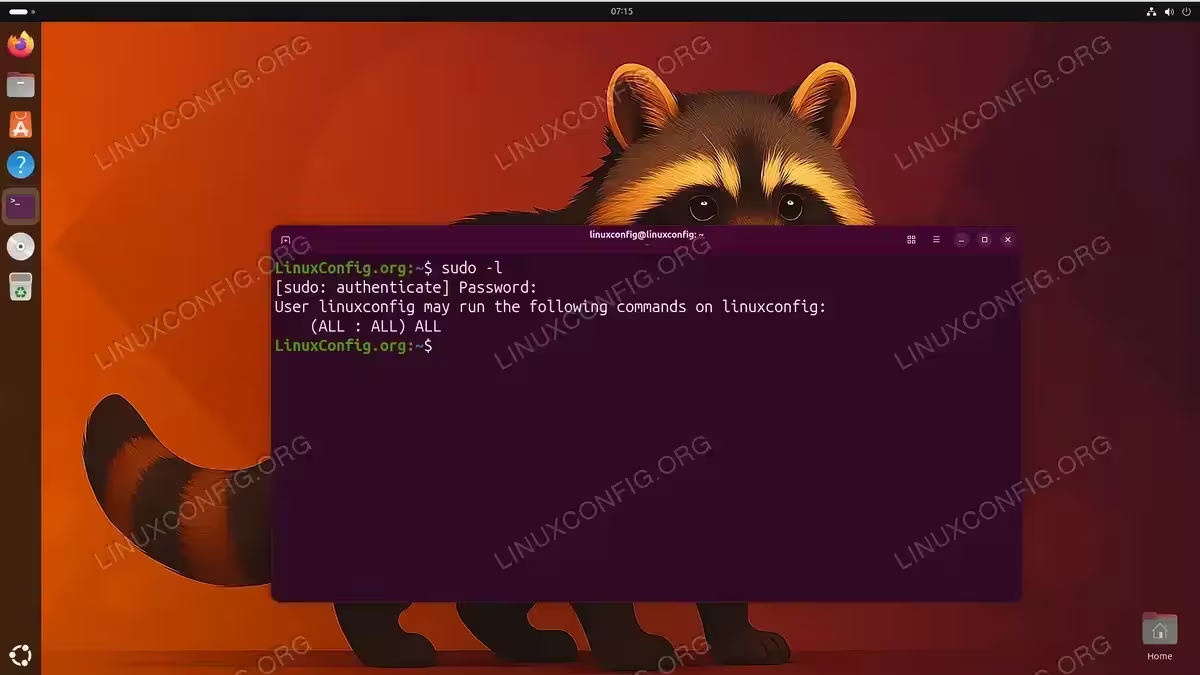
Verify whether your user has sudo privileges without executing any command:
$ sudo -l
This displays the commands you are permitted to run and any restrictions that apply to your sudo access.
Troubleshooting Sudo on Ubuntu 26.04
Several common issues can arise when using sudo. Here are solutions for the most frequent problems.
User Not in Sudoers File
If you receive the error “username is not in the sudoers file,” your account lacks sudo privileges. This incident will be reported to the system administrator. To resolve this, you need to add the user to sudoers using an account that already has administrative access.
Sudo Command Not Found
If sudo command is not found, the package may not be installed or the PATH variable may be incorrect. On minimal installations, you may need to install sudo manually.
Password Not Accepted
Remember that sudo requires your user password, not the root password. If your password is not accepted, verify you are typing the correct password for your user account, check that Caps Lock is not enabled, and ensure your account has not been locked.
IMPORTANT
Sudo logs all authentication attempts to /var/log/auth.log. Review this file when diagnosing access issues.
Conclusion
The sudo command is an essential tool for Ubuntu 26.04 administration, providing secure and auditable privilege escalation. By understanding the options and best practices covered in this guide, you can effectively manage system tasks while maintaining security. Remember to use sudo only when necessary, keep your credential cache timeout appropriate for your environment, and regularly review sudo access policies on multi-user systems.
For more advanced configuration, consult the official sudo documentation.
Frequently Asked Questions
- What is the difference between sudo -i and sudo -s? The
sudo -icommand opens a login shell as root, which loads root’s environment variables and changes to root’s home directory. Thesudo -scommand opens a shell with root privileges but preserves your current environment and working directory. Usesudo -iwhen you need a complete root environment andsudo -swhen you want to stay in your current directory. - How long does sudo remember my password? By default, sudo caches your credentials for 15 minutes. During this time, subsequent sudo commands execute without re-prompting for your password. You can reset this cache immediately with
sudo -kor configure a different timeout in the sudoers file using thetimestamp_timeoutoption. - Why does sudo ask for my password instead of the root password? This is by design. Sudo authenticates you as your own user, then grants you temporary root privileges based on the sudoers configuration. This approach provides better accountability since every privileged action is tied to a specific user account, and it eliminates the need to share a single root password among administrators.
- Can I run graphical applications with sudo? On Ubuntu 26.04 with Wayland, running graphical applications with sudo requires additional configuration. For GUI package managers or system settings tools, Ubuntu provides PolicyKit integration that prompts for authentication within the graphical environment. For other graphical applications, consider using
pkexecinstead of sudo.
