
Encountering a “sudo command not found” error on Ubuntu 26.04 can be frustrating, especially when you need elevated privileges to perform system administration tasks. This sudo troubleshoot ubuntu 26.04 guide walks you through the most common causes of this error and provides proven, step-by-step solutions to get your system back to a working state.
Table of Contents
In this tutorial you will learn:
- Why the “sudo: command not found” error occurs on Ubuntu 26.04
- How to diagnose whether sudo is missing or your PATH is broken
- How to install sudo using root access when it is absent
- How to restore a broken PATH so sudo is found again
- How to add a user to the sudo group to grant elevated privileges
Software Requirements
| Category | Requirements, Conventions or Software Version Used |
|---|---|
| System | Ubuntu 26.04 Resolute Raccoon |
| Software | sudo (package: sudo), bash shell |
| Other | Root access or another privileged user account may be required for some steps. |
| Conventions | # – requires given linux commands to be executed with root privileges either directly as a root user or by use of sudo command$ – requires given linux commands to be executed as a regular non-privileged user |
| Step | Command/Action |
|---|---|
| 1. Switch to root | su - |
| 2. Install sudo if missing | apt install sudo |
| 3. Add user to sudo group | usermod -aG sudo linuxconfig |
| 4. Reset PATH if broken | export PATH=/usr/local/sbin:/usr/local/bin:/usr/sbin:/usr/bin:/sbin:/bin |
Why “sudo: command not found” Happens on Ubuntu 26.04
Before diving into fixes, it helps to understand what actually causes this error during a sudo troubleshoot ubuntu 26.04 session. There are three primary reasons you might see sudo: command not found:
- sudo is not installed – This is rare on a standard Ubuntu 26.04 desktop or server installation, but it does happen on minimal installations, containers, or systems that were accidentally stripped of the package.
- Broken or modified PATH – The shell uses the
PATHenvironment variable to locate executables. If/usr/binor/usr/sbinis missing from PATH, the shell cannot findsudoeven though it is physically present on disk. - User is not in the sudo group – Technically this produces a different error (“is not in the sudoers file” rather than “command not found”), but it is closely related and worth addressing in context.
Consequently, the first step is always to determine which of these scenarios applies to your system before attempting any fix.
Check if sudo Is Installed
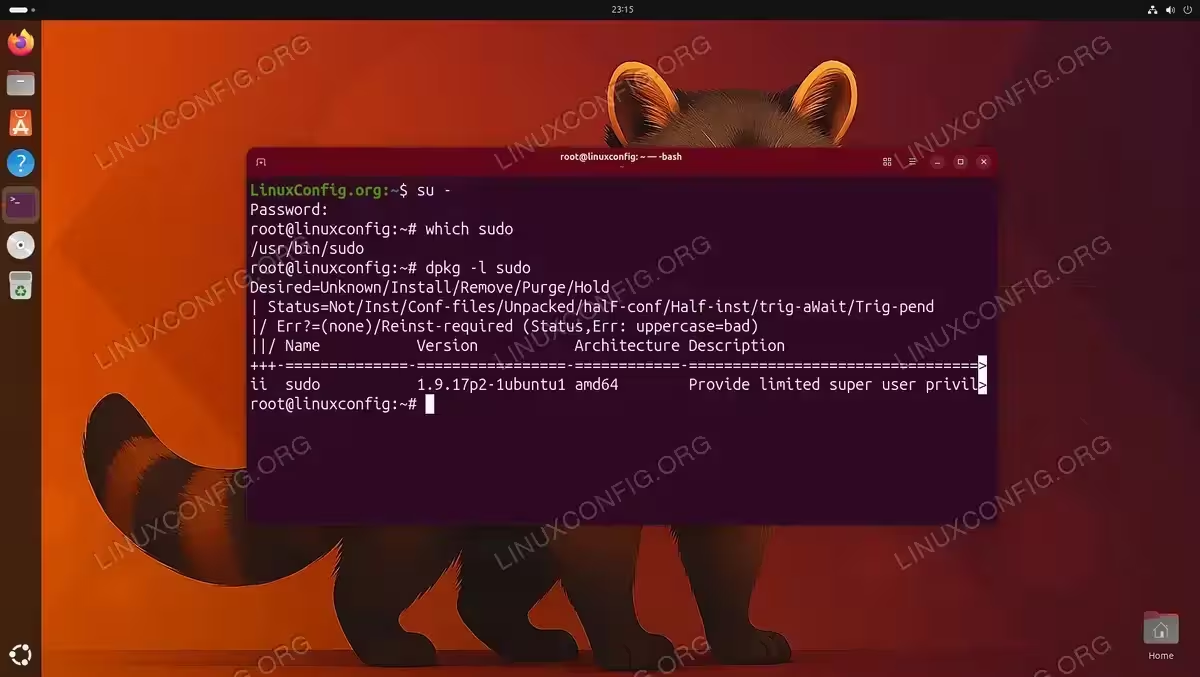
To determine whether the sudo package is present on your Ubuntu 26.04 system, you need to use the root account directly. If you have the root password, switch to root with:
$ su -
Once logged in as root, check whether the sudo binary exists:
# which sudo
If the command returns a path such as /usr/bin/sudo, then sudo is installed and your PATH is likely the problem. If the command returns nothing or an error, then sudo is not installed and must be reinstalled.
Additionally, you can verify the installation status using dpkg:
# dpkg -l sudo
A line beginning with ii in the output confirms the package is installed. A line beginning with un or an error means it is absent.
Fix a Broken PATH Variable on Ubuntu 26.04
A corrupted PATH is one of the most common causes of “sudo command not found” on Ubuntu 26.04, particularly after editing shell configuration files such as ~/.bashrc, ~/.bash_profile, or /etc/environment. To restore a working PATH for the current session, run:
$ export PATH=/usr/local/sbin:/usr/local/bin:/usr/sbin:/usr/bin:/sbin:/bin
After running this command, verify that sudo is now accessible:
$ which sudo
If this resolves the error temporarily, you need to find and fix the root cause in your shell configuration files. Open your ~/.bashrc and look for any PATH= assignment that may have accidentally replaced rather than appended to the default PATH:
$ nano ~/.bashrc
Look for lines such as export PATH=/some/custom/path that overwrite the entire PATH value. These should instead append to the existing PATH using the syntax:
export PATH=$PATH:/some/custom/path
After correcting the file, reload it without logging out:
$ source ~/.bashrc
IMPORTANT
If you edited /etc/environment and broke the system-wide PATH, you will need root access via su - to restore it. The root user’s PATH is set independently from the system PATH, so root can still operate normally.
Install sudo on Ubuntu 26.04
If the diagnostic steps above confirm that sudo is not installed, you need to install it using the root account. This scenario commonly occurs on minimal Ubuntu 26.04 server installations or Docker-based systems. Switch to root first:
$ su -
Then update the package index and install sudo:
# apt update && apt install sudo
The sudo package on Ubuntu is a straightforward installation with no complex dependencies. Once the installation completes, verify it succeeded:
# which sudo
/usr/bin/sudo
sudo is now installed and ready to use. However, your regular user still needs to be a member of the sudo group to be able to use it. Therefore, proceed to the next section.
Add Your User to the sudo Group on Ubuntu 26.04
Even with sudo installed, a regular user cannot use it unless they belong to the sudo group. This is an important step when troubleshooting sudo on Ubuntu 26.04 for newly created users or users on freshly deployed systems. To add a user to sudoers, run the following as root:
# usermod -aG sudo linuxconfig
Replace linuxconfig with the actual username. The -aG flags append the user to the specified group without removing them from any existing groups.
IMPORTANT
Group membership changes do not take effect in the current session. The user must log out and log back in, or start a new login shell, for the new group membership to be active.
To apply the group change without a full logout, the user can start a new login shell:
$ su - linuxconfig
Moreover, if you need to configure sudo without a password for automation purposes, that requires an additional entry in the sudoers file rather than just group membership. Similarly, if you need to run sudo without a password prompt for a specific user, consult the dedicated guide on that topic.
Verify the Fix on Ubuntu 26.04
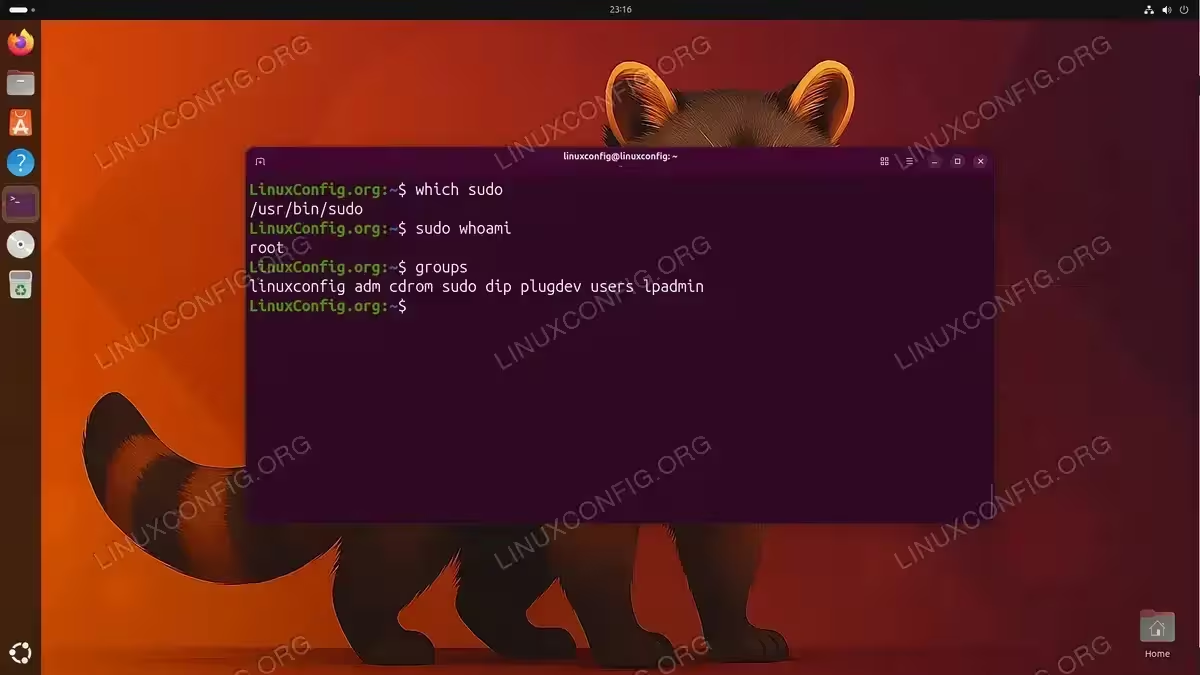
After applying the appropriate fix, verify that sudo is fully operational. First, confirm the binary is reachable:
$ which sudo
/usr/bin/sudo
Then test that the user can execute a privileged command:
$ sudo whoami
root
If the output is root, the sudo troubleshoot on ubuntu 26.04 is complete and the issue is resolved. You can also check group membership to confirm the user belongs to the sudo group:
$ groups
linuxconfig adm cdrom sudo dip plugdev lpadmin sambashare
The word sudo must appear in the output. If it does not, revisit the usermod step and ensure you logged out and back in afterward.
If sudo is now working but you are experiencing other permission-related issues, consider reviewing the ufw troubleshoot guide or the SSH troubleshoot guide for related Ubuntu 26.04 command-not-found scenarios.
Conclusion
Fixing the “sudo: command not found” error on Ubuntu 26.04 is straightforward once you identify the root cause. The three scenarios, sudo not installed, a broken PATH, or the user not in the sudo group — each have a clear remediation path. By switching to root first, you can perform all necessary diagnostics and repairs without needing sudo itself. After applying the fix and verifying with sudo whoami, your system will be fully operational again. For ongoing sudo access management, review how to configure sudo permissions to match your security requirements.
Frequently Asked Questions
- Why does sudo work for root but not for my regular user? The root account never uses sudo — it already has full privileges. If sudo works when invoked as root but not as your regular user, the issue is that your user is not a member of the
sudogroup. Useusermod -aG sudo usernameas root to fix this, then log out and back in. - I edited ~/.bashrc and now sudo says “command not found” — how do I fix it without sudo? Open a new terminal session and immediately run
export PATH=/usr/local/sbin:/usr/local/bin:/usr/sbin:/usr/bin:/sbin:/binto restore the PATH for that session. Then edit~/.bashrcto correct the faulty PATH assignment, ensuring you useexport PATH=$PATH:/your/additioninstead of replacing the entire PATH. Finally, runsource ~/.bashrc. - Can I fix this inside a Docker container running Ubuntu 26.04? Yes. Docker containers based on minimal Ubuntu 26.04 images often lack sudo entirely. Inside the container, you are typically already root, so you can run
apt update && apt install sudodirectly. If you need a non-root container user to have sudo access, install sudo and then runusermod -aG sudo usernamewithin the container image build process or interactively. - What is the difference between “sudo: command not found” and “username is not in the sudoers file”? These are two distinct errors. “Command not found” means the sudo binary cannot be located — either it is not installed or PATH is broken. “Not in the sudoers file” means sudo is installed and found, but the current user lacks permission to use it. The fix for the first is installation or PATH repair; the fix for the second is adding the user to the
sudogroup.