
Wayland is the default and only display server protocol for GNOME on Ubuntu 26.04 Resolute Raccoon, replacing the legacy X11 session entirely. Whether you are a long-time Ubuntu user or new to the platform, understanding how Wayland works on Ubuntu 26.04 is essential for a smooth desktop experience. This comprehensive guide covers everything from verifying your session type and understanding XWayland compatibility to configuring environment variables and troubleshooting common issues. Consequently, you will be equipped to get the most out of the Wayland display server on your Ubuntu 26.04 system.
Table of Contents
In this tutorial you will learn:
- How to verify whether your session is running on Wayland
- What changed between X11 and Wayland in Ubuntu 26.04
- How XWayland provides backward compatibility for legacy X11 applications
- How to configure environment variables for native Wayland support in applications
- How to troubleshoot common Wayland issues including screen sharing and NVIDIA drivers
- How to disable Wayland at the GDM level when necessary
Software Requirements
| Category | Requirements, Conventions or Software Version Used |
|---|---|
| System | Ubuntu 26.04 Resolute Raccoon |
| Software | GNOME desktop environment (default), XWayland, PipeWire |
| Other | Privileged access to your Linux system as root or via the sudo command. |
| Conventions | # – requires given linux commands to be executed with root privileges either directly as a root user or by use of sudo command$ – requires given linux commands to be executed as a regular non-privileged user |
echo $XDG_SESSION_TYPE. Legacy X11 apps run automatically through XWayland.
| Step | Command/Action |
|---|---|
| 1. Verify session type | echo $XDG_SESSION_TYPE |
| 2. Check XWayland apps | xlsclients |
| 3. Force native Wayland for Electron apps | ELECTRON_OZONE_PLATFORM_HINT=auto app-name |
Verifying Your Display Server on Ubuntu 26.04
Before making any configuration changes, it is important to confirm which display server your session is using. On Ubuntu 26.04, the GNOME desktop runs exclusively on Wayland, but verification is still a useful first step, especially when troubleshooting.
- Check the session type environment variable: The quickest method to verify your display server is through the
XDG_SESSION_TYPEvariable. Open a terminal and run:$ echo $XDG_SESSION_TYPE
If your session is running on Wayland, the output will be
wayland. This environment variable is set by the login manager at session startup. - Use
loginctlfor detailed session information: For more comprehensive session details, use theloginctlcommand:$ loginctl show-session $(loginctl | grep $(whoami) | awk '{print $1}') -p TypeThis returns
Type=waylandon a Wayland session. Additionally, you can view all session properties with:$ loginctl session-status
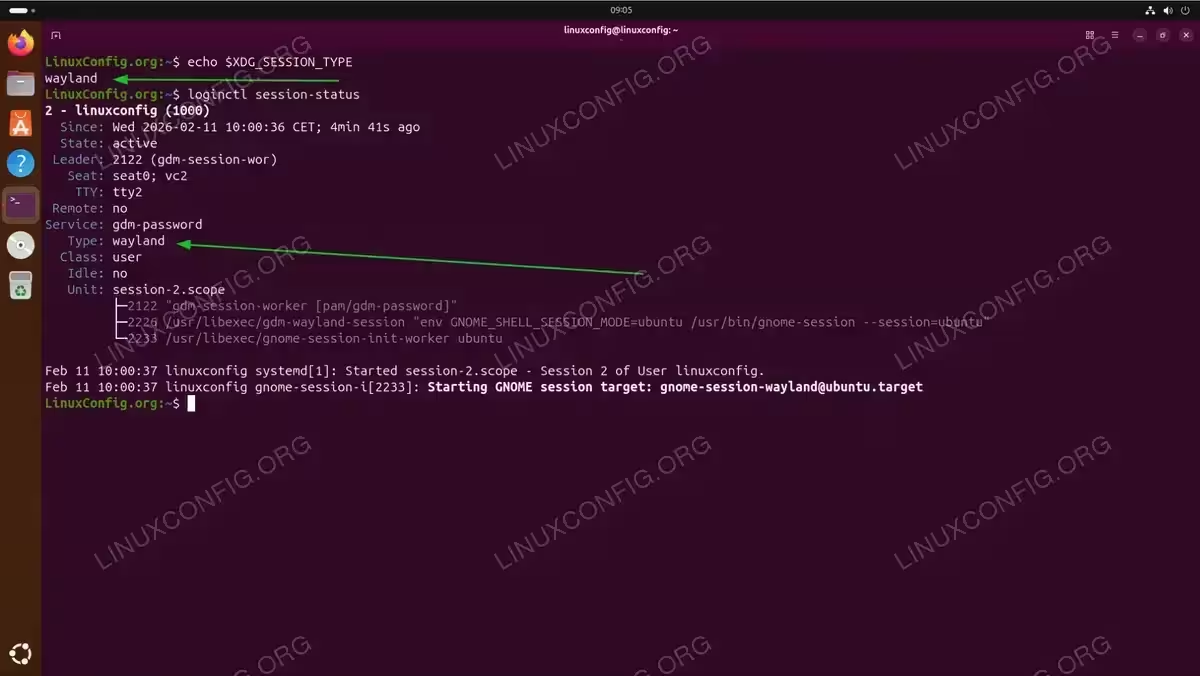
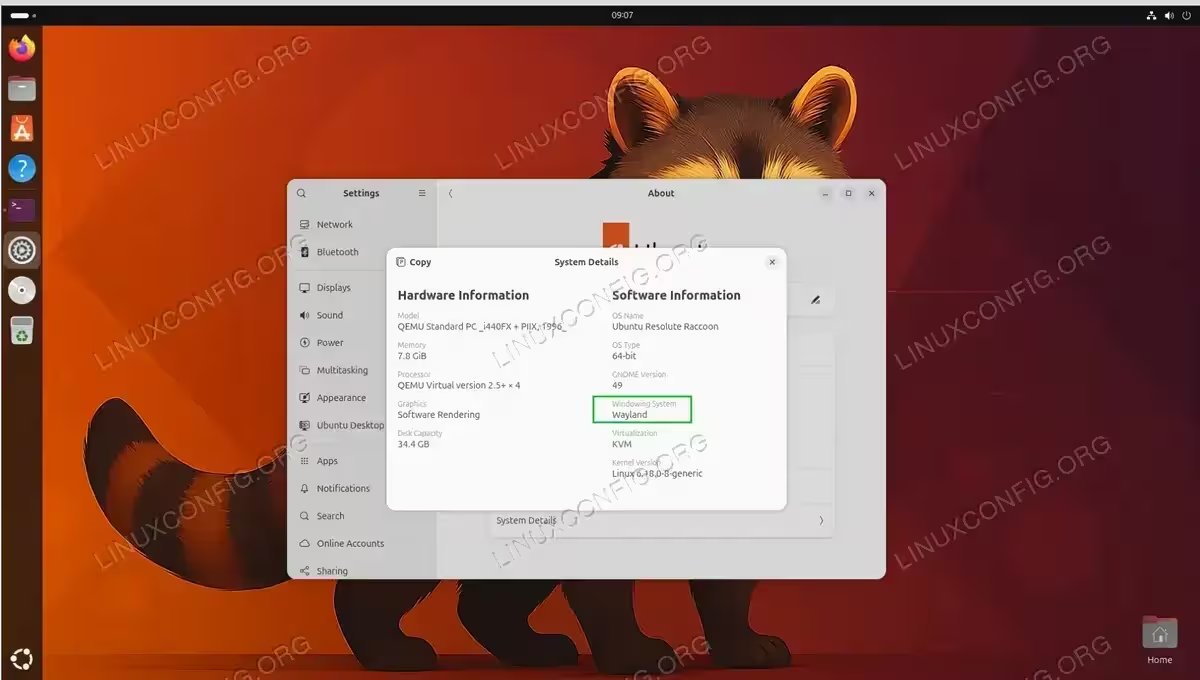
Verifying the Wayland display server session using echo $XDG_SESSION_TYPE and loginctl session-status commands on Ubuntu 26.04 - Verify from GNOME Settings: You can also confirm the display server graphically. Open Settings > About > System Details. The Windowing System entry will display Wayland.
Wayland vs X11: What Changed in Ubuntu 26.04
Ubuntu 26.04 marks a significant milestone by removing the X11 GNOME session packages entirely. In previous releases such as Ubuntu 24.04, users could choose between Wayland and X11 at the GDM login screen. That option no longer exists for GNOME on Ubuntu 26.04.
Why Ubuntu Dropped X11 for GNOME
The X Window System (X11) served as the default display protocol on Linux desktops for over three decades. However, its architecture carries inherent limitations that became increasingly difficult to work around. X11’s client-server model allows any application to capture input and read pixels from other windows, which creates a fundamental security weakness. Moreover, X11 lacks native support for modern features such as per-monitor fractional scaling, smooth multi-touch gestures, and efficient buffer management.
Wayland, by contrast, uses a compositor-based architecture where each application communicates directly with the compositor. Therefore, applications cannot snoop on each other, which results in significantly improved security. The protocol also handles display synchronization natively, which eliminates screen tearing without additional configuration.
Practical Impact for Users
For the majority of users, this transition is seamless. Modern GTK and Qt applications already support Wayland natively. However, some older applications, specific remote desktop workflows, and certain NVIDIA configurations may require attention. The sections below address these scenarios in detail.
IMPORTANT
If you rely on desktop environments other than GNOME, such as KDE Plasma or Xfce, those environments may still offer X11 sessions on Ubuntu 26.04. This guide focuses specifically on the default GNOME desktop.
Understanding XWayland Compatibility on Ubuntu 26.04
Even though Ubuntu 26.04 runs GNOME exclusively on Wayland, legacy X11 applications are not left behind. XWayland is an X11 server that runs as a Wayland client, providing a compatibility layer for applications that have not yet been ported to Wayland natively. It is installed by default on Ubuntu 26.04.
How XWayland Works
When you launch an X11 application on a Wayland session, XWayland intercepts the X11 protocol calls and translates them into Wayland protocol calls. The compositor then renders the application window alongside native Wayland windows. This process is transparent to the user, and most X11 applications run without any modification.
However, XWayland applications have certain limitations compared to native Wayland applications. They cannot take advantage of per-window fractional scaling, may exhibit slight input latency, and cannot use Wayland-native features such as secure clipboard isolation.
Identifying XWayland Applications
To determine which of your running applications are using XWayland rather than native Wayland, use the following methods:
- Using
xlsclients: This command lists all applications connected to the XWayland server:$ xlsclients
Any application appearing in the output is running through XWayland. If you have no X11 applications open, the output will be empty.
- Using the
xeyestrick: Install and run the classicxeyesapplication:$ sudo apt install x11-apps $ xeyes
The eyes follow your cursor only when it hovers over XWayland application windows. When your cursor is over a native Wayland window, the eyes stop tracking. This provides a visual method to identify which windows are running through XWayland.
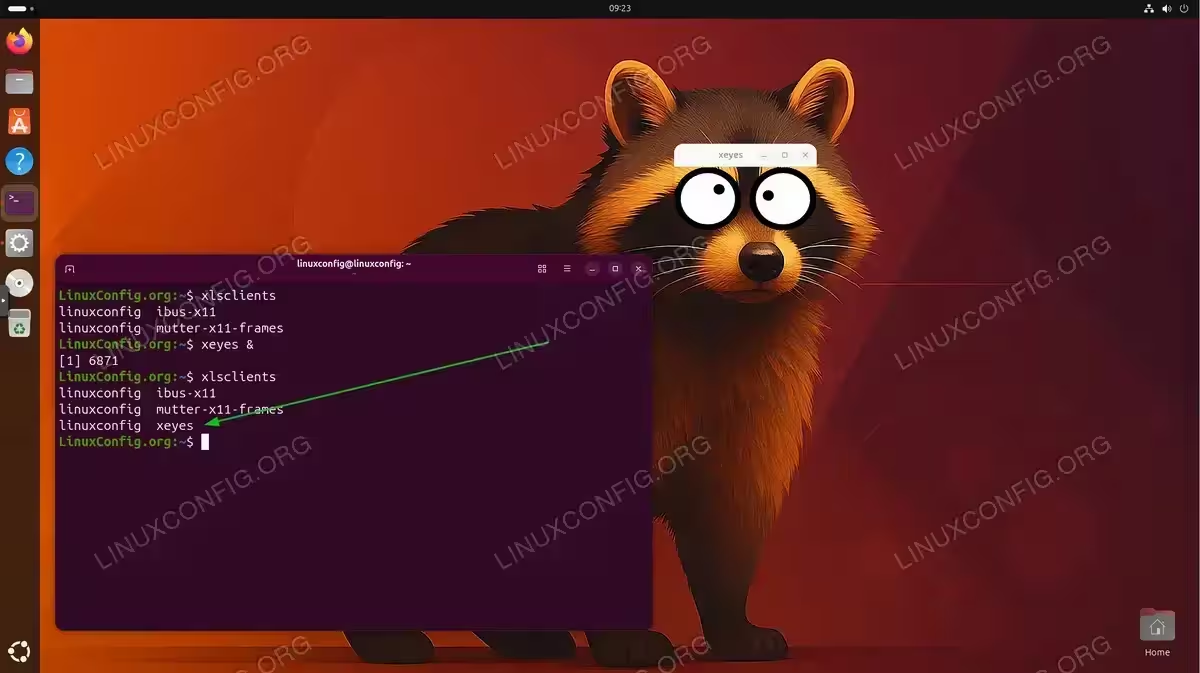
Using xlsclients to list XWayland applications and xeyes to visually identify XWayland windows. The xeyes application cannot track the cursor over the native Wayland terminal window. - Using GNOME’s
looking-glasstool: PressAlt+F2, typelg, and press Enter to open GNOME’s built-in inspector. Navigate to the Windows tab where each window’s type is listed, including whether it uses XWayland.
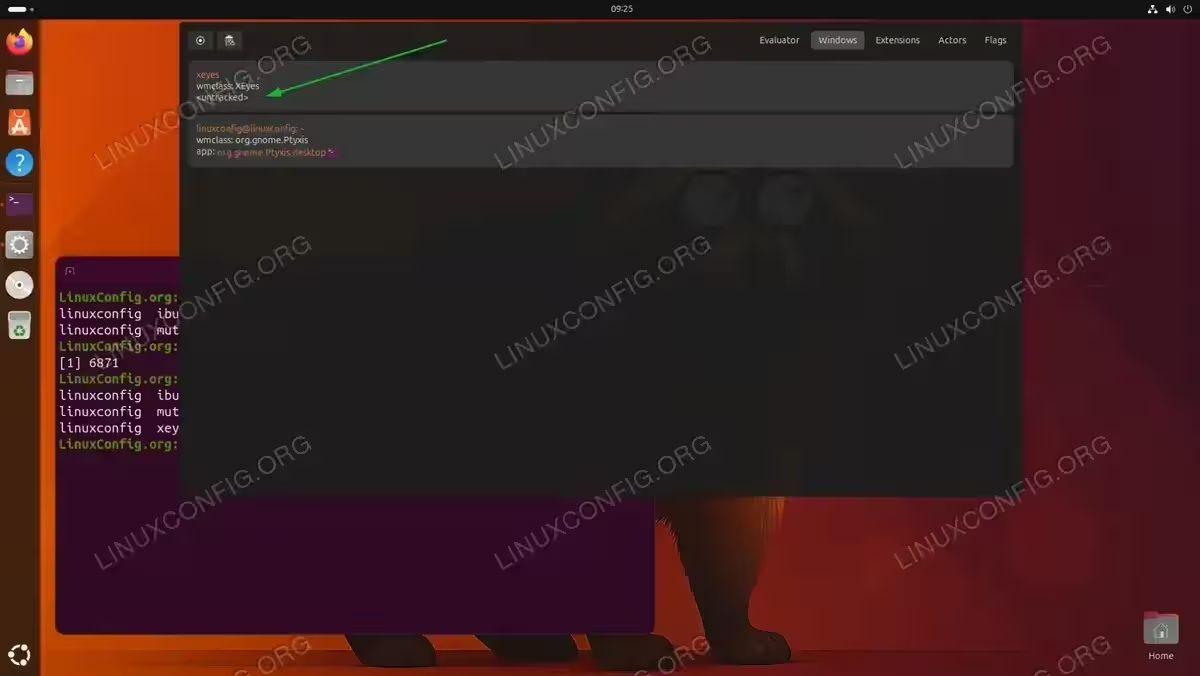
Configuring Wayland Environment Variables on Ubuntu 26.04
While many applications detect Wayland automatically, some require explicit environment variables to run natively on Wayland instead of falling back to XWayland. Configuring these variables ensures optimal performance and full integration with the Wayland compositor.
Per-Application Environment Variables
The following table lists the most commonly needed environment variables for Wayland on Ubuntu 26.04:
| Variable | Value | Affected Applications |
|---|---|---|
MOZ_ENABLE_WAYLAND |
1 |
Firefox (typically auto-detected on Ubuntu 26.04) |
ELECTRON_OZONE_PLATFORM_HINT |
auto |
Electron-based apps (VS Code, Slack, Discord, etc.) |
QT_QPA_PLATFORM |
wayland |
Qt5/Qt6 applications |
GDK_BACKEND |
wayland |
GTK applications (rarely needed on GNOME) |
SDL_VIDEODRIVER |
wayland |
SDL2-based applications and games |
Setting Variables Globally
To apply environment variables for all applications system-wide, create a configuration file in /etc/environment.d/:
- Create a Wayland environment configuration file:
# sudo nano /etc/environment.d/90-wayland.conf
Add the following content:
ELECTRON_OZONE_PLATFORM_HINT=auto
QT_QPA_PLATFORM=wayland
This file is read by
systemdat session startup and applies to all user sessions. - Log out and log back in: The changes take effect on the next login session. Verify the variables are set:
$ env | grep -E "ELECTRON|QT_QPA"
INSTALLATION TIPS
Setting QT_QPA_PLATFORM=wayland globally may cause issues with Qt applications that do not have Wayland support. If an application fails to start, launch it with QT_QPA_PLATFORM=xcb app-name to force XWayland for that specific application.
Setting Variables per Application via Desktop Files
For individual applications, you can modify their .desktop files. For example, to force VS Code to use native Wayland:
- Copy the desktop file to your local directory:
$ cp /usr/share/applications/code.desktop ~/.local/share/applications/
- Edit the Exec line:
$ nano ~/.local/share/applications/code.desktop
Change:
Exec=/usr/share/code/code %F
To:
Exec=env ELECTRON_OZONE_PLATFORM_HINT=auto /usr/share/code/code %F
Troubleshooting Common Wayland Issues on Ubuntu 26.04
Since Wayland is now the only option for GNOME on Ubuntu 26.04, resolving any issues you encounter is essential rather than simply switching back to X11. The following sections cover the most frequently reported problems and their solutions.
Screen Sharing and Remote Desktop
Screen sharing on Wayland requires the PipeWire media framework and the xdg-desktop-portal system. Unlike X11, Wayland does not allow applications to capture screen content directly, which is by design for security. Instead, applications must request screen access through the desktop portal, which prompts the user for permission.
If screen sharing is not working in applications such as Zoom, Microsoft Teams, or Google Chrome:
- Verify PipeWire is running:
$ systemctl --user status pipewire pipewire-pulse wireplumber
All three services should be active. If any are inactive, start them:
$ systemctl --user enable --now pipewire pipewire-pulse wireplumber
- Verify the desktop portal is running:
$ systemctl --user status xdg-desktop-portal xdg-desktop-portal-gnome
If the GNOME portal is not active, restart it:
$ systemctl --user restart xdg-desktop-portal-gnome
- Ensure the portal backend is installed:
$ sudo apt install xdg-desktop-portal-gnome
This package provides the GNOME-specific portal backend that handles screen capture requests on Wayland.
IMPORTANT
Some older versions of conferencing applications may not support Wayland screen sharing. Ensure you are using the latest version of your application. Chromium-based browsers should use the WebRTC PipeWire integration, which is enabled by default on Ubuntu 26.04.
Fractional Scaling
Wayland on GNOME supports fractional scaling natively through the compositor. If text or UI elements appear too small on a high-DPI display:
- Enable fractional scaling via GNOME Settings: Navigate to Settings > Displays and select a fractional scale value such as 125%, 150%, or 175%.
- Enable fractional scaling via command line: If the option is not visible in Settings:
$ gsettings set org.gnome.mutter experimental-features "['scale-monitor-framebuffer']"
Log out and back in for the changes to take effect.
Note that XWayland applications may appear slightly blurry at fractional scales because they are rendered at integer scaling and then resized by the compositor.
Clipboard Issues Between Wayland and XWayland
Occasionally, copy-paste operations between native Wayland applications and XWayland applications may fail or behave unexpectedly. This occurs because Wayland and X11 use different clipboard protocols.
To resolve clipboard synchronization issues:
- Install
wl-clipboard: This utility bridges the Wayland and X11 clipboards:$ sudo apt install wl-clipboard
- Test clipboard operations: Copy text from a native Wayland application and paste it into an XWayland application, and vice versa. If issues persist, restart the XWayland server by logging out and back in.
NVIDIA GPU Driver Considerations
NVIDIA proprietary drivers have historically been a source of Wayland compatibility issues. On Ubuntu 26.04, NVIDIA driver version 550+ with explicit sync support is required for a stable Wayland experience.
- Verify your NVIDIA driver version:
$ nvidia-smi
Ensure you are running driver version 550 or later.
- Ensure the correct kernel modules are loaded: Verify the
nvidia-drmmodule is loaded with modesetting enabled:$ cat /sys/module/nvidia_drm/parameters/modeset
The output should be
Y. If it is not, add the following kernel parameter to your GRUB configuration:# nano /etc/default/grub
Add
nvidia-drm.modeset=1to theGRUB_CMDLINE_LINUX_DEFAULTline, then update GRUB:# update-grub
Reboot the system for changes to take effect.
SECURITY ALERT
If your NVIDIA driver is outdated or misconfigured, the system may fall back to a basic session or fail to start the graphical environment. Always verify driver compatibility before rebooting after configuration changes.
[IMAGE PLACEHOLDER: Terminal screenshot showing nvidia-smi output with driver version and nvidia_drm modeset parameter verification]
Disabling Wayland at GDM Level on Ubuntu 26.04
In certain edge cases, you may need to disable Wayland at the GDM login manager level. This is relevant when using specific remote desktop tools, legacy virtualization software, or hardware configurations that are fundamentally incompatible with Wayland. Keep in mind that disabling Wayland for GNOME on Ubuntu 26.04 will not provide an X11 GNOME session, as those packages are no longer available. Instead, the system will fall back to a basic session or require an alternative desktop environment with X11 support.
- Edit the GDM configuration file:
# nano /etc/gdm3/custom.conf
Find the
[daemon]section and uncomment or add:[daemon] WaylandEnable=false
- Restart GDM: Apply the changes by restarting the display manager:
# systemctl restart gdm3
Alternatively, reboot the system.
- Re-enable Wayland when ready: To enable Wayland again, set
WaylandEnable=truein the same file or simply remove the line.
IMPORTANT
Disabling Wayland without an alternative X11 desktop environment installed will result in a limited or non-functional graphical session. If you need X11 functionality, consider installing a desktop environment that still provides X11 sessions, such as Xfce or KDE Plasma, before disabling Wayland.
If your use case requires setting Wayland as default again after changes, simply revert the GDM configuration. Furthermore, if you are evaluating whether to switch from X11 to Wayland on a system with multiple desktop environments, this same GDM configuration controls which protocol is used.
Conclusion
Ubuntu 26.04 solidifies Wayland as the standard display server for the GNOME desktop by removing the X11 session option entirely. As a result, understanding how Wayland works, how XWayland maintains backward compatibility, and how to configure environment variables for native Wayland support is now essential knowledge for Ubuntu desktop users. Moreover, knowing how to troubleshoot screen sharing, fractional scaling, and NVIDIA driver issues ensures you can resolve the most common pain points. For users who previously relied on installing Wayland separately, Ubuntu 26.04 has simplified the experience by making it the default and only option for GNOME.
Frequently Asked Questions
- Can I still use X11 with GNOME on Ubuntu 26.04? No. Ubuntu 26.04 has removed the X11 GNOME session packages. GNOME runs exclusively on Wayland. However, legacy X11 applications continue to work through the XWayland compatibility layer, which is installed by default. If you specifically need an X11 session, you can install an alternative desktop environment such as Xfce or KDE Plasma, which may still offer X11 options.
- How do I fix screen sharing not working on Wayland? Screen sharing on Wayland requires PipeWire and the xdg-desktop-portal service. Verify both are running with
systemctl --user status pipewireandsystemctl --user status xdg-desktop-portal-gnome. Additionally, ensure your conferencing application supports Wayland screen capture. Most modern versions of Zoom, Teams, and Chromium-based browsers support this natively on Ubuntu 26.04. - Why do some applications look blurry on Wayland with fractional scaling? Applications running through XWayland (legacy X11 apps) are rendered at integer scaling and then resized by the Wayland compositor, which can cause blurriness. The solution is to use the native Wayland version of the application when available, or set appropriate environment variables such as
ELECTRON_OZONE_PLATFORM_HINT=autofor Electron-based applications to force native Wayland rendering. - How do I know if an application is running on Wayland or XWayland? You can use the
xlsclientscommand to list all applications running through XWayland. Alternatively, installx11-appsand runxeyes, which tracks your cursor only when it is over XWayland windows. GNOME’s Looking Glass inspector (Alt+F2, then typelg) also shows window types. - Do I need to configure anything special for NVIDIA GPUs on Wayland? NVIDIA GPUs require proprietary driver version 550 or later with
nvidia-drm.modeset=1enabled as a kernel parameter. Verify your driver version withnvidia-smiand check modesetting withcat /sys/module/nvidia_drm/parameters/modeset. Ubuntu 26.04 typically configures this automatically during driver installation, but manual verification is recommended after upgrades.
