
Ubuntu 26.04 comes with UFW (Uncomplicated Firewall) pre-installed but disabled by default. This brief guide shows you how to enable UFW firewall in terminal on Ubuntu 26.04, whether you want it active for the current session or persistently after reboot.
Table of Contents
In this tutorial you will learn:
- How to enable UFW firewall on Ubuntu 26.04
- How to verify firewall status
- How to enable UFW at system startup
Software Requirements
| Category | Requirements, Conventions or Software Version Used |
|---|---|
| System | Ubuntu 26.04 Resolute Raccoon |
| Software | UFW (pre-installed) |
| Other | Privileged access to your Linux system as root or via the sudo command. |
| Conventions | # – requires given linux commands to be executed with root privileges either directly as a root user or by use of sudo command$ – requires given linux commands to be executed as a regular non-privileged user |
sudo ufw enable. The firewall activates immediately and persists after reboot.
| Step | Command/Action |
|---|---|
| 1. Enable firewall | sudo ufw enable |
| 2. Verify status | sudo ufw status |
| 3. Check startup setting | systemctl is-enabled ufw |
Enable UFW Firewall on Ubuntu 26.04
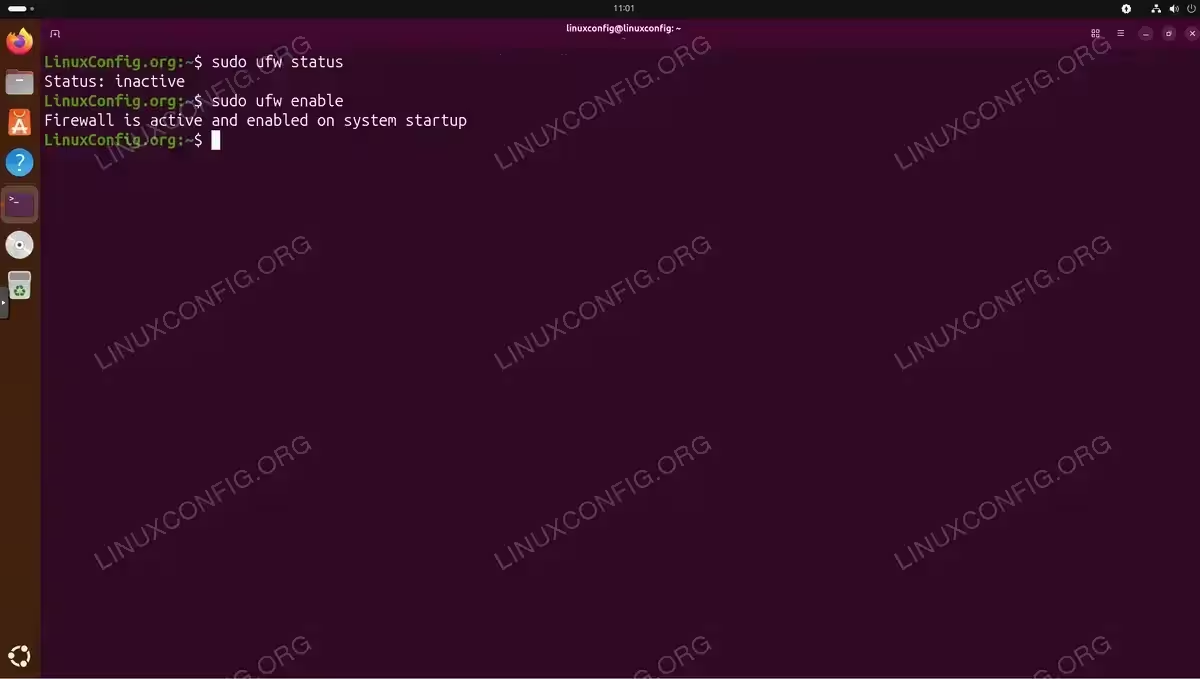
To enable UFW firewall in terminal on Ubuntu 26.04, execute the following command:
$ sudo ufw enable
You will see output confirming activation:
Firewall is active and enabled on system startup
This single command accomplishes two things: it activates the firewall immediately and configures it to start automatically on every boot. There is no separate step needed for persistence.
IMPORTANT
If you are connected via SSH, ensure you have allowed SSH access before enabling UFW. Run sudo ufw allow ssh first to avoid being locked out of your server.
Verify Firewall Status on Ubuntu 26.04
After enabling UFW, verify the firewall status with:
$ sudo ufw status
For a more detailed view including default policies:
$ sudo ufw status verbose
To confirm UFW is configured to start at boot:
$ systemctl is-enabled ufw
The output should show enabled. For more detailed information about UFW configuration options, including how to add rules and open ports, see our comprehensive UFW guide. If you need to disable the firewall later, that process is equally straightforward.
COMPLETED
Your UFW firewall is now active and will protect your Ubuntu 26.04 system on every boot.
Conclusion
Enabling UFW firewall on Ubuntu 26.04 requires just one command: sudo ufw enable. The firewall activates immediately and automatically starts on system boot. For additional firewall management tasks such as opening ports or creating custom rules, refer to the official Ubuntu UFW documentation.
Frequently Asked Questions
- Does UFW stay enabled after reboot? Yes. When you run
sudo ufw enable, the firewall is configured to start automatically on every system boot. No additional configuration is required for persistence. - What if I get “ufw command not found”? While UFW comes pre-installed on Ubuntu 26.04, if you encounter this error, install it with
sudo apt install ufw. See our UFW troubleshooting guide for more details. - Will enabling UFW block my SSH connection? By default, UFW denies all incoming connections when enabled. If you are connected remotely via SSH, run
sudo ufw allow sshbefore enabling the firewall to maintain access.
