
Ubuntu 26.04 marks a significant shift in display server technology, with Wayland becoming the exclusive default for major desktop environments. While this transition brings enhanced security and performance, some users require X11 (also known as X.Org or Xorg) for specific applications, hardware compatibility, or remote desktop workflows. This comprehensive guide shows you how to install x11 ubuntu 26.04, configure desktop-specific X11 sessions, and switch between display servers as needed.
Table of Contents
In this tutorial you will learn:
- Why X11 is no longer included by default
- How to install base Xorg packages
- Desktop-specific X11 session installation
- How to verify your current display server
- How to switch between X11 and Wayland sessions
Software Requirements
| Category | Requirements, Conventions or Software Version Used |
|---|---|
| System | Ubuntu 26.04 Resolute Raccoon |
| Software | X.Org Server 21.x (available from Ubuntu repositories) |
| Other | Privileged access to your Linux system as root or via the sudo command. |
| Conventions | # – requires given linux commands to be executed with root privileges either directly as a root user or by use of sudo command$ – requires given linux commands to be executed as a regular non-privileged user |
| Step | Command/Action |
|---|---|
| 1. Update system packages | sudo apt update |
| 2. Install base Xorg | sudo apt install xorg -y |
| 3. Install desktop X11 session (KDE example) | sudo apt install plasma-session-x11 -y |
| 4. Reboot and select X11 session at login | sudo reboot |
Understanding the X11 Change in Ubuntu 26.04
Ubuntu 26.04 represents a pivotal moment in Linux desktop evolution. The distribution has transitioned to Wayland as the exclusive display server for major desktop environments, specifically GNOME and KDE Plasma. This change reflects broader industry trends toward modern display server technology.
Why X11 Was Removed
Starting with Ubuntu 25.10, Canonical made the strategic decision to remove X11 sessions from default installations. This decision was driven by upstream projects: GNOME completely removed X11 support code in GNOME 49, while KDE Plasma no longer includes X11 sessions by default. Consequently, fresh installations of Ubuntu 26.04 ship exclusively with Wayland sessions.
The reasons behind this transition include improved security architecture, better support for modern hardware features like high-DPI displays and multi-monitor setups, reduced input latency, and streamlined development focus. Wayland’s design addresses fundamental security limitations in X11’s architecture, where any application could monitor keystrokes from other applications.
When You Need X11
Despite Wayland’s advantages, several scenarios still require X11:
- Legacy applications: Some older software lacks Wayland support and doesn’t function properly through XWayland compatibility layer
- Remote desktop solutions: Certain remote access tools work exclusively with X11
- Screen recording and automation: Some specialized tools require direct X11 access
- Hardware compatibility: Older graphics drivers may have better X11 support
- Development and testing: Developers maintaining X11 applications need native X11 environments
WAYLAND COMPATIBILITY
Most modern applications run seamlessly on Wayland through XWayland, which provides X11 application compatibility. Test your critical applications on Wayland first before installing X11, as you may not need it.
Base Xorg Installation
The X.Org Server remains available in Ubuntu 26.04 repositories. Installing the base Xorg package provides the foundational X11 display server components needed for any X11 session.
Installing Core Xorg Packages
First, ensure your system package list is current:
$ sudo apt update
Then install the Xorg server and essential components:
$ sudo apt install xorg -y
This command installs the X.Org X Window System, including the X server, video drivers, input device drivers, and fundamental X11 libraries. The installation typically downloads approximately 150-200MB of packages and requires about 500MB of disk space.
The xorg metapackage includes:
- xserver-xorg-core: The core X11 server
- xserver-xorg-video-*: Video drivers for various graphics hardware
- xserver-xorg-input-*: Input device drivers for keyboards, mice, and touchpads
- x11-xserver-utils: Essential X11 utilities like xrandr and xsetroot
Additional X11 Utilities
For a more complete X11 environment, consider installing additional utility packages:
$ sudo apt install x11-apps x11-utils -y
These packages provide useful tools for testing and managing your X11 environment:
- x11-apps: Basic X applications like xclock, xeyes, and xlogo for testing
- x11-utils: Diagnostic utilities including xdpyinfo, xwininfo, and xprop
Desktop Environment X11 Sessions
After installing base Xorg packages, you need desktop-specific X11 session files to actually use X11 with your desktop environment. Requirements vary significantly between desktop environments.
KDE Plasma X11 Session
KDE Plasma supports X11 but doesn’t include it by default in Ubuntu 26.04. Install the X11 session package separately:
$ sudo apt install plasma-session-x11 -y
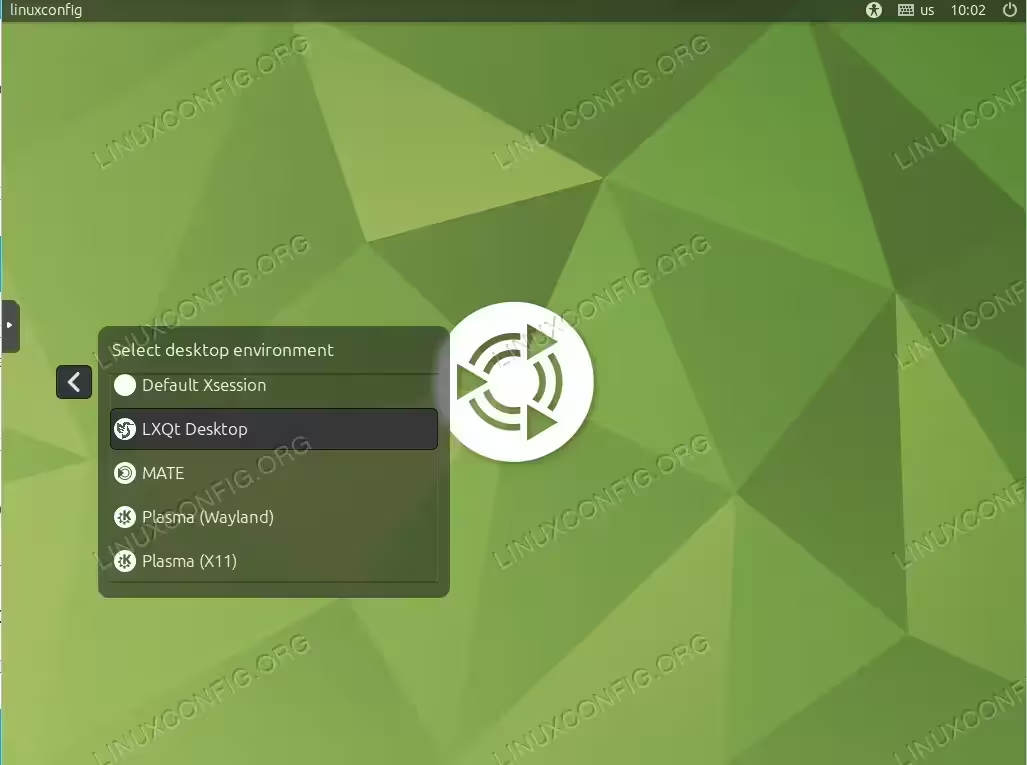
This package provides the “Plasma (X11)” session option at the SDDM login screen. After installation and reboot, you can select between “Plasma (Wayland)” and “Plasma (X11)” sessions.
KDE X11 DEPRECATION
KDE plans to remove X11 support entirely in Plasma 6.8 (expected late 2026). The X11 session is maintained for compatibility but receives limited development focus.
GNOME X11 Session
GNOME presents a different situation. The GNOME project completely removed X11 support code from GNOME 49 (shipped in Ubuntu 25.10 and later). Therefore, GNOME X11 sessions cannot be installed on Ubuntu 26.04 regardless of Xorg installation.
Users requiring GNOME with X11 have two options:
- Continue using Ubuntu 24.04 LTS, which includes GNOME X11 sessions and receives support until 2029
- Switch to an alternative desktop environment that maintains X11 support
Alternative Desktop Environments with Built-in X11
Several desktop environments continue supporting X11 as their primary or co-equal display server. These environments include X11 support automatically when installed:
Xfce Desktop
Xfce remains primarily X11-focused with excellent stability:
$ sudo apt install xfce4 xfce4-goodies -y
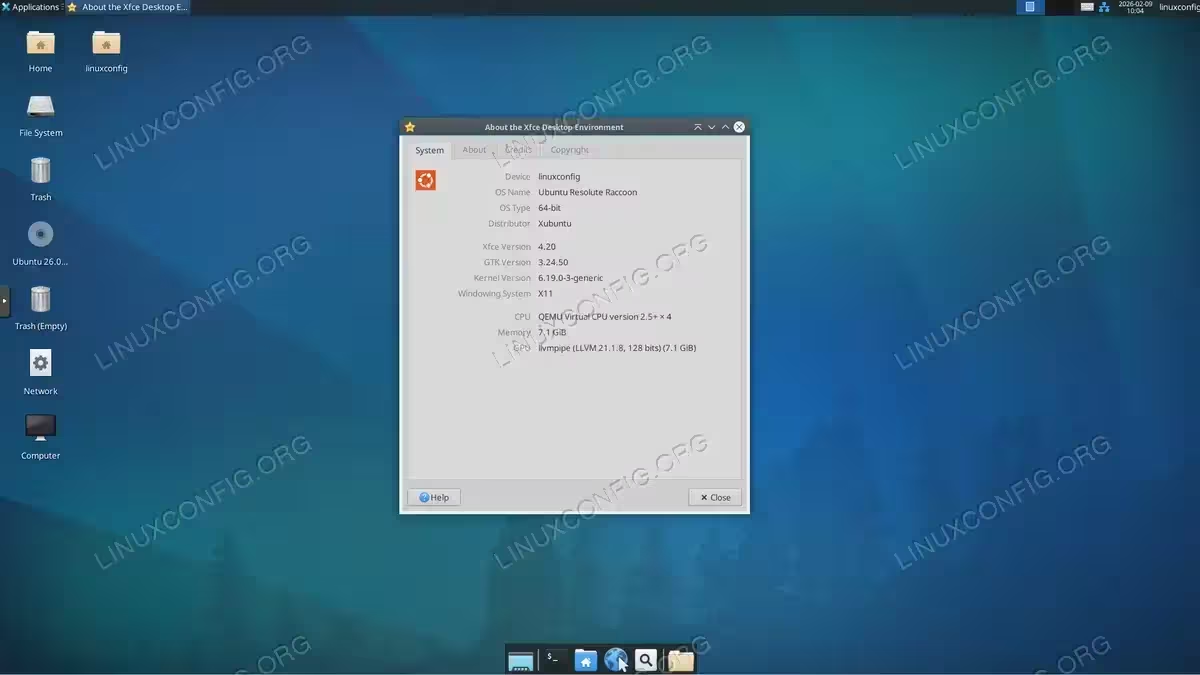
Xfce provides a lightweight, traditional desktop experience with comprehensive X11 support. The desktop environment works reliably with older hardware and maintains excellent performance.
MATE Desktop
MATE, a GNOME 2 fork, continues prioritizing X11 support:
$ sudo apt install ubuntu-mate-desktop -y
MATE offers a classic desktop layout familiar to users of older GNOME versions. The environment has begun Wayland development but maintains X11 as the primary focus.
Cinnamon Desktop
Cinnamon, Linux Mint’s flagship desktop, remains X11-native:
$ sudo apt install cinnamon-desktop-environment -y
Cinnamon provides a modern, elegant interface while maintaining full X11 compatibility. The development team is working toward Wayland support but hasn’t set a firm timeline for transition.
LXQt Desktop
LXQt offers a lightweight Qt-based desktop with X11 support:
$ sudo apt install lxqt -y
LXQt focuses on resource efficiency while providing a complete desktop environment. It works particularly well on older hardware or systems with limited resources.
Verifying Your Display Server
After installing X11 and rebooting, verify which display server your current session uses.
Checking Current Session Type
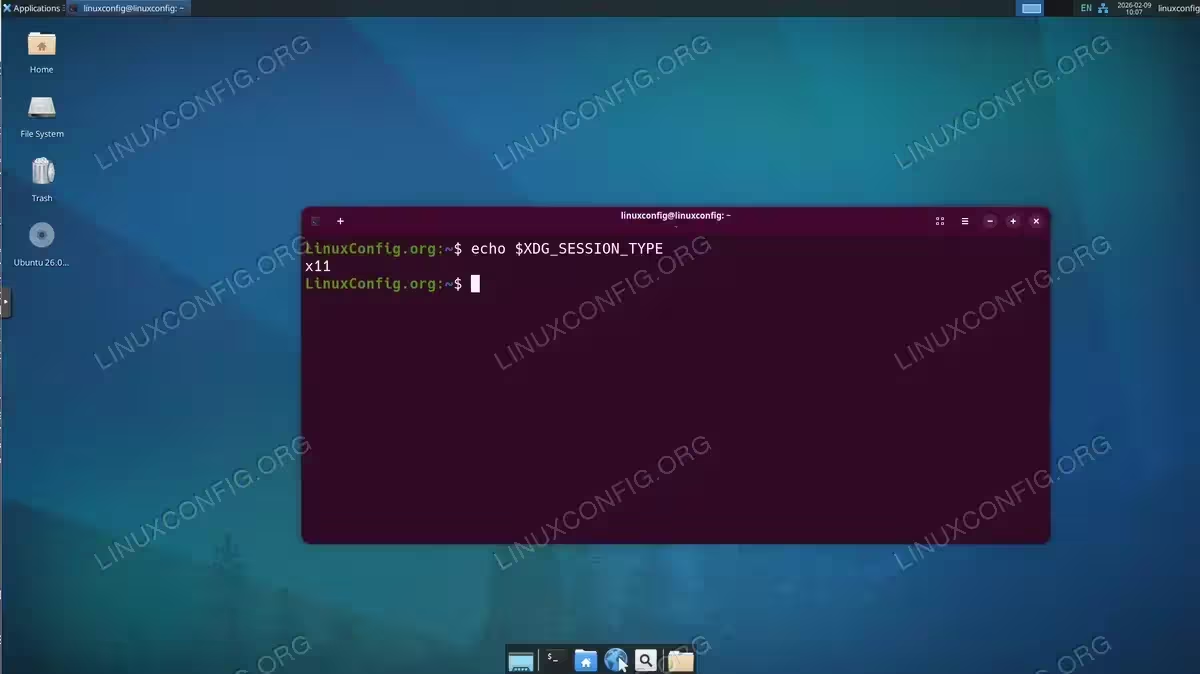
The simplest verification method uses an environment variable:
$ echo $XDG_SESSION_TYPE
This command returns either x11 or wayland, indicating your current session’s display server.
Example output for X11 session:
x11
Example output for Wayland session:
wayland
Detailed Session Information
For more comprehensive session details, use the loginctl command:
$ loginctl show-session $(loginctl | grep $(whoami) | awk '{print $1}') -p Type
This command displays the session type property from systemd’s login manager.
Verifying Xorg Process
When running an X11 session, the Xorg server process should be active:
$ ps aux | grep Xorg
Look for a running Xorg process. If you see the Xorg process with various parameters, your X11 server is running successfully.
Switching Between X11 and Wayland
Ubuntu 26.04 allows switching between X11 and Wayland sessions at login, provided both are installed and your desktop environment supports both protocols.
Selecting Session at Login
The session selection process occurs at your display manager (login screen):
- Log out of your current session: Click your system menu and select “Log Out” to return to the login screen
- Access session selection: At the login screen, click your username to reveal the password field. Before entering your password, locate the session selector icon (typically a gear icon or session name) in the corner of the screen
- Choose your session: Click the session selector to display available options. For KDE Plasma, you’ll see:
- Plasma (Wayland) – Default Wayland session
- Plasma (X11) – X11 session (if plasma-session-x11 installed)
For Xfce, MATE, Cinnamon, or LXQt, the standard session uses X11 by default
- Log in: After selecting your preferred session, enter your password and log in. The display manager remembers your selection for future logins
Display Manager Differences
Different display managers present session selection slightly differently:
- SDDM (KDE Plasma): Session selector appears as “Desktop Session” in the bottom-left corner
- GDM3 (GNOME/Ubuntu): Gear icon appears near the “Sign In” button
- LightDM (Xfce, MATE): Session dropdown menu typically appears at the top of the login screen
Making X11 Permanent Default
Your session selection persists automatically across reboots. To ensure X11 remains the default, simply select the X11 session once at login. The display manager stores this preference and uses it for all subsequent logins until you manually change it again.
Troubleshooting Common Issues
When installing or using X11 on Ubuntu 26.04, you may encounter various issues. Here are solutions to common problems.
X11 Session Not Appearing at Login
If the X11 session option doesn’t appear after installation, verify the session file exists:
$ ls /usr/share/xsessions/
For KDE Plasma, look for plasmax11.desktop. If missing, reinstall the session package:
$ sudo apt install --reinstall plasma-session-x11
Then restart your display manager:
$ sudo systemctl restart sddm
(Replace sddm with gdm3 or lightdm depending on your display manager)
Black Screen After Selecting X11 Session
A black screen typically indicates video driver issues. First, try switching to a text console (Ctrl+Alt+F3) and check Xorg logs:
$ cat /var/log/Xorg.0.log | grep EE
The output shows error messages (marked with “EE”) that indicate the problem. Common causes include:
- Missing video drivers: Install appropriate drivers for your graphics hardware
- Configuration conflicts: Remove or backup
/etc/X11/xorg.confif it exists - Insufficient permissions: Ensure your user belongs to the
videogroup
To add your user to the video group:
$ sudo usermod -a -G video $USER
Log out and back in for the change to take effect.
GNOME Not Offering X11 Session
As mentioned earlier, GNOME completely removed X11 support. If you require GNOME with X11:
- Use Ubuntu 24.04 LTS, which includes GNOME X11 sessions
- Switch to a different desktop environment that supports X11
- Continue using GNOME on Wayland and report compatibility issues to application developers
GNOME X11 REMOVAL
GNOME X11 sessions cannot be restored on Ubuntu 26.04. The X11 code was completely removed from GNOME 49 upstream, making it impossible to run GNOME Shell on X11 regardless of Xorg installation.
Applications Not Starting Under X11
Some applications may fail to start in X11 sessions due to Wayland-specific dependencies. Check application output for errors:
$ application-name 2>&1 | grep -i display
If the application expects Wayland, you may need to:
- Check for X11-compatible versions or flags
- Install X11-specific packages (e.g.,
qt5-x11extrasfor Qt applications) - Set the
QT_QPA_PLATFORM=xcbenvironment variable for Qt applications
Poor Performance or Tearing
If you experience screen tearing or poor performance under X11:
First, enable the compositor if your desktop environment has one disabled. For Xfce:
$ xfconf-query -c xfwm4 -p /general/use_compositing -s true
For environments using Compton/Picom, install and configure it:
$ sudo apt install picom -y
Additionally, verify that your graphics drivers are properly installed and configured. Proprietary drivers often provide better performance than open-source alternatives for NVIDIA hardware.
Package Conflict: libpeas During Desktop Environment Installation
When installing desktop environments like Cinnamon, MATE, or Xfce, you may encounter a package conflict error with libpeas:
dpkg: error processing archive /var/cache/apt/archives/libpeas-1.0-1_1.38.1-1_amd64.deb (--unpack):
 trying to overwrite '/usr/lib/x86_64-linux-gnu/libpeas-1.0/loaders/libpython3loader.so', which is also in package libpeas-1.0-0:amd64
This error occurs when transitioning between libpeas package versions, where both the old (libpeas-1.0-0) and new (libpeas-1.0-1) versions contain the same file. The package manager cannot proceed because it would overwrite an existing file.
To resolve this conflict, force dpkg to overwrite the conflicting file:
$ sudo dpkg -i --force-overwrite /var/cache/apt/archives/libpeas-1.0-1_1.38.1-1_amd64.deb
$ sudo apt --fix-broken install
The first command forces installation of the new package version, overwriting the conflicting file. The second command resolves any remaining dependency issues and completes the installation. After these commands complete successfully, your desktop environment installation will proceed normally.
PACKAGE CONFLICTS
Package conflicts during Ubuntu 26.04’s development cycle are not uncommon as packages transition between versions. The --force-overwrite flag should only be used when you understand the conflict involves identical files from different package versions.
Conclusion
Installing X11 on Ubuntu 26.04 requires understanding the display server landscape changes and taking deliberate installation steps. While Wayland represents the future of Linux graphics, X11 remains available for users who need it for compatibility, specific applications, or hardware requirements. By installing base Xorg packages and desktop-specific X11 sessions, you can maintain access to traditional X11 functionality alongside modern Wayland capabilities.
Remember that X11 support is gradually diminishing across the Linux ecosystem. KDE Plasma plans to remove X11 in version 6.8, and GNOME has already completed its transition. Therefore, treat X11 as a transitional solution while working toward Wayland compatibility for your workflows. For more information about X11 and Xorg configuration, consult the official X.Org Foundation documentation.
Frequently Asked Questions
- Can I install GNOME with X11 on Ubuntu 26.04? No, GNOME completely removed X11 support code in GNOME 49, which ships with Ubuntu 26.04. There is no way to restore GNOME X11 sessions on Ubuntu 26.04. Users requiring GNOME with X11 should use Ubuntu 24.04 LTS, which maintains GNOME X11 sessions until 2029, or switch to alternative desktop environments like Xfce, MATE, or Cinnamon that continue supporting X11.
- Will installing X11 affect my existing Wayland session? No, installing X11 does not affect or interfere with Wayland sessions. Both display servers can coexist on the same system, and you can freely switch between them at login. Your desktop environment, applications, and settings remain separate for each session type, allowing you to use whichever works best for specific tasks or applications.
- How do I know if I’m currently using X11 or Wayland? Run the command
echo $XDG_SESSION_TYPEin a terminal. It will return either “x11” or “wayland” indicating your current display server. You can also check by runningloginctl show-session $(loginctl | grep $(whoami) | awk '{print $1}') -p Typefor more detailed session information from systemd’s login manager. - Which desktop environments still support X11 in Ubuntu 26.04? Xfce, MATE, Cinnamon, and LXQt all maintain full X11 support and include it by default when installed. KDE Plasma supports X11 through an optional package (plasma-session-x11) but plans to remove support in Plasma 6.8. GNOME has completely removed X11 support and cannot run X11 sessions on Ubuntu 26.04 or later versions.
- Is X11 being completely removed from Ubuntu? No, the Xorg packages remain available in Ubuntu repositories. What has changed is that X11 sessions are no longer installed or configured by default for major desktop environments. Users who need X11 can still install it manually. However, upstream desktop environment projects are gradually phasing out X11 support, so long-term availability depends on those upstream decisions rather than Ubuntu itself.
