
This tutorial explains how to install ZFS on Ubuntu 26.04 Resolute Raccoon. ZFS (Zettabyte File System) is an advanced filesystem that combines volume management with a robust file system, offering features like data integrity verification, snapshots, cloning, and RAID-Z support. By following this guide, you will learn to install ZFS on Ubuntu 26.04 and configure basic storage pools for your system.
- How to install ZFS packages on Ubuntu 26.04
- How to verify ZFS kernel module is loaded
- How to create and manage ZFS storage pools
- Basic ZFS filesystem operations
- How to check ZFS pool status and health

Software Requirements
| Category | Requirements, Conventions or Software Version Used |
|---|---|
| System | Ubuntu 26.04 Resolute Raccoon |
| Software | zfsutils-linux, zfs-dkms (optional for custom kernels) |
| Other | Privileged access to your Linux system as root or via the sudo command. |
| Conventions | # – requires given linux commands to be executed with root privileges either directly as a root user or by use of sudo command$ – requires given linux commands to be executed as a regular non-privileged user |
apt package manager to install the zfsutils-linux package.
| Step | Command/Action |
|---|---|
| 1. Update package list | sudo apt update |
| 2. Install ZFS utilities | sudo apt install zfsutils-linux |
| 3. Verify installation | zfs --version |
| 4. Check kernel module | lsmod | grep zfs |
Installing ZFS on Ubuntu 26.04
The ZFS filesystem is available directly from the Ubuntu repositories, making the installation process straightforward. Ubuntu 26.04 includes OpenZFS packages that are pre-built for the distribution’s kernel, so you do not need to compile anything from source.
- Update the package repository: Before installing any new software, ensure your package lists are current.
$ sudo apt update
This command refreshes the local package index with the latest available versions from the Ubuntu repositories.
- Install the ZFS utilities package: The
zfsutils-linuxpackage provides all necessary tools to create and manage ZFS pools and filesystems.$ sudo apt install zfsutils-linux
During installation, the system automatically loads the ZFS kernel module and configures the necessary services. This package includes command-line tools like
zpoolandzfsthat you will use to manage your storage.
NOTE ABOUT LICENSING
ZFS is distributed under the CDDL license, which is incompatible with the GPL. Consequently, ZFS cannot be included directly in the Linux kernel and is instead provided as a separate kernel module. Ubuntu distributes pre-built ZFS modules that match each kernel version.
Verifying the ZFS Install on Ubuntu 26.04
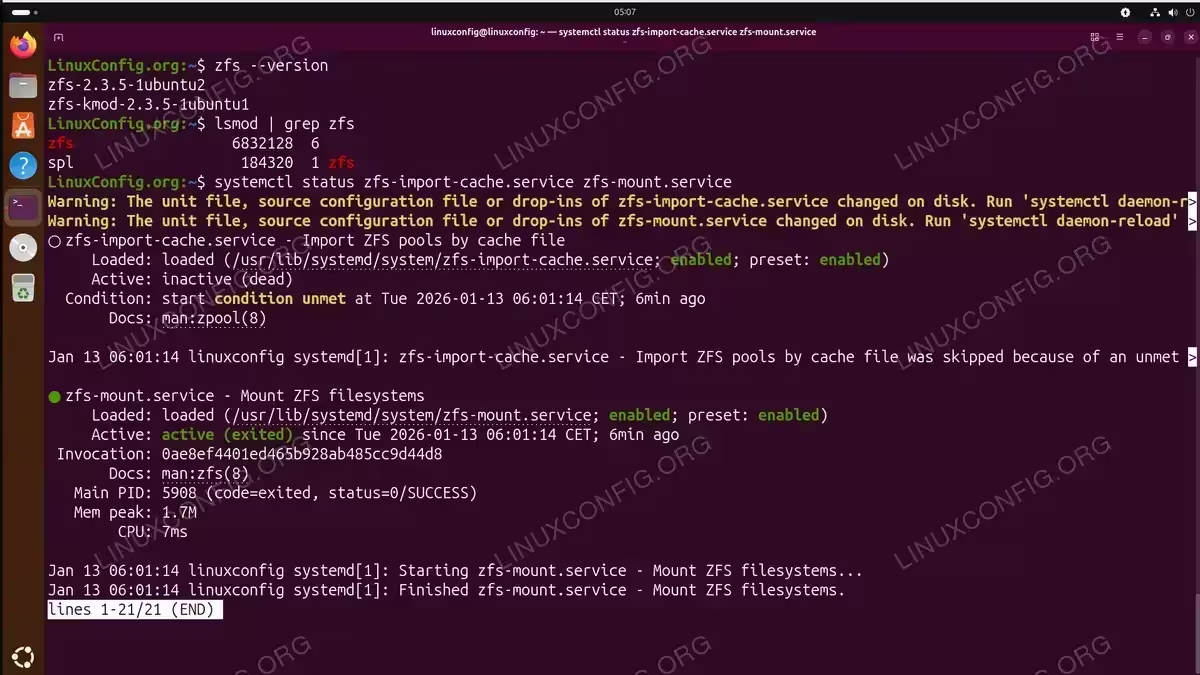
After installation completes, you should verify that ZFS is properly configured and the kernel module is loaded. This verification step ensures everything is working correctly before you begin creating storage pools.
- Check the ZFS version: Confirm that the ZFS utilities are installed and accessible.
$ zfs --version
You should see output displaying the OpenZFS version number, confirming the installation was successful.
- Verify the kernel module is loaded: The ZFS kernel module must be active for ZFS to function.
$ lsmod | grep zfs
This command filters the list of loaded kernel modules to show ZFS-related entries. You should see
zfsalong with its dependencies likespl,znvpair, andzavl. - Check ZFS service status: Ubuntu uses systemd services to manage ZFS mounts and imports at boot time.
$ systemctl status zfs-import-cache.service zfs-mount.service
Both services should show as loaded. The import service handles automatic pool imports during boot, while the mount service manages automatic mounting of ZFS filesystems.
Creating Your First ZFS Pool
With ZFS installed, you can now create storage pools. A ZFS pool (zpool) is a collection of one or more storage devices that ZFS manages as a single unit. Understanding how to create and manage pools is fundamental to using the ZFS filesystem effectively.
WARNING
Creating a ZFS pool will format the specified disks. Ensure you have backed up any data on the target devices before proceeding. Double-check device names using lsblk to avoid data loss.
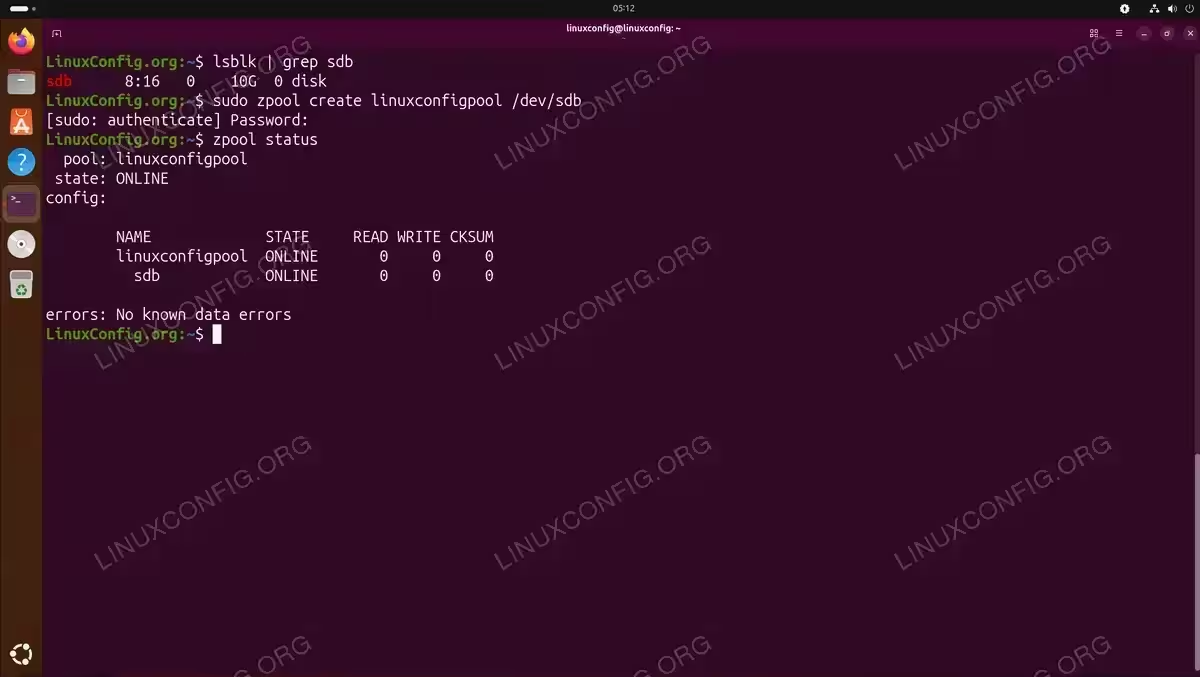
- Identify available disks: List all block devices on your system to find suitable disks for your pool.
$ lsblk
Look for disks that are not currently mounted or in use. For this example, we will use
/dev/sdbas our target device. - Create a simple ZFS pool: Use the
zpool createcommand to create a new storage pool.$ sudo zpool create linuxconfigpool /dev/sdb
This command creates a pool named
linuxconfigpoolusing the entire disk/dev/sdb. ZFS automatically creates a filesystem with the same name and mounts it at/linuxconfigpool. - Verify pool creation: Confirm the pool was created successfully.
$ zpool status
The output displays your new pool’s configuration, including its health status and the devices it contains.
For redundant storage configurations, ZFS supports mirror and RAID-Z layouts. To create a mirrored pool with two disks:
$ sudo zpool create linuxconfigpool mirror /dev/sdb /dev/sdc
For a RAID-Z pool with three or more disks (similar to RAID-5):
$ sudo zpool create linuxconfigpool raidz /dev/sdb /dev/sdc /dev/sdd
TIP
Use meaningful pool names that reflect their purpose, such as datapool or backup. Avoid generic names like pool1 as they become confusing when managing multiple pools.
Basic ZFS Commands
Once you have ZFS installed on Ubuntu 26.04, you will regularly use several commands for day-to-day management. This section covers essential operations for working with pools and filesystems.
Pool Management Commands
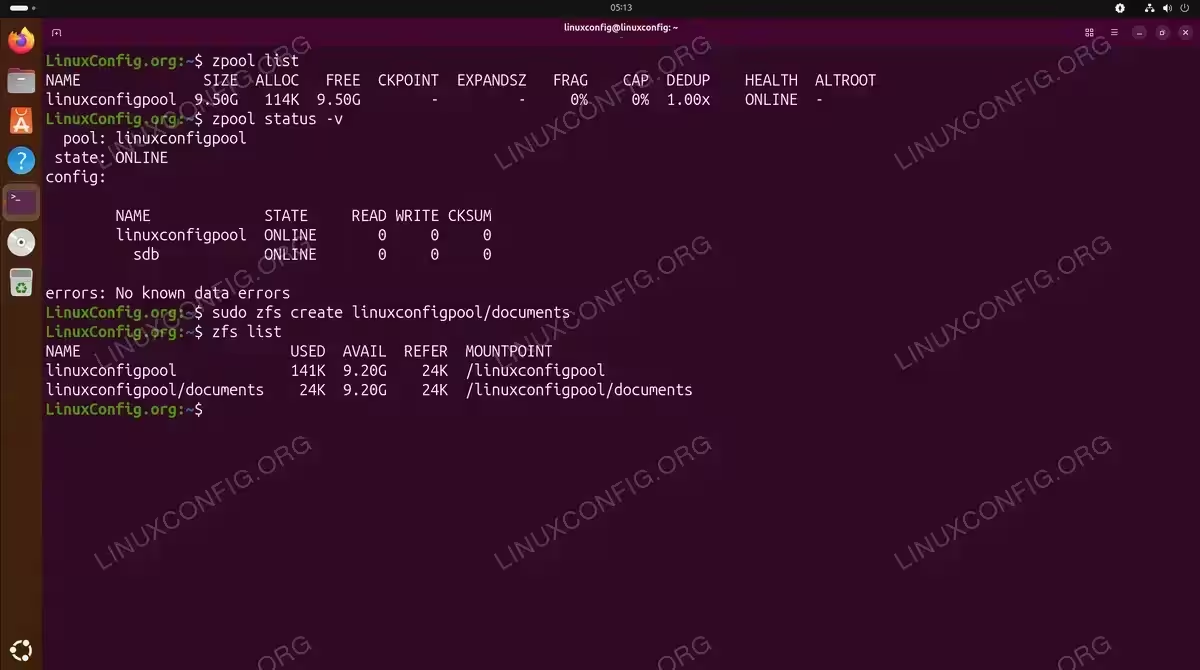
- List all pools: Display all ZFS pools on the system.
$ zpool list
Shows pool name, size, allocation, free space, and health status.
- Check pool health: View detailed status information for all pools.
$ zpool status -v
The
-vflag provides verbose output including any errors detected on the disks. - Export a pool: Prepare a pool for removal or transport to another system.
$ sudo zpool export linuxconfigpool
Exporting unmounts all filesystems and removes the pool from the system without destroying data.
- Import a pool: Bring an exported pool back online.
$ sudo zpool import linuxconfigpool
ZFS scans available devices and imports the specified pool.
Filesystem Management Commands
- Create a filesystem: Add a new filesystem within an existing pool.
$ sudo zfs create linuxconfigpool/documents
This creates a filesystem at
/linuxconfigpool/documentsthat inherits properties from the parent pool. - List filesystems: Display all ZFS filesystems.
$ zfs list
Shows filesystem name, used space, available space, and mount point.
- Create a snapshot: Capture the current state of a filesystem.
$ sudo zfs snapshot linuxconfigpool/documents@backup1
Snapshots are instantaneous and space-efficient, consuming only the space needed to track changes.
- Destroy a filesystem: Remove a filesystem and its data permanently.
$ sudo zfs destroy linuxconfigpool/documents
Use this command with caution as it permanently deletes all data in the filesystem.
For those planning to use ZFS as their primary filesystem, consider exploring how to install Ubuntu 26.04 on ZFS root for a fully integrated experience.
Conclusion
You have successfully learned how to install ZFS on Ubuntu 26.04 and perform basic pool and filesystem operations. ZFS provides powerful features like data integrity protection through checksumming, efficient snapshots, and flexible storage pool management. These capabilities make it an excellent choice for servers, NAS systems, and workstations requiring reliable data storage. As you become more familiar with ZFS, explore advanced features such as compression, deduplication, and automated scrubbing to maximize the benefits of this filesystem. For comprehensive information about ZFS features and best practices, consult the official OpenZFS documentation.
Frequently Asked Questions
- What are the minimum hardware requirements for ZFS on Ubuntu 26.04? ZFS recommends a minimum of 2 GB RAM for basic usage, though 8 GB or more is advisable for production systems using deduplication. ZFS can run on any x86_64 processor supported by Ubuntu. Storage requirements depend on your pool configuration, but ZFS performs best with dedicated disks rather than partitions.
- Can I add more disks to an existing ZFS pool? Yes, you can expand a ZFS pool by adding new vdevs (virtual devices) using
zpool add poolname /dev/sdX. However, you cannot add individual disks to existing mirror or RAID-Z vdevs. Plan your pool layout carefully during initial creation, as changing vdev types requires recreating the pool. - How do I automatically mount ZFS pools at boot? Ubuntu 26.04 automatically mounts ZFS pools at boot through the
zfs-import-cache.serviceandzfs-mount.servicesystemd services. These services are enabled by default when you install ZFS. If pools are not mounting automatically, ensure these services are enabled withsudo systemctl enable zfs-import-cache zfs-mount. - Is ZFS compatible with other operating systems? Yes, ZFS pools created on Ubuntu can be imported on other operating systems running OpenZFS, including FreeBSD, other Linux distributions, and even macOS with appropriate software. Export the pool before moving disks to another system using
zpool export poolname.
