
Installing a desktop environment on Ubuntu 26.04 Resolute Raccoon is one of the first tasks you may need to perform after deploying a server or minimal installation. Whether you want a full-featured environment like GNOME or KDE Plasma, or a lightweight option such as Xfce or LXQt, Ubuntu 26.04 provides multiple desktop environment options to suit your needs. In this tutorial, you will learn how to install, switch between, and remove various desktop environments on your Ubuntu 26.04 system.
Table of Contents
- → Understanding Desktop Environments
- → Install GNOME Desktop
- → Install KDE Plasma Desktop
- → Install Xfce Desktop
- → Install MATE Desktop
- → Install LXQt Desktop
- → Install Cinnamon Desktop
- → Switch Between Desktop Environments
- → Switch Display Manager
- → Remove a Desktop Environment
- → Frequently Asked Questions
In this tutorial you will learn:
- What desktop environments are and when to install one
- How to install GNOME, KDE Plasma, Xfce, MATE, LXQt, and Cinnamon on Ubuntu 26.04
- The difference between full and minimal desktop installations
- How to switch between multiple installed desktop environments
- How to switch the display manager on Ubuntu 26.04
- How to cleanly remove a desktop environment you no longer need
Software Requirements
| Category | Requirements, Conventions or Software Version Used |
|---|---|
| System | Ubuntu 26.04 Resolute Raccoon |
| Software | tasksel, apt package manager |
| Other | Privileged access to your Linux system as root or via the sudo command. Active internet connection for downloading packages. |
| Conventions | # – requires given linux commands to be executed with root privileges either directly as a root user or by use of sudo command$ – requires given linux commands to be executed as a regular non-privileged user |
apt. Each environment has its own meta-package.
| Step | Command/Action |
|---|---|
| 1. Update package index | $ sudo apt update |
| 2. Install desired desktop | $ sudo apt install ubuntu-desktop |
| 3. Reboot the system | $ sudo reboot |
Understanding Desktop Environments on Ubuntu 26.04
A desktop environment (DE) is a collection of software that provides a graphical user interface for your Linux system. It includes a window manager, file manager, panel, system tray, and various utilities that together create a complete graphical workspace. Consequently, the choice of desktop environment significantly affects your system’s look, feel, and resource usage.
There are several reasons why you might need to install a desktop environment on Ubuntu 26.04. If you deployed a server edition or performed a minimal installation, your system boots into a command-line interface by default. Additionally, you may want to try a different desktop experience than the default GNOME that ships with the standard Ubuntu desktop edition.
When choosing a desktop environment, consider these factors:
| Desktop Environment | Package | RAM Usage (approx.) | Best For |
|---|---|---|---|
| GNOME | ubuntu-desktop |
~1.5 GB | Modern workflow, touchscreen support |
| KDE Plasma | kubuntu-desktop |
~1.2 GB | Customization, Windows-like layout |
| Xfce | xubuntu-desktop |
~500 MB | Lightweight, older hardware |
| MATE | ubuntu-mate-desktop |
~600 MB | Traditional desktop, moderate resources |
| LXQt | lubuntu-desktop |
~400 MB | Minimal resource usage |
| Cinnamon | cinnamon-desktop-environment |
~800 MB | Traditional layout, Linux Mint experience |
IMPORTANT
Before installing any desktop environment, always update your package index first by running $ sudo apt update. This ensures you get the latest available versions of all packages.
How to Install GNOME Desktop Environment on Ubuntu 26.04
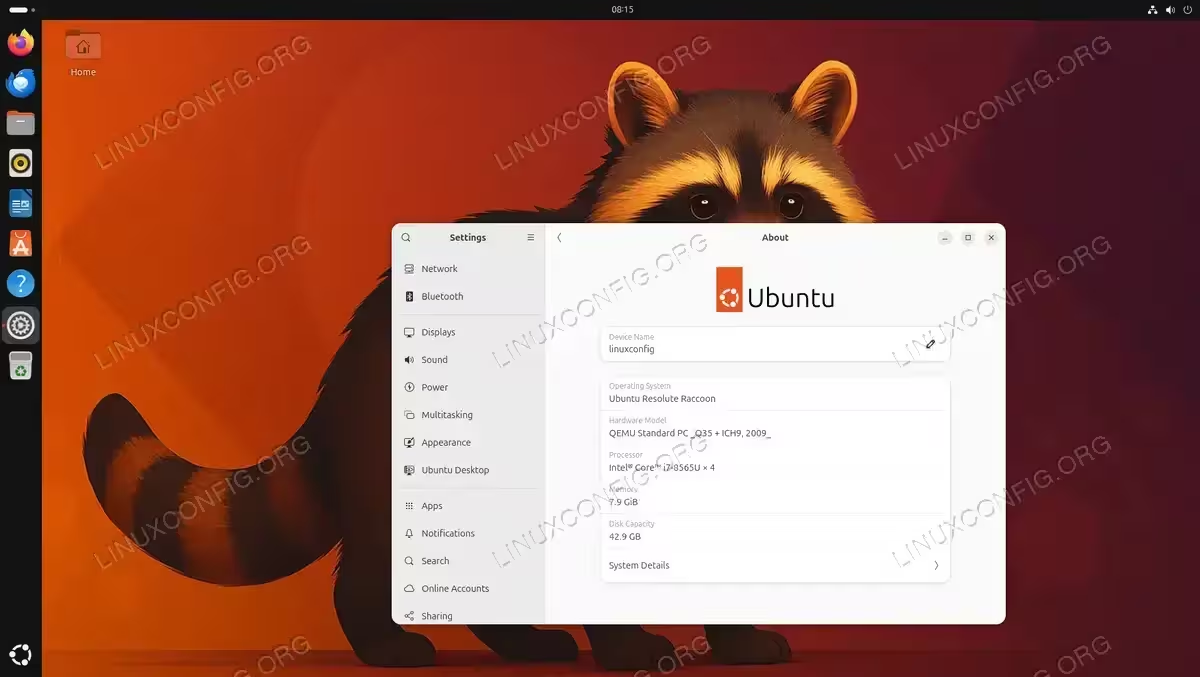
GNOME is the default desktop environment for Ubuntu 26.04. Therefore, if you are running a server or minimal installation, installing GNOME will give you the standard Ubuntu desktop experience. Ubuntu provides two options for GNOME installation: full and minimal.
Full GNOME Desktop Installation
The full installation includes all default Ubuntu applications such as LibreOffice, Thunderbird, and various GNOME utilities. To install the complete Ubuntu desktop environment on Ubuntu 26.04, run:
$ sudo apt install ubuntu-desktop
This meta-package pulls in a large number of dependencies, so the download size can be substantial. The installation may take several minutes depending on your internet connection.
Minimal GNOME Desktop Installation
If you prefer a leaner setup with only the core GNOME desktop and essential components, use the minimal variant instead:
$ sudo apt install ubuntu-desktop-minimal
This option installs the GNOME shell, file manager, terminal, and basic settings applications without the full suite of office and multimedia software. As a result, you save disk space and can later install only the applications you actually need.
After the installation completes, reboot your system:
$ sudo reboot
Your system should now boot into the GDM (GNOME Display Manager) login screen.
How to Install KDE Plasma Desktop Environment on Ubuntu 26.04
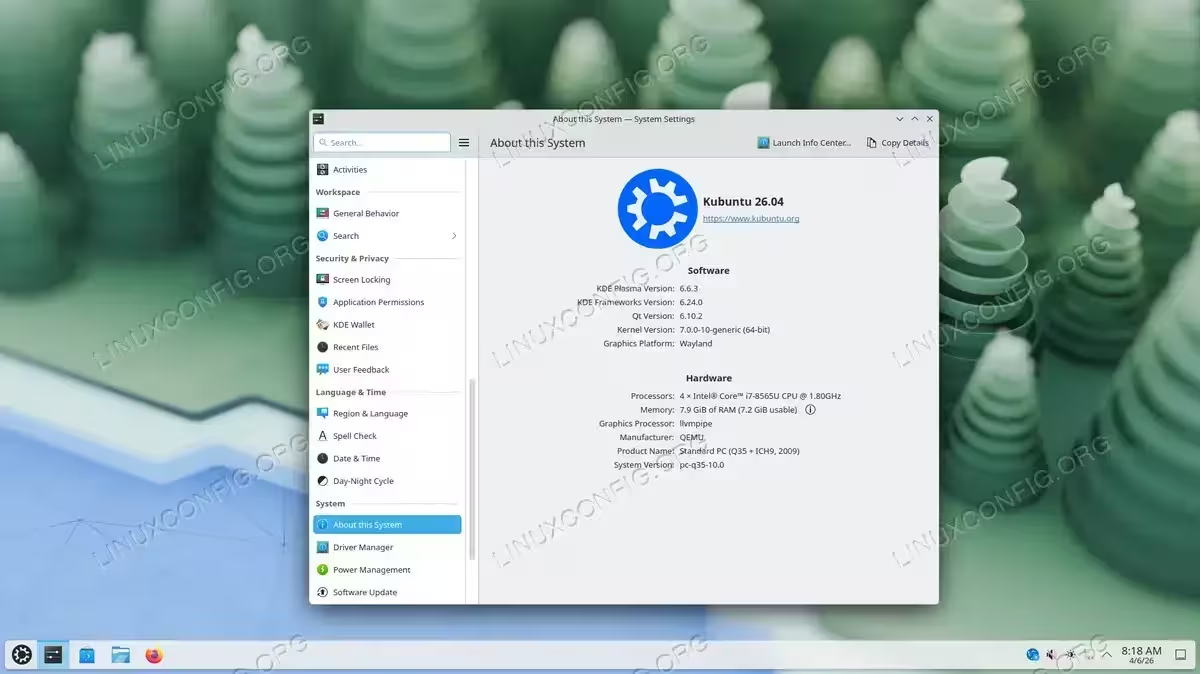
KDE Plasma is a feature-rich and highly customizable desktop environment. It offers a traditional desktop layout with a taskbar, application menu, and system tray, making it a popular choice for users who prefer a Windows-like experience. Moreover, KDE Plasma is known for its extensive configuration options and polished visual effects.
To install KDE Plasma on Ubuntu 26.04, run:
$ sudo apt install kubuntu-desktop
During the installation, you will be prompted to choose a display manager. If you want the KDE-native login screen, select sddm. Alternatively, you can keep gdm3 if you have GNOME installed and prefer its login screen.
IMPORTANT
When prompted to select a display manager during installation, use the arrow keys to highlight your choice and press Enter to confirm. You can change the display manager later by running $ sudo dpkg-reconfigure sddm.
Once the installation finishes, reboot:
$ sudo reboot
How to Install Xfce Desktop Environment on Ubuntu 26.04
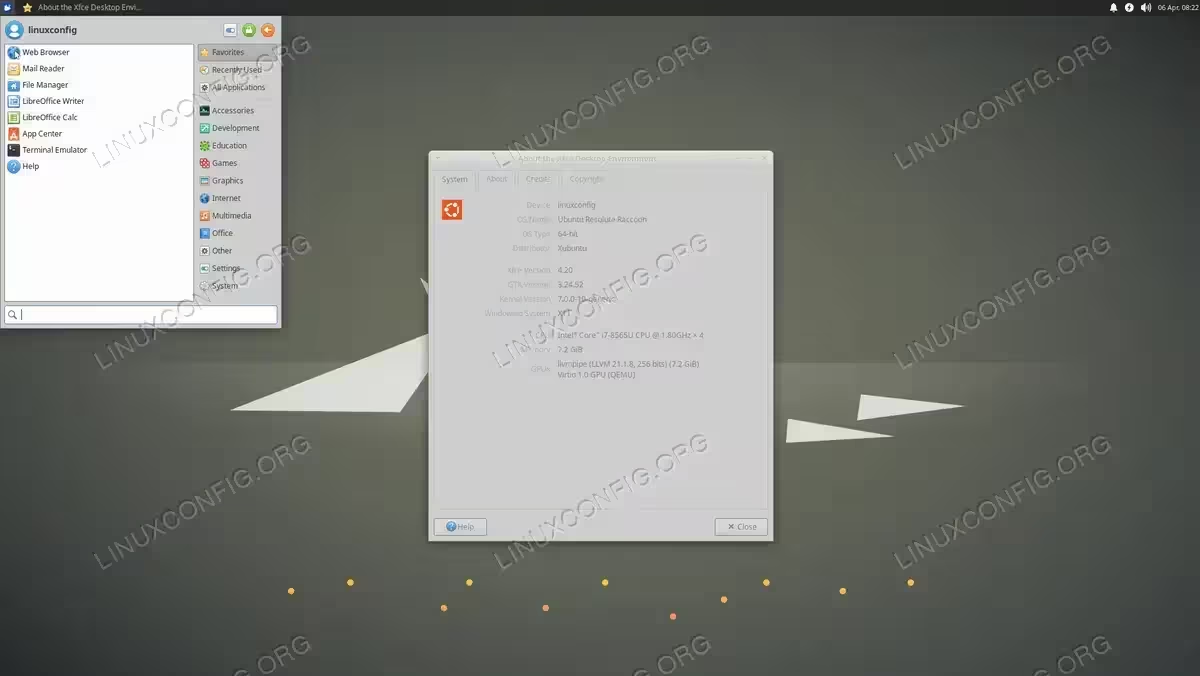
Xfce is a lightweight desktop environment that provides a good balance between functionality and resource usage. Consequently, it is an excellent choice for older hardware or virtual machines where you want a graphical interface without the overhead of heavier desktop environments. Xfce follows a traditional desktop paradigm with a panel, application menu, and desktop icons.
To install Xfce on Ubuntu 26.04, run:
$ sudo apt install xubuntu-desktop
Similar to KDE Plasma, you may be asked to select a display manager. The Xfce-native option is lightdm. After the installation, reboot your system:
$ sudo reboot
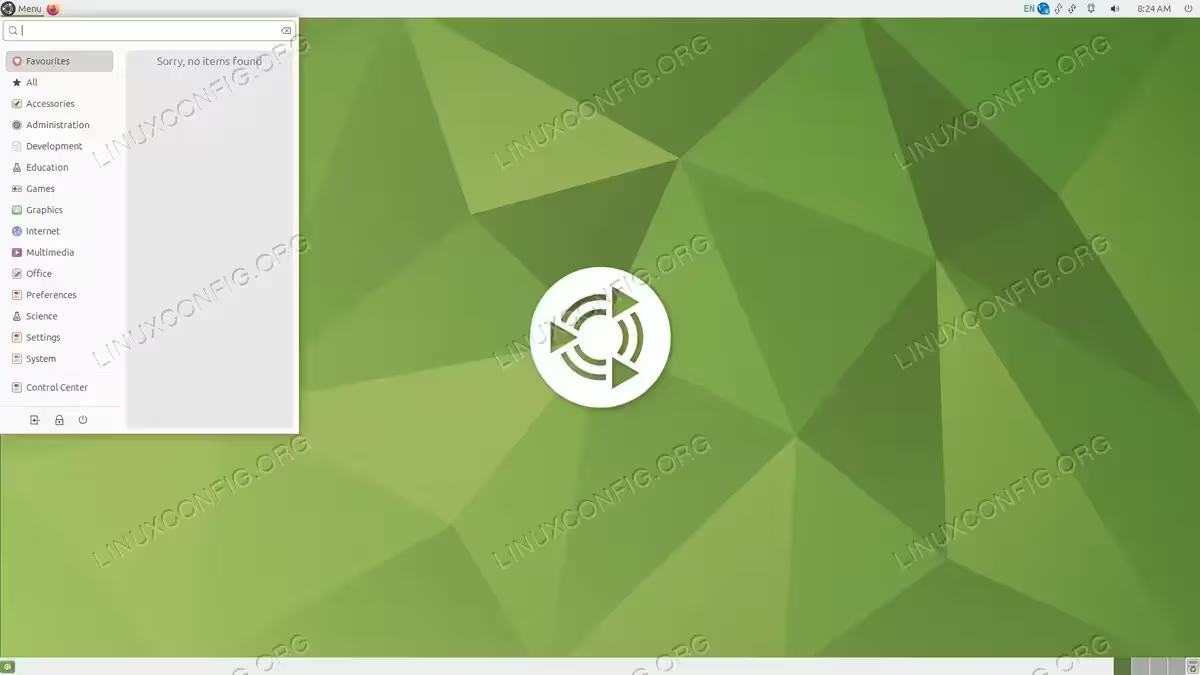
How to Install MATE Desktop Environment on Ubuntu 26.04
MATE is a continuation of the GNOME 2 desktop environment. It provides a traditional desktop experience with a familiar two-panel layout. Furthermore, MATE is well-suited for users who prefer a classic desktop interface with moderate resource consumption.
To install the MATE desktop environment on Ubuntu 26.04, run:
$ sudo apt install ubuntu-mate-desktop
You will be prompted to choose a display manager. Select lightdm for the MATE-native experience. After the installation completes, reboot:
$ sudo reboot
How to Install LXQt Desktop Environment on Ubuntu 26.04
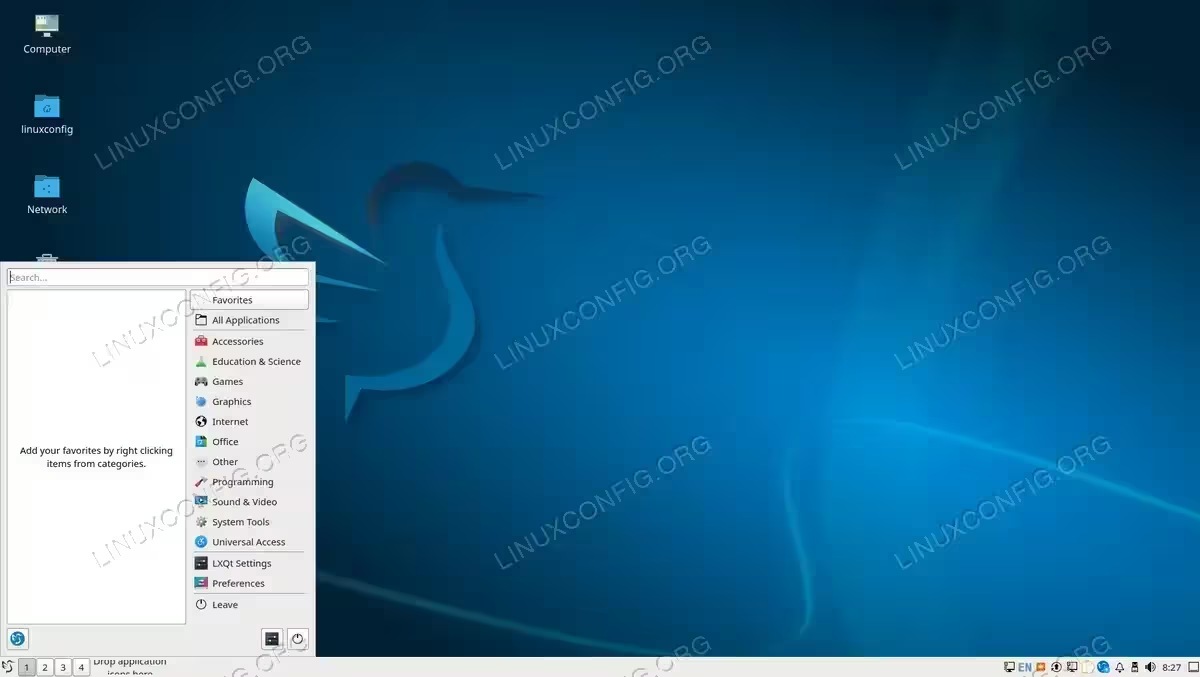
LXQt is one of the lightest desktop environments available for Ubuntu 26.04. It is the Qt-based successor to LXDE and is designed to be fast and energy-efficient. Therefore, LXQt is ideal for systems with very limited hardware resources or for users who prioritize performance over visual effects.
To install LXQt on Ubuntu 26.04, run:
$ sudo apt install lubuntu-desktop
After installation, reboot your system:
$ sudo reboot
When you log into LXQt for the first time with multiple desktop environments installed, a “Welcome to LXQt” dialog will appear asking you to select your default window manager. Choose Openbox from the list, as it is the native window manager for LXQt. Other options such as Marco (MATE) or Xfwm4 (Xfce) may appear if those environments are also installed, but Openbox provides the intended LXQt experience.
How to Install Cinnamon Desktop Environment on Ubuntu 26.04
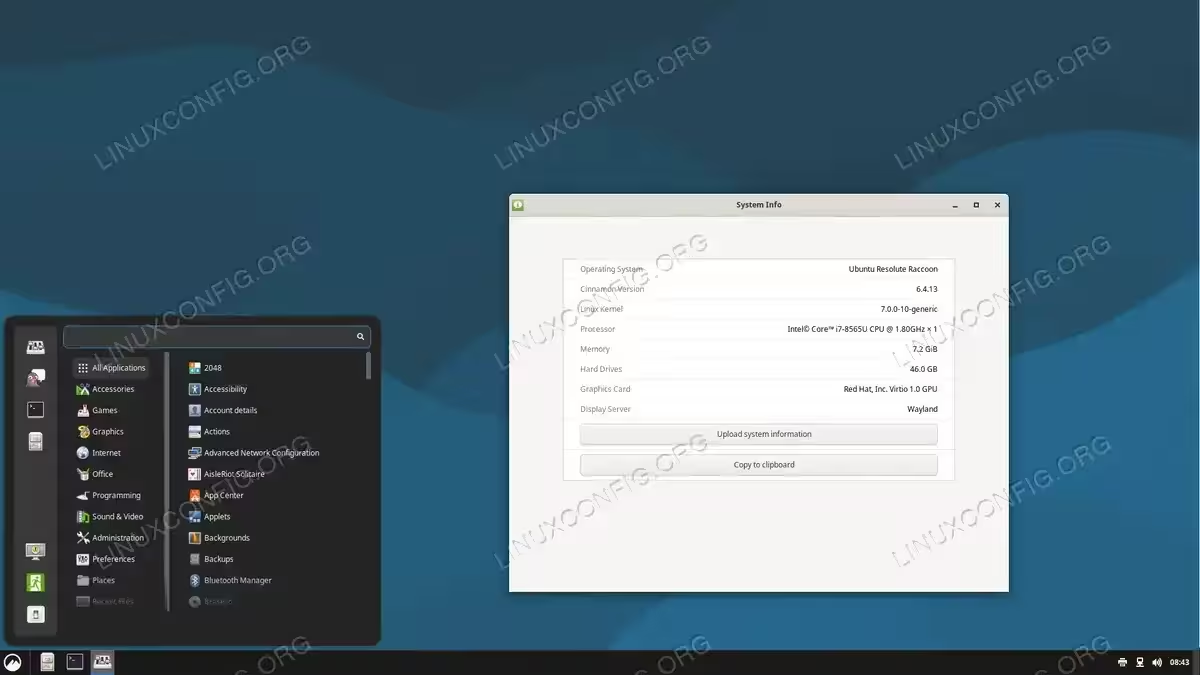
Cinnamon is the desktop environment developed by the Linux Mint team. It offers a traditional desktop layout with modern features and good visual appeal. Additionally, Cinnamon provides a familiar experience for users coming from Windows, with a taskbar at the bottom, a start menu, and a system tray.
To install Cinnamon on Ubuntu 26.04, run:
$ sudo apt install cinnamon-desktop-environment
Note that unlike other desktop environments listed here, Cinnamon uses a different package naming convention since it is not an official Ubuntu flavor.
INSTALLATION TIPS
The cinnamon-desktop-environment package conflicts with kubuntu-settings-desktop (part of KDE Plasma). If you have KDE Plasma installed, you cannot install Cinnamon alongside it via a single command. You may need to install Cinnamon separately or remove the conflicting KDE package first.
After the installation, reboot:
$ sudo reboot
IMPORTANT
On Ubuntu 26.04, the Cinnamon X11 session may fail to start properly. If you encounter a black screen or crash when selecting the standard “Cinnamon” session at the login screen, select the Cinnamon (Experimental Wayland) session instead. This experimental Wayland session was confirmed to work as a functional alternative.
How to Switch Between Desktop Environments on Ubuntu 26.04
If you have multiple desktop environments installed on your Ubuntu 26.04 system, you can easily switch between them at the login screen. This allows you to try different environments without uninstalling anything.
- Log out of your current session: Save your work and log out from the current desktop environment.
- Select a different environment: On the login screen, click on your username. Before entering your password, look for a gear icon or session selector (typically in the bottom-right corner on GDM or bottom of the screen on LightDM). Click it to see a list of all available desktop environments.
- Choose and log in: Select the desired desktop environment from the list and enter your password to log in.
Your selection will be remembered for future logins until you change it again. For more detailed instructions on managing your default desktop session, see how to change the default desktop environment on Ubuntu 26.04.
IMPORTANT
If the session selector does not appear, make sure multiple desktop environments are properly installed. You can verify which sessions are available by listing the files in /usr/share/xsessions/:
$ ls /usr/share/xsessions/
How to Switch Display Manager on Ubuntu 26.04
When you install multiple desktop environments, each may bring its own display manager (the graphical login screen). For example, GNOME uses GDM, KDE Plasma uses SDDM, and Xfce and MATE use LightDM. Only one display manager can be active at a time. To switch between them, use the dpkg-reconfigure command.
To reconfigure the active display manager on Ubuntu 26.04, run:
$ sudo dpkg-reconfigure gdm3
A dialog will appear listing all installed display managers. Use the arrow keys to select the one you want and press Enter to confirm. You can replace gdm3 with the name of any installed display manager such as sddm or lightdm.
After selecting a new display manager, reboot your system for the change to take effect:
$ sudo reboot
The following table summarizes which display manager is associated with each desktop environment:
| Desktop Environment | Display Manager | Package |
|---|---|---|
| GNOME | GDM | gdm3 |
| KDE Plasma | SDDM | sddm |
| Xfce | LightDM | lightdm |
| MATE | LightDM | lightdm |
| LXQt | SDDM | sddm |
| Cinnamon | LightDM | lightdm |
How to Remove a Desktop Environment on Ubuntu 26.04
If you no longer need a particular desktop environment, you can remove it to free up disk space. The process involves removing the meta-package and then cleaning up orphaned dependencies.
- Remove the desktop meta-package: Use
apt removeto uninstall the environment. For example, to remove Xfce:$ sudo apt remove xubuntu-desktop
- Remove orphaned packages: After removing the meta-package, clean up packages that were installed as dependencies but are no longer needed:
$ sudo apt autoremove --purge
The
--purgeflag also removes configuration files associated with the removed packages. - Reconfigure the display manager: If you removed the desktop environment whose display manager was active, reconfigure it to use another one. For instance, to switch back to GDM:
$ sudo dpkg-reconfigure gdm3
- Reboot: Restart your system to apply all changes:
$ sudo reboot
SECURITY ALERT
Be careful when running autoremove on a system with multiple desktop environments. Review the list of packages to be removed before confirming, as some shared libraries may be listed for removal even though another installed desktop still requires them.
Below is a quick reference for removing each desktop environment on Ubuntu 26.04:
| Desktop Environment | Removal Command |
|---|---|
| GNOME | $ sudo apt remove ubuntu-desktop |
| KDE Plasma | $ sudo apt remove kubuntu-desktop |
| Xfce | $ sudo apt remove xubuntu-desktop |
| MATE | $ sudo apt remove ubuntu-mate-desktop |
| LXQt | $ sudo apt remove lubuntu-desktop |
| Cinnamon | $ sudo apt remove cinnamon-desktop-environment |
Conclusion
In this tutorial, you learned how to install a desktop environment on Ubuntu 26.04 Resolute Raccoon. We covered six popular desktop environments: GNOME, KDE Plasma, Xfce, MATE, LXQt, and Cinnamon. Each offers a different balance of features, resource usage, and visual style. You also learned how to switch between multiple installed environments at the login screen and how to cleanly remove an environment you no longer need.
The choice of desktop environment is largely a matter of personal preference and system resources. For a modern, touch-friendly experience, GNOME or KDE Plasma are excellent choices. For older hardware or virtual machines, Xfce and LXQt provide responsive performance with minimal overhead. Regardless of which environment you choose, Ubuntu 26.04 makes it straightforward to install and manage multiple desktop options.
For more information about desktop environments in Ubuntu, consult the official Ubuntu Flavours documentation.
Frequently Asked Questions
- Can I install multiple desktop environments on the same Ubuntu 26.04 system? Yes, you can install as many desktop environments as you want on a single system. They coexist independently, and you can switch between them at the login screen using the session selector. However, keep in mind that each environment consumes additional disk space.
- Will installing a new desktop environment break my existing one? Generally, no. Desktop environments are designed to coexist on the same system. However, some visual settings such as themes and icons may occasionally carry over between environments. If you experience conflicts, logging out and back in usually resolves them.
- How do I install a desktop environment on Ubuntu 26.04 Server? The process is identical. First update your package index with
$ sudo apt update, then install the desired desktop meta-package (for example,$ sudo apt install ubuntu-desktop-minimal), and reboot. The system will automatically start the display manager and present a graphical login screen. - Which desktop environment uses the least resources on Ubuntu 26.04? LXQt (installed via the
lubuntu-desktoppackage) is the lightest option, typically using around 400 MB of RAM. Xfce is another lightweight choice at approximately 500 MB. Both are well-suited for systems with limited hardware resources. - How do I change the display manager on Ubuntu 26.04? Run
$ sudo dpkg-reconfigure gdm3(or replacegdm3with the name of your currently installed display manager such assddmorlightdm). A dialog will appear allowing you to select which display manager should handle the login screen.