
Getting an ssh connection refused error on Ubuntu 26.04 is one of the most common SSH problems you will encounter. This error means the SSH client attempted to connect to a remote host but the connection was actively rejected. The cause can range from a missing or inactive SSH service to a firewall blocking port 22, or even a misconfigured sshd_config file. This guide walks you through every diagnostic step and solution needed to resolve ssh connection refused on Ubuntu 26.04.
- → Software Requirements
- → TL;DR
- → Understanding the Error
- → Step 1: Check if OpenSSH Server is Installed
- → Step 2: Check if SSH Service is Running
- → Step 3: Verify SSH is Listening on the Correct Port
- → Step 4: Check the Firewall (UFW)
- → Step 5: Inspect the sshd_config File
- → Step 6: Check TCP Wrappers and hosts.deny
- → Step 7: Review SSH Logs
- → FAQ
- What causes an SSH connection refused error on Ubuntu 26.04
- How to check if the OpenSSH server package is installed
- How to start, enable, and verify the SSH service
- How to confirm SSH is listening on the expected port
- How to allow SSH through UFW firewall
- How to identify misconfigurations in
sshd_config - How to use SSH logs to pinpoint the root cause

Software Requirements
| Category | Requirements, Conventions or Software Version Used |
|---|---|
| System | Ubuntu 26.04 Resolute Raccoon |
| Software | OpenSSH server (openssh-server), UFW firewall |
| Other | Privileged access to your Linux system as root or via the sudo command. |
| Conventions | # – requires given linux commands to be executed with root privileges either directly as a root user or by use of sudo command$ – requires given linux commands to be executed as a regular non-privileged user |
TL;DR
| Step | Command/Action |
|---|---|
| 1. Install OpenSSH server | sudo apt install openssh-server |
| 2. Start and enable SSH | sudo systemctl enable --now ssh |
| 3. Allow SSH through firewall | sudo ufw allow ssh |
| 4. Verify SSH is listening | sudo ss -tlnp | grep sshd |
Understanding the SSH Connection Refused Error
When you run ssh user@host and receive the message ssh: connect to host <ip> port 22: Connection refused, it means the TCP connection attempt was rejected by the target machine. This is distinct from a timeout, where no response is received at all. A refused connection tells you the host is reachable on the network, but nothing is accepting connections on that port.
The most frequent causes of ssh connection refused on Ubuntu 26.04 are:
- The
openssh-serverpackage is not installed - The
sshservice is stopped or failed - A firewall (UFW or iptables) is blocking port 22
- SSH is configured to listen on a non-default port
- The
sshd_configfile contains an error that prevents the daemon from starting - TCP wrappers (
/etc/hosts.deny) are blocking the connection
The sections below address each cause in order of likelihood. Work through them sequentially and you will identify and resolve the issue. For a broader overview of SSH on Ubuntu 26.04, see the SSH configuration guide.
Step 1: Check if OpenSSH Server is Installed
The single most common reason for an ssh connection refused error is that the openssh-server package simply is not installed. Ubuntu 26.04 desktop installations do not include it by default. Therefore, the first diagnostic step is to confirm whether the package is present.
- Check if openssh-server is installed: Run the following command on the target machine:
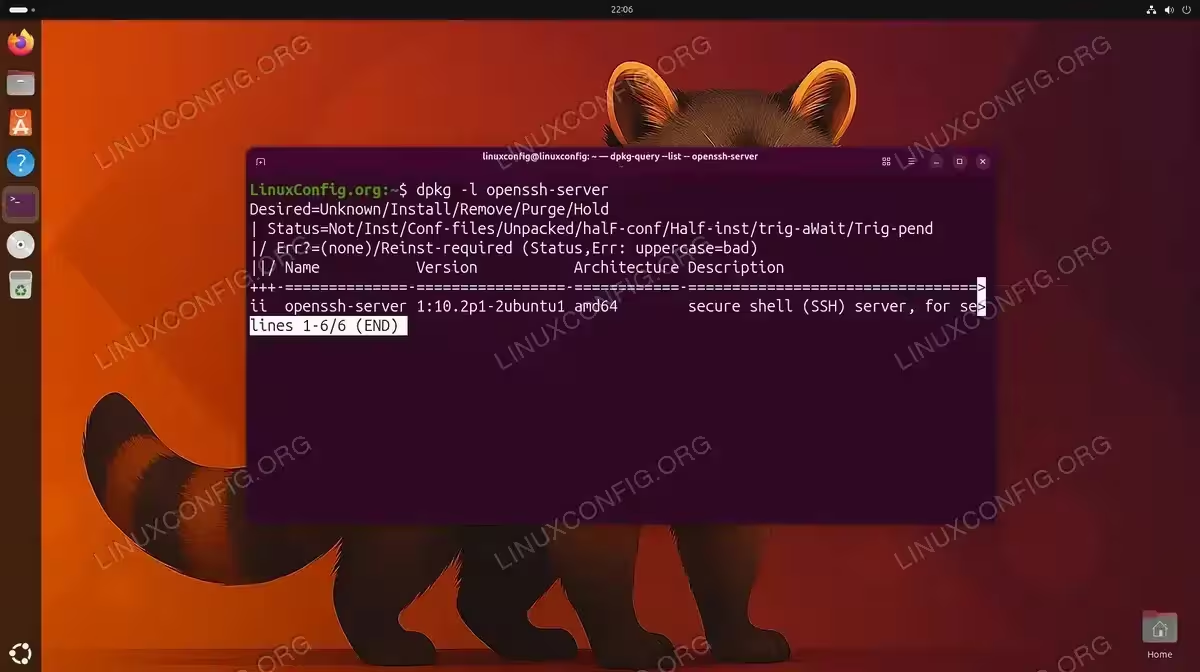
$ dpkg -l openssh-server
If the package is installed, you will see a line starting with
ii. If the output showsdpkg-query: no packages foundor a status other thanii, the package is missing. - Install openssh-server if missing: Install the package with:
$ sudo apt update && sudo apt install openssh-server
APT will install the server and automatically start the SSH service. After installation, proceed to Step 2 to confirm the service is active.
Step 2: Check if the SSH Service is Running
Even if openssh-server is installed, the service may be stopped or in a failed state. Consequently, checking the service status is the second essential diagnostic step when troubleshooting ssh connection refused on Ubuntu 26.04.
- Check SSH service status: Run the following:
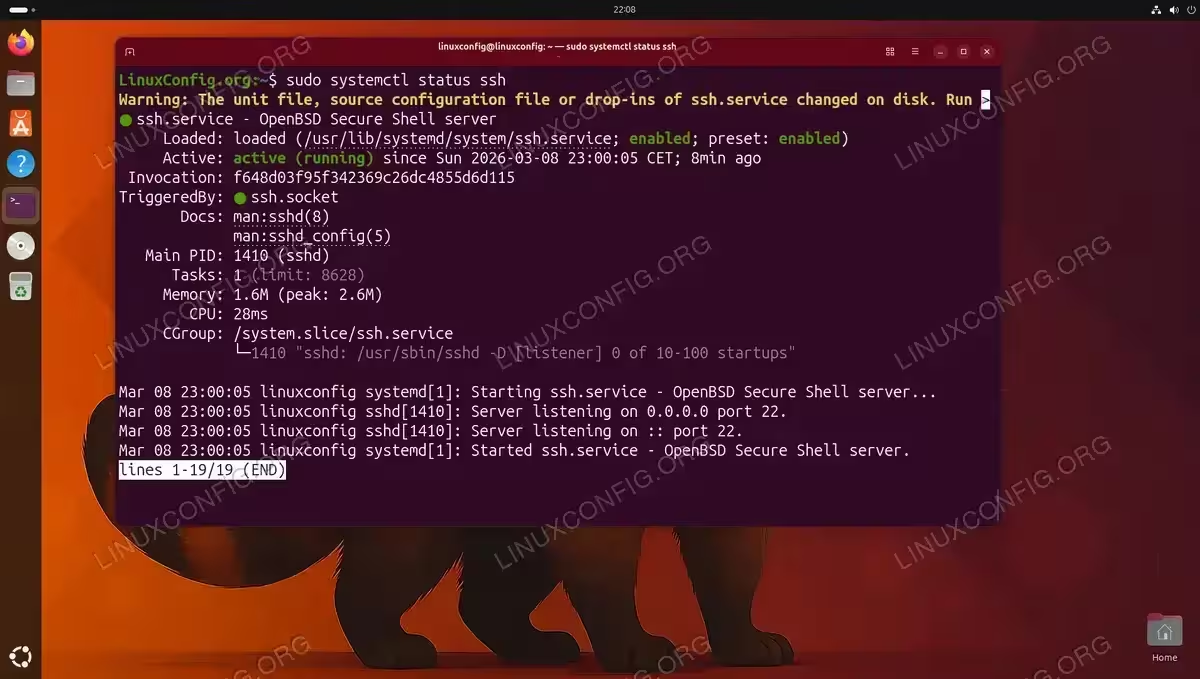
$ sudo systemctl status ssh
Look for
Active: active (running). If you seeinactive (dead)orfailed, the service is not running. - Start the SSH service: If the service is stopped, start it:
$ sudo systemctl start ssh
- Enable SSH to start at boot: Additionally, enable the service so it persists across reboots:
$ sudo systemctl enable ssh
Or combine both actions into a single command:
$ sudo systemctl enable --now ssh
IMPORTANT
If systemctl start ssh fails immediately, it usually indicates a configuration error in /etc/ssh/sshd_config. Skip to Step 5 to check for syntax errors.
Step 3: Verify SSH is Listening on the Correct Port
Even with the service running, the daemon may be listening on a non-standard port if the configuration has been changed. Moreover, confirming the listening port rules out port mismatch as a cause.
- Check which port sshd is listening on:
$ sudo ss -tlnp | grep sshd
The output will show the port number in the
Local Address:Portcolumn. The default is0.0.0.0:22and[::]:22. If you see a different port (for example,2222), you must specify that port when connecting:$ ssh -p 2222 linuxconfig@server-ip
- Alternatively, use nmap from the client machine: If you have access to the client, you can scan the target to see which ports are open:
$ nmap -p 22 server-ip
A result of
filteredorclosedon port 22 confirms the connection will be refused. A result ofopenmeans SSH is accessible on that port.![Terminal output of sudo ss -tlnp grep sshd on Ubuntu 26.04 showing sshd listening on 0.0.0.0:22 and [::]:22 for both IPv4 and IPv6](data:image/svg+xml,%3Csvg%20xmlns='http://www.w3.org/2000/svg'%20width='1200'%20height='675'%20viewBox='0%200%201200%20675'%3E%3C/svg%3E)
The ss command confirms sshd is listening on port 22 for both IPv4 and IPv6 on Ubuntu 26.04
![Terminal output of sudo ss -tlnp grep sshd on Ubuntu 26.04 showing sshd listening on 0.0.0.0:22 and [::]:22 for both IPv4 and IPv6](/https://linuxconfig.org/wp-content/uploads/2026/03/03-fix-ssh-connection-refused-ubuntu-2604-image.avif)
Step 4: Check the Firewall (UFW)
UFW (Uncomplicated Firewall) is the default firewall management tool on Ubuntu 26.04. If UFW is active and has no rule permitting SSH traffic on port 22, it will drop incoming connections, which the SSH client reports as a refused or timed-out connection. Therefore, verifying firewall rules is a critical step when fixing ssh connection refused on Ubuntu 26.04.
- Check UFW status and rules:
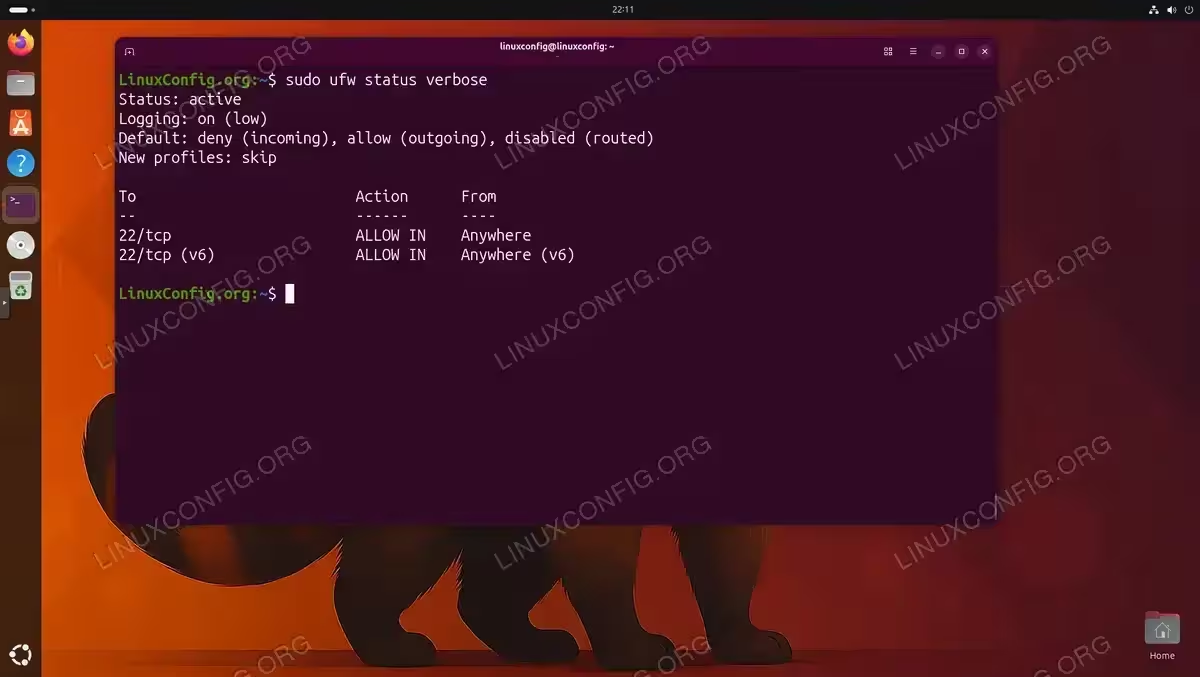
$ sudo ufw status verbose
Look for a rule allowing port 22 or the
OpenSSHprofile. If UFW showsStatus: inactive, the firewall is not blocking SSH. - Allow SSH through UFW: If there is no rule for SSH, add one:
$ sudo ufw allow ssh
This adds a rule for port 22 using both TCP and IPv6. Alternatively, you can allow by port number explicitly:
$ sudo ufw allow 22/tcp
- Reload UFW to apply the rule:
$ sudo ufw reload
IMPORTANT
If your server is running on a cloud provider (AWS, GCP, Azure, etc.), there may also be a network security group or external firewall outside Ubuntu’s control. Check your cloud provider’s firewall rules in addition to UFW.
Step 5: Inspect the sshd_config File
A misconfigured /etc/ssh/sshd_config file can prevent the SSH daemon from starting, causing an ssh connection refused error. Common misconfigurations include an invalid Port directive, a typo in a keyword, or a directive that restricts which addresses the daemon binds to.
- Test the sshd configuration for syntax errors: OpenSSH provides a built-in test mode that validates the configuration file without restarting the service:
$ sudo sshd -t
If there are no errors, the command returns no output. Any syntax problem will be reported with the line number, making it straightforward to fix.
- Check the Port directive and socket activation: On Ubuntu 26.04, SSH uses systemd socket activation by default. When
ssh.socketis active, it controls which port SSH listens on and thePortdirective insshd_configis ignored. First, check whether socket activation is in use:$ systemctl status ssh.socket
If the output shows
active (listening), the port is controlled by the socket unit, notsshd_config. Check which port the socket is listening on:$ sudo ss -tlnp | grep ssh
If socket activation is not active, you can check the port set in the configuration file:
$ grep -i "^Port" /etc/ssh/sshd_config
If this returns nothing, SSH defaults to port 22. If it returns a non-22 value, use that port in your connection command with
ssh -p <port> user@host. - Check the ListenAddress directive: The
ListenAddressdirective controls which network interfaces SSH binds to. If it is set to a specific IP that does not exist on the system, SSH will fail to start:$ grep -i "^ListenAddress" /etc/ssh/sshd_config
If you need SSH to listen on all interfaces, ensure this line is either commented out or set to
0.0.0.0. - Restart SSH after making changes: After editing
sshd_config, reload the daemon:$ sudo systemctl restart ssh
For a complete walkthrough of all available directives, refer to the guide on how to configure SSH on Ubuntu 26.04. If you need to start from scratch, the guide on how to set up an SSH server on Ubuntu 26.04 covers a full installation and configuration procedure.
![Terminal on Ubuntu 26.04 showing sshd -t returning no errors and ssh.socket active listening on 0.0.0.0:22 and [::]:22, followed by ss -tlnp confirming sshd listening on port 22](/https://linuxconfig.org/wp-content/uploads/2026/03/05-fix-ssh-connection-refused-ubuntu-2604-image.avif)
Step 6: Check TCP Wrappers and hosts.deny
TCP wrappers provide an older but still functional access control layer via /etc/hosts.allow and /etc/hosts.deny. If a previous administrator added a rule denying SSH connections, it can contribute to connection failures even when UFW is permissive.
- Check /etc/hosts.deny for SSH restrictions:
$ cat /etc/hosts.deny
A line such as
sshd: ALLorALL: ALLwill block all SSH connections. Comment out or remove any such lines. - Check /etc/hosts.allow for SSH permissions:
$ cat /etc/hosts.allow
If
hosts.denycontains a blanket deny, you can whitelist specific IPs here:sshd: 192.168.1.0/24
This example allows SSH connections from the entire
192.168.1.0/24subnet.
IMPORTANT
On most default Ubuntu 26.04 installations, /etc/hosts.deny is empty. However, on systems that have been customized or migrated from older Ubuntu versions, it is worth verifying.
Step 7: Review SSH Logs
When the previous steps have not identified the problem, reviewing the SSH daemon logs provides the most detailed diagnostic information. On Ubuntu 26.04, SSH logs are captured by systemd and are accessible via journalctl.
- View SSH service logs: Display the most recent SSH logs:
$ sudo journalctl -u ssh -n 50 --no-pager
Look for error messages such as
error: Bind to port 22 on 0.0.0.0 failedorfatal: Cannot bind any address. These indicate a port conflict or binding issue. - Follow logs in real time during a connection attempt: Open two terminals. In one, monitor the log:
$ sudo journalctl -u ssh -f
In the second terminal, attempt the SSH connection from the client. The log will show exactly what happens at the moment of the connection attempt, making it possible to identify the precise failure point.
- Check for port conflicts: If the log shows that SSH cannot bind to port 22, another process may already be using it. Identify the conflicting process:
$ sudo ss -tlnp | grep :22
If something other than
sshdis listed, you will need to either stop that process or change the SSH port insshd_config.
For additional SSH troubleshooting scenarios beyond connection refused, the dedicated guide on ssh troubleshooting covers a wider range of SSH errors. If your goal is to permit root logins specifically, see the guide on how to allow root SSH login on Ubuntu 26.04.
The official OpenSSH manual provides comprehensive documentation for all sshd_config directives and troubleshooting procedures.
Conclusion
Fixing ssh connection refused on Ubuntu 26.04 follows a logical diagnostic sequence: confirm the package is installed, verify the service is running, check the listening port, review UFW rules, inspect sshd_config for errors, and consult the logs for specific failure messages. In the majority of cases, the problem is resolved within the first two or three steps. By working through each check systematically, you can identify and fix the root cause quickly and restore SSH connectivity to your Ubuntu 26.04 system.
Frequently Asked Questions
- Why does my Ubuntu 26.04 server show SSH connection refused after a reboot? The most likely reason is that the SSH service is not enabled to start at boot. Run
sudo systemctl enable sshto ensure it starts automatically on every reboot. Also verify that no recentsshd_configchange introduced a syntax error that prevents the daemon from starting. - How do I fix SSH connection refused when UFW is disabled? If UFW is inactive and you still see connection refused, the issue is almost certainly that the SSH service itself is not running or not installed. Run
sudo systemctl status sshto confirm the service state, and installopenssh-serverif it is missing. Also check whether another process is occupying port 22 withsudo ss -tlnp | grep :22. - Can a wrong SSH port cause a connection refused error? Yes. If
sshd_confighas been changed to use a non-standard port (for example,Port 2222) but you are connecting on port 22, the connection will be refused because nothing is listening there. Runsudo ss -tlnp | grep sshdon the server to confirm the actual port, then connect withssh -p <port> user@host. - What is the difference between SSH connection refused and SSH connection timed out? A refused connection means the target host actively rejected the TCP connection, which indicates SSH is not listening on that port (service down, wrong port, firewall sending a reject rule). A timeout means no response was received at all, which typically points to a firewall silently dropping packets or the host being unreachable on the network. The diagnostic approach differs: refused errors focus on the SSH service and configuration, while timeouts focus on network connectivity and firewall drop rules.
- Does Ubuntu 26.04 include an SSH server by default? No. Ubuntu 26.04 desktop installations do not include
openssh-serverby default. Server installations may optionally include it during setup if you select the SSH server option in the installer. Therefore, on a fresh desktop system, the first step to resolve ssh connection refused on Ubuntu 26.04 is to installopenssh-servermanually.
