
If you want to develop software in C or C++ on Ubuntu 26.04 Resolute Raccoon, you will need GCC (GNU Compiler Collection) and a set of essential build tools. This guide walks you through installing GCC and the complete C/C++ development toolchain, compiling your first programs, working with Makefiles, and managing multiple GCC versions. Whether you are a beginner writing your first “Hello from LinuxConfig.org” program or an experienced developer setting up a fresh Ubuntu 26.04 system, this tutorial covers everything you need to get started with gcc install compile ubuntu 26.04.
- What the build-essential meta-package includes and why it matters
- How to install GCC 15, g++, and make on Ubuntu 26.04
- How to compile and run C and C++ programs from the command line
- How to use a Makefile to build multi-file projects
- How to install and switch between multiple GCC versions
- How to troubleshoot common compilation errors

Software Requirements
| Category | Requirements, Conventions or Software Version Used |
|---|---|
| System | Ubuntu 26.04 Resolute Raccoon |
| Software | GCC 15, g++ 15, GNU Make, build-essential |
| Other | Privileged access to your Linux system as root or via the sudo command. |
| Conventions | # – requires given linux commands to be executed with root privileges either directly as a root user or by use of sudo command$ – requires given linux commands to be executed as a regular non-privileged user |
build-essential meta-package, which pulls in gcc, g++, make, and essential libraries.
| Step | Command/Action |
|---|---|
| 1. Update package index | $ sudo apt update |
| 2. Install the toolchain | $ sudo apt install build-essential |
| 3. Compile a C program | $ gcc -o linuxconfig_app main.c |
| 4. Compile a C++ program | $ g++ -o linuxconfig_app main.cpp |
Understanding the GCC Toolchain on Ubuntu 26.04
Before diving into the installation, it is helpful to understand what the GCC toolchain consists of and how Ubuntu 26.04 packages it. GCC, the GNU Compiler Collection, is a free and open-source compiler system that supports C, C++, and several other programming languages. On Ubuntu 26.04, GCC 15 is the default compiler version shipped in the official repositories.
Rather than installing individual components separately, Ubuntu provides the build-essential meta-package. This single package pulls in everything you need for C/C++ development:
gccandgcc-15– the GNU C compilerg++andg++-15– the GNU C++ compilermake– the GNU build automation tooldpkg-dev– Debian package development toolslibc6-dev– GNU C Library development headers and static libraries
Consequently, installing build-essential is the recommended approach, as it ensures all core dependencies are present and correctly configured. This is also a prerequisite for compiling many software packages from source on Ubuntu 26.04.
Installing GCC and C/C++ Development Tools on Ubuntu 26.04
Installing the full C/C++ development toolchain on Ubuntu 26.04 takes just two commands. First, update your package index to ensure you are pulling from the latest repository data, then install the build-essential package.
- Update the package index: Refresh the APT package cache to make sure all package metadata is current:
$ sudo apt update
- Install build-essential: This meta-package installs GCC, g++, make, and all required development libraries:
$ sudo apt install build-essential
- Verify the installation: Confirm that all tools are properly installed by checking their versions:
$ gcc --version
$ g++ --version
$ make --version
You should see GCC 15 and GNU Make reported in the output.
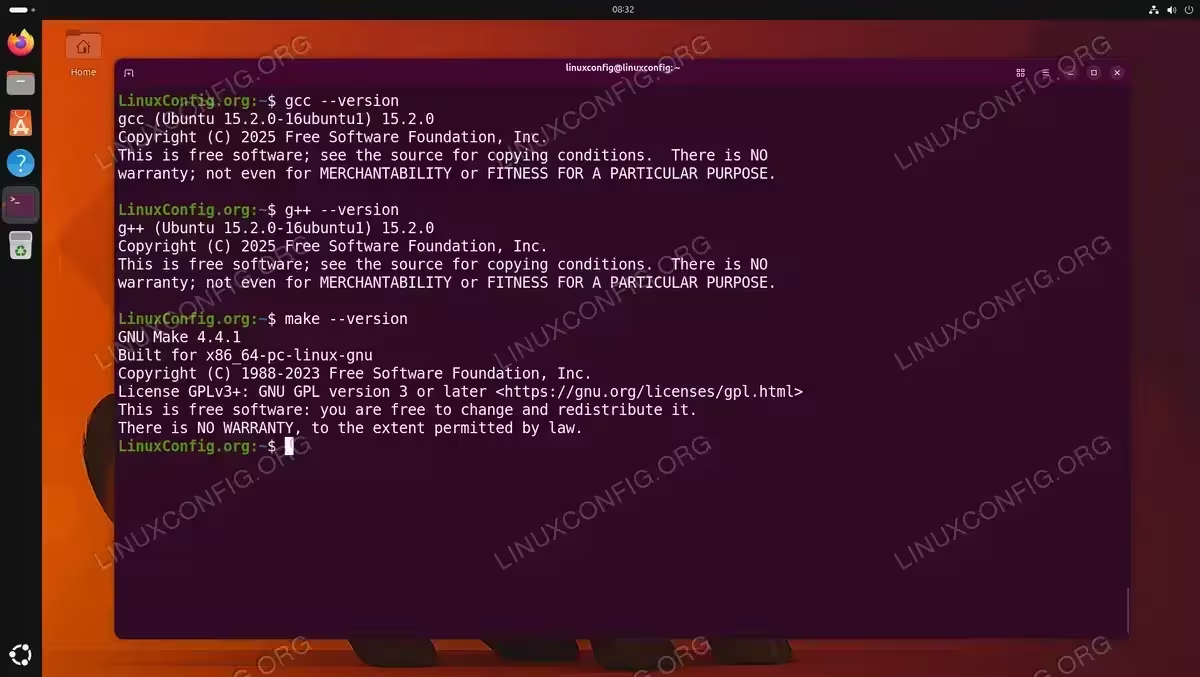
Confirming GCC 15.2.0, g++ 15.2.0, and GNU Make 4.4.1 are installed on Ubuntu 26.04
At this point, your Ubuntu 26.04 system is fully equipped for C and C++ development. Additionally, many other development tools and source-based installations depend on build-essential, so installing it early benefits your workflow beyond just C/C++ programming.
Compiling Your First C Program on Ubuntu 26.04
Now that GCC is installed, let us write and compile a simple C program to verify everything works correctly. Therefore, open your preferred text editor and create a new file.
- Create a C source file: Use
nanoor any text editor to createhello.c:$ nano hello.c
Add the following content:
#include <stdio.h>

int main() {
    printf("Hello from LinuxConfig.org\n");
    return 0;
}
Save and exit the editor.
- Compile the program: Use
gccto compile the source file into an executable binary:$ gcc -o linuxconfig_app hello.c
The
-oflag specifies the output binary name. Without it, GCC defaults to naming the outputa.out. - Run the compiled program:
$ ./linuxconfig_app
You should see:
Hello from LinuxConfig.org
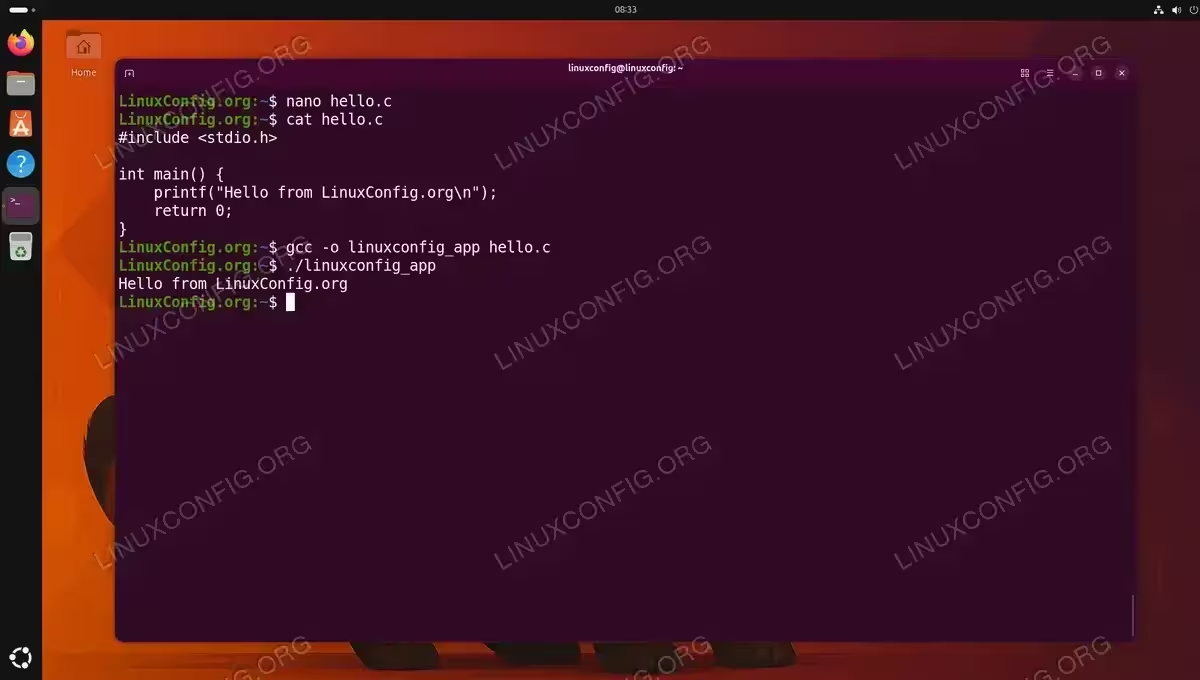
Creating, compiling, and running a simple C program with GCC on Ubuntu 26.04
Useful GCC Compiler Flags
When compiling C programs, several GCC flags are particularly useful for development and debugging:
-Wall– enables all common warning messages, helping you catch potential issues early-Wextra– enables additional warnings beyond-Wall-g– includes debugging information in the binary for use withgdb-O2– applies optimization level 2 for better runtime performance-std=c17– compiles using the C17 standard
For example, to compile with warnings and debugging information enabled:
$ gcc -Wall -Wextra -g -o linuxconfig_app hello.c
It is good practice to always compile with -Wall during development, as it catches many common mistakes before they become runtime bugs.
Compiling a C++ Program with g++ on Ubuntu 26.04
Compiling C++ programs follows a similar process, but you use g++ instead of gcc. The g++ compiler automatically links the C++ standard library and enables C++ language features.
- Create a C++ source file: Create a file named
hello.cpp:$ nano hello.cpp
Add the following content:
#include <iostream> #include <string> int main() { std::string message = "Greetings from LinuxConfig.org"; std::cout << message << std::endl; return 0; } - Compile with g++:
$ g++ -Wall -o linuxconfig_app hello.cpp
- Run the binary:
$ ./linuxconfig_app
The output should read:
Greetings from LinuxConfig.org
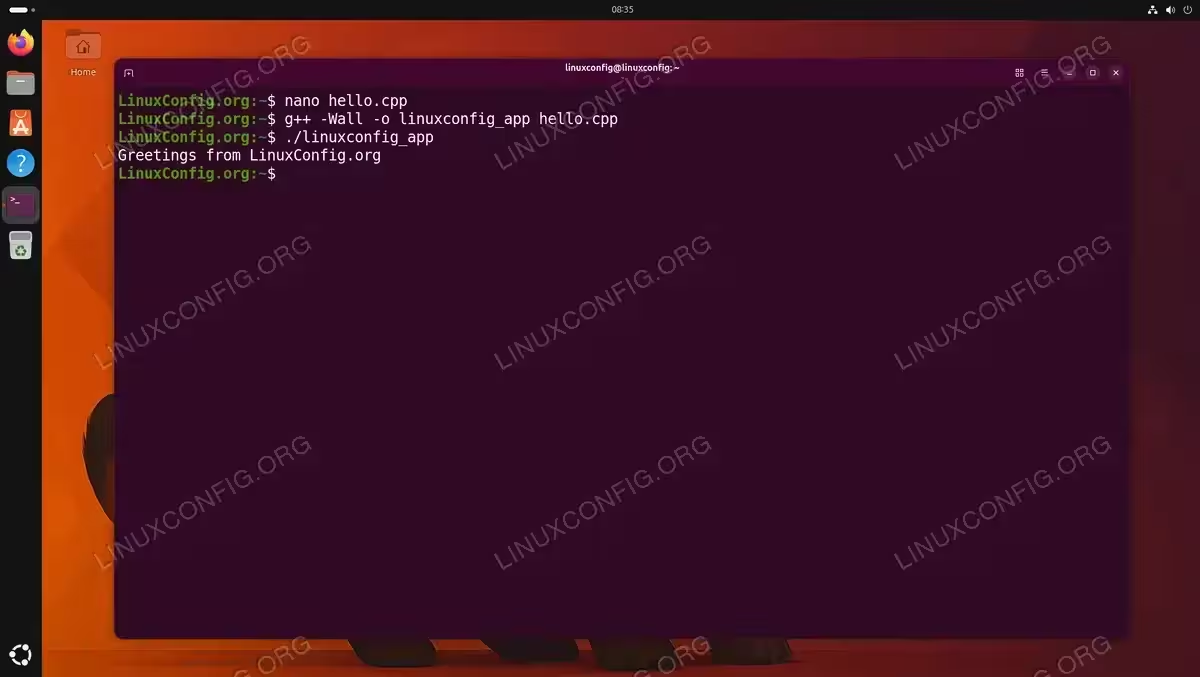
Compiling and running a C++ program with g++ on Ubuntu 26.04
To compile using a specific C++ standard, use the -std flag. For instance, to target C++23:
$ g++ -std=c++23 -Wall -o linuxconfig_app hello.cpp
IMPORTANT
While gcc can technically compile C++ files if you pass the correct flags and link the standard library manually, using g++ is the correct and recommended approach for C++ code. It handles all C++ defaults automatically.
Using Make to Build Multi-File Projects on Ubuntu 26.04
As your projects grow beyond a single source file, manually running gcc or g++ commands for each file becomes tedious and error-prone. GNU Make solves this problem by automating the build process through a Makefile. Therefore, learning to use Make is an essential part of the gcc install compile ubuntu 26.04 workflow.
Let us create a simple multi-file C project to demonstrate.
- Create the project directory and source files:
$ mkdir linuxconfig_project && cd linuxconfig_project
Create
main.c:#include <stdio.h> #include "greet.h" int main() { print_greeting(); return 0; }Create the header file
greet.h:#ifndef GREET_H #define GREET_H void print_greeting(void); #endifCreate the implementation file
greet.c:#include <stdio.h> #include "greet.h" void print_greeting(void) { printf("Hello from LinuxConfig.org - built with Make!\n"); } - Create the Makefile: In the same directory, create a file named
Makefile:$ nano Makefile
Add the following content:
CC = gcc
CFLAGS = -Wall -Wextra -g
TARGET = linuxconfig_app

SRCS = main.c greet.c
OBJS = $(SRCS:.c=.o)

$(TARGET): $(OBJS)
	$(CC) $(CFLAGS) -o $(TARGET) $(OBJS)

%.o: %.c greet.h
	$(CC) $(CFLAGS) -c $< -o $@

clean:
	rm -f $(OBJS) $(TARGET)
IMPORTANT
Makefile rules require a tab character for indentation, not spaces. If you copy and paste the above content, make sure the indented lines under each rule begin with an actual tab. Using spaces will result in a*** missing separatorerror. - Build the project:
$ make
Make reads the
Makefile, compiles each source file into an object file, and then links them into the final binary. - Run the resulting binary:
$ ./linuxconfig_app
You should see:
Hello from LinuxConfig.org - built with Make!

Building and running a multi-file C project using Make on Ubuntu 26.04 - Clean up build artifacts: To remove compiled object files and the binary:
$ make clean
The advantage of using Make is that it only recompiles files that have changed since the last build, which significantly speeds up development on larger projects. Moreover, Makefiles serve as documentation of how a project should be built.
Installing Alternative GCC Versions on Ubuntu 26.04
In some cases, you may need a different GCC version than the default GCC 15 shipped with Ubuntu 26.04. For instance, certain projects may require an older compiler for compatibility, or you may want to test with a newer release. Ubuntu makes it straightforward to install multiple GCC versions side by side and switch between them using update-alternatives.
- Check available GCC and g++ versions: Before installing an alternative version, list all GCC and g++ packages available in the Ubuntu 26.04 repositories:
$ apt-cache search '^gcc-[0-9]+$' | sort -V
$ apt-cache search '^g\+\+-[0-9]+$' | sort -V
On Ubuntu 26.04, you will see versions ranging from GCC 11 through GCC 16, with GCC 15 being the default.
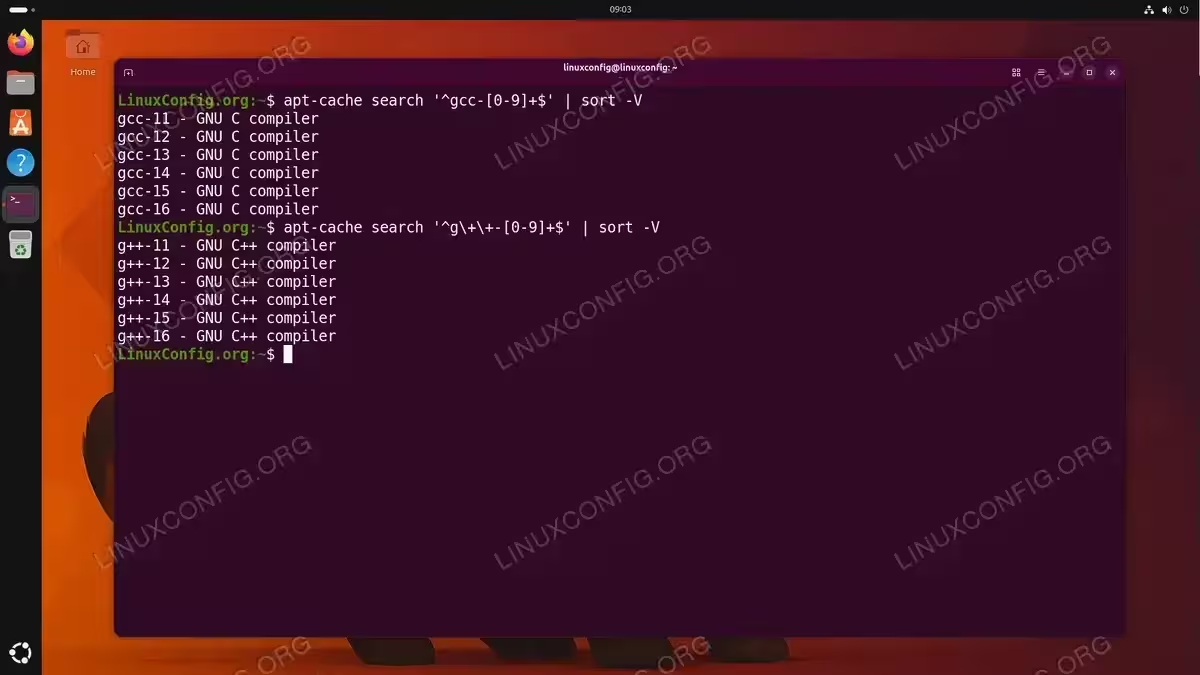
Listing all available GCC and g++ compiler versions in the Ubuntu 26.04 repositories - Install an alternative GCC version: For example, to install GCC 14 alongside the default:
$ sudo apt install gcc-14 g++-14
- List all installed GCC versions: After installation, verify which GCC versions are available on your system:
$ ls /usr/bin/gcc-*
This will show all installed GCC compiler binaries, for example
/usr/bin/gcc-14and/usr/bin/gcc-15. You can also check with APT:$ dpkg -l gcc-* | grep ^ii
- Register both versions with update-alternatives: Set up the alternatives system so you can switch between versions:
$ sudo update-alternatives --install /usr/bin/gcc gcc /usr/bin/gcc-15 150
$ sudo update-alternatives --install /usr/bin/gcc gcc /usr/bin/gcc-14 140
$ sudo update-alternatives --install /usr/bin/g++ g++ /usr/bin/g++-15 150
$ sudo update-alternatives --install /usr/bin/g++ g++ /usr/bin/g++-14 140
The trailing number is the priority. A higher number means higher priority for automatic mode.
- Switch between GCC versions: Use the interactive selection menu:
$ sudo update-alternatives --config gcc
You will see a numbered list of available versions. Enter the selection number for the version you want to use as the default.

Managing and switching between multiple GCC versions using update-alternatives on Ubuntu 26.04 - Verify the active version:
$ gcc --version
IMPORTANT
Remember to configure g++ alternatives separately with sudo update-alternatives --config g++ to keep both compilers in sync.
Troubleshooting Common Compilation Errors
When compiling C/C++ programs on Ubuntu 26.04, you may encounter several common errors. Below are the most frequent issues and their solutions.
Missing Header Files
If you see an error like fatal error: someheader.h: No such file or directory, it means a required development library is not installed. For example, if your program includes <curl/curl.h>, you need to install the corresponding development package:
$ sudo apt install libcurl4-openssl-dev
As a general rule, development headers for a library named libfoo are typically found in the libfoo-dev package. You can search for the correct package using:
$ apt search libcurl | grep dev
Undefined Reference Errors
An undefined reference to 'function_name' error during linking usually means you forgot to link a required library. For instance, if your program uses math functions from <math.h>, you must explicitly link the math library:
$ gcc -o linuxconfig_app main.c -lm
The -l flag tells the linker to search for the specified library. Common examples include -lm for math, -lpthread for POSIX threads, and -lssl for OpenSSL.
Permission Denied When Running Binary
If you get bash: ./linuxconfig_app: Permission denied, the executable bit may not be set. While gcc normally sets this automatically, you can fix it manually:
$ chmod +x linuxconfig_app
For a deeper understanding of file permissions, see how to use the sudo command on Ubuntu 26.04 for privilege management.
Makefile Tab Errors
The error Makefile:X: *** missing separator. Stop. almost always means you used spaces instead of a tab character for indentation. Open the Makefile in your editor and replace the leading spaces with a tab on the affected line.
Conclusion
You have successfully set up a complete C/C++ development environment on Ubuntu 26.04 Resolute Raccoon. Starting with the build-essential meta-package, you installed GCC 15, g++, and GNU Make. You then compiled both C and C++ programs from the command line, built a multi-file project with a Makefile, and learned how to manage multiple GCC versions using update-alternatives. With these tools in place, you are ready to compile software from source, develop your own applications, or contribute to open-source projects. For more advanced workflows, consider using version control with Git on Ubuntu 26.04 to track your source code changes. For further details on GCC features and options, consult the official GCC documentation.
Frequently Asked Questions
- What is the difference between gcc and g++? The
gcccommand is the GNU C Compiler, primarily used for compiling C source code. Theg++command is the GNU C++ Compiler, which automatically links the C++ standard library and enables C++ language features. Whilegcccan technically compile C++ files with additional flags,g++is the correct tool for C++ development. - How do I check which version of GCC is installed on Ubuntu 26.04? Run
gcc --versionin your terminal. Ubuntu 26.04 ships with GCC 15 as the default version in thebuild-essentialpackage. If you have installed multiple versions, you can see which one is currently active withupdate-alternatives --display gcc. - How do I compile with a specific C or C++ standard? Use the
-stdflag followed by the standard version. For C, usegcc -std=c17 source.cfor the C17 standard. For C++, useg++ -std=c++23 source.cppfor C++23. You can check which standards your GCC version supports in the GCC online documentation. - Why do I get “fatal error: no such file or directory” for a header? This error means the required development library is missing. Install the corresponding
-devpackage using APT. For example,sudo apt install libssl-devprovides the OpenSSL headers. Useapt searchto find the right package name if you are unsure. - Do I need build-essential to compile software from source on Ubuntu 26.04? While not always strictly required,
build-essentialis the recommended starting point. It ensures you have the C/C++ compilers, make, and core development libraries that the vast majority of source-based builds expect. Many./configureandcmakescripts will fail without these tools present.