
Installing a desktop environment on Ubuntu Server 26.04 transforms a headless command-line system into a fully graphical workstation. Whether you need a GUI for managing applications like Docker Desktop, running a browser-based tool, or simply prefer visual administration, this guide walks you through every step to install desktop on Ubuntu 26.04 server.
- The differences between Ubuntu Server and Desktop editions
- How to install the full GNOME desktop or a minimal variant
- How to install KDE Plasma and Xfce as alternatives
- How to switch between multiple desktop environments
Software Requirements
| Category | Requirements, Conventions or Software Version Used |
|---|---|
| System | Ubuntu 26.04 Resolute Raccoon |
| Software | ubuntu-desktop, ubuntu-desktop-minimal, kubuntu-desktop, xubuntu-desktop |
| Other | Privileged access to your Linux system as root or via the sudo command. Active internet connection for package downloads. |
| Conventions | # – requires given linux commands to be executed with root privileges either directly as a root user or by use of sudo command$ – requires given linux commands to be executed as a regular non-privileged user |
apt install command, then reboot into a graphical login.
| Step | Command/Action |
|---|---|
| 1. Update package index | sudo apt update && sudo apt upgrade |
| 2. Install GNOME desktop | sudo apt install ubuntu-desktop |
| 3. Reboot into GUI | sudo reboot |
Understanding Ubuntu Server vs Desktop
Ubuntu Server 26.04 ships without a graphical interface by default. This is intentional since servers typically run headless, conserving system resources for their primary workloads. However, there are legitimate reasons to install desktop on Ubuntu 26.04 server, such as running GUI-based administration tools, development environments, or applications that require a display.
The key difference between the two editions comes down to pre-installed packages. Ubuntu Desktop includes the GNOME desktop environment, a display manager (GDM), audio subsystem, and a curated set of user-facing applications. Ubuntu Server omits all of this in favor of server-oriented packages. Consequently, adding a desktop to a server installation simply means installing those missing GUI packages on top of your existing system.
RESOURCE CONSIDERATIONS
Desktop installation requires significant disk space. On a fresh Ubuntu Server 26.04, ubuntu-desktop-minimal downloads approximately 595 MB and needs around 2 GB of disk space, while ubuntu-desktop downloads 758 MB and requires about 2.5 GB. Additionally, the installation pulls snap packages (such as Firefox), which are not included in those estimates and add further to the total disk usage.
Before proceeding, ensure your system is up to date:
$ sudo apt update && sudo apt upgrade
This guarantees all packages are current and avoids potential dependency conflicts during the desktop installation.
How to Install GNOME Desktop on Ubuntu Server 26.04
GNOME is the default desktop environment for Ubuntu 26.04. You have two options: the full desktop meta-package or a minimal variant.
Option 1: Full GNOME Desktop
The ubuntu-desktop meta-package installs the complete Ubuntu desktop experience, including GNOME, GDM (GNOME Display Manager), Firefox, LibreOffice, file manager, and all standard Ubuntu desktop applications:
$ sudo apt install ubuntu-desktop
This is the same set of packages you would get from a fresh Ubuntu Desktop 26.04 installation. Expect a download of approximately 758 MB and around 2.5 GB of disk space, so the installation may take several minutes depending on your internet connection.
Option 2: Minimal GNOME Desktop
If you prefer a lighter installation without the full suite of desktop applications, use the minimal variant:
$ sudo apt install ubuntu-desktop-minimal
This installs GNOME, GDM, and essential desktop utilities while skipping office suites, email clients, and other bundled applications. The minimal variant downloads about 595 MB and uses roughly 2 GB of disk space. You can then install additional software selectively as needed.
Verifying the Default Boot Target
The desktop installation typically sets the system to boot into the graphical interface automatically. Verify this by checking the current default target:
$ systemctl get-default

If the output shows graphical.target, no further action is needed. If it still shows multi-user.target, set the graphical target manually:
$ sudo systemctl set-default graphical.target
Alternatively, if you want to keep booting into the command line and only start the GUI manually, leave the default target as multi-user.target and start the display manager on demand:
$ sudo systemctl start gdm
Reboot and First Login
Reboot your system to apply the changes and boot into the graphical login screen:
$ sudo reboot
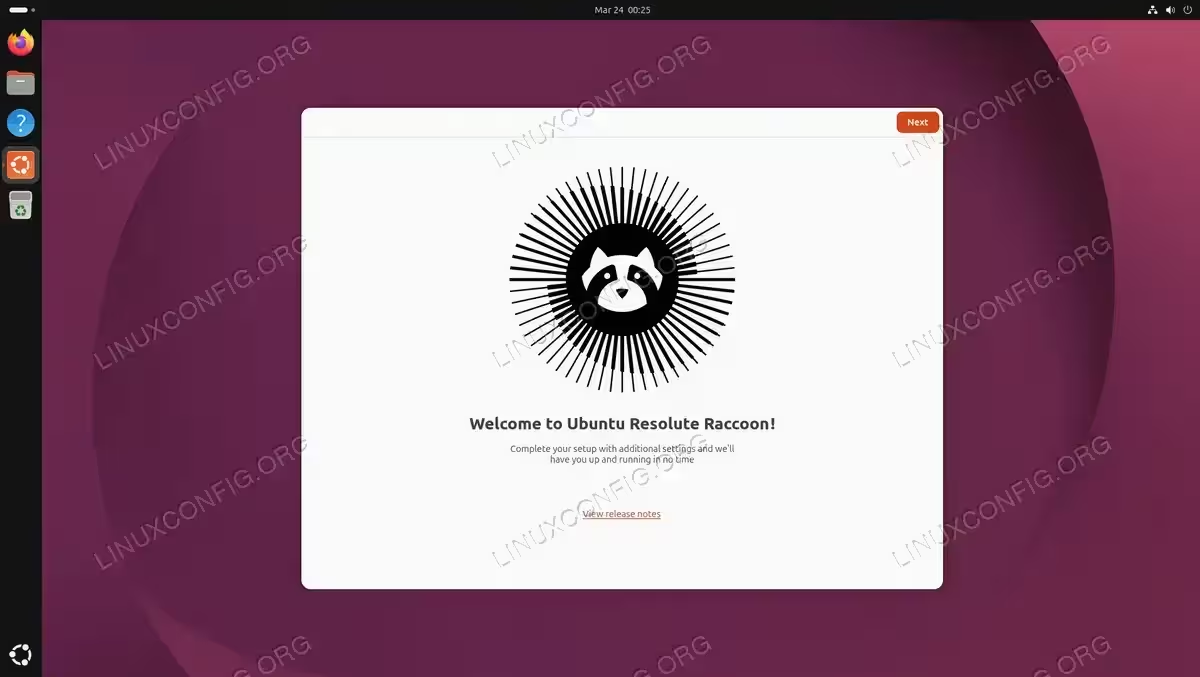
After the reboot, GDM will present you with a graphical login prompt. Log in with your existing server user credentials to access the GNOME desktop.
SLOW FIRST BOOT
The first reboot after installing a desktop on Ubuntu Server 26.04 may take noticeably longer than usual. This is because systemd-networkd-wait-online.service can stall while the system transitions from systemd-networkd (server default) to NetworkManager (pulled in by the desktop packages). The system will eventually boot successfully. On my installation it took about 2 minutes to complete the systemd-networkd-wait-online.service service start.
COMPLETED
Your Ubuntu Server 26.04 now has a fully functional GNOME desktop environment. You can switch between the GUI and a virtual terminal at any time using Ctrl+Alt+F1 through Ctrl+Alt+F6.
How to Install Alternative Desktops on Ubuntu Server 26.04
GNOME is not your only option. Ubuntu 26.04 supports several alternative desktop environments through official flavour meta-packages. This is particularly useful if you want a lighter interface or simply prefer a different workflow.
KDE Plasma (Kubuntu Desktop)
KDE Plasma offers a feature-rich, highly customizable desktop. To install the full Kubuntu desktop environment:
$ sudo apt install kubuntu-desktop
During installation, you will be prompted to select a display manager. Choose sddm if you want the KDE-native login screen, or keep gdm3 if GNOME is also installed and you prefer the GNOME display manager.
Xfce (Xubuntu Desktop)
Xfce is a lightweight desktop environment ideal for servers with limited resources. It provides a traditional desktop layout with minimal overhead:
$ sudo apt install xubuntu-desktop
Xfce uses the lightdm display manager by default. Similarly to KDE, you will be asked to choose your preferred display manager if another one is already installed.
Quick Comparison
| Desktop | Meta-package | Display Manager | Packages | Download / Disk Space |
|---|---|---|---|---|
| GNOME (minimal) | ubuntu-desktop-minimal |
GDM | 960 | 595 MB / ~2 GB |
| GNOME (full) | ubuntu-desktop |
GDM | 1107 | 758 MB / ~2.5 GB |
| KDE Plasma | kubuntu-desktop |
SDDM | 1773 | 1420 MB / ~4.2 GB |
| Xfce | xubuntu-desktop |
LightDM | 1442 | 966 MB / ~3.3 GB |
After installing any alternative desktop, reboot your system:
$ sudo reboot
Switching Between Desktop Environments
If you have multiple desktop environments installed, you can switch between them at the login screen. The display manager provides a session selector, typically accessible as a gear icon or dropdown menu before you enter your password.
Changing the Default Display Manager
When multiple display managers are installed (for example, GDM and SDDM), you can change the active one with:
$ sudo dpkg-reconfigure gdm3
This opens an interactive dialog where you can select which display manager handles graphical logins. Replace gdm3 with any installed display manager package name to trigger the selection.
Switching to Command Line Temporarily
You can temporarily switch from the graphical desktop to a command-line console using Ctrl+Alt+F2 (through F6). To return to the graphical session, press Ctrl+Alt+F1.
Additionally, if you need to stop the graphical interface entirely without rebooting:
$ sudo systemctl isolate multi-user.target
To start it again:
$ sudo systemctl isolate graphical.target
Conclusion
You have learned how to install desktop on Ubuntu 26.04 server, covering the default GNOME environment as well as KDE Plasma and Xfce alternatives. The process is straightforward: install the meta-package, verify the graphical boot target, and reboot. For most users, the ubuntu-desktop-minimal package offers the best balance between functionality and resource usage on a server system.
Frequently Asked Questions
- Can I install a desktop environment on Ubuntu Server without rebooting? Yes. After installing the desktop packages, you can start the display manager immediately with
sudo systemctl start gdm(orsddm,lightdmdepending on your choice). However, a reboot is recommended to ensure all services initialize correctly. - Will installing a desktop environment affect my running server services? No. Your existing server services such as web servers, databases, and SSH continue to run normally. The desktop environment runs alongside them. However, the GUI does consume additional RAM and CPU resources, so monitor your system if resources are limited.
- What is the difference between ubuntu-desktop and ubuntu-desktop-minimal? The
ubuntu-desktoppackage installs the complete Ubuntu desktop experience (1107 packages) including office suites, media players, and all default applications. Theubuntu-desktop-minimalpackage installs only the core desktop shell, file manager, terminal, and essential utilities (960 packages), resulting in a smaller installation footprint. - Can I have multiple desktop environments installed at the same time? Yes. You can install GNOME, KDE, and Xfce simultaneously. At the login screen, use the session selector to choose which desktop environment to load. The only consideration is disk space, as each environment adds several gigabytes of packages.
