
Docker Desktop provides a graphical interface for managing containers, images, and volumes on Ubuntu 26.04. This guide covers the complete installation process for Docker Desktop on Ubuntu Desktop, including prerequisites, installation steps, and initial configuration. Unlike the command-line-only Docker Engine, Docker Desktop ubuntu 26.04 includes a visual dashboard, integrated Kubernetes, and resource management tools that simplify container workflows for developers.
Table of Contents
In this tutorial you will learn:
- How to prepare Ubuntu 26.04 for Docker Desktop installation
- How to download and install Docker Desktop from the official repository
- How to configure Docker Desktop settings and resources
- How to verify the installation and run your first container
Software Requirements
| Category | Requirements, Conventions or Software Version Used |
|---|---|
| System | Ubuntu 26.04 Resolute Raccoon (Desktop installation with GNOME, KDE, or other DE) |
| Software | Docker Desktop 4.x (latest version from Docker repository) |
| Other | Privileged access to your Linux system as root or via the sudo command. 64-bit CPU with virtualization support (KVM). Minimum 4GB RAM (8GB recommended). |
| Conventions | # – requires given linux commands to be executed with root privileges either directly as a root user or by use of sudo command$ – requires given linux commands to be executed as a regular non-privileged user |
| Step | Command/Action |
|---|---|
| 1. Add Docker GPG key and repository | sudo install -m 0755 -d /etc/apt/keyrings && sudo curl -fsSL https://download.docker.com/linux/ubuntu/gpg -o /etc/apt/keyrings/docker.asc |
| 2. Download Docker Desktop .deb package | Download from https://www.docker.com/products/docker-desktop/ |
| 3. Install the package | sudo apt install ./docker-desktop-amd64.deb |
| 4. Launch Docker Desktop | Open from Applications menu or run systemctl --user start docker-desktop |
Prerequisites for Docker Desktop on Ubuntu 26.04
Before installing Docker Desktop on Ubuntu 26.04, your system must meet several requirements. Docker Desktop runs containers inside a virtual machine, which requires KVM virtualization support. Additionally, you need a graphical desktop environment since Docker Desktop provides a GUI application.
Verify KVM Support
Check that your CPU supports hardware virtualization and that KVM modules are loaded:
$ kvm-ok
You should see output indicating KVM acceleration can be used. If the kvm-ok command is not found, install the cpu-checker package:
$ sudo apt install cpu-checker
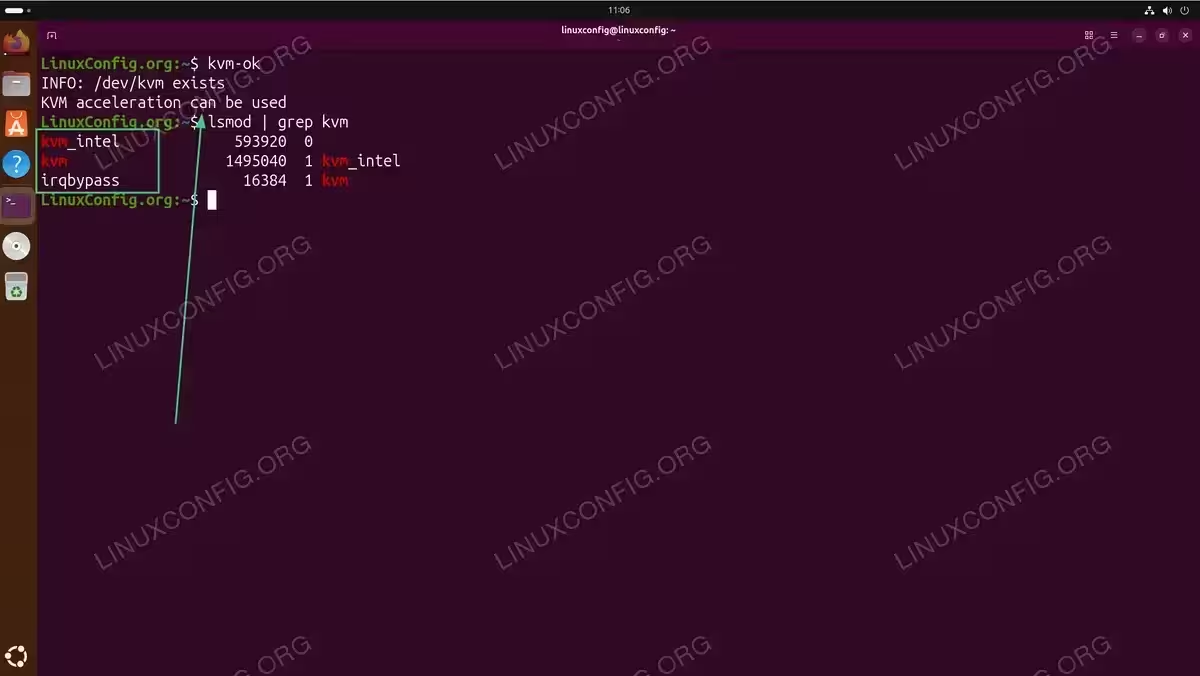
Alternatively, verify KVM modules are loaded:
$ lsmod | grep kvm
Expected output shows kvm_intel or kvm_amd depending on your processor.
Install Required Dependencies
Install packages needed for the installation process:
$ sudo apt update
$ sudo apt install ca-certificates curl gnupg
Install Docker Desktop on Ubuntu 26.04
The installation process involves setting up Docker’s official repository and then installing the Docker Desktop package. This ensures you receive updates directly from Docker.
Set Up Docker Repository
- Create the keyrings directory: This directory stores GPG keys for package verification.
$ sudo install -m 0755 -d /etc/apt/keyrings
- Download Docker’s GPG key: The key verifies package authenticity.
$ sudo curl -fsSL https://download.docker.com/linux/ubuntu/gpg -o /etc/apt/keyrings/docker.asc
$ sudo chmod a+r /etc/apt/keyrings/docker.asc
- Add the Docker repository: Configure apt to use Docker’s official repository.
$ echo \
  "deb [arch=$(dpkg --print-architecture) signed-by=/etc/apt/keyrings/docker.asc] https://download.docker.com/linux/ubuntu \
  $(. /etc/os-release && echo "${UBUNTU_CODENAME:-$VERSION_CODENAME}") stable" | \
  sudo tee /etc/apt/sources.list.d/docker.list > /dev/null
IMPORTANT
As of the time of writing, Docker’s repository for Ubuntu 26.04 (resolute) exists but does not yet contain packages. Check whether packages are available by runningapt-cache policy docker-ce-cliafter updating. If no candidate is shown, use the Ubuntu 24.04 (noble) repository instead:$ echo "deb [arch=amd64 signed-by=/etc/apt/keyrings/docker.asc] https://download.docker.com/linux/ubuntu noble stable" | sudo tee /etc/apt/sources.list.d/docker.list
The noble packages are fully compatible with Ubuntu 26.04.
- Update the package index: Refresh apt to include the new repository.
$ sudo apt update
Download and Install Docker Desktop
Download the Docker Desktop .deb package from the official Docker website. Visit Docker Desktop download page and select the Ubuntu/Debian package, or download directly using wget:
$ wget https://desktop.docker.com/linux/main/amd64/docker-desktop-amd64.deb
IMPORTANT
The download URL may change with new releases. Always verify the current download link from the official Docker website for the latest version.
Install the downloaded package:
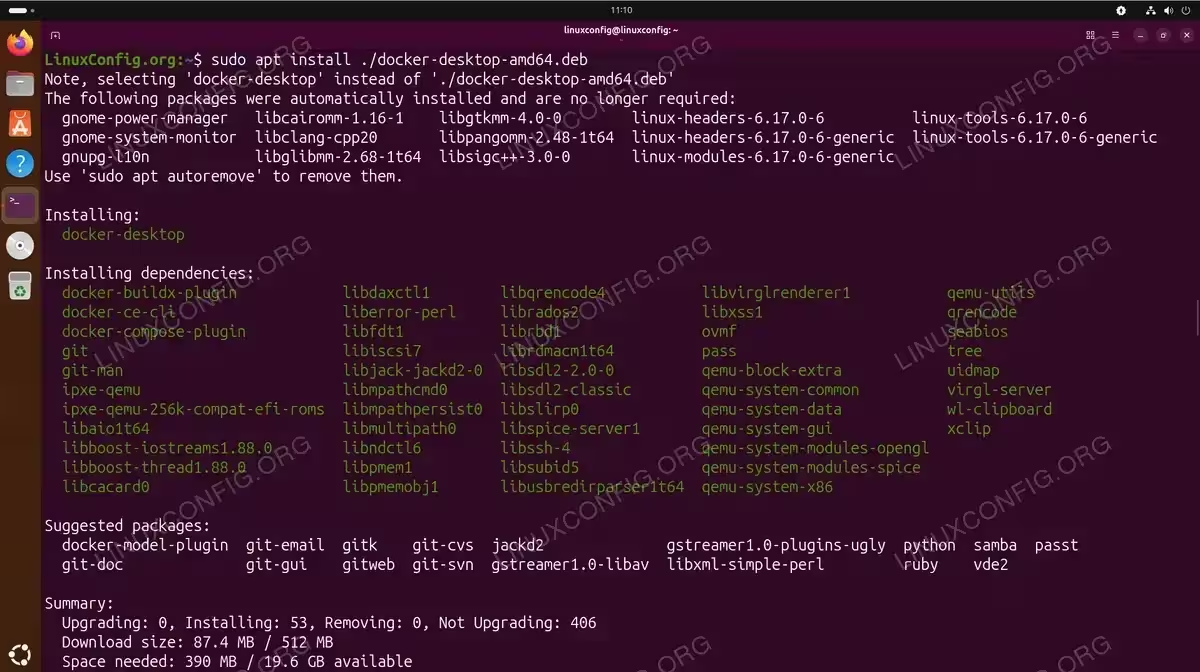
$ sudo apt install ./docker-desktop-amd64.deb
The installation process automatically installs Docker Engine, Docker CLI, Docker Compose, and the Docker Desktop GUI application. It also configures the necessary systemd services for your user session.
Launch and Configure Docker Desktop
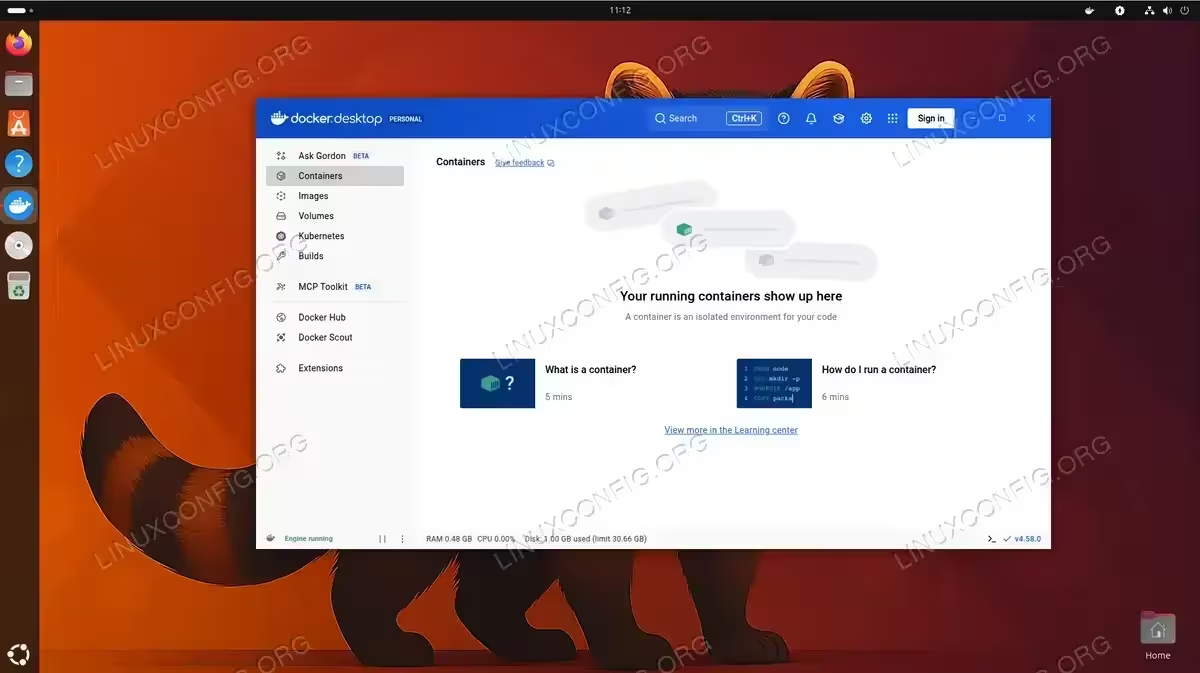
After installation, launch Docker Desktop from your applications menu or using the command line. The first launch requires accepting the service agreement and completing initial setup.
Start Docker Desktop
Launch Docker Desktop using one of these methods:
- Applications menu: Search for “Docker Desktop” in your application launcher and click to open.
- Command line: Start the service and open the GUI.
$ systemctl --user start docker-desktop
On first launch, Docker Desktop displays a service agreement. Accept the terms to proceed with initialization. The application then starts the Docker virtual machine and configures networking.
Configure Resources
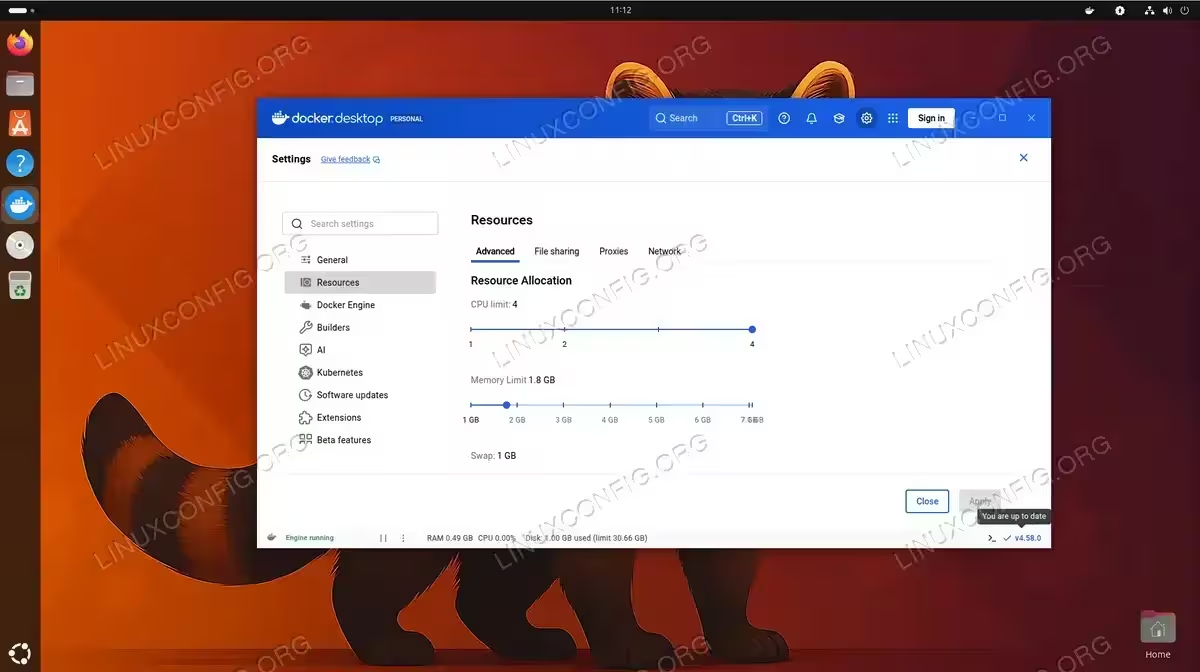
Access Docker Desktop settings through the gear icon in the top-right corner. The Resources section allows you to configure CPU, memory, and disk allocation for containers. For Docker workloads on Ubuntu 26.04, consider adjusting these based on your development needs.
Key settings to review:
- CPUs: Number of CPU cores available to containers (default: half of available cores)
- Memory: RAM allocation for the Docker VM (default: 2GB, increase for larger workloads)
- Disk image size: Maximum size for container images and volumes
- File sharing: Directories accessible to containers (your home directory is shared by default)
Enable Kubernetes (Optional)
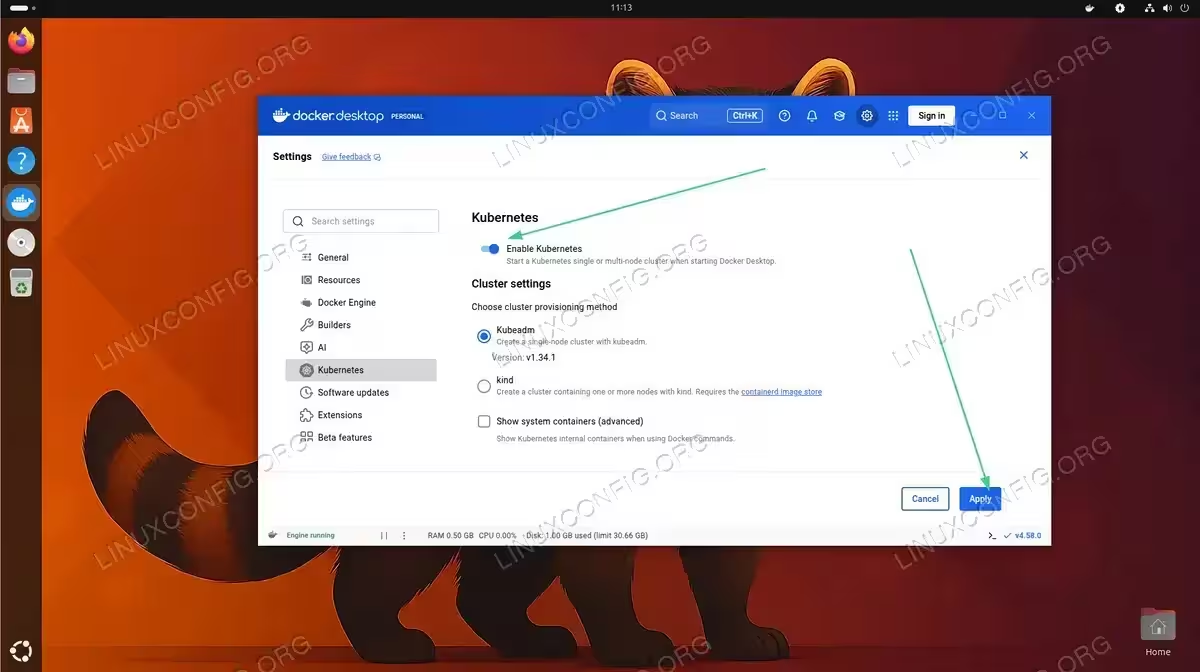
Docker Desktop includes a single-node Kubernetes cluster for local development. Enable it through Settings > Kubernetes > Enable Kubernetes. This feature is useful for testing Kubernetes deployments locally before pushing to production clusters.
INSTALLATION TIPS
Enabling Kubernetes increases resource usage significantly. Only enable this feature if you need local Kubernetes development capabilities.
Verify Docker Desktop Installation
After completing the installation and configuration, verify that Docker Desktop is working correctly on your Ubuntu 26.04 system.
Check Docker Version
Verify the Docker CLI is accessible and shows version information:
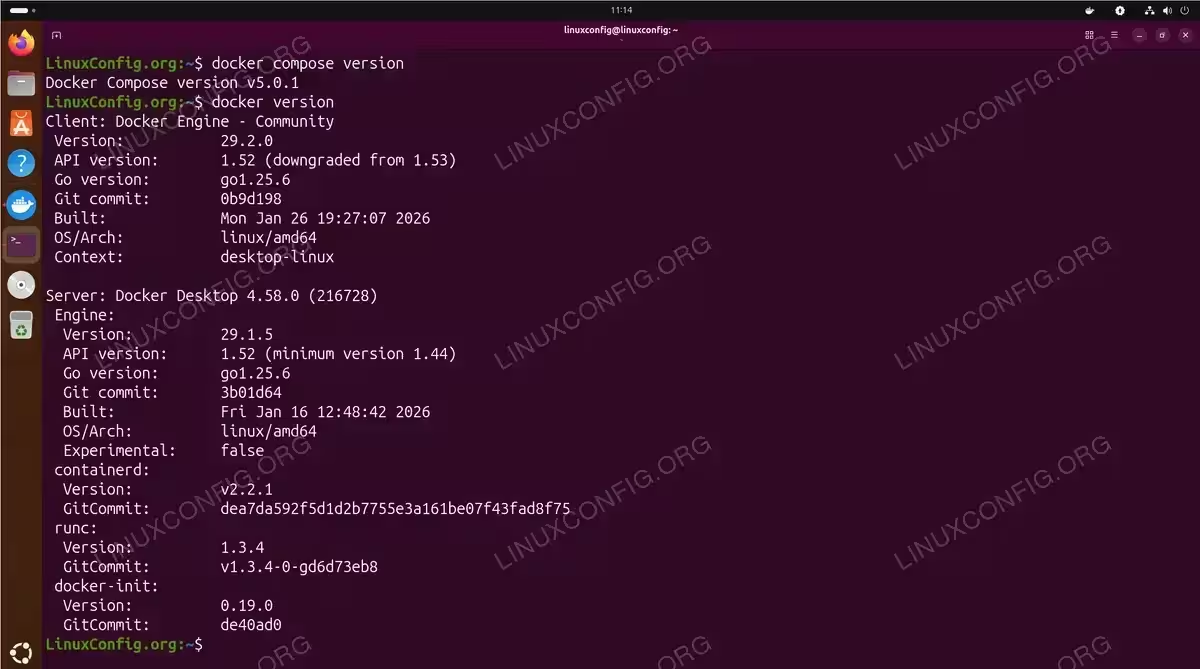
$ docker version
The output displays both client and server versions, confirming the Docker daemon is running. You can also check Docker Compose:
$ docker compose version
Run a Test Container
Test your installation by running the hello-world container:
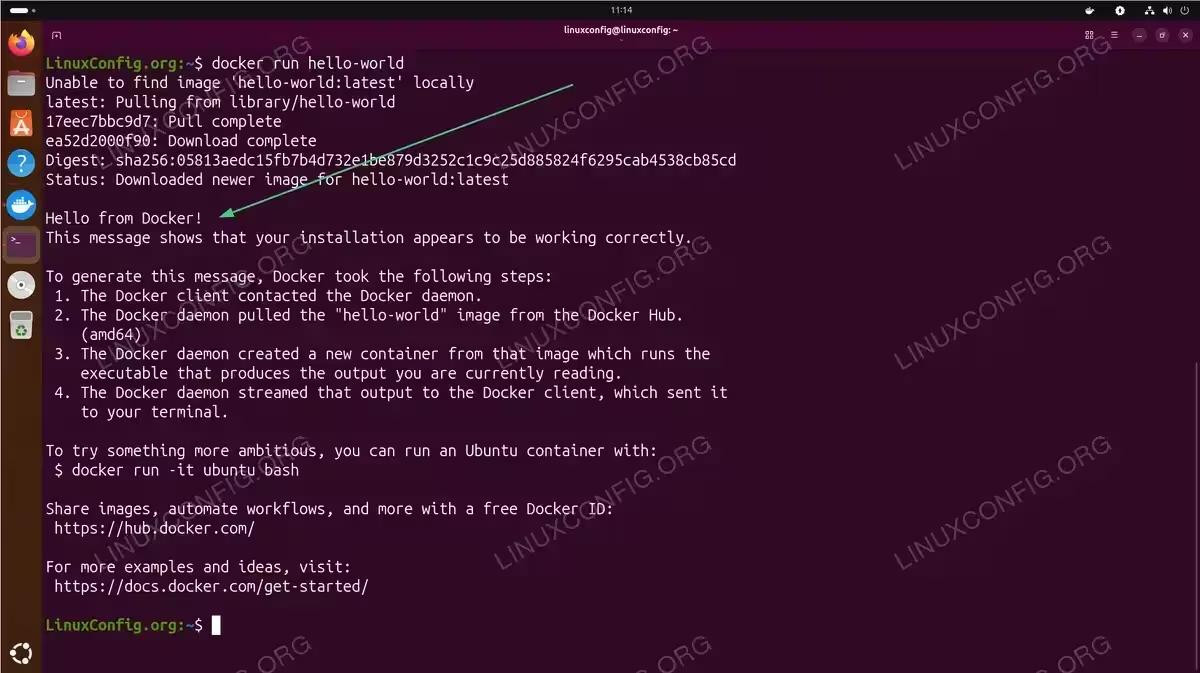
$ docker run hello-world
Docker pulls the image from Docker Hub and runs the container. Successful execution displays a confirmation message explaining how Docker works.
Verify GUI Functionality
Open Docker Desktop and navigate to the Containers section. The hello-world container should appear in the list (in exited state). You can view Docker images in the Images section, where the hello-world image is now cached locally.
Managing Docker Desktop Service
Docker Desktop runs as a user-level systemd service. You can control it using standard systemd commands.
To restart Docker Desktop:
$ systemctl --user restart docker-desktop
To stop Docker Desktop and free system resources:
$ systemctl --user stop docker-desktop
To check the service status:
$ systemctl --user status docker-desktop
You can also configure Docker Desktop to start automatically at login through Settings > General > Start Docker Desktop when you sign in.
Troubleshooting
Conflicting Packages
If installation fails due to package conflicts, remove older Docker packages that might interfere:
$ for pkg in docker.io docker-doc docker-compose podman-docker containerd runc; do sudo apt remove $pkg; done
This command removes distribution-provided Docker packages. After removal, run sudo apt update and retry the Docker Desktop installation.
Repository Has No Packages
If apt-cache policy docker-ce-cli shows no installation candidate after adding the Docker repository, the Ubuntu 26.04 repository may not have packages published yet. Edit the repository file to use noble (Ubuntu 24.04) packages:
$ echo "deb [arch=amd64 signed-by=/etc/apt/keyrings/docker.asc] https://download.docker.com/linux/ubuntu noble stable" | sudo tee /etc/apt/sources.list.d/docker.list
$ sudo apt update
Conclusion
You have successfully installed Docker Desktop on Ubuntu 26.04. The graphical interface simplifies container management, providing visual tools for working with images, containers, volumes, and networks. Docker Desktop integrates seamlessly with the command-line tools, so you can use either the GUI or terminal based on your preference. For headless server environments where a desktop environment is not available, consider using Docker Engine with CLI tools instead.
Frequently Asked Questions
- What is the difference between Docker Desktop and Docker Engine? Docker Engine is the command-line-only container runtime, while Docker Desktop includes a graphical interface, built-in Kubernetes, automatic updates, and resource management tools. Docker Desktop uses a lightweight virtual machine to run containers, providing better isolation on desktop systems.
- Can I use Docker Desktop on Ubuntu Server without a GUI? No, Docker Desktop requires a graphical desktop environment. For Ubuntu Server installations, use Docker Engine instead, which provides the same container functionality through command-line tools.
- Is Docker Desktop free for personal use on Ubuntu 26.04? Yes, Docker Desktop is free for personal use, education, and small businesses with fewer than 250 employees and less than $10 million in annual revenue. Larger organizations require a paid subscription.
- How do I update Docker Desktop on Ubuntu 26.04? Docker Desktop checks for updates automatically and notifies you when new versions are available. You can also download the latest .deb package from Docker’s website and install it over the existing installation using
sudo apt install ./docker-desktop-amd64.deb. - Why does Docker Desktop require KVM on Ubuntu? Docker Desktop runs containers inside a lightweight virtual machine for isolation and compatibility. KVM provides hardware-accelerated virtualization, which ensures containers run efficiently without significant performance overhead.