
Changing the default SSH port is one of the most effective first steps toward hardening a Linux server. By moving away from the well-known port 22, you reduce automated brute-force attempts and make your server a less obvious target. This guide explains how to perform an SSH port change on Ubuntu 26.04, covering the important architectural shift introduced in this release: SSH now uses systemd socket activation by default, which means the traditional method of editing sshd_config alone is no longer sufficient. You will learn both the correct socket-based method and how to update your firewall accordingly.
- Why Ubuntu 26.04 SSH port changes require the socket activation method
- How to configure a custom SSH port using
systemctl edit ssh.socket - How to update UFW firewall rules for the new port
- How to verify the SSH daemon is listening on the new port
- How to revert back to the default port 22 if needed
Software Requirements
| Category | Requirements, Conventions or Software Version Used |
|---|---|
| System | Ubuntu 26.04 Resolute Raccoon: Download |
| Software | OpenSSH Server (openssh-server), systemd, UFW |
| Other | Privileged access to your Linux system as root or via the sudo command. |
| Conventions | # – requires given linux commands to be executed with root privileges either directly as a root user or by use of sudo command$ – requires given linux commands to be executed as a regular non-privileged user |
ssh.socket instead of sshd_config to change the port.
| Step | Command/Action |
|---|---|
| 1. Open socket override editor | sudo systemctl edit ssh.socket |
| 2. Add ListenStream directives for new port (e.g. 8022) | [Socket] |
| 3. Reload and restart socket | sudo systemctl daemon-reload && sudo systemctl restart ssh.socket |
| 4. Update UFW and verify | sudo ufw allow 8022/tcp && sudo ss -tlnp | grep ssh |
SSH and Socket Activation in Ubuntu 26.04
Ubuntu 26.04 introduces a significant change to how the SSH daemon manages its listening port. In previous Ubuntu releases, changing the SSH port simply required editing the Port directive in /etc/ssh/sshd_config and restarting the service. That method no longer works reliably on Ubuntu 26.04.
The reason is that Ubuntu 26.04 enables systemd socket activation for SSH by default. With socket activation, the ssh.socket unit — not the SSH daemon itself — is responsible for opening and managing the listening port. When ssh.socket is active, the Port directive in sshd_config is effectively ignored because the socket is already bound before sshd even starts.
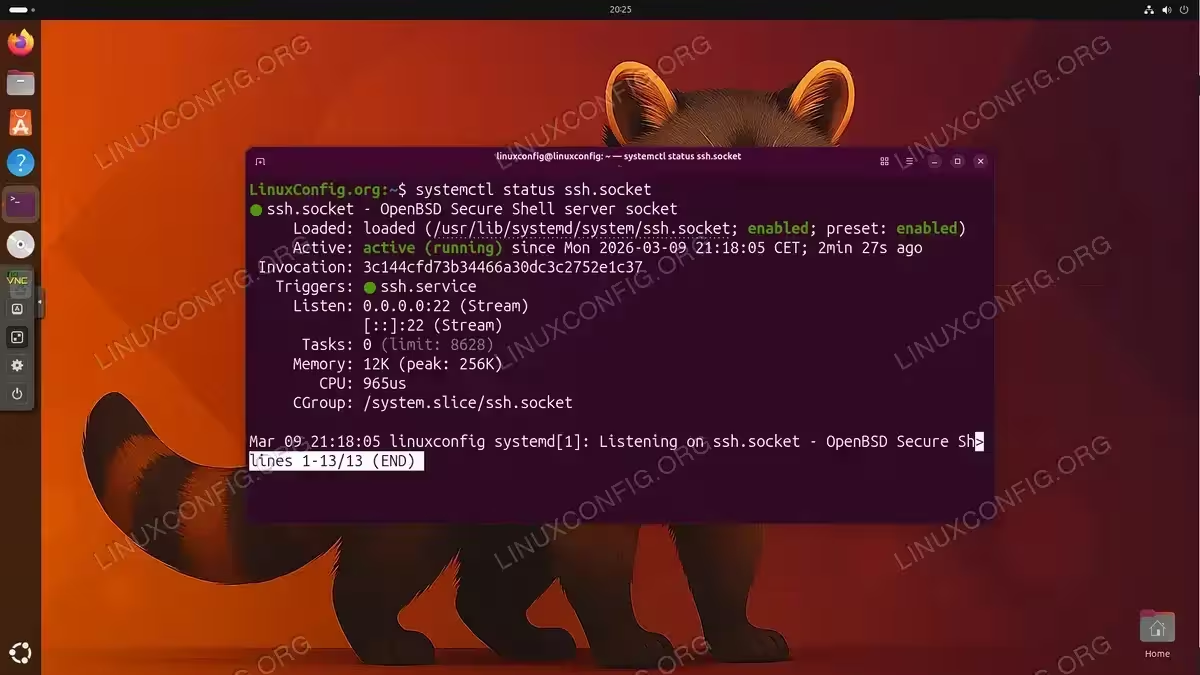
You can confirm socket activation is in use on your system with:
$ systemctl status ssh.socket
If the output shows active (running), socket activation is controlling your SSH port and you must use the socket override method described in the next section. You can also verify which unit is responsible for the port:
$ sudo ss -tlnp | grep :22
Look for users:(("systemd",...)) in the output — this confirms systemd (via socket activation) is holding the port, not sshd directly.
IMPORTANT
Never edit only /etc/ssh/sshd_config and restart ssh.service to change the port on Ubuntu 26.04. When socket activation is enabled, sshd will continue listening on port 22 regardless of what sshd_config says. Always use the socket override method.
Change the SSH Port on Ubuntu 26.04
The correct way to perform an SSH port change on Ubuntu 26.04 is to create a systemd drop-in override for the ssh.socket unit. This approach is persistent across reboots and does not require modifying any system-managed unit files directly.
Throughout this guide, port 8022 is used as the example. Replace it with your chosen port number.
IMPORTANT
Keep your current SSH session open throughout this process. Do not disconnect until you have verified that you can successfully connect on the new port. If something goes wrong, your existing session allows you to undo the changes.
- Open the socket override editor: Run the following command to create a systemd drop-in override for
ssh.socket:$ sudo systemctl edit ssh.socket
This opens a nano editor targeting
/etc/systemd/system/ssh.socket.d/override.conf. The file is pre-populated with comment lines — these are read-only scaffolding generated by systemd and are not actual configuration. Lines beginning with#are ignored entirely. The editor also displays the contents of the base unit file (/usr/lib/systemd/system/ssh.socket) as comments at the bottom for reference — this file is never modified. Any configuration you type here overrides the base unit values without touching the original.IMPORTANT
The editor shows two comment blocks separated by a blank area. The line### Edits below this comment will be discardedmarks where the editable region ends. Type your configuration in the blank space above that line — do not type below it. - Add the custom port configuration: In the blank editable area above the “Edits below this comment will be discarded” line, enter the following:
[Socket] ListenStream= ListenStream=0.0.0.0:8022 ListenStream=[::]:8022The first
ListenStream=(empty) is required — it clears the default port 22 setting inherited from the base unit. Without it, SSH would listen on both port 22 and your new port. The next two lines bind SSH to port 8022 on all IPv4 and IPv6 interfaces. Save and exit withCtrl+OthenCtrl+X.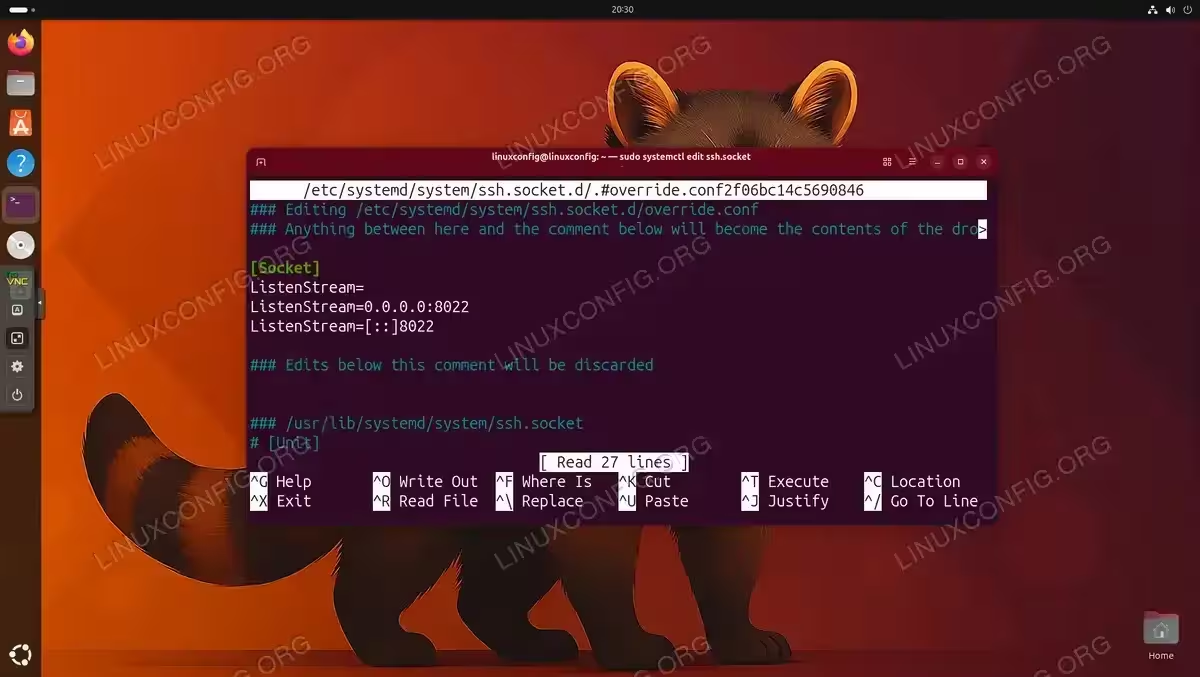
The [Socket] block with port 8022 entered in the override.conf editor - Reload systemd and restart the socket:
$ sudo systemctl daemon-reload
$ sudo systemctl restart ssh.socket
The
daemon-reloadcommand is necessary to make systemd read the new override file. Restartingssh.socketapplies the new port binding immediately. - Verify the override was applied: Confirm the drop-in file was written correctly:
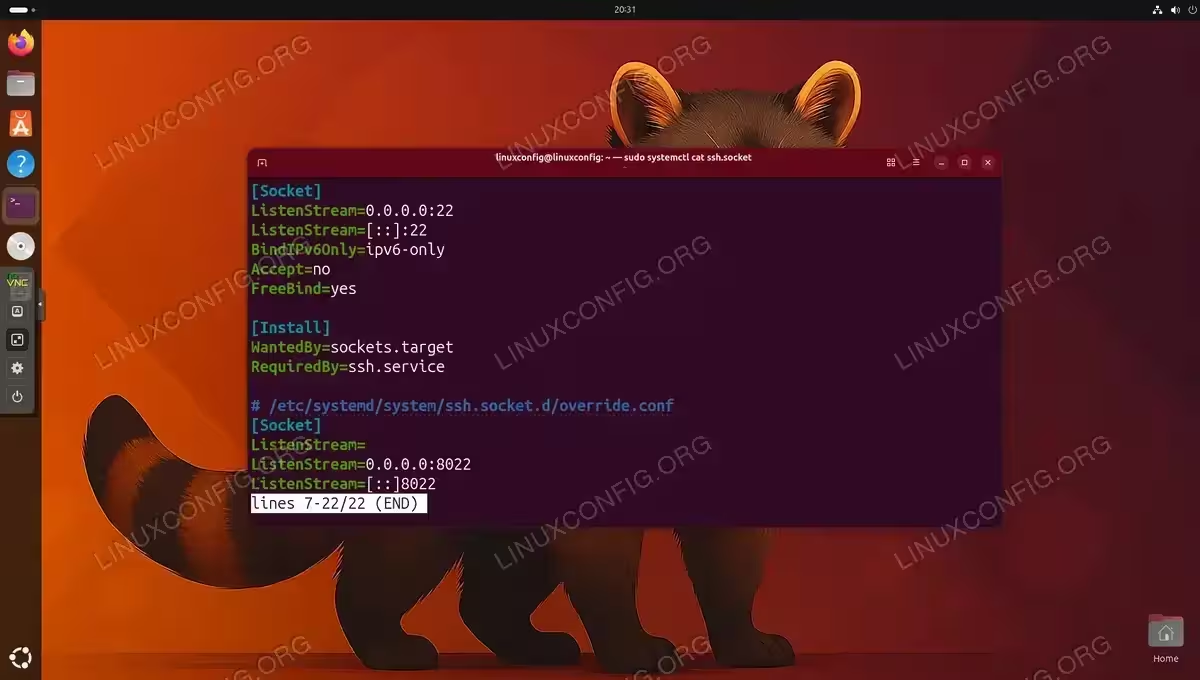
$ sudo systemctl cat ssh.socket
The output will show both the base unit content and your override. Look for
# /etc/systemd/system/ssh.socket.d/override.conffollowed by yourListenStreamentries.
For additional context on how the SSH daemon is configured beyond port settings, refer to the SSH configuration guide on Ubuntu 26.04.
Update the Firewall for the New SSH Port
After changing the SSH port, you must update UFW to allow traffic on the new port. Additionally, you should remove the old rule allowing port 22 once you have confirmed the new port works. Failing to update the firewall is a common reason why SSH connections fail after a port change.
- Allow the new port through UFW:
$ sudo ufw allow 8022/tcp comment 'SSH custom port'
- Verify the new rule is active:
$ sudo ufw status numbered
Confirm that port 8022/tcp appears in the list before proceeding.
- Test the new port first (from a separate terminal or client machine):
$ ssh -p 8022 linuxconfig@your-server-ip
Only proceed to remove the port 22 rule after confirming a successful connection on port 8022.
- Remove the old port 22 rule: Identify the rule number from
ufw status numberedand delete it. For example, if port 22 is rule number 1:$ sudo ufw delete 1
IMPORTANT
If UFW is not enabled on your system, activate it with sudo ufw enable after adding your rules. Ensure you add the new SSH rule before enabling UFW to avoid locking yourself out. For troubleshooting SSH connectivity issues after a port change, see SSH troubleshooting on Ubuntu 26.04.
Verify and Connect on the New Port
After restarting the socket and updating the firewall, confirm that the SSH port change on Ubuntu 26.04 is complete and functional.
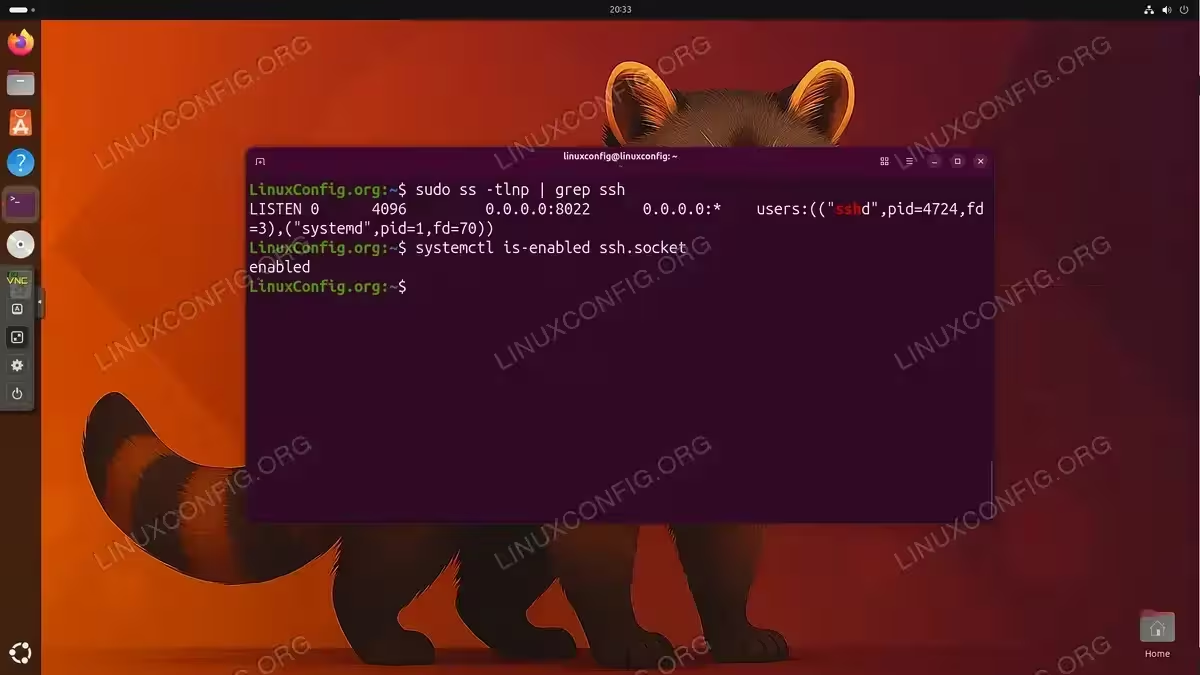
- Confirm SSH is listening on the new port:
$ sudo ss -tlnp | grep ssh
The output should show SSH bound to
0.0.0.0:8022and[::]:8022. If port 22 still appears alongside 8022, the emptyListenStream=line in your override may be missing — revisit step 2 of the previous section. - Confirm the socket override persists across reboots:
$ systemctl is-enabled ssh.socket
The output should be
enabled, confirming the socket (and consequently your port setting) will survive a system restart. - Connect from a client using the new port:
$ ssh -p 8022 linuxconfig@your-server-ip
A successful connection confirms the entire configuration is working correctly.
- Optionally configure your SSH client to use the port by default: On the client machine, add an entry to
~/.ssh/configto avoid specifying-p 8022every time:Host myserver HostName your-server-ip Port 8022 User linuxconfigAfter saving, connect simply with
ssh myserver.
For a full reference on SSH client and server configuration options available on Ubuntu 26.04, see how to configure SSH on Ubuntu 26.04. You can also consult the official sshd_config manual page for a complete list of SSH daemon directives.
Revert to the Default SSH Port 22
If you need to revert the SSH port change on Ubuntu 26.04 and return to the default port 22, the process is straightforward. Simply remove the socket override file and restart the socket unit.
- Remove the override file:
$ sudo rm /etc/systemd/system/ssh.socket.d/override.conf
This is safe — the file contains only the configuration you typed. The comment scaffolding visible when you first opened the editor is never written to disk; systemd discards it. The base unit at
/usr/lib/systemd/system/ssh.socketis untouched. Alternatively,sudo systemctl revert ssh.socketremoves the entire override directory and restores the base unit defaults in one step. - Reload systemd and restart the socket:
$ sudo systemctl daemon-reload
$ sudo systemctl restart ssh.socket
- Restore the UFW rule for port 22:
$ sudo ufw allow 22/tcp
$ sudo ufw delete <rule-number-for-8022>
- Verify SSH is back on port 22:
$ sudo ss -tlnp | grep ssh
Conclusion
Performing an SSH port change on Ubuntu 26.04 requires understanding the socket activation model that this release adopts by default. Unlike earlier Ubuntu versions where editing sshd_config was sufficient, Ubuntu 26.04 requires configuring the port through a ssh.socket drop-in override. The process involves creating the override with the correct ListenStream directives, reloading systemd, and updating the UFW firewall. Once completed, the configuration persists across reboots automatically. If you want to further harden your SSH server on Ubuntu 26.04, consider combining a custom port with key-based authentication and additional sshd_config hardening options. You can also manage which users are permitted to connect by reviewing SSH root login settings on Ubuntu 26.04.
Frequently Asked Questions
- Why doesn’t editing the Port directive in sshd_config work on Ubuntu 26.04? On Ubuntu 26.04, SSH uses systemd socket activation by default. When
ssh.socketis active, it opens the listening port before the SSH daemon starts, and the daemon inherits that socket. Because the socket is already bound, anyPortdirective insshd_configis ignored. The port must be configured in thessh.socketunit via a drop-in override file. - Can I disable socket activation and return to the traditional sshd_config method? Yes. You can disable socket activation with
sudo systemctl disable --now ssh.socketand then enable the traditional service withsudo systemctl enable --now ssh.service. After this change, thePortdirective insshd_configwill take effect again. However, the socket activation method is recommended as it is the supported default for Ubuntu 26.04. - What port number should I choose as a replacement for port 22? Any unused port in the range 1024-65535 can be used. Ports below 1024 require root privileges to bind and are generally reserved for well-known services. Common choices are ports in the 2000-9000 range (for example, 8022, 4422, or 8822). Avoid ports already in use by other services on your system — you can check with
sudo ss -tlnp. - Will the custom SSH port survive a reboot? Yes. The drop-in override file created at
/etc/systemd/system/ssh.socket.d/override.confis persistent. As long asssh.socketis enabled (confirmed withsystemctl is-enabled ssh.socket), the custom port will be applied automatically on every boot. - Do I need to update anything else after changing the SSH port? Beyond updating UFW, check whether any monitoring tools, backup scripts, or remote access configurations reference port 22 explicitly. Also update your SSH client config (
~/.ssh/config) on any machines you use to connect to the server, and notify any team members who access the server via SSH.
