
Knowing how to perform an NTP check on Ubuntu 26.04 is essential for any administrator who needs accurate, synchronized system time. Ubuntu 26.04 Resolute Raccoon ships with Chrony as the default NTP daemon, replacing the older systemd-timesyncd. Chrony provides faster synchronization, better accuracy, and supports Network Time Security (NTS) out of the box. This guide walks you through every method to verify NTP status, interpret synchronization output, and diagnose common time-sync issues on Ubuntu 26.04.
- How to check the Chrony NTP service status on Ubuntu 26.04
- How to interpret
chronyc trackingoutput - How to list and evaluate NTP sources with
chronyc sources - How to view NTP source statistics with
chronyc sourcestats - How to use
timedatectlto verify time synchronization - How to confirm NTS (Network Time Security) is active
- How to read Chrony logs for sync history
Software Requirements
| Category | Requirements, Conventions or Software Version Used |
|---|---|
| System | Ubuntu 26.04 Resolute Raccoon – Download |
| Software | Chrony 4.7 (default NTP daemon on Ubuntu 26.04), chronyc client |
| Other | Privileged access to your Linux system as root or via the sudo command. |
| Conventions | # – requires given linux commands to be executed with root privileges either directly as a root user or by use of sudo command$ – requires given linux commands to be executed as a regular non-privileged user |
TL;DR
chronyc tracking to check synchronization status, chronyc sources -v to list time sources, and timedatectl to confirm NTP is active.
| Step | Command/Action |
|---|---|
| 1. Check Chrony service status | systemctl status chrony |
| 2. Check synchronization tracking | chronyc tracking |
| 3. List NTP sources | chronyc sources -v |
| 4. Confirm NTP active via timedatectl | timedatectl |
Check Chrony Service Status
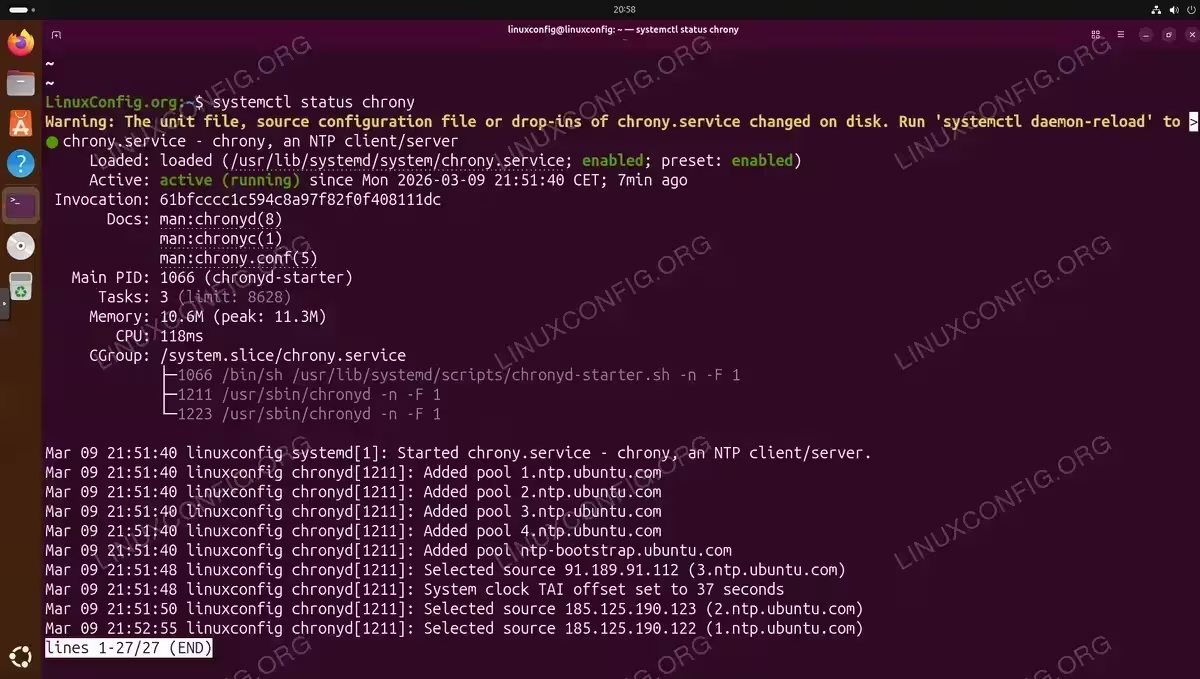
The first step in any NTP check on Ubuntu 26.04 is confirming that the Chrony service is running. Unlike older Ubuntu releases that used systemd-timesyncd, Ubuntu 26.04 uses Chrony as the default NTP daemon. Therefore, you should query the chronyd service:
$ systemctl status chrony
A healthy output shows the service as active (running). Additionally, you will see recent log entries showing NTP source selection and clock adjustments. If the service is not running, start it with:
$ sudo systemctl start chrony
To ensure Chrony starts automatically on every boot, enable it as well:
$ sudo systemctl enable chrony
IMPORTANT
On Ubuntu 26.04, systemd-timesyncd is not installed by default. Do not look for a systemd-timesyncd service on this release. Chrony is the sole NTP daemon.
Check NTP Synchronization with chronyc tracking
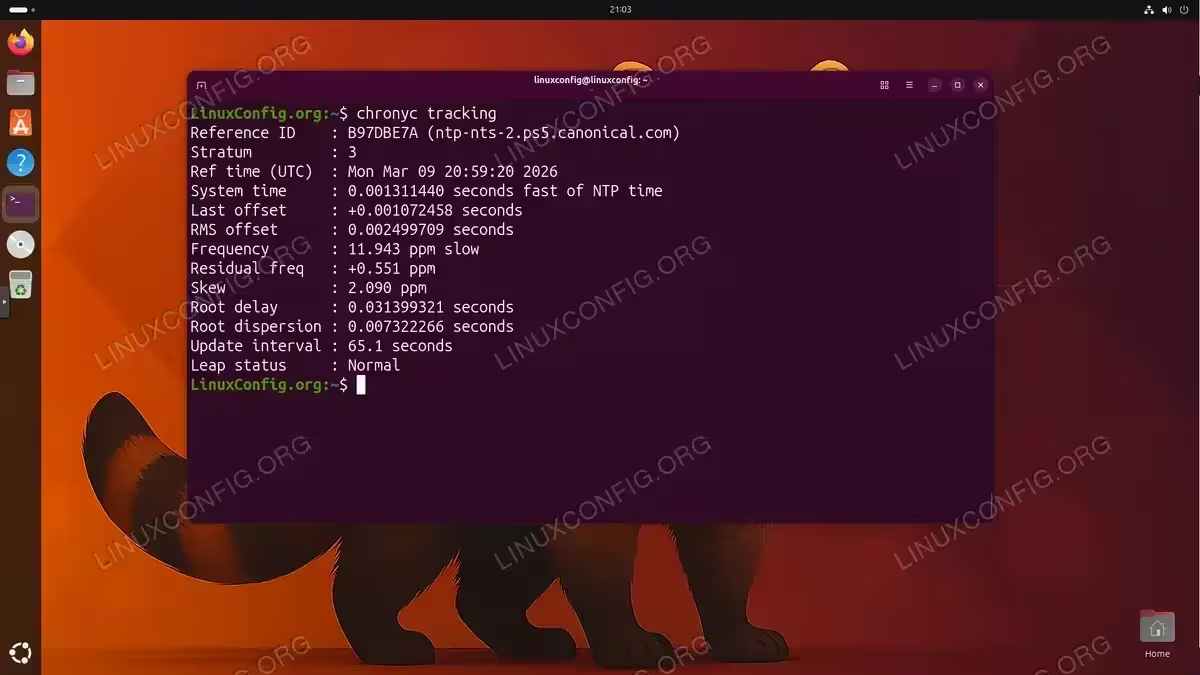
The most detailed way to perform an NTP check on Ubuntu 26.04 is the chronyc tracking command. This command queries the running Chrony daemon and displays the current synchronization state of the system clock:
$ chronyc tracking
The output contains several important fields. Understanding each one helps you assess whether your system time is healthy:
| Field | Meaning |
|---|---|
| Reference ID | The NTP source currently being used to synchronize. A valid server address indicates active sync. |
| Stratum | Distance from the reference clock. Stratum 1 is directly connected to a hardware clock; lower numbers mean higher accuracy. |
| Ref time (UTC) | The UTC timestamp of the last update received from the reference source. |
| System time | The current offset between the system clock and the NTP source. A small value (milliseconds or less) indicates good sync. |
| Last offset | The offset measured at the last update. Negative values mean the system clock was ahead; positive values mean it was behind. |
| RMS offset | The long-term average of offset values. A consistently low value indicates stable synchronization. |
| Frequency | The rate at which the system clock gains or loses time relative to the reference. Expressed in parts per million (ppm). |
| Residual freq | The remaining frequency error after the latest correction has been applied, expressed in ppm. |
| Skew | The estimated error bound on the frequency value, expressed in ppm. |
| Root delay | The total network path delay to the stratum-1 reference clock, in seconds. |
| Root dispersion | The total dispersion accumulated back to the stratum-1 reference clock, in seconds. |
| Update interval | The current polling interval in seconds, i.e. how often Chrony queries the reference source. |
| Leap status | Should read Normal under standard conditions. Other values (Insert, Delete) indicate an upcoming leap second event. |
Consequently, if the Reference ID shows 7F7F0101 (the loopback address), Chrony is not synchronized to any external source and is operating in free-running mode. In that case, check your network connectivity and NTP server configuration.
Check NTP Sources
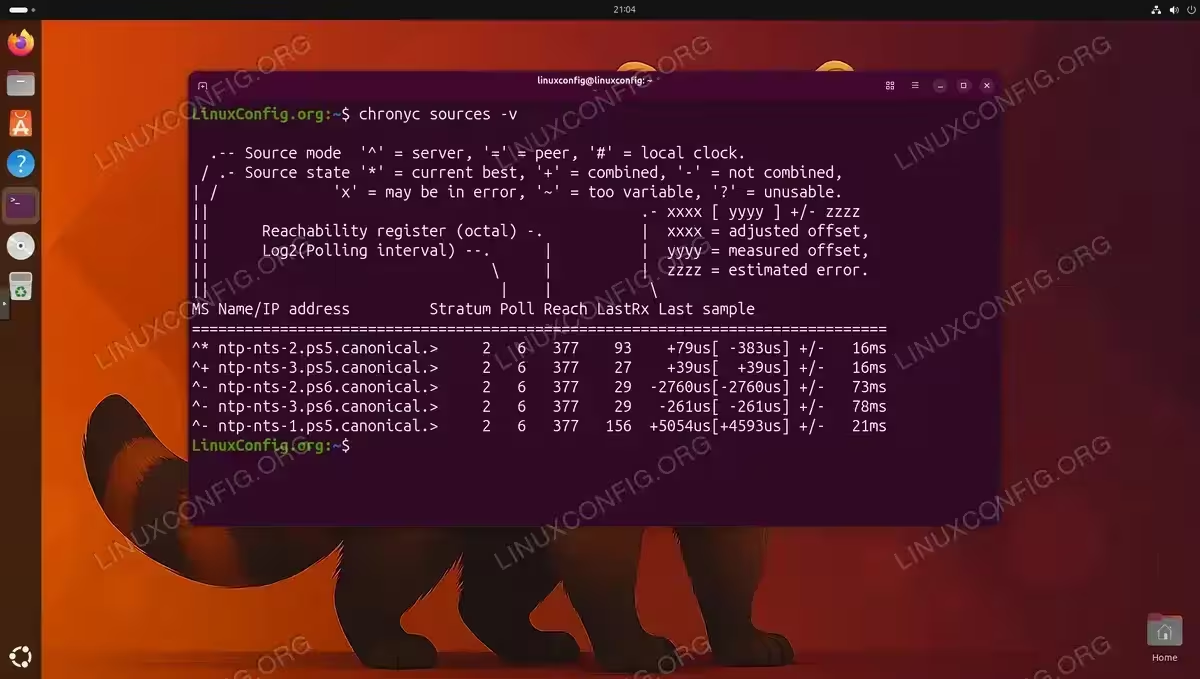
To see which NTP servers Chrony is communicating with, use the chronyc sources command. The -v flag adds a descriptive header that makes the output easier to read:
$ chronyc sources -v
Each row represents one configured NTP source. The output uses two symbol columns before the server name. The first column indicates the source mode, and the second indicates the source state:
| Column | Symbol | Meaning |
|---|---|---|
| Mode (1st column) | ^ |
Server (the source is an NTP server). |
= |
Peer (symmetric NTP peer). | |
# |
Local reference clock. | |
| State (2nd column) | * |
Currently selected source (the one being used for synchronization). |
+ |
Acceptable source, combined with the selected source. | |
- |
Source not combined (excluded by the selection algorithm). | |
? |
Source connectivity lost or unreachable. | |
x |
Source considered a falseticker (its time disagrees with the majority). | |
~ |
Source has too high variability. |
The remaining columns provide additional detail about each source:
| Column | Meaning |
|---|---|
| Stratum | Stratum level of the source. |
| Poll | Log2 of the polling interval in seconds. A value of 6 means 2^6 = 64 seconds between polls. |
| Reach | Reachability register in octal. A value of 377 means all 8 of the last 8 polls were successful. |
| LastRx | Seconds since the last packet was received from this source. |
| Last sample | Three values: adjusted offset, measured offset, and estimated error (format: xxxx[yyyy] +/- zzzz). |
Ubuntu 26.04 configures Chrony to use the ntp.ubuntu.com pool, which resolves to Canonical NTS servers (e.g. ntp-nts-*.ps5.canonical.com, ntp-nts-*.ps6.canonical.com). Therefore, you should normally see several servers listed with ^* or ^+ symbols and a Reach value of 377, confirming full reachability. The NTP configuration file at /etc/chrony/chrony.conf controls which pools are queried.
Check NTP Source Statistics
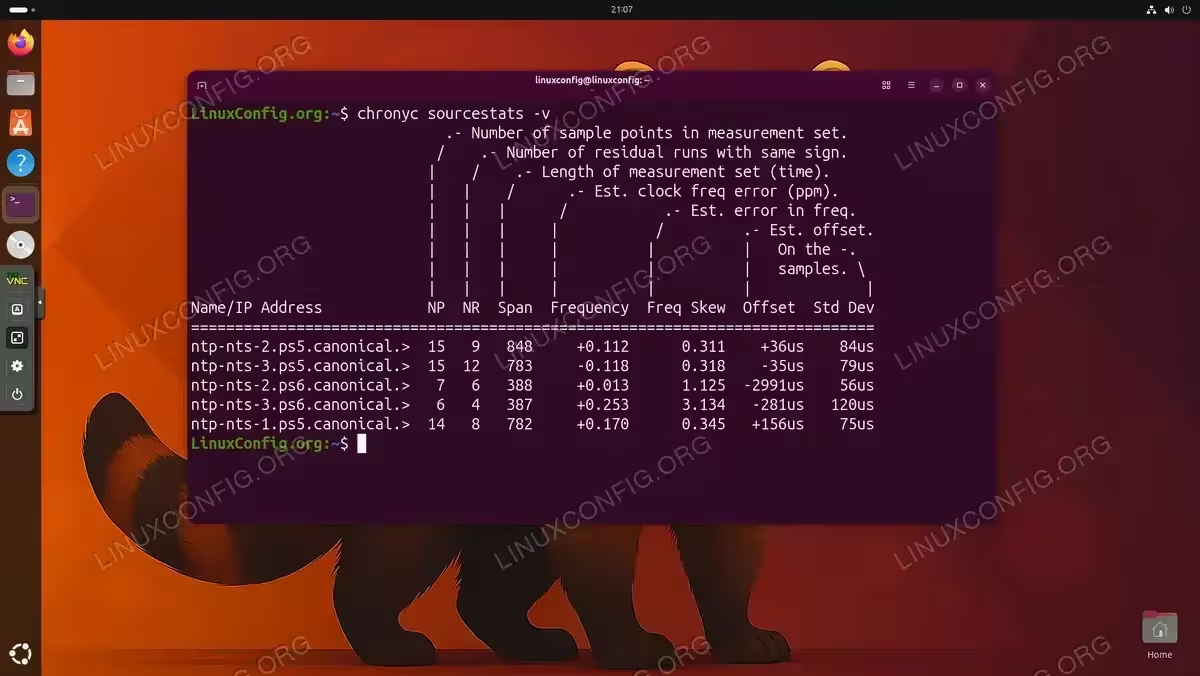
For a more thorough NTP check on Ubuntu 26.04, the chronyc sourcestats command provides statistical data about each NTP source over time:
$ chronyc sourcestats -v
This command is useful for evaluating the long-term reliability of each source. The key columns are:
| Field | Meaning |
|---|---|
| NP | Number of sample points used for regression analysis. |
| NR | Number of runs of residuals with the same sign. A good value is close to NP/2; a value too close to 1 or NP suggests a systematic trend in the errors. |
| Span | Time span covered by the samples, in seconds. |
| Frequency | Estimated clock frequency error of the source, in ppm. |
| Freq Skew | Estimated error bound on the frequency estimate, in ppm. |
| Offset | Estimated offset of the source, typically shown in microseconds (us) for well-synchronized sources. |
| Std Dev | Estimated standard deviation of the offset, typically in microseconds (us). Lower is better. |
Moreover, a low Std Dev value across your sources indicates that Chrony has stable, consistent data to work with, resulting in accurate time synchronization. If you are configuring a dedicated NTP server, reviewing sourcestats output is a critical part of validating its reliability.
Check Time Sync with timedatectl
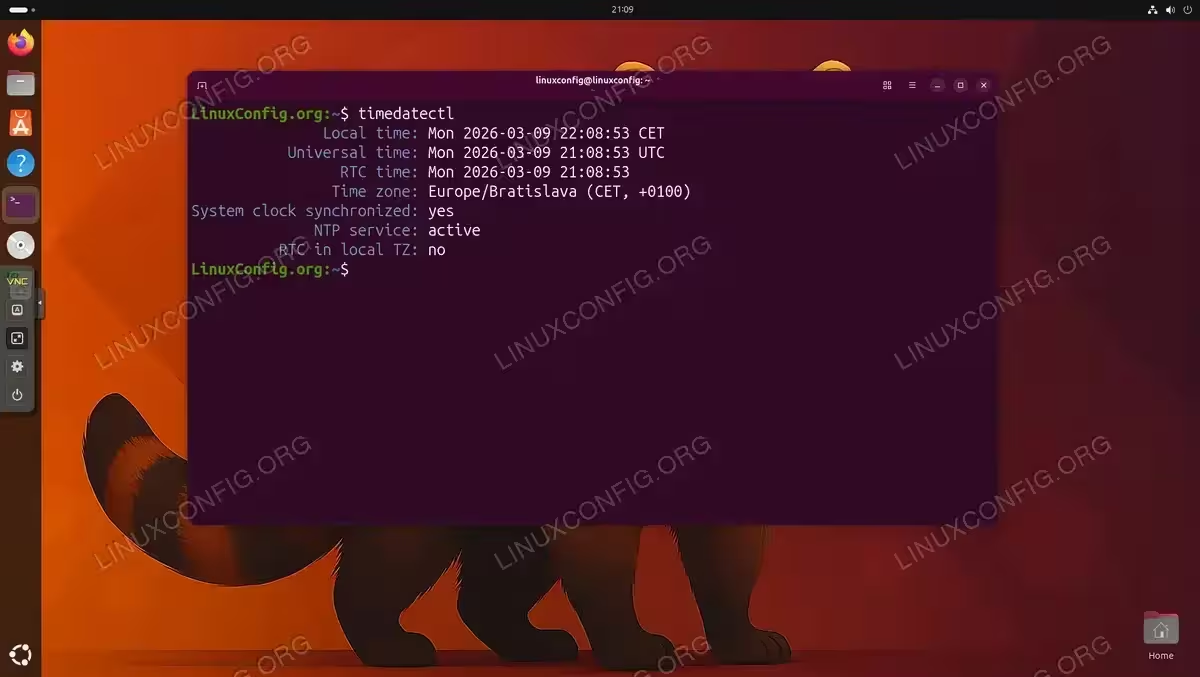
The timedatectl command provides a high-level summary of the system time configuration and is a quick way to confirm NTP is active on Ubuntu 26.04:
$ timedatectl
The output shows several fields relevant to NTP verification:
| Field | Expected Value |
|---|---|
| Local time | Current local time according to the configured timezone. |
| Universal time | Current UTC time. Should closely match global UTC. |
| RTC time | The time read directly from the hardware (real-time) clock. |
| Time zone | The currently configured system timezone (e.g. Europe/London, UTC). |
| System clock synchronized | yes – confirms the clock has been successfully synchronized. |
| NTP service | active – confirms Chrony is running and NTP is enabled. |
| RTC in local TZ | no means the hardware clock is set to UTC, which is the recommended setting on Linux. |
If System clock synchronized shows no, the system has not yet completed its first successful synchronization. This can happen shortly after boot, as Chrony needs a few polling cycles to establish sync. Additionally, network issues or misconfigured NTP sources can prevent synchronization from completing. In that case, check your NTP settings and verify that the configured servers are reachable.
Verify NTS (Network Time Security)
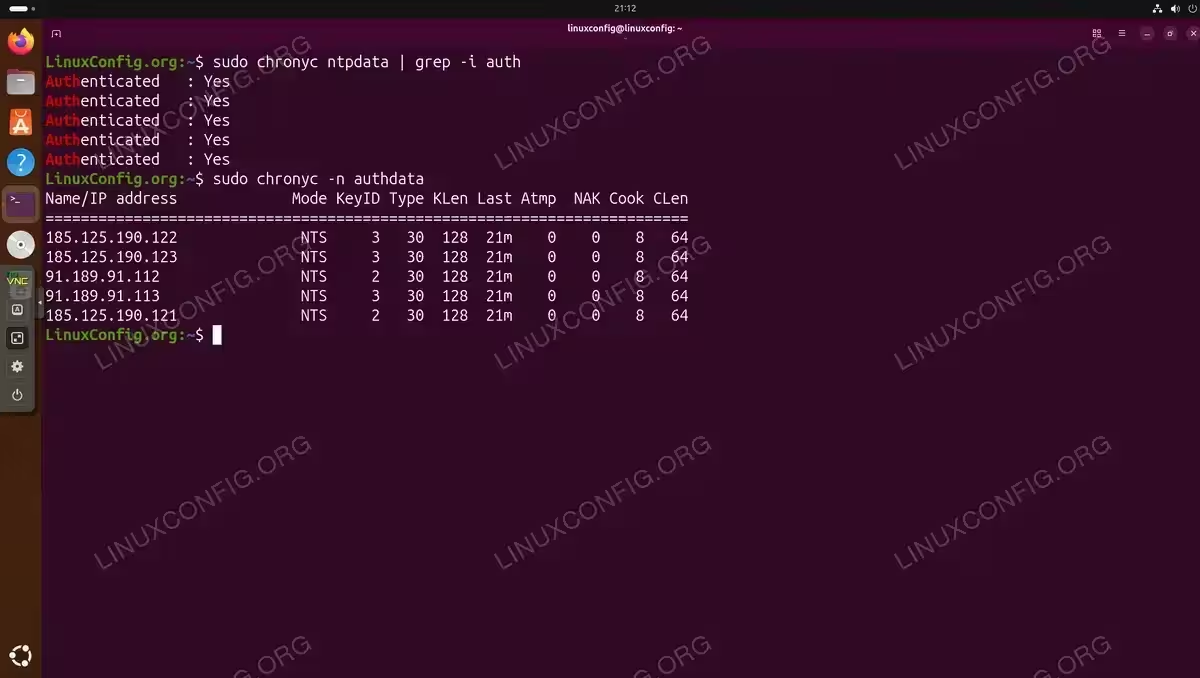
Ubuntu 26.04 enables Network Time Security (NTS) by default in Chrony, providing authenticated and encrypted NTP communication. To verify that NTS is functioning correctly, run chronyc ntpdata piped through grep to isolate the authentication field (the full output is lengthy):
$ sudo chronyc ntpdata | grep -i auth
A line reading Authenticated : Yes for each source confirms that the NTP exchanges are authenticated via NTS. This is an important security verification, particularly for servers handling sensitive workloads or compliance requirements.
Furthermore, you can check the authentication details for all sources at once using the authdata subcommand. The -n flag suppresses DNS resolution, showing IP addresses instead of hostnames:
$ sudo chronyc -n authdata
The output columns are:
| Column | Meaning |
|---|---|
| Mode | Authentication mode in use. NTS confirms Network Time Security is active for this source. |
| KeyID | The NTS key identifier used for this session. |
| Type | Key type number as defined by the NTS specification. |
| KLen | Key length in bits (128 is standard for AES-SIV-CMAC-256 used by NTS). |
| Last | Time since the last authenticated exchange with this source. |
| Atmp | Number of failed authentication attempts. Should be 0 under normal conditions. |
| NAK | Number of NTS negative acknowledgements received. Should be 0 under normal conditions. |
| Cook | Number of NTS cookies currently held. Chrony uses these to avoid repeated key-exchange round trips. |
| CLen | Cookie length in bytes. |
For more background on how Chrony is set up on this release, refer to the NTP client configuration guide.
DID YOU KNOW
NTS uses TLS-based key establishment to protect NTP traffic from man-in-the-middle attacks. It is defined in RFC 8915 and supported natively by Chrony, the default NTP daemon on Ubuntu 26.04.
Check NTP Logs
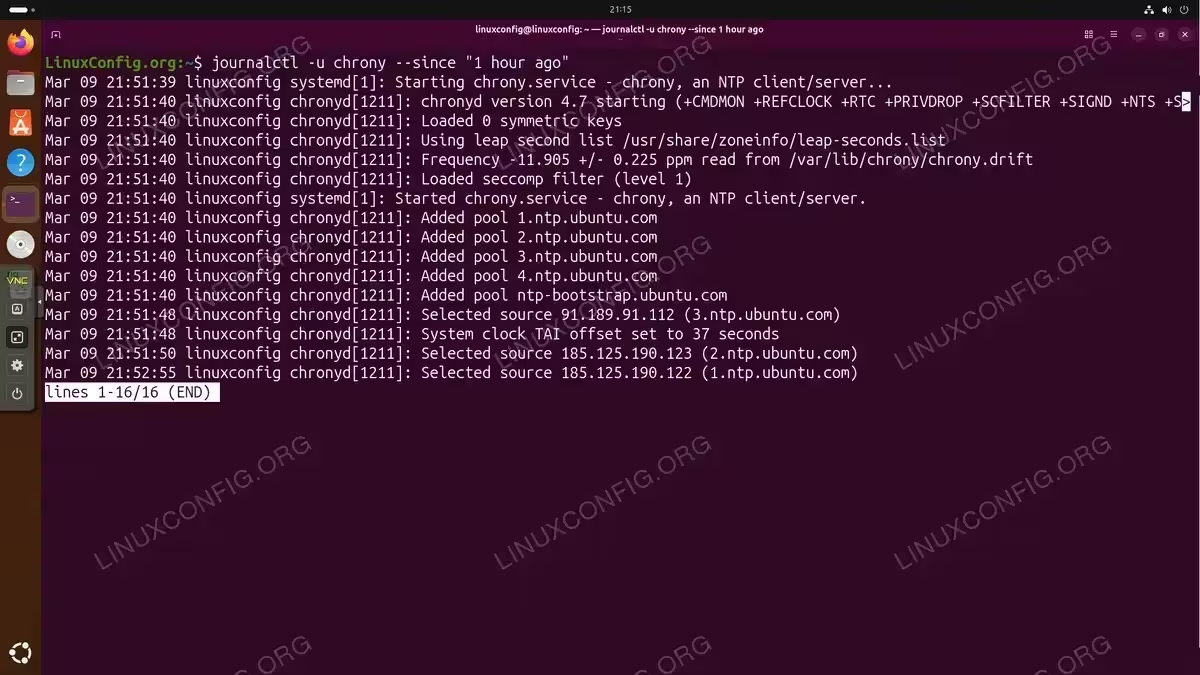
Chrony writes synchronization events to the system journal. Reviewing these logs is useful when troubleshooting intermittent sync failures or auditing time accuracy over a period. To view recent Chrony log entries, run:
$ journalctl -u chrony --since "1 hour ago"
You can extend the time range to audit a longer period. For example, to review the last 24 hours:
$ journalctl -u chrony --since "24 hours ago"
Key log messages to look for include:
- Selected source: Indicates Chrony has chosen a new reference NTP source. Normal during startup and network changes.
- System clock wrong by X seconds: Appears when Chrony detects a large initial offset and steps the clock to correct it quickly, rather than gradually slewing it.
- System clock TAI offset set to X seconds: Logged on every startup. Confirms Chrony has loaded the leap second list from
/usr/share/zoneinfo/leap-seconds.list. - Could not send to server: Indicates a connectivity problem with one of the configured NTP pool servers. Check network access if this appears repeatedly.
Additionally, if you have configured Chrony to write its own log files (via the logdir and log directives in /etc/chrony/chrony.conf), you can inspect them directly under the configured log directory, typically /var/log/chrony/.
Conclusion
Performing an NTP check on Ubuntu 26.04 is straightforward with the Chrony toolset. The combination of chronyc tracking, chronyc sources -v, chronyc sourcestats, and timedatectl gives you complete visibility into the NTP synchronization state of your system. Ubuntu 26.04 defaults to Chrony with NTS-enabled pool servers, providing both accurate and secure time synchronization out of the box. Whether you are verifying a desktop workstation or a production server, these commands cover every aspect of NTP verification. For further configuration, see the NTP guide for Ubuntu 26.04.
Frequently Asked Questions
- Why is systemd-timesyncd not available on Ubuntu 26.04? Ubuntu 26.04 replaced
systemd-timesyncdwith Chrony as the default NTP daemon. Chrony offers superior synchronization accuracy, faster convergence after network disruptions, and native NTS support. Thesystemd-timesyncdpackage is not installed by default on this release. - How do I know if my system clock is actually synchronized? Run
timedatectland check that System clock synchronized showsyesand NTP service showsactive. Additionally, runchronyc trackingand confirm the Reference ID is a valid NTP server address, not the loopback address7F7F0101. - What does it mean when chronyc sources shows a ‘?’ symbol next to a server? A
?symbol means Chrony cannot reach that NTP source. This can indicate a DNS resolution failure, firewall blocking UDP port 123, or a network connectivity issue. Check that the server hostname resolves correctly and that outbound UDP port 123 is not blocked by a firewall rule. - How accurate is NTP synchronization with Chrony on Ubuntu 26.04? Under normal network conditions, Chrony typically achieves sub-millisecond accuracy when using pool servers. The
chronyc trackingoutput shows the current System time offset. Offsets of less than 10 milliseconds are considered good for general use. Hardware timestamping or PPS sources can achieve microsecond-level accuracy if required. - Can I use chronyc commands without sudo? Most read-only
chronyccommands such astracking,sources, andsourcestatscan be run as a regular user withoutsudo. However,chronyc ntpdataandchronyc authdatarequiresudo. Commands that modify Chrony configuration or force actions (such aschronyc makestep) also require root privileges.