
KDE Plasma is a modern, feature-rich desktop environment that offers extensive customization options and a polished user experience. If you’re looking to install KDE Plasma on your Ubuntu 26.04 system, this comprehensive guide will walk you through the installation process, configuration options, and post-installation steps. Whether you’re switching from GNOME or setting up a fresh system, you’ll learn how to kde install ubuntu 26.04 with two different installation options tailored to your needs.
Table of Contents
In this tutorial you will learn:
- How to install KDE Plasma desktop on Ubuntu 26.04
- Two installation options (minimal and standard)
- How to configure KDE Plasma after installation
- How to switch between GNOME and KDE Plasma sessions
- Common troubleshooting solutions
Software Requirements
| Category | Requirements, Conventions or Software Version Used |
|---|---|
| System | Ubuntu 26.04 Resolute Raccoon |
| Software | KDE Plasma 6.x (available from Ubuntu repositories) |
| Other | Privileged access to your Linux system as root or via the sudo command. |
| Conventions | # – requires given linux commands to be executed with root privileges either directly as a root user or by use of sudo command$ – requires given linux commands to be executed as a regular non-privileged user |
| Step | Command/Action |
|---|---|
| 1. Update system packages | sudo apt update && sudo apt upgrade -y |
| 2. Install KDE Plasma (standard) | sudo apt install kde-plasma-desktop -y |
| 3. Reboot system | sudo reboot |
| 4. Select Plasma session at login | Click gear icon, choose “Plasma (Wayland)” or “Plasma (X11)” |
Prerequisites
Before proceeding with the KDE Plasma installation, ensure your Ubuntu 26.04 system meets the following requirements:
First, your system should have at least 2GB of RAM (4GB recommended for optimal performance) and approximately 3GB of free disk space (up to 3.5GB for the full kubuntu-desktop installation). KDE Plasma is resource-efficient compared to other modern desktop environments, but adequate system resources ensure a smooth experience.
Second, verify that your system is up to date. Open a terminal and run the following command:
$ sudo apt update && sudo apt upgrade -y
This command updates the package list and upgrades all installed packages to their latest versions. Additionally, it’s recommended to have a stable internet connection throughout the installation process, as you’ll be downloading several hundred megabytes of packages.
BACKUP RECOMMENDATION
Before making major system changes like installing a new desktop environment, consider creating a system backup or snapshot, especially if you’re running Ubuntu 26.04 on a production machine.
Installation Methods
OPTIONAL X11 SESSION
While Ubuntu 26.04 defaults to Wayland for KDE Plasma, you can optionally install X11 session support if needed for specific applications or hardware compatibility. Install the X11 session with sudo apt install plasma-session-x11, then select “Plasma (X11)” at the SDDM login screen. Note that KDE plans to remove X11 support completely in Plasma 6.8 (late 2026).
Ubuntu 26.04 provides two different KDE Plasma installation options, each offering varying levels of applications and features. Choose the installation method that best suits your needs.
Method 1: Minimal KDE Plasma Installation
The minimal installation provides the core KDE Plasma desktop environment without additional KDE applications. This option is ideal if you want to kde install ubuntu 26.04 with a lightweight footprint and plan to manually select specific applications later.
$ sudo apt install kde-plasma-desktop -y
This package includes the Plasma desktop shell, basic system settings, and essential desktop components. The installation requires downloading approximately 448MB and will use 1.6GB of disk space once installed, making it the most space-efficient option. After installation completes, you’ll have a functional KDE Plasma desktop with the ability to add applications as needed.
Method 2: Standard KDE Plasma Installation
The standard installation includes the desktop environment plus a curated selection of commonly used KDE applications, providing a more complete out-of-box experience.
$ sudo apt install kubuntu-desktop -y
This metapackage installs KDE Plasma along with popular KDE applications such as Dolphin file manager, Konsole terminal emulator, Kate text editor, and Gwenview image viewer. The installation requires downloading approximately 992MB and will use 2.8GB of disk space once installed. This option strikes a balance between functionality and disk space usage, therefore making it suitable for most users.
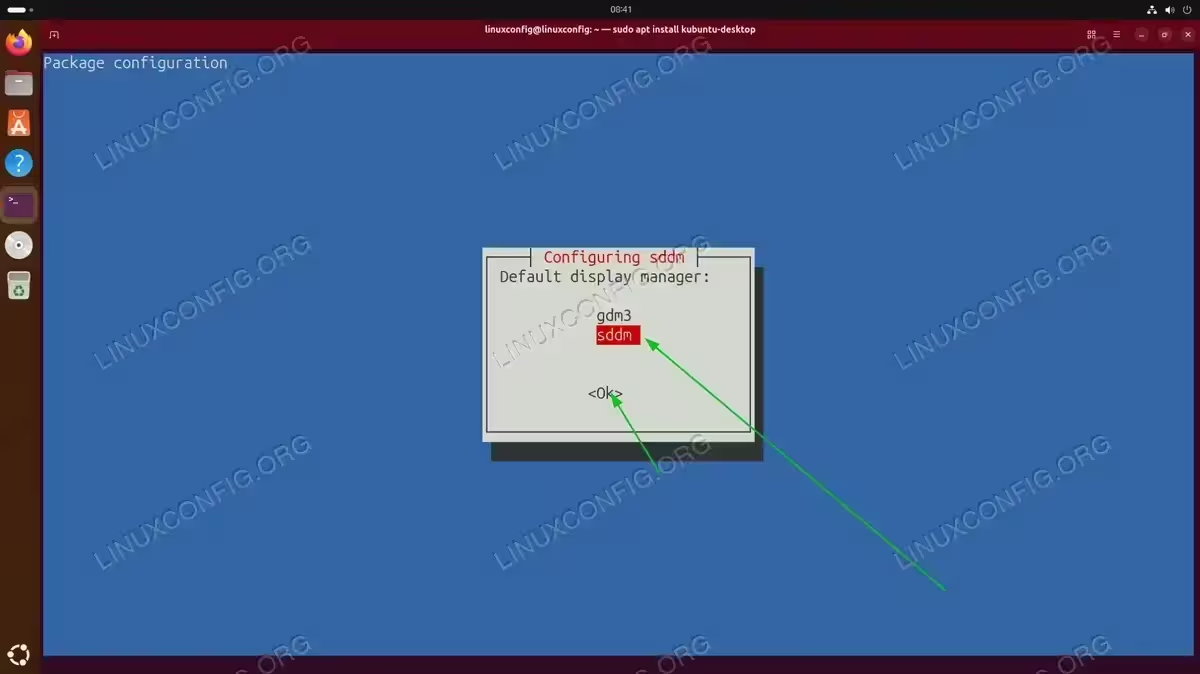
During the installation, you may be prompted to select a display manager. Choose between GDM3 (GNOME Display Manager, Ubuntu’s default) or SDDM (Simple Desktop Display Manager, KDE’s default). SDDM provides better integration with KDE Plasma’s theming and is generally recommended for KDE-focused installations.
Monitoring Installation Progress
Regardless of which installation method you choose, the process typically takes 10-30 minutes depending on your internet connection speed and system performance. You can monitor the download and installation progress directly in your terminal. Consequently, avoid interrupting the process to prevent potential package conflicts.
Post-Installation Configuration
After the installation completes, several configuration steps will help you optimize your KDE Plasma experience on Ubuntu 26.04.
Reboot Your System
First, restart your computer to ensure all changes take effect properly:
$ sudo reboot
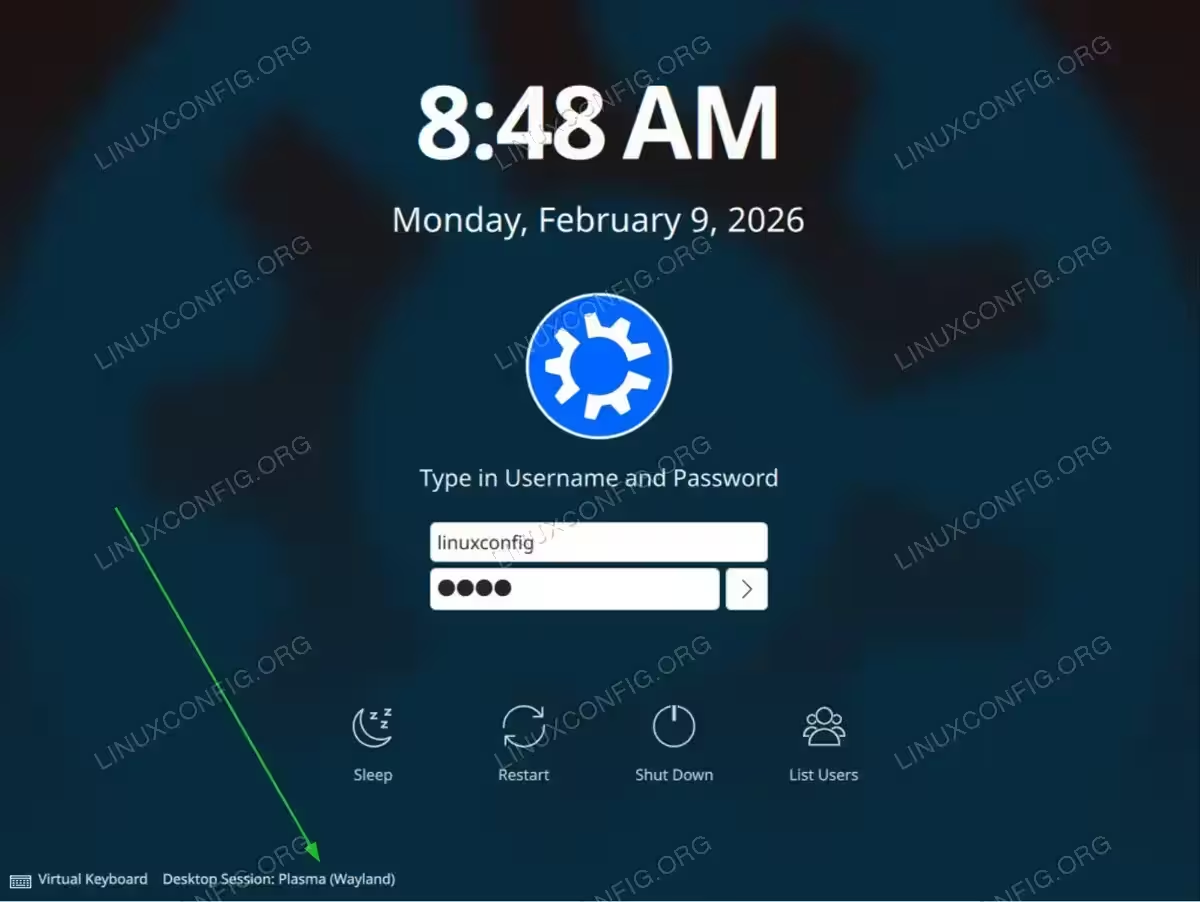
Upon rebooting, you’ll be presented with the login screen where you can select your desktop environment.
Initial KDE Plasma Setup
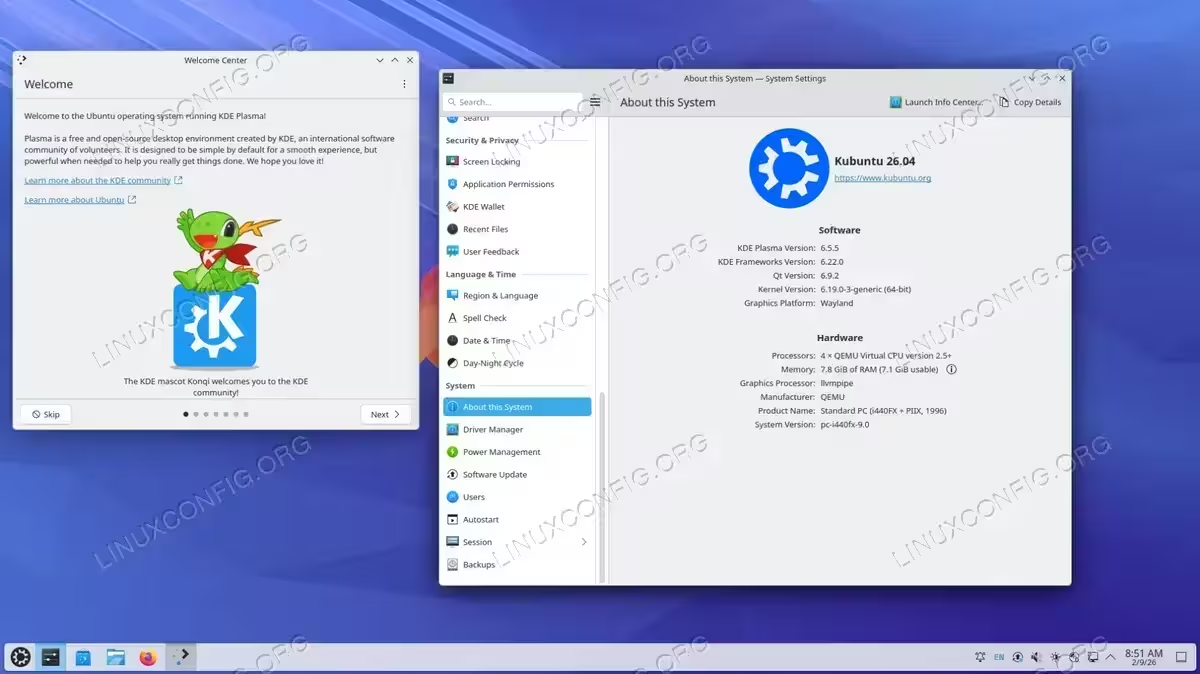
When you first log into KDE Plasma, you’ll be greeted by a clean, modern desktop interface. The initial setup wizard may appear, guiding you through basic configuration options including:
- Desktop theme and color scheme selection
- Panel layout preferences
- Widget configuration
- Online accounts integration
SNAP THEME INTEGRATION
You may see a “Snapd Desktop Integration” dialog asking to install required theme snaps. Click Yes to ensure snap-packaged applications match your KDE Plasma theme properly.
Take time to explore these options, as KDE Plasma’s extensive customization capabilities allow you to tailor the desktop to your specific preferences.
Configuring System Settings
Access the comprehensive KDE System Settings by clicking the application launcher (bottom-left corner) and searching for “System Settings,” or by using the keyboard shortcut Alt + F2 and typing systemsettings5.
Within System Settings, you can configure:
- Appearance: Global themes, application styles, plasma styles, colors, icons, and cursors
- Workspace Behavior: Desktop effects, screen edges, activities, and virtual desktops
- Window Management: Window behavior, task switcher, and KWin compositor settings
- Shortcuts: Keyboard shortcuts and custom key bindings
- Startup and Shutdown: Autostart applications and login/logout behavior
Installing Additional Software
If you chose the minimal or standard installation, you may want to add specific applications. Use Discover (KDE’s software center) or the command line:
$ sudo apt install kate dolphin konsole spectacle -y
This example installs popular KDE applications: Kate (text editor), Dolphin (file manager), Konsole (terminal), and Spectacle (screenshot tool).
Switching Between Desktop Sessions
Ubuntu 26.04 with multiple desktop environments installed allows you to switch between GNOME and KDE Plasma sessions at any time. This flexibility enables you to use different desktop environments for different tasks or user preferences.
Selecting Desktop Environment at Login
To switch desktop environments:
- Log out of your current session: Click the system menu in the top-right corner and select “Log Out”
- At the login screen: Click your username to reveal the password field. Before entering your password, look for a gear icon (⚙) or session selector, typically located in the bottom-right corner of the screen
- Select your preferred session: Click the gear icon to display available desktop sessions:
- Plasma (Wayland) – KDE Plasma using Wayland display server
- Ubuntu – Default GNOME desktop with Ubuntu modifications
- Ubuntu on Wayland – GNOME with Wayland display server
- Log in: Enter your password and log in. Your selection will be remembered for future logins
WAYLAND DISPLAY SERVER
Ubuntu 26.04 uses Wayland as the default display server for KDE Plasma, offering better security, smoother animations, and improved multi-monitor support.
Setting Default Desktop Environment
Your desktop environment selection persists across reboots. To permanently change your default desktop environment, simply select your preferred session at the login screen as described above. The system remembers this choice for subsequent logins until you manually change it again.
Troubleshooting Common Issues
While KDE Plasma installation on Ubuntu 26.04 typically proceeds smoothly, you may occasionally encounter issues. Here are solutions to common problems.
Display Manager Issues
If your login screen doesn’t appear after installation or reboot, the display manager may not be configured correctly. To reconfigure the display manager:
$ sudo dpkg-reconfigure sddm
Alternatively, if you prefer GDM3:
$ sudo dpkg-reconfigure gdm3
You can also manually set the default display manager by editing the configuration:
$ sudo systemctl disable sddm
$ sudo systemctl enable gdm3
$ sudo systemctl restart gdm3
Missing KDE Applications
If certain KDE applications or components are missing after installation, you can install them individually or install additional metapackages:
$ sudo apt install kde-standard -y
This command installs additional KDE applications that may have been excluded from your initial installation choice.
Performance Issues
If you experience slowness or lag with KDE Plasma, consider the following optimizations:
First, disable desktop effects temporarily to identify if compositor effects are causing performance issues:
$ kwriteconfig5 --file kwinrc --group Compositing --key Enabled false
$ qdbus org.kde.KWin /KWin reconfigure
To re-enable effects:
$ kwriteconfig5 --file kwinrc --group Compositing --key Enabled true
$ qdbus org.kde.KWin /KWin reconfigure
Additionally, within System Settings, navigate to Workspace Behavior > Desktop Effects and selectively disable resource-intensive effects you don’t need.
Theme or Visual Glitches
If you encounter visual inconsistencies or theme-related issues, reset KDE Plasma to default settings:
$ rm -rf ~/.config/plasma*
$ rm -rf ~/.local/share/plasma*
CONFIGURATION BACKUP
The above commands delete your KDE configuration files. Consider backing them up first if you want to preserve custom settings. Log out and back in after running these commands.
Application Launch Problems
If applications fail to launch or behave unexpectedly, rebuild the application menu cache:
$ kbuildsycoca5 --noincremental
This command regenerates KDE’s system configuration cache and often resolves application launcher issues.
Conclusion
Installing KDE Plasma on Ubuntu 26.04 provides a powerful, customizable desktop environment that adapts to your workflow preferences. Whether you chose the minimal, standard, or full installation, you now have access to one of the most feature-rich Linux desktop environments available. The ability to switch between GNOME and KDE Plasma sessions offers flexibility for different tasks and user needs.
As you explore KDE Plasma, take advantage of its extensive customization options through System Settings. The desktop environment continues to evolve with each release, offering improved performance, modern design elements, and enhanced functionality. For additional information and advanced configuration options, consult the official KDE UserBase Wiki documentation.
Frequently Asked Questions
- Can I have both GNOME and KDE Plasma installed on the same Ubuntu 26.04 system? Yes, you can install multiple desktop environments on the same system without conflicts. Both GNOME and KDE Plasma coexist peacefully, and you can switch between them at the login screen using the session selector. Each desktop environment maintains its own configuration files and settings independently.
- How much disk space does KDE Plasma require on Ubuntu 26.04? The disk space requirement depends on your installation choice: kde-plasma-desktop (minimal) requires approximately 448MB download and 1.6GB installed space, while kubuntu-desktop (standard) needs about 992MB download and 2.8GB installed space. Additionally, factor in space for user data and additional applications you install later.
- Will installing KDE Plasma remove my GNOME desktop or affect existing applications? No, installing KDE Plasma will not remove GNOME or affect your existing applications. All GNOME applications continue to work normally within KDE Plasma, and vice versa. However, installing multiple desktop environments may result in duplicate applications (for example, two file managers or text editors) in your application menu.
- How do I completely uninstall KDE Plasma if I decide I don’t want it? To remove KDE Plasma, use the command
sudo apt remove kubuntu-desktop kde-plasma-desktopfollowed bysudo apt autoremoveto clean up dependencies. After removal, reconfigure your display manager to use GDM3:sudo dpkg-reconfigure gdm3.
