
Keeping your Ubuntu 26.04 Resolute Raccoon system secure requires timely application of security patches. However, manually checking for and installing updates every day is impractical, especially when managing multiple servers. Configuring automatic security updates on Ubuntu 26.04 solves this problem by allowing the system to download and install critical patches without manual intervention. In this guide, you will learn how to set up and fine-tune the unattended-upgrades package to automatically apply security updates, send email notifications, schedule automatic reboots, and control update frequency.
Table of Contents
In this tutorial you will learn:
- How to install and enable unattended-upgrades on Ubuntu 26.04
- How to configure which package origins receive automatic updates
- How to set up email notifications for applied updates
- How to enable and schedule automatic reboots when kernel updates require them
- How to control update frequency using APT periodic settings and systemd timers
- How to test and verify that automatic security updates are working correctly
Software Requirements
| Category | Requirements, Conventions or Software Version Used |
|---|---|
| System | Ubuntu 26.04 Resolute Raccoon |
| Software | unattended-upgrades, apt-listchanges, mailutils (optional for email notifications) |
| Other | Privileged access to your Linux system as root or via the sudo command. |
| Conventions | # – requires given linux commands to be executed with root privileges either directly as a root user or by use of sudo command$ – requires given linux commands to be executed as a regular non-privileged user |
unattended-upgrades to keep your system patched without manual intervention.
| Step | Command/Action |
|---|---|
| 1. Install unattended-upgrades | $ sudo apt install unattended-upgrades |
| 2. Enable with recommended defaults | $ sudo dpkg-reconfigure -plow unattended-upgrades |
| 3. Customize configuration | Edit /etc/apt/apt.conf.d/50unattended-upgrades |
| 4. Test with dry run | $ sudo unattended-upgrades --dry-run --debug |
Understanding Unattended Upgrades on Ubuntu 26.04
The unattended-upgrades package is the standard mechanism for applying automatic security updates on Ubuntu 26.04. It works in conjunction with APT to periodically check for available updates and install them without requiring user interaction.
On a fresh Ubuntu 26.04 installation, unattended-upgrades is typically pre-installed and enabled for security updates by default. However, the default configuration is conservative. It only covers security patches from the -security repository and does not perform automatic reboots, send email notifications, or handle non-security updates. Therefore, understanding and customizing the configuration is essential for production environments.
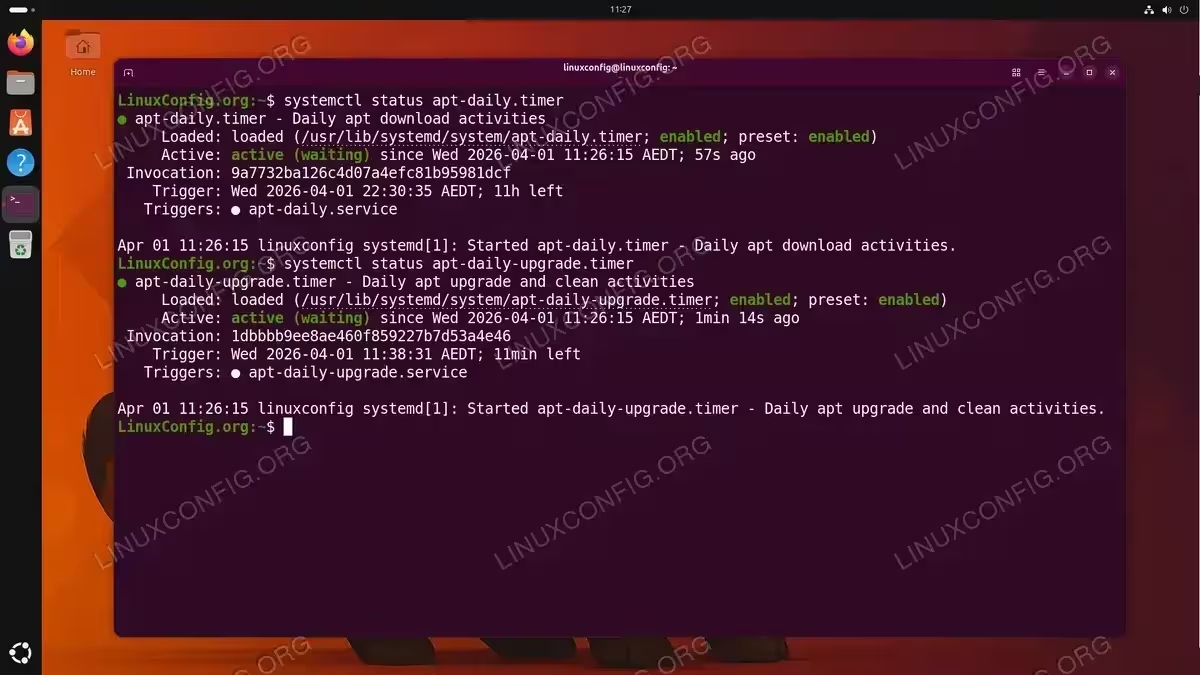
The automatic update process on Ubuntu 26.04 relies on two systemd timers that replace the older cron-based approach. The apt-daily.timer handles downloading package lists and new packages, while apt-daily-upgrade.timer handles the actual installation. These timers use randomized delays to prevent all machines from hitting the repositories simultaneously.
Installing and Enabling Unattended Upgrades
Although unattended-upgrades comes pre-installed on most Ubuntu 26.04 systems, you should verify its presence and ensure it is properly enabled.
- Verify installation status: Check whether the package is already installed on your system:
$ dpkg -l unattended-upgrades
If the package is not installed, the output will indicate that no matching packages are found.
- Install unattended-upgrades: If the package is missing, install it along with
apt-listchanges, which provides summaries of changelog entries for upgraded packages:$ sudo apt install unattended-upgrades apt-listchanges
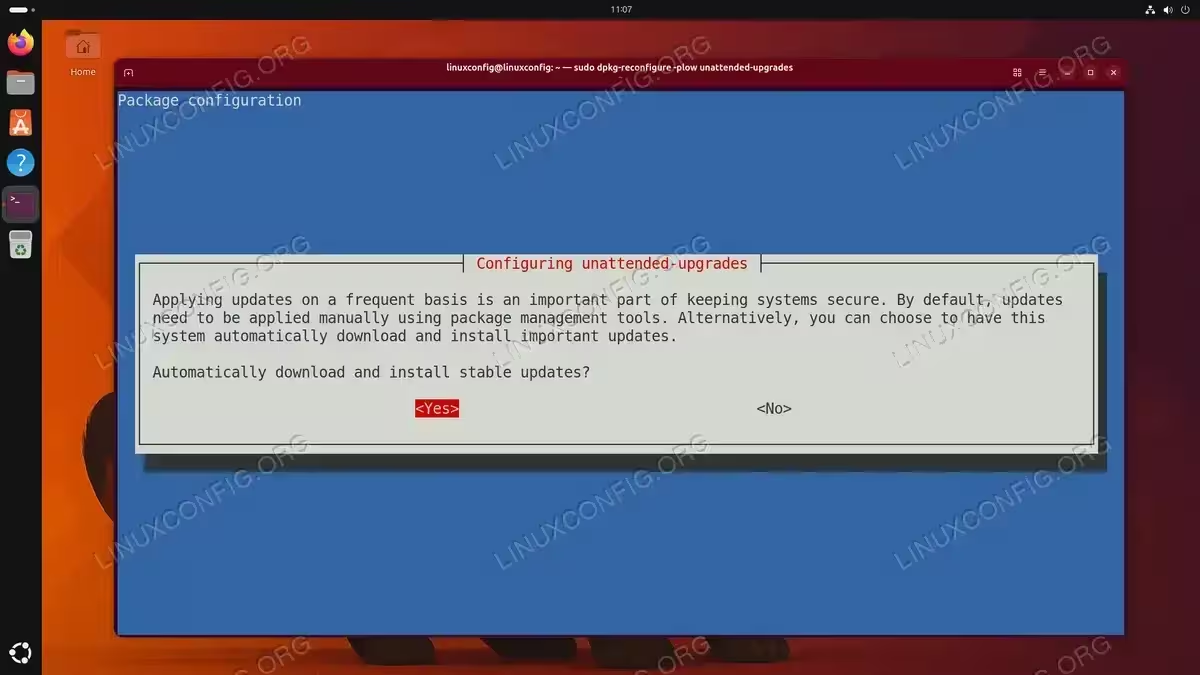
- Enable with recommended defaults: Run the interactive reconfiguration tool to enable automatic updates with the recommended settings. Select “Yes” when prompted:
$ sudo dpkg-reconfigure -plow unattended-upgrades
This command creates or updates the file
/etc/apt/apt.conf.d/20auto-upgradeswith the following content:APT::Periodic::Update-Package-Lists "1"; APT::Periodic::Unattended-Upgrade "1";
These two lines tell APT to refresh the package lists daily and to run the unattended upgrade process daily.
- Verify the service is active: Confirm that the unattended-upgrades service is running:
$ sudo systemctl status unattended-upgrades.service

Configuring Allowed Origins for Automatic Security Updates on Ubuntu 26.04
The main configuration file for unattended-upgrades is /etc/apt/apt.conf.d/50unattended-upgrades. This file controls which repositories are allowed to provide automatic updates, what packages to exclude, and many other behavioral settings.
- Open the configuration file: Use your preferred text editor to modify the settings:
$ sudo nano /etc/apt/apt.conf.d/50unattended-upgrades
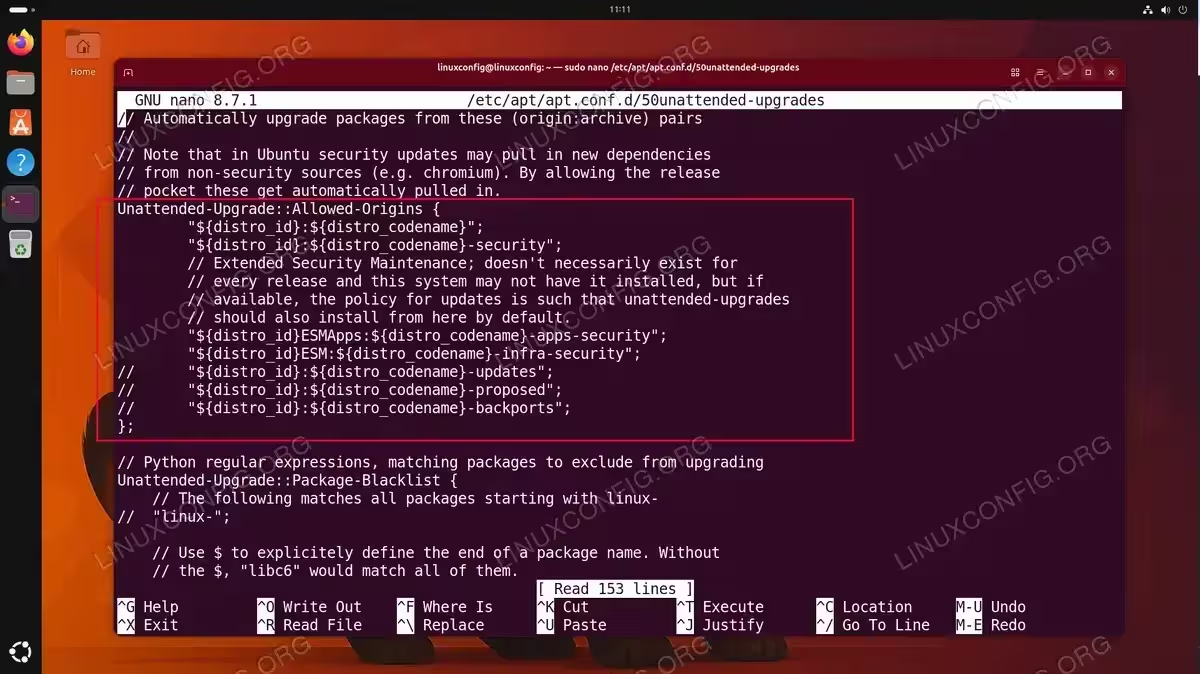
- Review the Allowed-Origins section: The
Unattended-Upgrade::Allowed-Originsblock defines which repositories can be used for automatic updates. By default on Ubuntu 26.04, only security updates are enabled:Unattended-Upgrade::Allowed-Origins { "${distro_id}:${distro_codename}"; "${distro_id}:${distro_codename}-security"; // Extended Security Maintenance; doesn't necessarily exist for // every release and this system may not have it installed, but if // available, the policy for updates is such that unattended-upgrades // should also install from here by default. "${distro_id}ESMApps:${distro_codename}-apps-security"; "${distro_id}ESM:${distro_codename}-infra-security"; // "${distro_id}:${distro_codename}-updates"; // "${distro_id}:${distro_codename}-proposed"; // "${distro_id}:${distro_codename}-backports"; };The variables
${distro_id}and${distro_codename}automatically resolve toUbuntuandresoluterespectively. - Enable additional origins (optional): To also include regular updates (bug fixes and minor improvements), uncomment the
-updatesline by removing the//prefix:"${distro_id}:${distro_codename}-updates";IMPORTANT
Enabling-updatesin addition to-securityprovides broader protection, as some security fixes are delivered through the updates channel. However, this also increases the chance of unexpected changes. Evaluate this based on your stability requirements. - Exclude specific packages (optional): If you want to prevent certain packages from being automatically updated, add them to the blacklist section:
Unattended-Upgrade::Package-Blacklist { // The following matches all packages starting with linux- // "linux-";Uncomment or add package name patterns as needed. For example, uncommenting
"linux-"would prevent all kernel-related packages from being automatically updated. You can add additional entries using Python regular expressions to match specific packages or groups of packages.
Setting Up Email Notifications for Automatic Updates
Receiving email notifications when updates are applied gives you visibility into what changes are being made to your system automatically. This is particularly important for server environments where you need an audit trail.
- Install a mail transport agent: To send email notifications, your system needs a working mail setup. Install
mailutilsalong with a basic mail transport agent:$ sudo apt install mailutils
During installation, you may be prompted to configure Postfix. For a basic setup that only sends outgoing mail, select “Internet Site” and enter your system’s fully qualified domain name.
- Configure the email recipient: Open the unattended-upgrades configuration file and locate the email settings:
$ sudo nano /etc/apt/apt.conf.d/50unattended-upgrades
Find and uncomment the following line, replacing the email address with your own:
Unattended-Upgrade::Mail "admin@linuxconfig.org";
- Choose notification frequency: By default, an email is sent for every update event. To receive emails only when something goes wrong, uncomment and set:
Unattended-Upgrade::MailReport "on-change";
Available options are
"always","only-on-error", and"on-change". For most server environments,"on-change"provides a good balance between awareness and inbox noise. - Test the mail configuration: Verify that your system can send emails correctly:
$ echo "Test email from linuxconfig-server" | mail -s "Unattended Upgrades Test" admin@linuxconfig.org
Check your inbox (and spam folder) to confirm delivery.
IMPORTANT
If your server is behind a firewall or your ISP blocks outgoing SMTP traffic on port 25, you may need to configure Postfix to relay through an external SMTP service. Alternatively, consider using a local log monitoring solution instead of email notifications.
Configuring Automatic Reboots After Kernel Updates
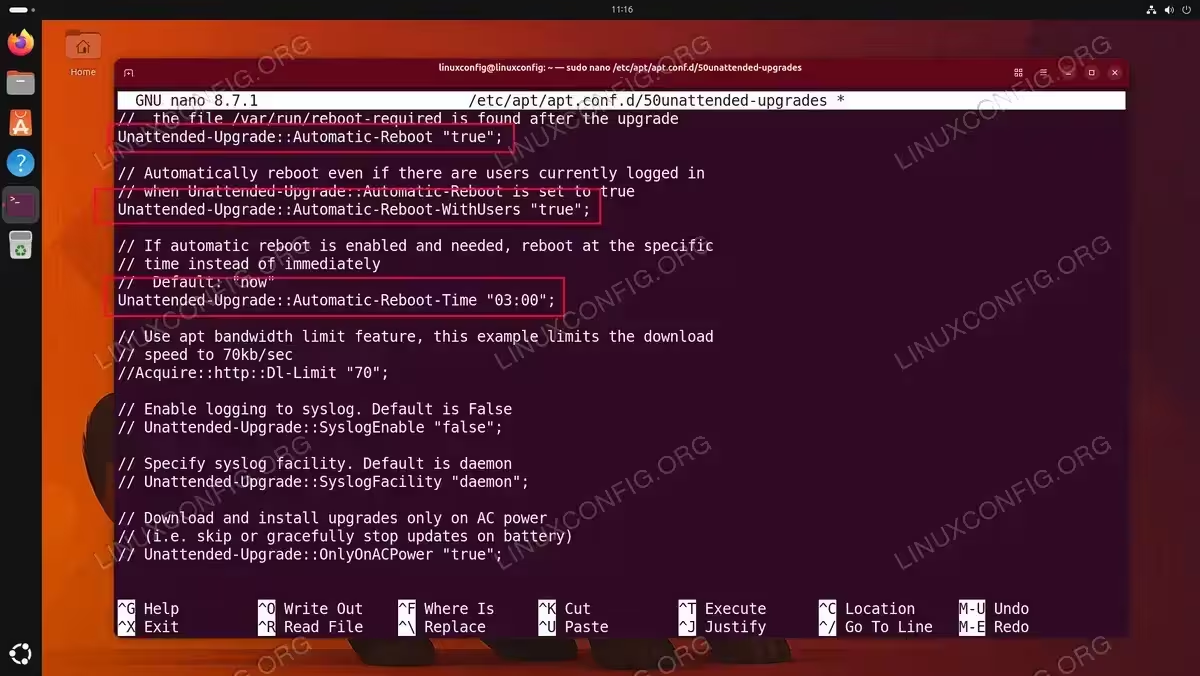
Some updates, particularly kernel and core library updates, require a system reboot to take effect. By default, unattended-upgrades does not automatically reboot the system. Consequently, your machine could be running an outdated kernel even after the new one has been installed. Enabling automatic reboots ensures that critical security patches are fully applied.
- Enable automatic reboots: Open the configuration file and find the reboot settings:
$ sudo nano /etc/apt/apt.conf.d/50unattended-upgrades
Uncomment and set the following option to
"true":Unattended-Upgrade::Automatic-Reboot "true";
- Schedule the reboot time: Rather than rebooting immediately after an update, schedule it for a maintenance window when the impact on users is minimal:
Unattended-Upgrade::Automatic-Reboot-Time "03:00";
This configures the system to reboot at 3:00 AM local time if a reboot is required. Choose a time that aligns with your maintenance windows.
- Control reboot behavior with logged-in users: By default, the system will not reboot if users are logged in. To override this (common for servers without interactive users), set:
Unattended-Upgrade::Automatic-Reboot-WithUsers "true";
SECURITY ALERT
Enabling automatic reboots on production servers requires careful planning. Ensure that your services are configured to start automatically after a reboot and that you have monitoring in place to detect if a reboot causes issues. Additionally, consider using load balancers to drain traffic before scheduled reboot windows.
Scheduling and Controlling Update Frequency on Ubuntu 26.04
The timing and frequency of automatic updates are controlled by two mechanisms: the APT periodic configuration file and the underlying systemd timers.
APT Periodic Configuration
The file /etc/apt/apt.conf.d/20auto-upgrades controls how often APT performs its periodic tasks. Open it with:
$ sudo nano /etc/apt/apt.conf.d/20auto-upgrades
The following options are available:
APT::Periodic::Update-Package-Lists "1"; APT::Periodic::Unattended-Upgrade "1"; APT::Periodic::Download-Upgradeable-Packages "1"; APT::Periodic::AutocleanInterval "7";
Each value represents the interval in days. Setting "1" means the action runs daily, "7" means weekly, and "0" disables the action. The AutocleanInterval option removes outdated downloaded package files from the local cache, which helps conserve disk space.
Systemd Timer Details
Ubuntu 26.04 uses systemd timers rather than cron jobs to trigger APT operations. You can inspect the timers and their schedules:
$ systemctl list-timers apt-daily*
This displays when the timers last ran and when they are scheduled to run next. The apt-daily.timer handles package list updates and downloads, while apt-daily-upgrade.timer handles the actual installation.
Both timers include a RandomizedDelaySec value that adds a random offset to prevent synchronized mass downloads across many machines. To view the full timer configuration:
$ systemctl cat apt-daily-upgrade.timer
If you need to adjust the timer schedule beyond what the APT periodic configuration provides, you can create an override:
$ sudo systemctl edit apt-daily-upgrade.timer
[IMAGE PLACEHOLDER: Screenshot showing the output of systemctl list-timers apt-daily* with timer schedules visible]
Testing and Verifying Automatic Security Updates
After configuring unattended-upgrades, it is important to verify that everything works as expected before relying on it for production security.
- Run a dry run: Execute a test run that simulates the upgrade process without actually installing anything:
$ sudo unattended-upgrades --dry-run --debug
This produces verbose output showing which packages would be upgraded, which origins are allowed, and any errors in the configuration. Review the output carefully for any warnings or misconfigurations.
- Check the log files: The unattended-upgrades daemon logs its activity to
/var/log/unattended-upgrades/. Inspect the main log:$ sudo cat /var/log/unattended-upgrades/unattended-upgrades.log
Additionally, check the dpkg log for details about which packages were actually installed:
$ sudo cat /var/log/unattended-upgrades/unattended-upgrades-dpkg.log
- Trigger a manual run: To force an immediate update cycle (useful for testing), run:
$ sudo unattended-upgrades --verbose
This performs a real upgrade cycle and displays progress information. Use this to confirm that updates are applied successfully and email notifications are delivered.
- Verify timer status: Confirm that the systemd timers are active and scheduled:
$ systemctl is-active apt-daily.timer apt-daily-upgrade.timer
Both should report
active. - Check reboot requirement: After updates are applied, check whether a reboot is pending:
$ cat /var/run/reboot-required 2>/dev/null && echo "Reboot required" || echo "No reboot needed"
If a reboot is required and you have configured automatic reboots, the system will reboot at the scheduled time.
COMPLETED
Your Ubuntu 26.04 system is now configured to automatically download and install security updates. Monitor the logs at /var/log/unattended-upgrades/ periodically to ensure the system continues to function as expected.
[IMAGE PLACEHOLDER: Screenshot showing the output of a dry run with unattended-upgrades –dry-run –debug]
Conclusion
Configuring automatic security updates on Ubuntu 26.04 is a fundamental step in maintaining a secure system. By installing and customizing unattended-upgrades, you ensure that critical security patches are applied promptly without requiring manual intervention. The combination of proper origin configuration, email notifications, scheduled reboots, and regular log monitoring creates a robust automated patching strategy.
For environments where uptime is critical, consider pairing automatic updates with a proper testing pipeline and staged rollouts. Moreover, always keep backups current so that any problematic update can be quickly rolled back. With the configuration covered in this guide, your Ubuntu 26.04 system will stay protected against known vulnerabilities while minimizing administrative overhead.
Frequently Asked Questions
- Are automatic security updates enabled by default on Ubuntu 26.04? Yes, Ubuntu 26.04 typically ships with
unattended-upgradespre-installed and configured to apply security updates automatically. However, the default configuration does not include email notifications, automatic reboots, or non-security updates. You should verify and customize the settings to match your requirements. - How can I check what packages were automatically updated? Review the log files located in
/var/log/unattended-upgrades/. Theunattended-upgrades.logfile shows a summary of each update cycle, whileunattended-upgrades-dpkg.logcontains detailed output from the package installation process. Additionally, you can configure email notifications to receive reports directly. - Can I exclude specific packages from automatic updates? Yes. Add the package names to the
Unattended-Upgrade::Package-Blacklistsection in/etc/apt/apt.conf.d/50unattended-upgrades. You can use exact package names or regular expressions to match multiple packages. This is commonly used for database servers, custom kernels, or other packages where you prefer manual testing before upgrading. - What happens if an automatic update fails? If an update fails,
unattended-upgradeslogs the error and, if configured, sends an email notification. The failed packages remain in their current state, and the system continues to function normally. You can review the logs and manually resolve the issue. On the next scheduled run, the system will attempt the update again. - Is it safe to enable automatic reboots on a production server? Automatic reboots carry risk if not properly planned. Before enabling them, ensure all critical services are configured to start automatically on boot, that health checks and monitoring are in place, and that you have scheduled the reboot time during a low-traffic maintenance window. For highly available environments, use rolling reboots behind a load balancer instead.