
Setting up a VNC server on Ubuntu 26.04 gives you full graphical remote access to a headless server over a network. This guide walks through installing and configuring TigerVNC paired with the Xfce desktop environment on a headless Ubuntu 26.04 server install, which is the correct target for vnc server install ubuntu 26.04. The default GNOME session on Ubuntu 26.04 uses Wayland exclusively and is not compatible with VNC’s X11-based protocol, making a dedicated lightweight desktop environment on a clean server the only reliable approach.
Table of Contents
In this tutorial you will learn:
- Why TigerVNC with Xfce is required on Ubuntu 26.04
- How to install and configure TigerVNC server on a headless server
- How to set a VNC password and configure the startup script
- How to manage the VNC server as a systemd service
- How to open the correct firewall ports
- How to connect securely using an SSH tunnel
- How to troubleshoot common VNC connection and display issues
Software Requirements
| Category | Requirements, Conventions or Software Version Used |
|---|---|
| System | Ubuntu 26.04 Resolute Raccoon |
| Software | TigerVNC Server (tigervnc-standalone-server), Xfce desktop (xfce4) |
| Other | Privileged access to your Linux system as root or via the sudo command. |
| Conventions | # – requires given linux commands to be executed with root privileges either directly as a root user or by use of sudo command$ – requires given linux commands to be executed as a regular non-privileged user |
| Step | Command/Action |
|---|---|
| 1. Install packages | sudo apt install tigervnc-standalone-server xfce4 xfce4-goodies |
| 2. Set VNC password | vncpasswd |
| 3. Create startup script | Write ~/.vnc/xstartup launching Xfce |
| 4. Enable service | sudo nano /etc/systemd/system/vncserver@.service then sudo systemctl enable --now vncserver@1.service |
Install TigerVNC and Xfce on Ubuntu 26.04
This guide targets a headless Ubuntu 26.04 server install with no graphical environment. On a server there is no Wayland or Xwayland running, so TigerVNC gets a clean X11 environment with no display conflicts. If you attempt this on a Ubuntu 26.04 desktop install, Xwayland claims displays :0 and :1 automatically, and Wayland environment variables bleed into the VNC session, causing Xfce components such as xfdesktop to crash. The desktop install is therefore not a supported target for this guide.
Start by updating the package index and then installing TigerVNC together with Xfce:
$ sudo apt update
$ sudo apt install tigervnc-standalone-server xfce4 xfce4-goodies
The tigervnc-standalone-server package provides the vncserver and Xtigervnc binaries. The xfce4-goodies package adds useful Xfce plugins and utilities that improve the remote desktop experience.
IMPORTANT
During installation, a package configuration prompt may ask you to select a default display manager between gdm3 and lightdm. Select gdm3 and press Enter to keep the system default. Switching to lightdm is not required and may cause issues on systems that later have a GUI installed.
Configure the VNC Server on Ubuntu 26.04
Before starting the server for the first time, you need to complete two configuration tasks: set a VNC access password and create a startup script that tells VNC which desktop environment to launch.
Set the VNC Password
Run the following command as the user who will own the VNC session (not as root):
$ vncpasswd
You will be prompted to enter and confirm a password. TigerVNC enforces a password length of 6 to 8 characters. Passwords shorter than 6 characters are rejected. Passwords longer than 8 characters are accepted but silently truncated to 8 characters, so any extra characters provide no additional security.
After setting the main password, you will be asked: Would you like to enter a view-only password (y/n)? A view-only password allows a second client to connect and watch the session without being able to move the mouse or type. This is useful for demonstrations or remote observation. Answer n unless you specifically need this feature. The password file is stored at ~/.config/tigervnc/passwd.
IMPORTANT
VNC passwords are limited to 8 characters. Use an SSH tunnel (covered below) to add strong encryption on top of the VNC connection.
Create the VNC Startup Script
The startup script at ~/.vnc/xstartup is executed every time a new VNC session starts. It defines which desktop environment the session loads. Create the file as follows:
$ mkdir -p ~/.vnc
$ nano ~/.vnc/xstartup
Add the following content:
#!/bin/sh
unset SESSION_MANAGER
unset DBUS_SESSION_BUS_ADDRESS
exec startxfce4
The two unset lines prevent conflicts with any existing D-Bus or session manager state that may be present in the environment. The final line launches the Xfce session. Save the file, then make it executable:
$ chmod +x ~/.vnc/xstartup
Test the VNC Server Manually
Before setting up the service, verify that the server starts correctly by launching it manually on display :1. On a headless server install, display :1 is available since no Xwayland or display manager is running. The -xstartup flag is required because TigerVNC on Ubuntu 26.04 does not automatically detect ~/.vnc/xstartup without it. The -localhost no flag allows connections from remote clients:
$ vncserver :1 -geometry 1280x800 -depth 24 -xstartup ~/.vnc/xstartup -localhost no
Check that the server is running:
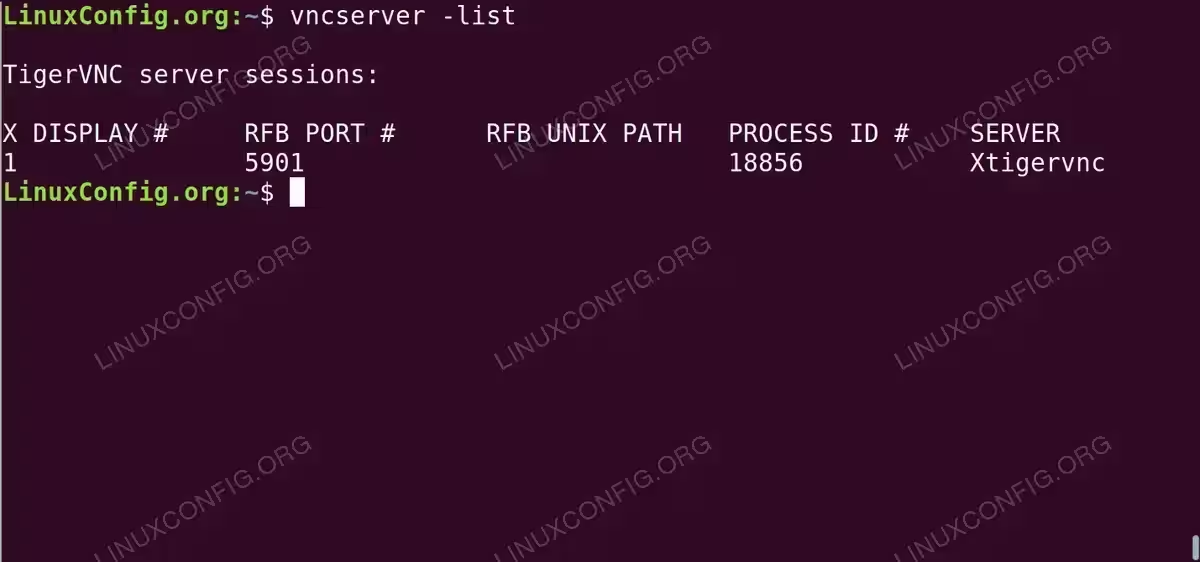
$ vncserver -list
You should see display :1 listed with its process ID and port 5901. Stop it before proceeding to the systemd setup:
$ vncserver -kill :1
Run VNC Server as a systemd Service on Ubuntu 26.04
Running VNC as a systemd service ensures the server starts automatically on boot and can be managed with standard systemctl commands. On Ubuntu 26.04, TigerVNC does not ship a pre-built template unit file, so you must create one manually.
Create the service file, replacing linuxconfig with your actual username throughout:
$ sudo nano /etc/systemd/system/vncserver@.service
Add the following content:
[Unit]
Description=TigerVNC server instance %i
After=syslog.target network.target

[Service]
Type=simple
User=linuxconfig
WorkingDirectory=/home/linuxconfig

ExecStartPre=-/usr/bin/vncserver -kill :%i > /dev/null 2>&1
ExecStart=/usr/bin/vncserver :%i -geometry 1280x800 -depth 24 -xstartup /home/linuxconfig/.vnc/xstartup -localhost no -fg
ExecStop=/usr/bin/vncserver -kill :%i

[Install]
WantedBy=multi-user.target
The Type=simple setting together with the -fg flag keeps the VNC process in the foreground, which is required for systemd to track the process correctly. The %i specifier is replaced by the display number from the service instance name (e.g., vncserver@1.service uses display :1).
Reload systemd and enable the service for display :1:
$ sudo systemctl daemon-reload
$ sudo systemctl enable --now vncserver@1.service
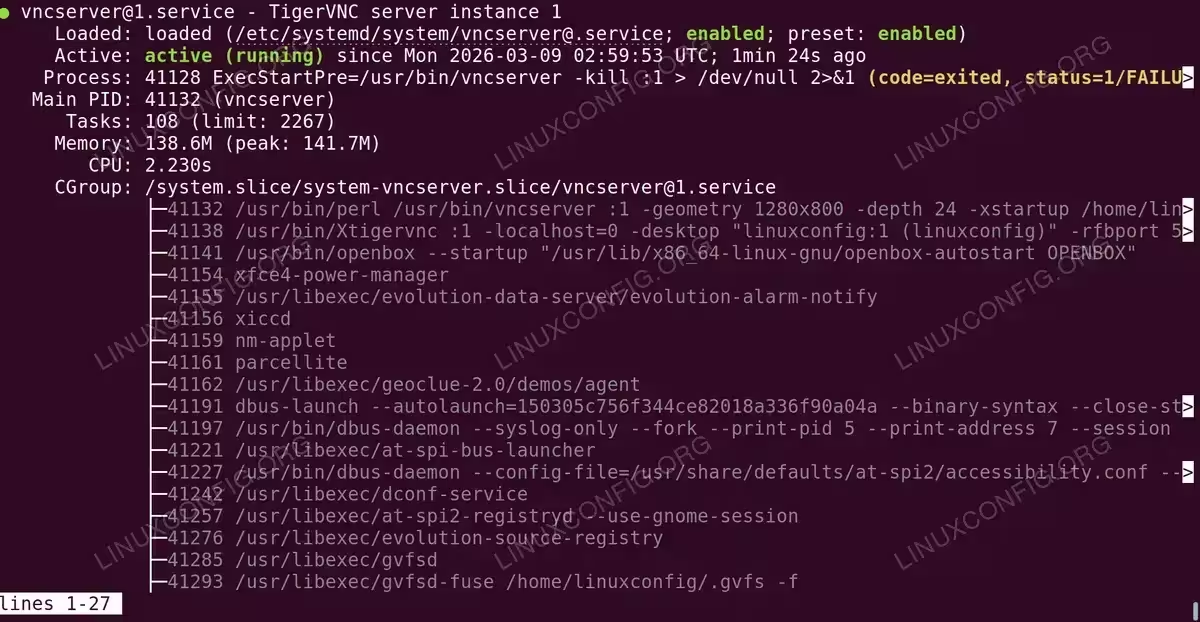
Confirm the service is active:
$ sudo systemctl status vncserver@1.service
IMPORTANT
If the service fails to start, check the journal with journalctl -xeu vncserver@1.service --no-pager | tail -30 for error messages. On Ubuntu 26.04, TigerVNC does not ship a pre-built template unit file – the service file must be created manually as described above.
Firewall Configuration
TigerVNC listens on TCP port 5900 + display number. For display :1 that is port 5901. If you are running ufw, open that port:
$ sudo ufw allow 5901/tcp
$ sudo ufw reload
SECURITY ALERT
Opening VNC ports directly to the internet exposes a service protected only by an 8-character password. This is not recommended. Use an SSH tunnel as described in the next section, keep port 5901 closed to external traffic, and allow only trusted IP ranges if direct access is required.
If you are using the netplan server approach to manage networking and need to verify your server’s IP address, also ensure you have a static ip server configure in place so the VNC client always reaches the correct address. You may also want to set up an SSH server if you have not done so already, as it is required for the tunnelling method described below.
Connect to the VNC Server
From a client machine, use any VNC viewer that supports TigerVNC protocol. Popular options include TigerVNC Viewer, Remmina, and RealVNC Viewer.
Enter the server address in the format server-ip:display-number or server-ip:port:
192.168.1.100:1
or equivalently:
192.168.1.100:5901
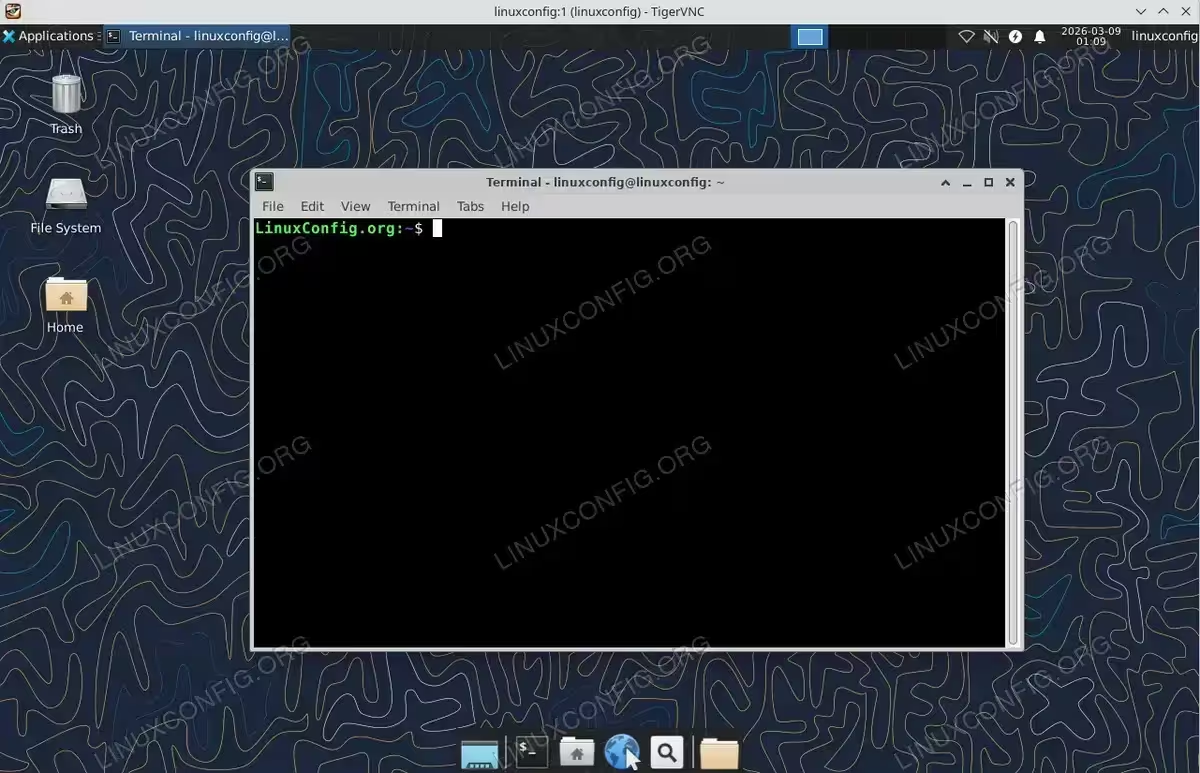
You will be prompted for the VNC password set earlier. After authentication, the Xfce desktop appears in the viewer window.
Secure VNC with an SSH Tunnel
Transmitting VNC traffic over an unencrypted connection is a significant security risk. The recommended approach for vnc server install ubuntu 26.04 in production environments is to tunnel VNC through SSH, which encrypts all traffic and eliminates the need to expose port 5901 publicly.
On the VNC server, set -localhost yes in the service override so VNC only listens on the loopback interface. Then, from your client machine, create an SSH tunnel:
$ ssh -L 5901:localhost:5901 -N linuxconfig@server-ip
This command forwards local port 5901 through the SSH connection to port 5901 on the server’s loopback interface. Leave the tunnel running in a terminal, then point your VNC viewer at localhost:5901. All VNC traffic is now encrypted inside the SSH session.
For convenience, add the tunnel configuration to ~/.ssh/config on the client:
Host vnc-server
    HostName server-ip
    User linuxconfig
    LocalForward 5901 localhost:5901
With this in place, running ssh vnc-server automatically sets up the tunnel. Refer to the TigerVNC vncserver documentation for the full list of server options.
COMPLETED
Your VNC server is now installed, configured as a systemd service, and secured behind an SSH tunnel. You can connect to the Xfce desktop on Ubuntu 26.04 from any VNC-compatible client.
Alternative Desktop Environments for VNC on Ubuntu 26.04
Xfce is the primary recommendation in this guide, but several other X11-compatible desktop environments are confirmed to work with TigerVNC on a headless Ubuntu 26.04 server. To switch to any of the alternatives below, replace the ~/.vnc/xstartup content with the version shown in the relevant subsection, then restart the VNC session or the systemd service.
MATE
MATE is a full-featured traditional desktop based on GNOME 2. It provides a familiar panel-based layout and is well suited to users who want a complete desktop experience over VNC.
Install MATE:
$ sudo apt install mate-desktop-environment
Update ~/.vnc/xstartup:
#!/bin/sh
unset SESSION_MANAGER
unset DBUS_SESSION_BUS_ADDRESS
exec mate-session
IMPORTANT
On first launch, MATE shows an error: “The panel encountered a problem while loading IndicatorAppletCompleteFactory::IndicatorAppletComplete.” Click “Don’t Delete” to dismiss it. This prompt does not appear on subsequent sessions.
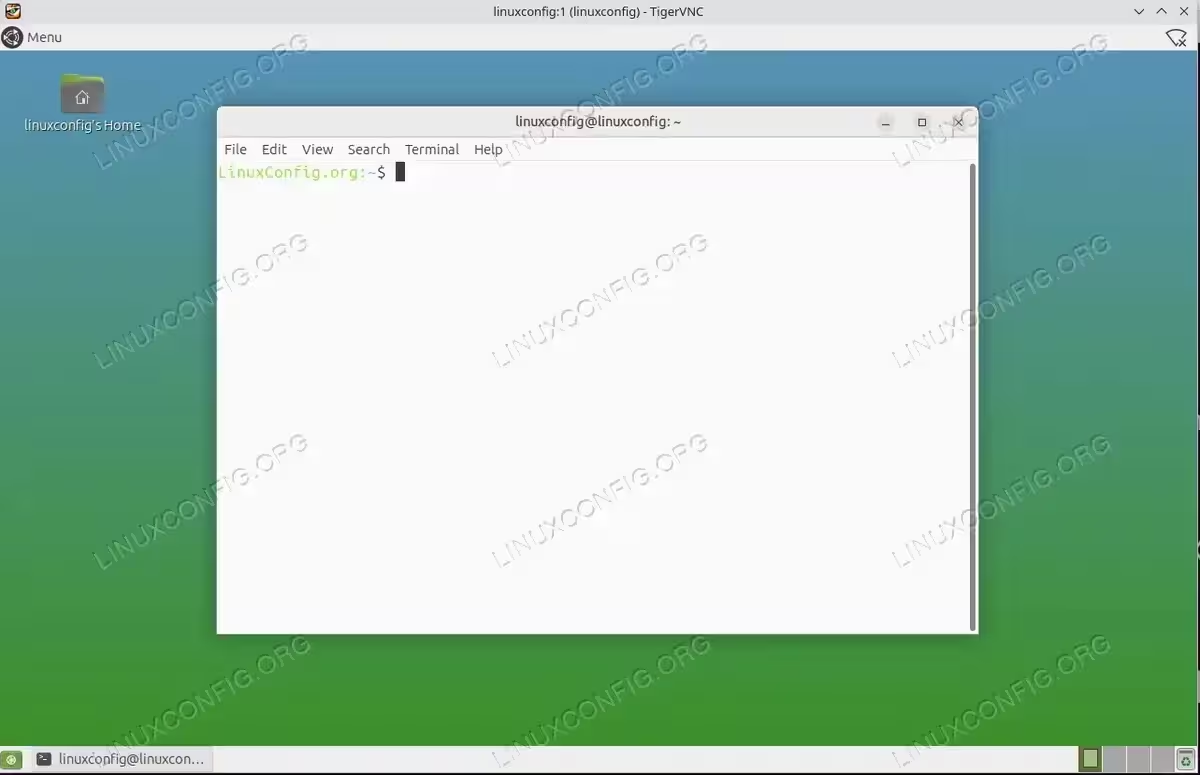
LXDE
LXDE is an extremely lightweight GTK-based desktop. It has minimal resource requirements and starts quickly, making it a good choice for low-memory servers.
Install LXDE:
$ sudo apt install lxde
Update ~/.vnc/xstartup:
#!/bin/sh
unset SESSION_MANAGER
unset DBUS_SESSION_BUS_ADDRESS
exec startlxde
IMPORTANT
On first launch, LXDE shows a polkit prompt: “Authentication is required to create a color managed device.” Cancel it safely – this does not affect desktop functionality and does not reappear.
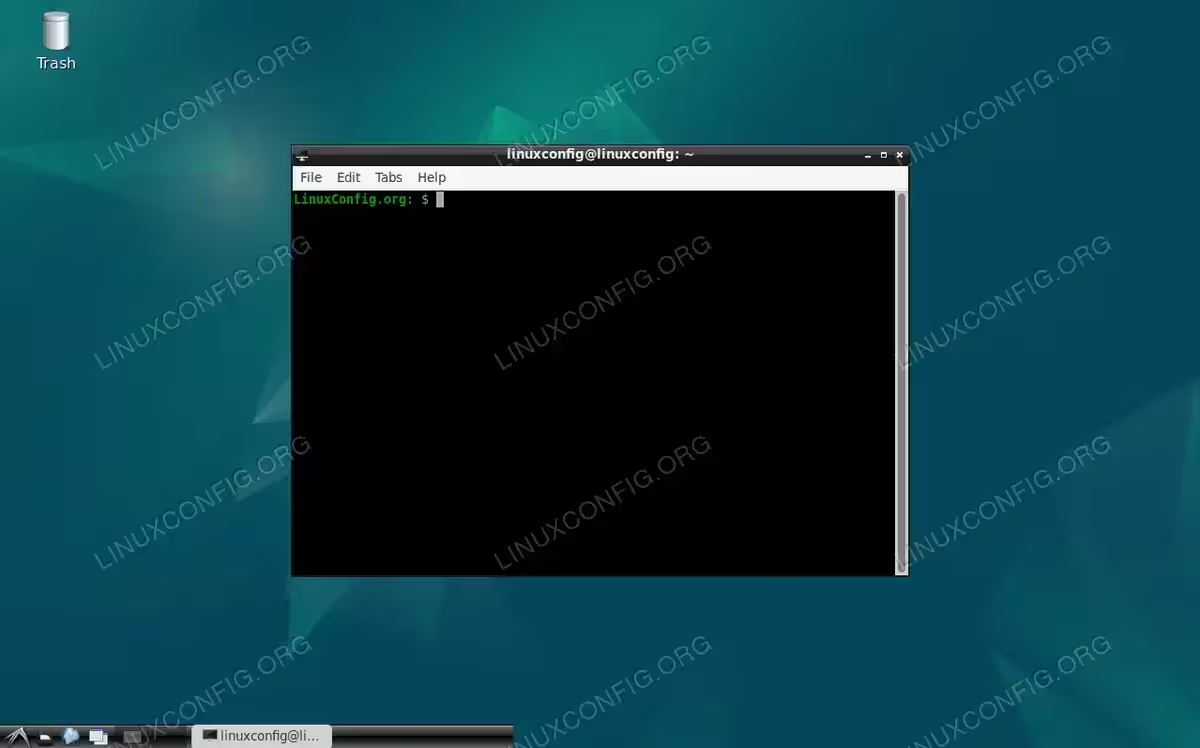
LXQt
LXQt is a lightweight Qt-based desktop, the spiritual successor to LXDE. It provides a modern look while remaining resource-efficient.
Install LXQt:
$ sudo apt install lxqt
Update ~/.vnc/xstartup:
#!/bin/sh
unset SESSION_MANAGER
unset DBUS_SESSION_BUS_ADDRESS
exec startlxqt
IMPORTANT
On first launch, LXQt prompts you to select a default window manager. Choose Openbox for best compatibility over VNC. A polkit color device prompt also appears – cancel it safely.
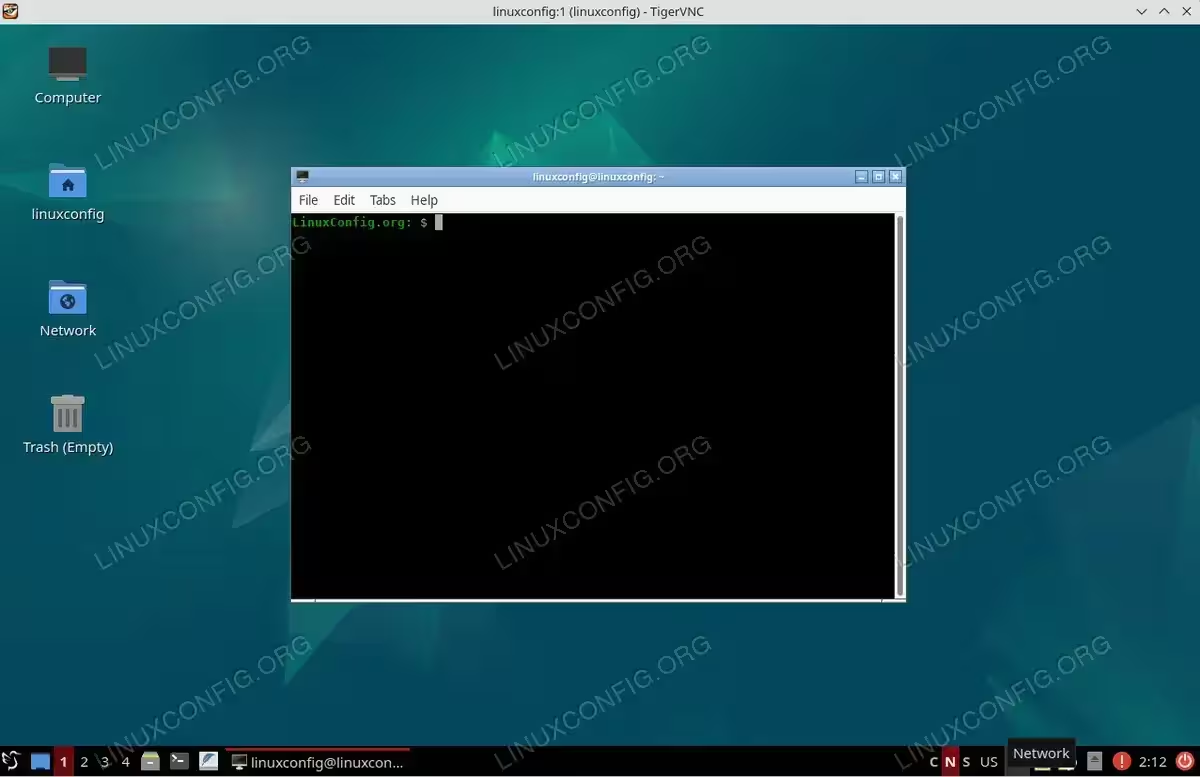
KDE Plasma
KDE Plasma is a full-featured modern desktop with a rich set of applications and configuration options. It has a larger install footprint than the other options but works reliably over VNC on a headless server.
Install KDE Plasma:
$ sudo apt install kde-plasma-desktop
Update ~/.vnc/xstartup:
#!/bin/sh
unset SESSION_MANAGER
unset DBUS_SESSION_BUS_ADDRESS
exec startplasma-x11
IMPORTANT
KDE Plasma has a significantly larger package footprint than Xfce or LXDE. On low-bandwidth connections, the session may feel slower due to the richer visual effects. Consider disabling compositor effects in KDE System Settings after connecting.
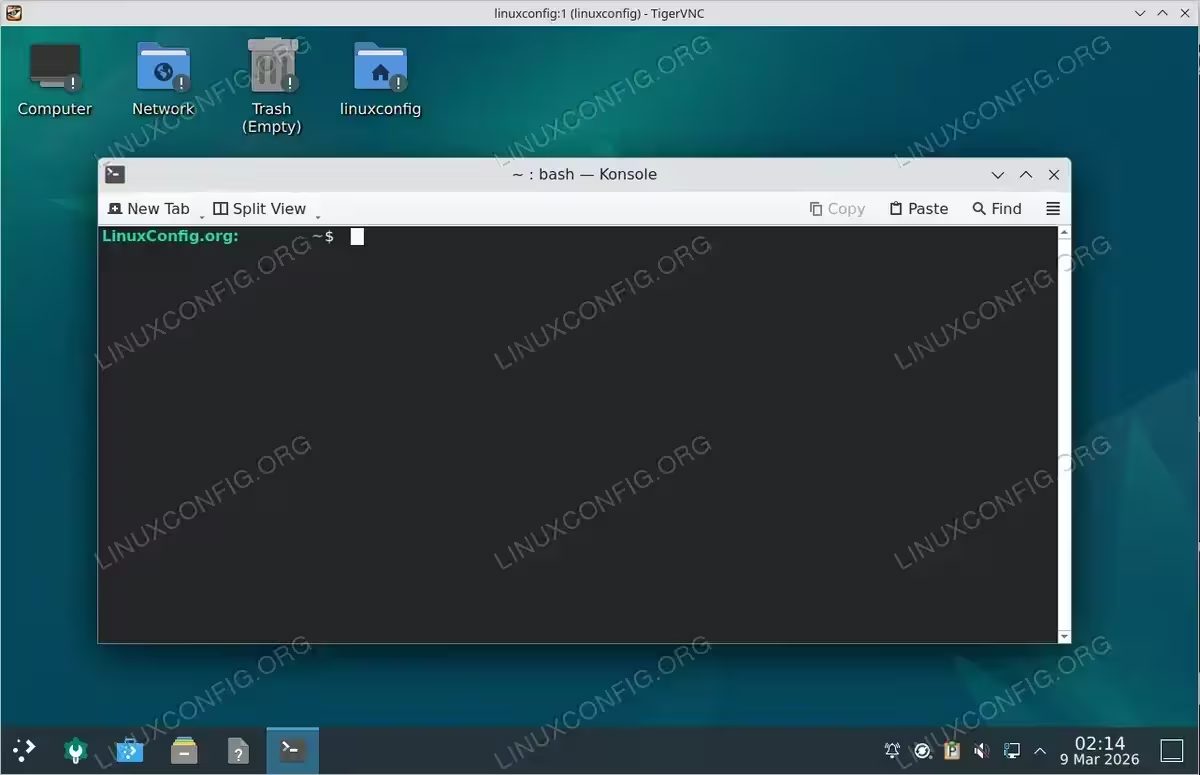
Openbox
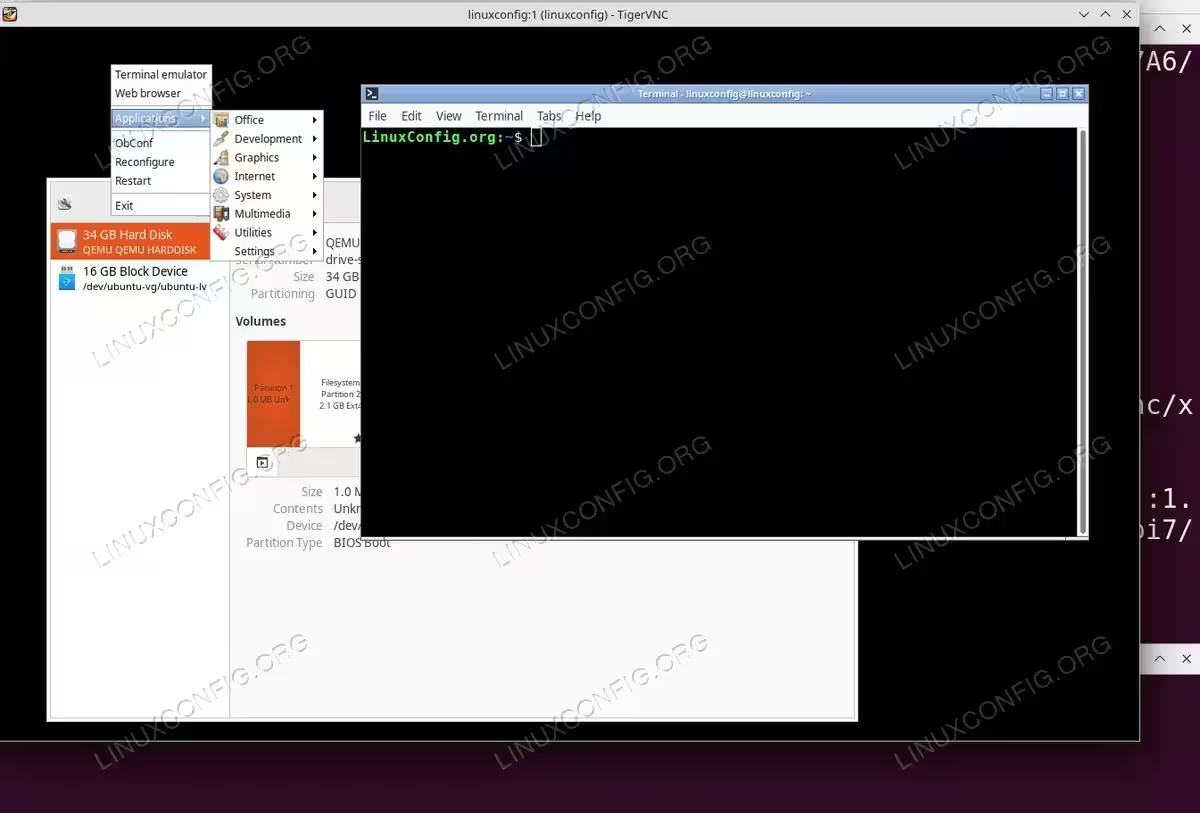
Openbox is a minimal standalone window manager with no panel or desktop icons. It is not a full desktop environment but is the lightest option available. The desktop appears as a plain black screen; right-clicking reveals an application menu. Openbox is suited to advanced users who want to build a custom minimal environment or simply need a window manager to run specific applications over VNC.
Install Openbox:
$ sudo apt install openbox
Update ~/.vnc/xstartup:
#!/bin/sh
unset SESSION_MANAGER
unset DBUS_SESSION_BUS_ADDRESS
exec openbox-session
Troubleshooting VNC Server on Ubuntu 26.04
VNC session shows a black screen
A black screen after connecting almost always means the desktop environment failed to start. The most common causes are a missing or non-executable ~/.vnc/xstartup file, or the -xstartup flag not being passed to vncserver. Verify both:
$ ls -la ~/.vnc/xstartup
$ cat ~/.vnc/xstartup
Confirm the file is executable and ends with exec startxfce4. Always pass -xstartup ~/.vnc/xstartup explicitly when starting the server, as TigerVNC on Ubuntu 26.04 does not auto-detect this file.
Connection refused when connecting from a remote client
If the VNC viewer reports “connection refused”, the server is likely binding to localhost only. Verify with:
$ ss -tlnp | grep 590
If the address shows 127.0.0.1 instead of 0.0.0.0, the -localhost no flag is missing from the vncserver command. Kill the session and restart with -localhost no included.
VNC on Ubuntu 26.04 desktop install: black screen and crashes
Running TigerVNC with Xfce on an Ubuntu 26.04 desktop install produces a black VNC screen even when the server starts successfully. This is caused by Xfce components being compiled with mandatory Wayland support: xfdesktop requires the zwlr_layer_shell_v1 Wayland protocol and terminates immediately when it is not available in an X11 VNC session. Additionally, on a desktop install, Xwayland occupies displays :0 and :1, and Wayland environment variables bleed into the VNC session. These issues do not occur on a headless server install where no Wayland stack is present. For desktop systems requiring remote graphical access, consider using xrdp instead, which integrates with the existing GNOME session.
Session startup exits too early (less than 3 seconds)
TigerVNC prints this warning when the xstartup script exits before the session is fully established. Check the session log for the real cause:
$ tail -50 ~/.config/tigervnc/$(hostname):1.log
Conclusion
This guide covered the complete process of vnc server install ubuntu 26.04 using TigerVNC and Xfce on a headless server. Because Ubuntu 26.04 uses a Wayland-only GNOME session, a clean server install without any graphical environment is the correct target for VNC. You configured a startup script, registered the server as a systemd service for automatic startup, and secured the connection with an SSH tunnel. For related server setup tasks, consider also configuring an NTP server to keep system time accurate and learning how to restart server cleanly when applying configuration changes.
Frequently Asked Questions
- Why can’t I use GNOME with VNC on Ubuntu 26.04? Ubuntu 26.04 removed the X11 GNOME session packages entirely. GNOME now runs exclusively on Wayland, which does not support the RFB protocol used by VNC. You must use an X11-compatible desktop such as Xfce, LXDE, or MATE for VNC sessions.
- Can I run multiple VNC sessions on the same server? Yes. Each session uses a different display number and corresponding port. For example, enable
vncserver@2.servicefor a second user on display:2(port 5902). Each user must have their own~/.vnc/passwdand~/.vnc/xstartupfiles. Adjust the service override accordingly for each user. - How do I change the VNC display resolution after setup? Stop the service, edit the
-geometryvalue in/etc/systemd/system/vncserver@.service.d/override.conf, runsudo systemctl daemon-reload, and then restart the service withsudo systemctl restart vncserver@1.service. The new resolution takes effect immediately on reconnection. - Is TigerVNC the only VNC server option on Ubuntu 26.04? No, but it is the most actively maintained and widely tested option for Ubuntu. Alternatives include
x11vnc(which attaches to an existing X display) andtightvncserver. However, TigerVNC’s active upstream development and good integration with systemd make it the recommended choice for vnc server install ubuntu 26.04. - My VNC session shows only a grey screen or terminal. What is wrong? This almost always means the
~/.vnc/xstartupscript is missing, not executable, or contains an error. Verify the file exists, that it has the execute bit set (chmod +x ~/.vnc/xstartup), and that the last line isexec startxfce4. Also confirm that Xfce is actually installed withwhich startxfce4.