
Ubuntu 26.04 uses Wayland as its sole display protocol for the GNOME desktop. The traditional “GNOME on Xorg” session has been removed entirely, meaning there is no way to run GNOME under X11 on this release. If you need to wayland disable ubuntu 26.04, the most effective approach is to replace both the display manager and the desktop environment altogether, switching to LightDM and XFCE for a fully functional X11 desktop. This guide walks you through the entire process.
- Why GDM3 cannot provide an X11 session on Ubuntu 26.04
- How to install XFCE and LightDM as replacements
- How to remove GDM3 and Wayland session entries
- How to verify that your session is running on X11
Software Requirements
| Category | Requirements, Conventions or Software Version Used |
|---|---|
| System | Ubuntu 26.04 Resolute Raccoon |
| Software | LightDM, XFCE4 |
| Other | Privileged access to your Linux system as root or via the sudo command. |
| Conventions | # – requires given linux commands to be executed with root privileges either directly as a root user or by use of sudo command$ – requires given linux commands to be executed as a regular non-privileged user |
| Step | Command/Action |
|---|---|
| 1. Install XFCE and LightDM | sudo apt install xfce4 xfce4-goodies lightdm |
| 2. Select lightdm at the prompt | Choose lightdm as the default display manager |
| 3. Remove GDM3 and Wayland sessions | sudo apt remove --purge gdm3 ubuntu-session |
| 4. Reboot and verify | echo $XDG_SESSION_TYPE outputs x11 |
Why Replacing GDM3 Is Necessary
On previous Ubuntu releases, disabling Wayland was straightforward: you set WaylandEnable=false in /etc/gdm3/custom.conf, and GDM3 would fall back to the “GNOME on Xorg” session. That approach no longer works on Ubuntu 26.04 because Canonical removed the GNOME X11 session entirely. The gnome-session-xorg package does not exist, and there is no .desktop file for a GNOME X11 session under /usr/share/xsessions/.
This creates a practical problem: even if you set WaylandEnable=false in GDM3, there is no X11 session for GDM3 to offer. You are left with a login screen that has nothing to log into. Therefore, to wayland disable ubuntu 26.04, you need to take two additional steps beyond what older guides suggest:
- Install an alternative desktop environment that supports X11 natively (such as XFCE or LXQt)
- Replace GDM3 with a different display manager
Since GDM3’s only remaining purpose on Ubuntu 26.04 is to serve the Wayland-based GNOME session, retaining it alongside a different desktop environment adds unnecessary complexity. LightDM is a lightweight, well-established display manager that handles X11 sessions natively and is a natural fit for this purpose.
IMPORTANT
This procedure replaces your GNOME Wayland desktop with an XFCE X11 desktop. GNOME will remain installed but will no longer be your active session. You can still launch GNOME applications from within XFCE.
Install XFCE and LightDM on Ubuntu 26.04
The first step to disable Wayland on Ubuntu 26.04 is to install an X11-compatible desktop environment and a display manager that supports it. XFCE is a solid choice because it is lightweight, stable, and fully supports X11 sessions out of the box.
- Update the package index: Ensure your package lists are current before installing new packages.
$ sudo apt update
- Install XFCE and LightDM: This single command installs the XFCE desktop environment along with LightDM as the replacement display manager.
$ sudo apt install xfce4 xfce4-goodies lightdm
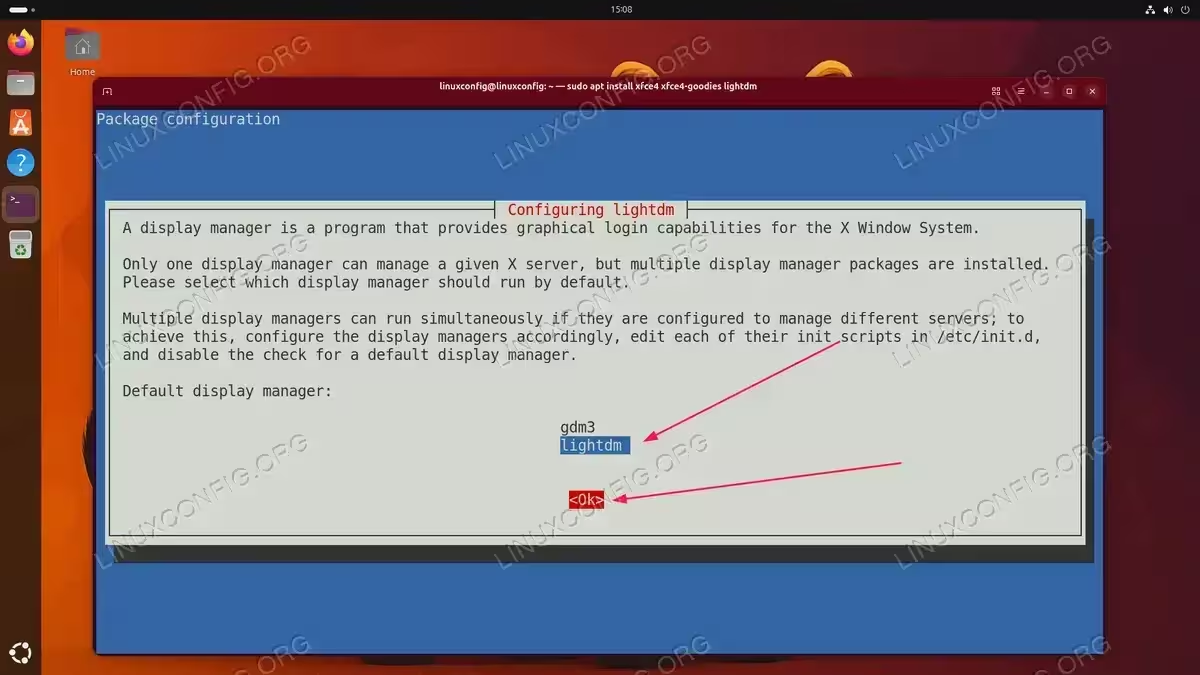
During installation, a dialog will appear asking you to choose the default display manager. Select lightdm from the list.
- Reboot the system: Apply the changes by rebooting.
$ sudo reboot
After reboot, the LightDM login screen will appear instead of GDM3. Select Xfce Session from the session selector in the top-right corner and log in.
DID YOU KNOW
If you missed the display manager selection prompt during installation, or want to reconfigure it later, run: sudo dpkg-reconfigure lightdm
At this point your desktop is running on X11 through XFCE. However, the LightDM session selector may still show Wayland-based entries such as “Ubuntu” (GNOME Wayland) and “Xfce Session (Wayland)”. The next section covers how to remove these.
Remove Wayland Sessions
After switching to LightDM, the session selector may still display Wayland session options. These entries come from .desktop files in /usr/share/wayland-sessions/. To fully wayland disable ubuntu 26.04 and prevent accidental Wayland logins, remove them.
- Remove GDM3 and the Ubuntu GNOME Wayland session: Since GDM3 no longer serves a purpose, remove it along with the
ubuntu-sessionpackage that provides the GNOME Wayland session entry.$ sudo apt remove --purge gdm3 ubuntu-session
This removes the “Ubuntu” entry from the LightDM session selector.
- Clean up unused dependencies:
$ sudo apt autoremove
- Remove the XFCE Wayland session file: The “Xfce Session (Wayland)” entry is provided by the
xfce4-sessionpackage, which also provides the X11 session we need. Therefore, instead of removing the package, delete only the Wayland session file.$ sudo rm /usr/share/wayland-sessions/xfce-wayland.desktop
- Reboot to apply the changes:
$ sudo reboot
IMPORTANT
Only remove GDM3 after you have confirmed that LightDM is working correctly. If LightDM fails to start, you can switch to a TTY console (Ctrl+Alt+F3) and reinstall GDM3 with sudo apt install gdm3.
After rebooting, the LightDM session selector will show only X11 sessions. The Wayland options will no longer appear.
NOTE
The “Default Xsession” entry may still appear in the LightDM session selector. This is a generic fallback provided by LightDM itself and does not load a functional session. Simply ignore it and always select Xfce Session when logging in.
OPTIONAL CLEANUP
If you prefer to remove the xfce-wayland.desktop file through the package manager rather than deleting it manually, you can optionally mark it as a deleted conffile. However, a simple rm is sufficient. As of the time of writing, the file is not recreated after a reboot or package update.
Verify Your Display Server
After logging in through LightDM, confirm that your session is running on X11 and that Wayland is no longer active.
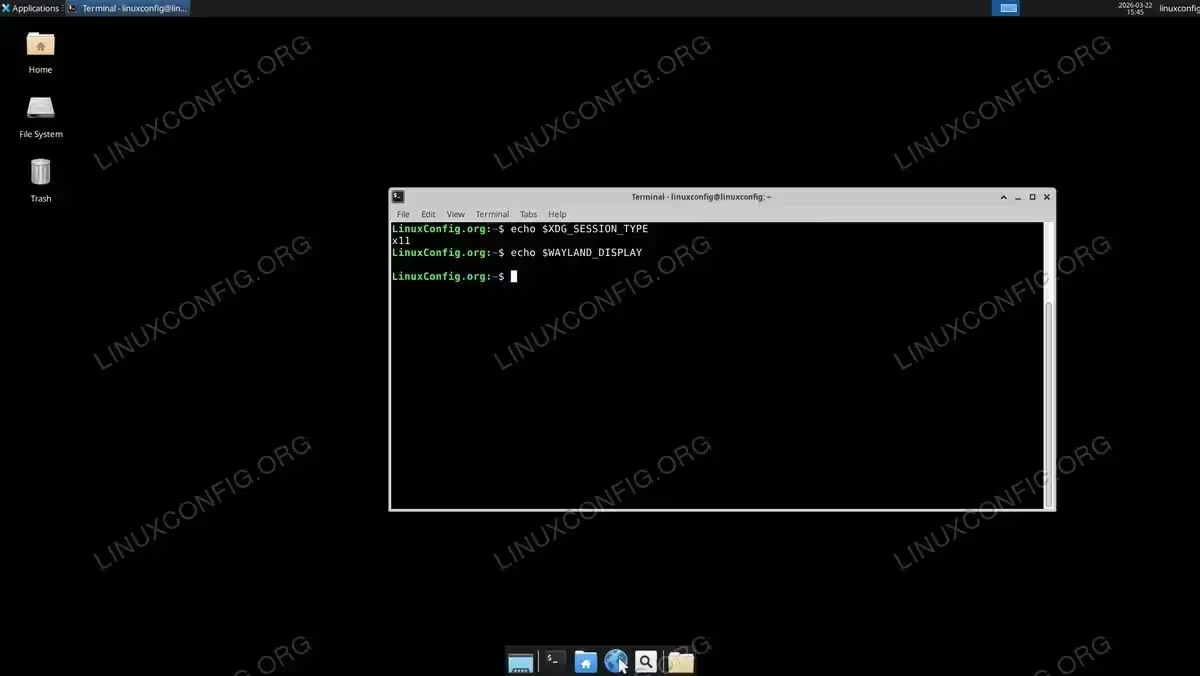
- Check the
XDG_SESSION_TYPEenvironment variable: This is the quickest method to determine your active display server.$ echo $XDG_SESSION_TYPE
Expected output:
x11
- Check the
WAYLAND_DISPLAYvariable: When Wayland is active, this variable is set. When X11 is active, it is empty.$ echo $WAYLAND_DISPLAY
An empty output confirms Wayland is not running.
COMPLETED
Wayland has been fully disabled. Your Ubuntu 26.04 system is now running XFCE on X11 with LightDM as the display manager.
Conclusion
Disabling Wayland on Ubuntu 26.04 requires a different approach than on previous releases. Because the GNOME X11 session has been removed and GDM3 only serves Wayland-based GNOME sessions, the old method of setting WaylandEnable=false in GDM3 configuration is no longer sufficient. The cleanest solution is to install XFCE with LightDM, remove GDM3 and the ubuntu-session package, and delete the XFCE Wayland session file. This eliminates Wayland from the session stack completely and gives you a fully functional X11 desktop. To learn more about the differences between the two display protocols, see the Wayland vs X11 comparison guide. If you need to enable Wayland in the future, reinstalling GDM3 and the ubuntu-session package will restore the default GNOME Wayland desktop.
Frequently Asked Questions
- Why can’t I just set WaylandEnable=false in GDM3 like on older Ubuntu versions? On Ubuntu 26.04, the GNOME X11 session has been completely removed. Setting
WaylandEnable=falsein/etc/gdm3/custom.confdisables Wayland in GDM3, but since there is no X11 GNOME session to fall back to, you end up with a login screen that offers no usable sessions. A different desktop environment and display manager are required. - Can I use a desktop environment other than XFCE? Yes. Any desktop environment that supports X11 sessions will work with LightDM. Popular alternatives include LXQt (
sudo apt install lxqt) and MATE (sudo apt install mate-desktop-environment). Choose whichever fits your workflow best. - Will removing GDM3 also remove GNOME? No. Removing GDM3 only removes the display manager. GNOME and its applications remain installed. However, without GDM3 and the
ubuntu-sessionpackage, you will not be able to start a GNOME Wayland session. GNOME applications themselves will continue to work within your XFCE X11 session. - Why does “Default Xsession” appear in LightDM but not work? The “Default Xsession” entry is a generic fallback provided by LightDM through the
lightdm-xsession.desktopfile. It attempts to run a default X session but does not point to any specific desktop environment. Always select Xfce Session from the session selector instead. - Does disabling Wayland affect all users on the system? Yes. Replacing GDM3 with LightDM and removing Wayland session files are system-wide changes. All users will log in through LightDM and only X11 sessions will be available.