
Knowing how to restart a server via the command line is an essential skill for any Ubuntu 26.04 administrator. Whether you manage a local workstation, a headless server, or a cloud instance, triggering a clean restart server ubuntu 26.04 without a graphical interface is a routine operational task. This guide covers the primary restart methods available on Ubuntu 26.04, explains when to use each one, and shows you how to verify that the system came back up correctly.
- How to restart Ubuntu 26.04 using
systemctl,shutdown, andreboot - The difference between an immediate and a scheduled restart
- How to broadcast a wall message before rebooting
- How to verify uptime and confirm the system restarted successfully
Software Requirements
| Category | Requirements, Conventions or Software Version Used |
|---|---|
| System | Ubuntu 26.04 Resolute Raccoon |
| Software | systemd (pre-installed), util-linux (provides reboot and shutdown, pre-installed) |
| Other | Privileged access to your Linux system as root or via the sudo command. |
| Conventions | # – requires given linux commands to be executed with root privileges either directly as a root user or by use of sudo command$ – requires given linux commands to be executed as a regular non-privileged user |
sudo systemctl reboot. For a scheduled restart with a warning message, use sudo shutdown -r +5 "System rebooting in 5 minutes".
| Step | Command/Action |
|---|---|
| 1. Immediate restart (recommended) | sudo systemctl reboot |
| 2. Restart in 5 minutes with message | sudo shutdown -r +5 "Rebooting soon" |
| 3. Verify uptime after reboot | uptime |
Restart Ubuntu 26.04 with systemctl reboot
The preferred method to restart server ubuntu 26.04 is through systemctl, the command-line interface for systemd. This approach signals systemd to perform an orderly shutdown of all running services before the kernel reboots, minimising the risk of data corruption.
- Issue the reboot command: Run the following as a privileged user:
$ sudo systemctl reboot
systemd immediately begins stopping all active units in the correct dependency order. The terminal session will drop as the SSH connection closes or the console resets.
IMPORTANT
If you are connected over SSH, your session will terminate as soon as the reboot starts. Make sure you have saved all open files and committed any pending work before running this command.
Because systemd manages service startup and shutdown on Ubuntu 26.04, systemctl reboot guarantees that services such as databases, web servers, and the SSH server are stopped cleanly before the system restarts. This is especially important on production machines where abrupt termination could leave lock files or partially written logs behind.
Restart Ubuntu 26.04 with shutdown -r
The shutdown command provides additional control over the timing of a restart and lets you send a broadcast message to all logged-in users before the system goes down. This makes it the better choice when other users may be active on the server.
- Restart immediately: Use
nowas the time argument:$ sudo shutdown -r now
This is functionally equivalent to
systemctl reboot. - Restart with a delay and a message: Replace
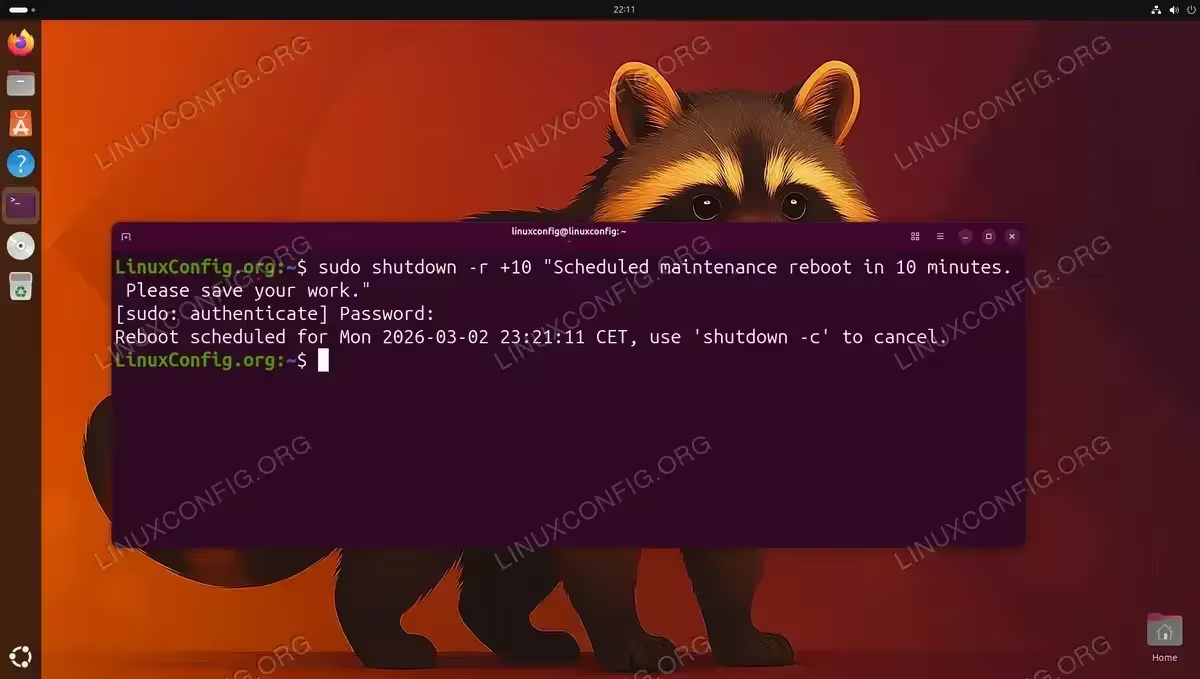
nowwith a minute offset and append a quoted message:$ sudo shutdown -r +10 "Scheduled maintenance reboot in 10 minutes. Please save your work."
The message is broadcast via
wallto every logged-in user’s terminal. After the delay expires, the system restarts automatically. - Cancel a pending shutdown: If you need to abort a scheduled restart before it fires, run:
$ sudo shutdown -c
A cancellation notice is sent to all users and the restart is aborted.
IMPORTANT
The time argument to shutdown accepts either now, a relative offset such as +5 (minutes from now), or an absolute HH:MM time such as 23:30.
Using the reboot Command Directly
Ubuntu 26.04 also provides the standalone reboot command as a convenience wrapper. On modern systemd-based systems, calling reboot directly invokes systemctl reboot internally, so the behaviour is identical.
- Run reboot:
$ sudo reboot
The system begins an orderly shutdown and then restarts. This is the shortest command to type and is safe to use interchangeably with
systemctl reboot.
IMPORTANT
On older SysV init systems, reboot could bypass service shutdown hooks. On Ubuntu 26.04 with systemd, this is no longer a concern; all three commands covered in this guide result in a clean restart.
Scheduling a Delayed Restart on Ubuntu 26.04
For environments where you need to plan a restart server ubuntu 26.04 outside of business hours, combining shutdown with an absolute time is more reliable than a relative offset, because a relative offset is computed from the moment the command runs.
- Schedule a restart at a specific time: Specify the time in 24-hour HH:MM format:
$ sudo shutdown -r 02:00 "Nightly maintenance restart. System will be back in a few minutes."
The server will restart at 02:00 local time. All logged-in users receive the wall message immediately.
- Confirm the scheduled restart: Run the following to see whether a shutdown is pending:
$ systemctl list-jobs | grep shutdown
If a shutdown job is queued, it appears in the output. An empty result means no restart is scheduled.
Additionally, if you need to trigger a restart after a configuration change such as modifying a static IP or needing to apply Netplan settings, a scheduled restart gives you a window to notify users and complete any outstanding tasks first. For network-related changes specifically, you may not need a full reboot; consult the guide on how to static ip server configure for alternatives.
Similarly, if you run containers, you may prefer to stop them gracefully before the system restarts. See the guide on how to restart Docker services for details.
Verifying the Restart on Ubuntu 26.04
After the system comes back online, confirming that the restart completed successfully is good practice. The two most useful checks are uptime and the system journal.
- Check uptime: Run:
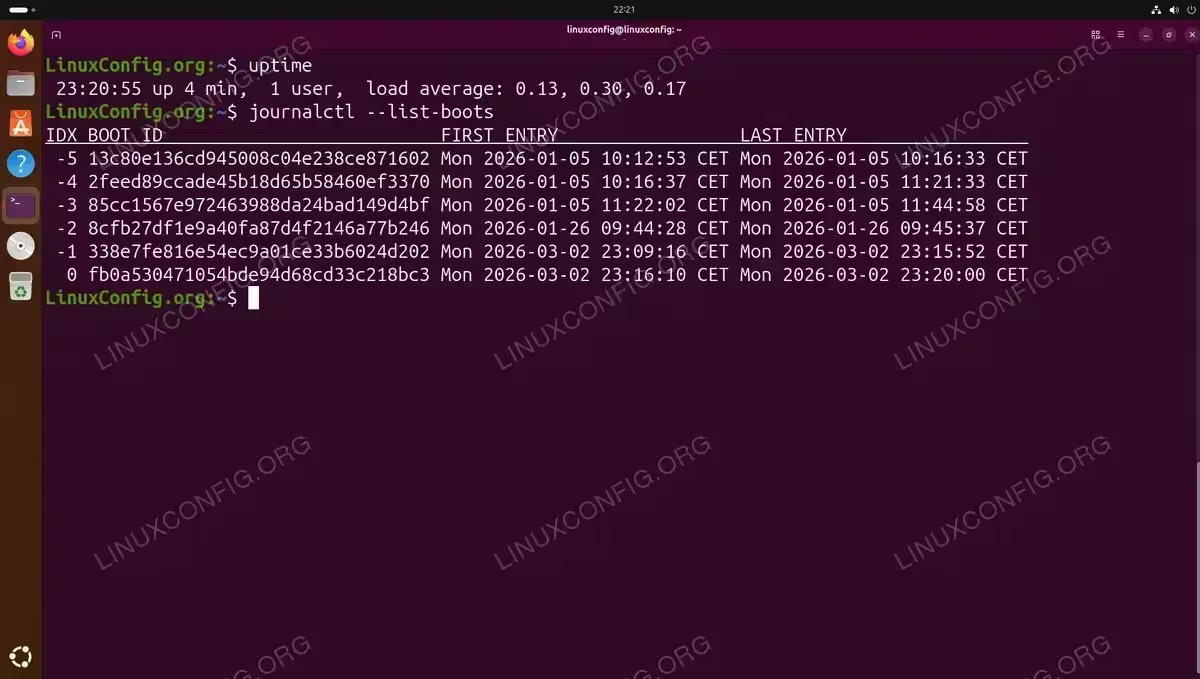
$ uptime
The output shows how long the system has been running since the last boot. A short uptime (seconds or a few minutes) confirms the restart just occurred.
Example output:
10:45:03 up 2 min, 1 user, load average: 0.35, 0.18, 0.07
- Check boot history with journalctl:
$ journalctl --list-boots
Output:
0 fb0a530471054bde94d68cd33c218bc3 Mon 2026-03-02 23:16:10 CET Mon 2026-03-02 23:20:00 CET
Each line represents one boot session. The entry marked
0is the current boot, and the timestamps confirm when the system last started and how long it has been running. - Review the journal for boot errors: Use
journalctlto inspect the current boot log for any warnings or failures:$ journalctl -b -p warning
The
-bflag limits output to the current boot session and-p warningfilters to warning-level messages and above. Address any unexpected errors before returning the server to normal operation.
For more detail on the entire restart process, including how to control automatic startup of services after a reboot, see the official systemctl documentation.
Conclusion
Ubuntu 26.04 provides three clean, systemd-backed ways to restart server ubuntu 26.04 from the command line: systemctl reboot, shutdown -r, and the reboot shortcut. For an immediate restart, sudo systemctl reboot is the most explicit and recommended option. When you need to notify users or schedule a restart at a specific time, shutdown -r with a time argument and a message gives you that control. After the system returns online, confirming the uptime and reviewing the journal ensures the restart completed without issues.
For related operations, you can also consult the guide on how to restart Ubuntu 26.04 using other methods, including graphical tools and remote management interfaces.
Frequently Asked Questions
- What is the difference between
reboot,shutdown -r now, andsystemctl rebooton Ubuntu 26.04? On Ubuntu 26.04, all three commands result in the same outcome: a clean, orderly system restart managed by systemd.rebootis simply a convenience wrapper that internally callssystemctl reboot.shutdown -r nowroutes through the shutdown utility but also delegates to systemd on modern systems. The practical difference is thatshutdown -radditionally accepts a time argument and a broadcast message, making it more flexible for multi-user environments. - Will a command-line restart close all running services safely? Yes. Because Ubuntu 26.04 uses systemd as its init system, all three restart commands trigger an orderly teardown of running units before the kernel reboots. Services are stopped in reverse dependency order, which means databases, web servers, and other daemons are given the opportunity to flush buffers and release locks cleanly.
- How can I restart a remote Ubuntu 26.04 server without losing my SSH session permanently? You cannot keep an SSH session alive across a reboot, as the connection drops when the SSH daemon stops. However, you can use tools like
tmuxorscreento preserve terminal sessions that resume automatically after reconnection. Alternatively, schedule the restart withshutdown -r +Nso you have time to disconnect gracefully and then reconnect once the server is back online. After reconnecting, runuptimeorwho -bto confirm the restart completed. - Is there a way to restart only specific services instead of the whole system? Yes. If your goal is to apply a configuration change without a full reboot, you can restart individual systemd services with
sudo systemctl restart service-name. For example, to restart the networking stack after a configuration change, you may only need to apply Netplan settings rather than rebooting the entire server.