
If you need to interact with the clipboard from the terminal, xclip install ubuntu 26.04 is a common first step. xclip is a lightweight command-line tool that reads from standard input and places content into the X11 clipboard, making it easy to pipe command output directly into clipboard buffers for use in GUI applications. This guide covers everything you need to install, verify, and use xclip on Ubuntu 26.04 Resolute Raccoon, including an important note about Wayland compatibility.
Table of Contents
In this tutorial you will learn:
- How xclip differs from other clipboard tools and when to use it
- How to install xclip on Ubuntu 26.04 using apt
- How to verify the installation is working correctly
- How to copy and paste content using xclip from the command line
- When to use wl-clipboard as a Wayland-native alternative
Software Requirements
| Category | Requirements, Conventions or Software Version Used |
|---|---|
| System | Ubuntu 26.04 Resolute Raccoon |
| Software | xclip 0.13 (available in Ubuntu 26.04 main repository) |
| Other | Privileged access to your Linux system as root or via the sudo command. An active X11 display session or XWayland support for clipboard operations. |
| Conventions | # – requires given linux commands to be executed with root privileges either directly as a root user or by use of sudo command$ – requires given linux commands to be executed as a regular non-privileged user |
TL;DR
sudo apt install xclip, then use echo "text" | xclip -selection clipboard to copy content to the clipboard. Note that xclip requires an X11 or XWayland session.
| Step | Command/Action |
|---|---|
| 1. Update package index | sudo apt update |
| 2. Install xclip | sudo apt install xclip |
| 3. Verify installation | xclip -version |
| 4. Copy text to clipboard | echo "Hello" | xclip -selection clipboard |
X11 vs Wayland Consideration
Before proceeding with xclip installation on Ubuntu 26.04, it is important to understand a key compatibility consideration. Ubuntu 26.04 ships with GNOME running exclusively on Wayland by default, having dropped the X11 GNOME session that was available in earlier releases. xclip is an X11 application, which means it communicates with the X clipboard protocol directly.
The good news is that Ubuntu 26.04 includes XWayland, a compatibility layer that allows X11 applications to run under Wayland. Consequently, xclip works in most desktop scenarios because XWayland bridges the gap. However, if you are operating in a minimal server environment without a display server, or if XWayland is not available, xclip will not function.
IMPORTANT
If you encounter errors like Error: Can't open display when running xclip, your session may lack a DISPLAY variable. For purely Wayland environments without XWayland, consider using wl-clipboard (the wl-copy and wl-paste commands) as a native Wayland alternative.
For most Ubuntu 26.04 desktop users, xclip will work transparently through XWayland. Moreover, many scripts and tools reference xclip by name, making it a practical choice even on Wayland-based systems where XWayland is present.
Install xclip on Ubuntu 26.04
The xclip install ubuntu 26.04 process is straightforward because the package is available in Ubuntu’s official main repository. Therefore, no additional PPAs or external sources are required.
- Update the package index: Before installing any new software, refresh your local package list to ensure you receive the latest available version:
$ sudo apt update
This command contacts the Ubuntu repositories and updates the local metadata cache.
- Install xclip: Install the package using apt:
$ sudo apt install xclip
apt will resolve any dependencies automatically and install xclip along with any required packages. You will be prompted to confirm with
Yif apt does not install automatically.
Verify the Installation
After installation completes, verify that xclip is available and functioning correctly on your Ubuntu 26.04 system.
- Check the installed version: Confirm xclip is in your PATH and check the version:
$ xclip -version
You should see output similar to:
xclip version 0.13
- Confirm the binary location: Optionally verify where the binary was installed:
$ which xclip
Expected output:
/usr/bin/xclip
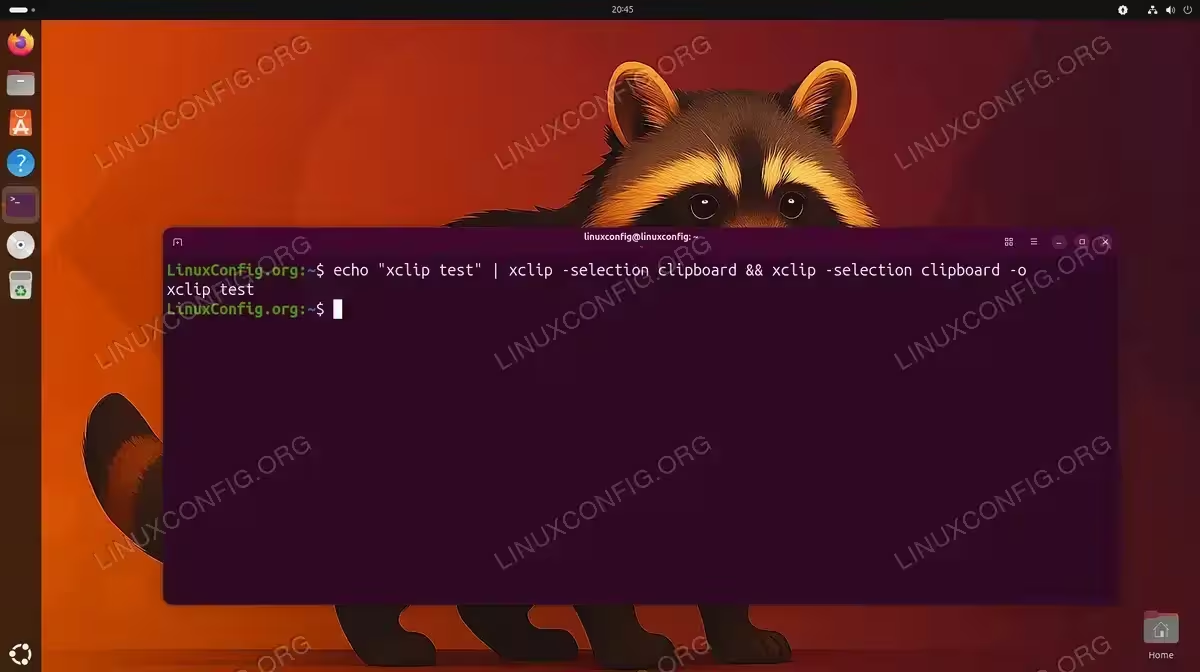
- Run a functional test: Test that xclip can actually interact with your clipboard by copying a string and then immediately reading it back:
$ echo "xclip test" | xclip -selection clipboard && xclip -selection clipboard -o
If the installation is working correctly, the output will be:
xclip test
COMPLETED
If the functional test returns the text you piped in, xclip is installed and working correctly on your Ubuntu 26.04 system.
Basic xclip Usage Examples
Now that xclip is installed, here are the most common usage patterns you will encounter in everyday terminal work on Ubuntu 26.04.
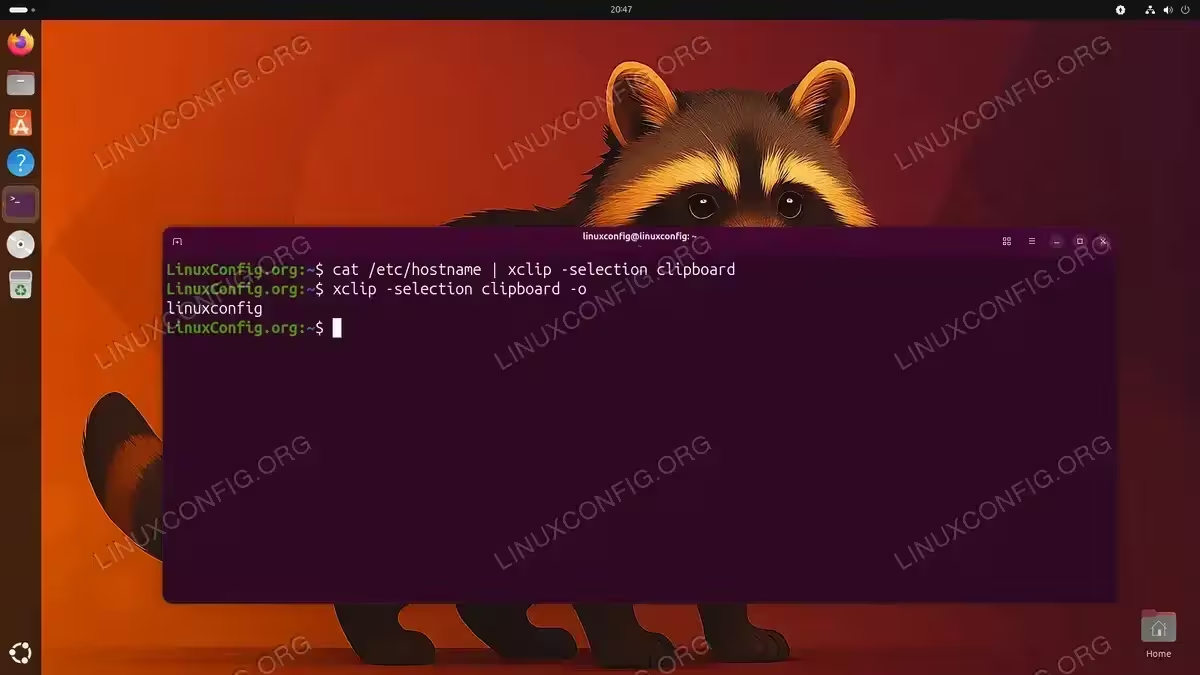
- Copy command output to clipboard: Pipe any command’s output directly to the clipboard. This is particularly useful for copying file contents, IP addresses, or command results:
$ cat /etc/hostname | xclip -selection clipboard
After running this, you can paste the hostname into any GUI application using Ctrl+V.
- Copy a file’s contents to clipboard: Read a file and copy its entire contents:
$ xclip -selection clipboard < ~/.ssh/id_ed25519.pub
This is a common workflow for copying SSH public keys.
- Paste clipboard contents to the terminal: Output whatever is currently in the clipboard to stdout:
$ xclip -selection clipboard -o
You can additionally pipe this output into other commands for further processing.
- Use the primary selection buffer: X11 has multiple clipboard buffers. The “primary” selection contains whatever text you have highlighted with your mouse. Access it by omitting the
-selection clipboardflag or by specifyingprimary:$ xclip -selection primary -o
IMPORTANT
xclip operates on three X11 clipboard selections: primary (mouse highlight), secondary (rarely used), and clipboard (standard Ctrl+C/Ctrl+V). Most users and scripts should target -selection clipboard to match the behavior of GUI copy-paste operations.
Additionally, xclip integrates well into shell scripts and automation pipelines. For example, you can combine it with grep to extract and copy specific lines from log files, or with tools like curl to capture API responses directly to your clipboard without saving intermediate files.
For comprehensive documentation on all available flags and selection types, refer to the official xclip project page or consult the man page with man xclip.
Conclusion
This guide covered the complete xclip install ubuntu 26.04 process, from updating the package index through installation, verification, and practical usage examples. xclip is a reliable and widely-supported clipboard utility that integrates seamlessly into shell scripts and terminal workflows. On Ubuntu 26.04, it operates through XWayland, making it compatible with the default Wayland desktop environment. If you need native Wayland clipboard support without XWayland, wl-clipboard is the recommended alternative.
Frequently Asked Questions
- Does xclip work on Ubuntu 26.04 with Wayland? Yes, in most cases. Ubuntu 26.04 includes XWayland, which allows X11 applications like xclip to function under the Wayland compositor. However, if you see a
Can't open displayerror, your environment may not have XWayland available, in which casewl-clipboard(providingwl-copyandwl-paste) is the recommended native Wayland alternative. - What is the difference between xclip and xdotool or xsel? xclip focuses specifically on reading and writing X11 clipboard selections via stdin/stdout, making it ideal for piping in shell scripts. xsel offers similar clipboard functionality with slightly different flag conventions. xdotool is a broader tool for X11 automation that includes clipboard interaction but also handles keyboard/mouse simulation. For simple copy-paste automation on Ubuntu 26.04, xclip or xsel are typically the most appropriate choices.
- Why does xclip appear to hang when I run it without piping input? When you run
xclipwithout providing input via a pipe or file redirection, it waits for input from stdin, just like commands such ascat. This is expected behavior. Either pipe content to it (e.g.,echo "text" | xclip -selection clipboard) or redirect a file (e.g.,xclip -selection clipboard < file.txt). - How do I uninstall xclip from Ubuntu 26.04? Remove xclip with
sudo apt remove xclip. To additionally remove any configuration files, usesudo apt purge xclip. Runsudo apt autoremoveafterwards to clean up any orphaned dependencies.