
GNOME Tweaks is an essential utility for anyone looking to customize their desktop experience beyond the default GNOME Settings application. Installing GNOME Tweaks on Ubuntu 26.04 gives you access to fine-grained controls over fonts, window behavior, startup applications, and the GNOME Shell appearance. Whether you want to tweak your titlebar buttons, swap your cursor theme, or manage GNOME extensions, this tool makes it straightforward. This guide walks you through the installation process and covers the key features you can configure immediately after setup.
Table of Contents
In this tutorial you will learn:
- How to install GNOME Tweaks on Ubuntu 26.04 using apt
- How to launch GNOME Tweaks from the terminal and the Activities menu
- How to configure fonts, window controls, and themes
- How to manage startup applications with GNOME Tweaks
- How to access and enable GNOME extensions from the Tweaks interface
- How to uninstall GNOME Tweaks when no longer needed
Software Requirements
| Category | Requirements, Conventions or Software Version Used |
|---|---|
| System | Ubuntu 26.04 Resolute Raccoon |
| Software | GNOME Tweaks (gnome-tweaks), available in the Ubuntu 26.04 universe repository |
| Other | Privileged access to your Linux system as root or via the sudo command. A GNOME desktop session is required. |
| Conventions | # – requires given linux commands to be executed with root privileges either directly as a root user or by use of sudo command$ – requires given linux commands to be executed as a regular non-privileged user |
TL;DR
apt command, then launch it from the terminal or Activities menu.
| Step | Command/Action |
|---|---|
| 1. Update package index | sudo apt update |
| 2. Install GNOME Tweaks | sudo apt install gnome-tweaks |
| 3. Launch GNOME Tweaks | gnome-tweaks |
Installing GNOME Tweaks on Ubuntu 26.04
GNOME Tweaks is available directly from the Ubuntu 26.04 universe repository, so no additional PPA or third-party source is required. Before installing, update your local package index to ensure you retrieve the latest available version.
- Update the package index: Refresh your local package list to ensure all repository metadata is current.
$ sudo apt update
This ensures
apthas up-to-date information about available packages and their versions. - Install GNOME Tweaks: Install the
gnome-tweakspackage from the Ubuntu repositories.$ sudo apt install gnome-tweaks
The package is small and installs quickly. It pulls in a few GNOME library dependencies if they are not already present on your system.
- Verify the installation: Confirm that GNOME Tweaks was installed successfully by checking its version.
$ gnome-tweaks --version
You should see output similar to:
GNOME Tweaks 49.x

IMPORTANT
GNOME Tweaks requires a GNOME desktop session. If you are running a different desktop environment such as install Xfce, GNOME Tweaks will still install but some panels may not apply or may not launch correctly.
Launching GNOME Tweaks
Once installed, there are two convenient ways to open GNOME Tweaks: from the terminal or through the GNOME Activities menu.
- Launch from the terminal: Open a terminal and run the following command.
$ gnome-tweaks
The GNOME Tweaks window will open immediately. If you want to keep using the terminal simultaneously, append an ampersand to run it in the background:
$ gnome-tweaks &
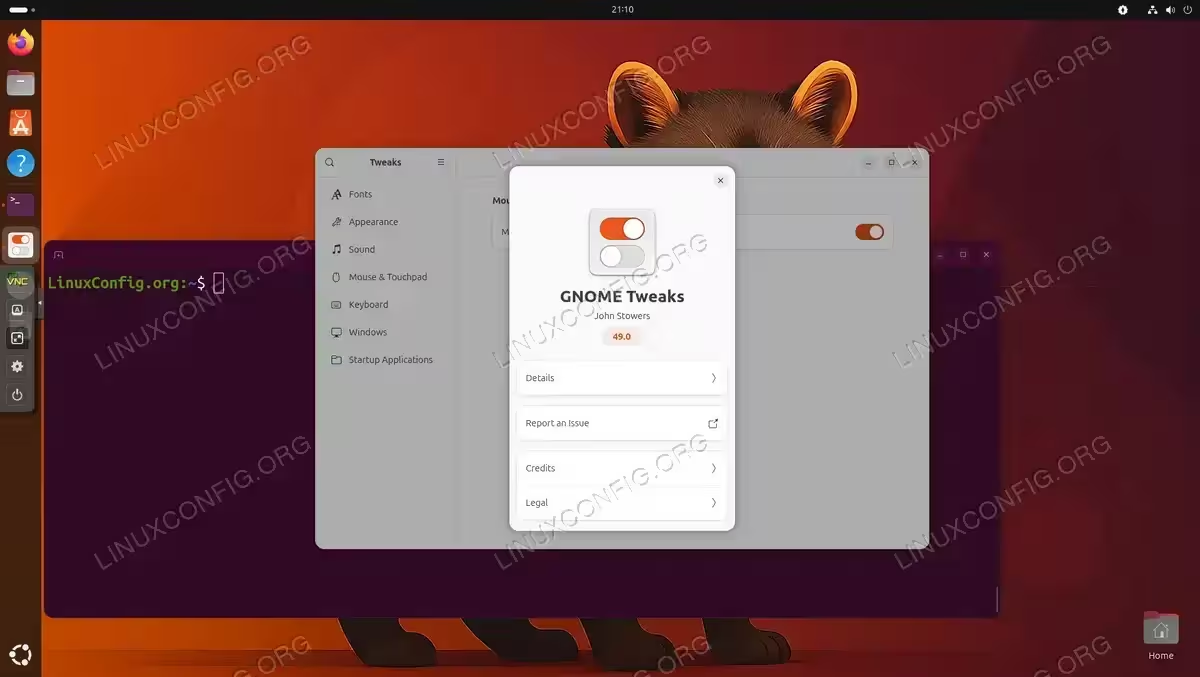
- Launch from Activities: Press the Super key to open the Activities overview, then type Tweaks in the search bar. Click the Tweaks icon that appears to open the application.
Key Features Overview of GNOME Tweaks ubuntu 26.04
GNOME Tweaks organizes its settings into several panels accessible from the left sidebar. Understanding what each panel offers helps you navigate directly to the customization you need. Below is a summary of the main panels available on Ubuntu 26.04.
| Panel | What You Can Configure |
|---|---|
| General | Animations, suspend on lid close behavior |
| Appearance | Cursor, icon, legacy application (GTK) themes, background |
| Extensions | Enable and disable installed GNOME Shell extensions |
| Fonts | Interface, document, monospace, and legacy title fonts; scaling factor |
| Keyboard & Mouse | Mouse pointer speed, middle-click paste, touchpad settings |
| Startup Applications | Add or remove applications that launch on login |
| Top Bar | Clock format, weekday and date display, battery percentage |
| Window Titlebars | Titlebar button layout (minimize, maximize placement) |
| Windows | Center new windows, resize with right-click, attach modal dialogs |
IMPORTANT
Ubuntu 26.04 uses Wayland as its default display server. Some appearance-related settings in GNOME Tweaks, particularly legacy GTK theme overrides, may have limited or no effect on native Wayland applications. They continue to apply to GTK3 applications running via XWayland.
Configuring Fonts with GNOME Tweaks
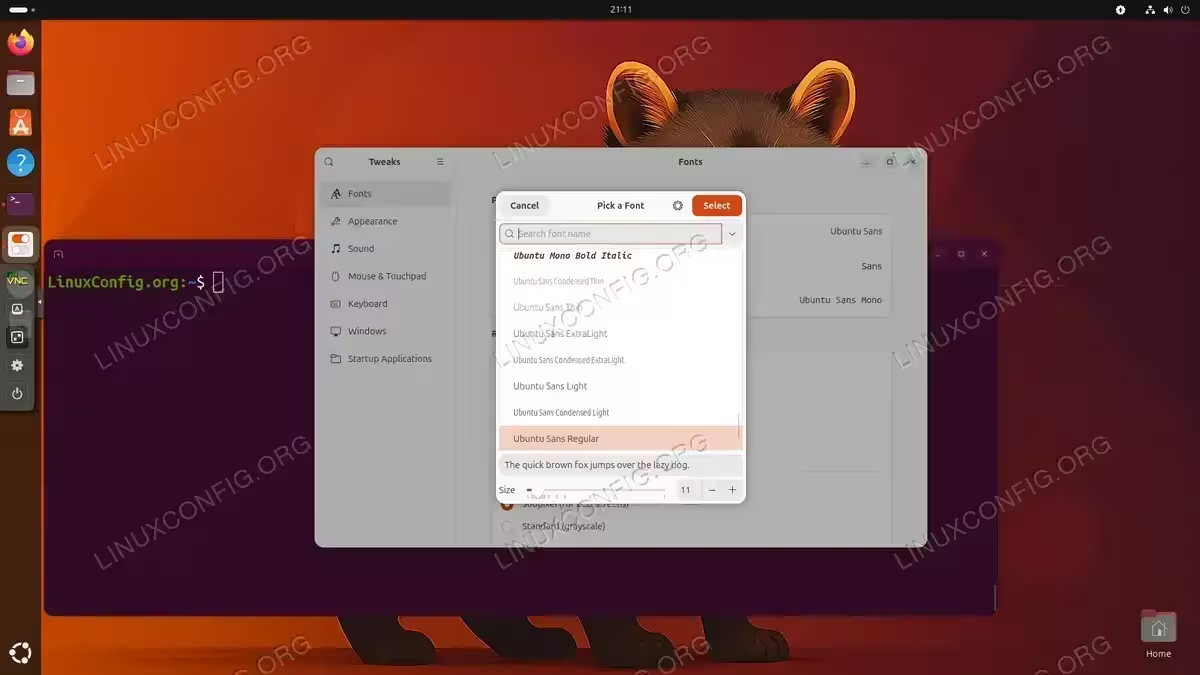
The Fonts panel is one of the most frequently used sections of GNOME Tweaks. It lets you change the fonts used across the entire desktop without manually editing configuration files. On Ubuntu 26.04, font changes apply to the GNOME interface and GTK applications immediately.
To change fonts, open GNOME Tweaks, click Fonts in the left sidebar, and use the buttons next to each font category to open the font picker. The available categories are:
- Interface Text: The font used for menus, labels, and UI elements.
- Document Text: The default font used within document viewers and editors.
- Monospace Text: The font used in terminals and code editors.
- Legacy Window Titles: Applies to window titlebars of older GTK applications.
Additionally, the Scaling Factor slider lets you increase or decrease the overall size of all text, which is particularly useful on high-DPI displays.
Configuring Window Titlebar Controls
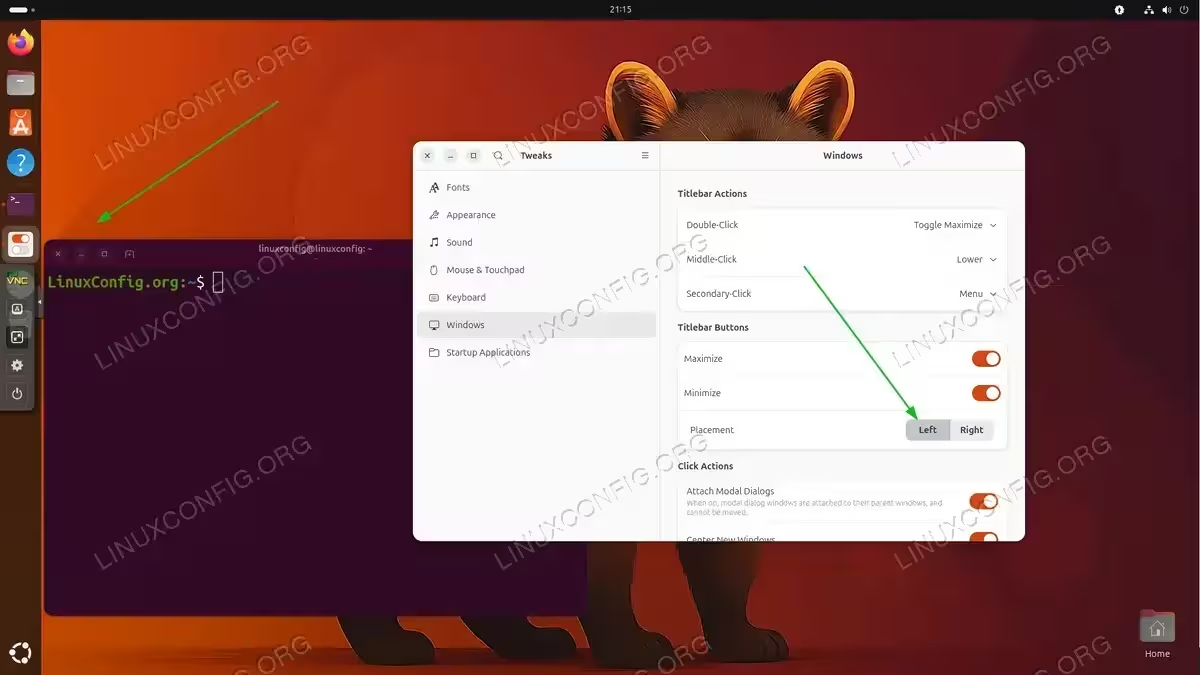
Ubuntu 26.04’s GNOME desktop includes Minimize, Maximize, and Close buttons in window titlebars by default. GNOME Tweaks lets you change their placement or remove buttons you do not want, giving you full control over the titlebar layout.
- Open the Window Titlebars panel: In GNOME Tweaks, click Window Titlebars in the left sidebar.
- Toggle individual buttons: Under the Titlebar Buttons section, use the toggles next to Maximize and Minimize to enable or disable each button independently.
- Set button placement: Use the Placement option to switch between placing the buttons on the Left or Right side of the titlebar.
Changes take effect immediately across all open windows. No logout or restart is required.
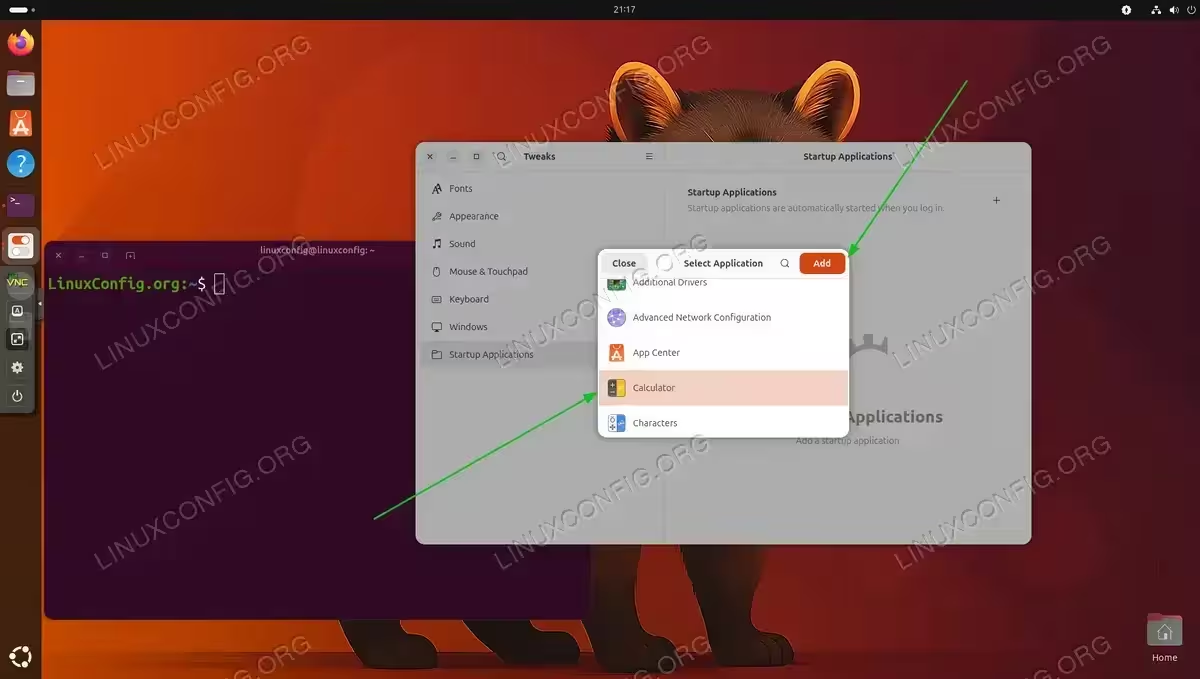
Managing Startup Applications
The Startup Applications panel in GNOME Tweaks provides a convenient interface for adding programs that should launch automatically when you log into your GNOME session on Ubuntu 26.04. This complements, but is separate from, the session autostart entries managed by GNOME itself.
- Open Startup Applications: Click Startup Applications in the left sidebar of GNOME Tweaks.
- Add an application: Click the + button at the bottom of the panel. A dialog will appear listing installed applications. Select the application you want to add and click Add.
- Remove a startup entry: Select an existing entry from the list, then click the – button to remove it. The application will no longer start automatically on your next login.
IMPORTANT
Entries added via GNOME Tweaks are stored as .desktop files in ~/.config/autostart/. You can inspect or remove them manually from that directory if needed.
Managing GNOME Extensions via Tweaks
The Extensions panel in GNOME Tweaks lists all currently installed extensions and allows you to toggle them on or off with a single switch. This is a quick way to enable or disable functionality without navigating to a browser-based extension manager.
Each extension entry in the list includes a toggle switch and, where available, a settings gear icon that opens the extension’s own configuration dialog. For a more complete workflow for discovering and installing new extensions, refer to the gnome install guide which covers the GNOME Extension Manager application and browser integration in detail.
For the full reference on GNOME Shell extensions, see the GNOME Extensions website, which provides a searchable catalog of community-developed extensions compatible with your GNOME Shell version.
Uninstalling GNOME Tweaks
If you no longer need GNOME Tweaks, you can remove it cleanly with apt. Uninstalling the package does not revert any settings you applied while it was installed; those changes remain in your GNOME configuration profile.
$ sudo apt remove gnome-tweaks
To additionally remove any automatically installed dependencies that are no longer needed, run:
$ sudo apt autoremove
Conclusion
Installing GNOME Tweaks on Ubuntu 26.04 is a quick, one-command process that unlocks a wide range of desktop customization options not available in the standard GNOME Settings application. From adjusting fonts and titlebar buttons to managing startup applications and toggling extensions, GNOME Tweaks provides a centralized interface for personalizing your Ubuntu 26.04 GNOME experience. Keep in mind that because Ubuntu 26.04 runs Wayland by default, a small number of appearance-related settings have limited effect on native Wayland applications, though the majority of Tweaks features work as expected.
Frequently Asked Questions
- Is GNOME Tweaks available in the default Ubuntu 26.04 repositories? Yes. GNOME Tweaks is packaged in the Ubuntu 26.04 universe repository and can be installed directly with
sudo apt install gnome-tweakswithout adding any PPA or third-party source. - Does GNOME Tweaks work on Ubuntu 26.04 with Wayland? GNOME Tweaks runs on Wayland sessions and most of its features work normally. However, some legacy GTK theme overrides apply only to GTK3 applications running through XWayland, not to native Wayland applications. Core features like font settings, titlebar buttons, startup applications, and extension management are fully functional under Wayland.
- Can I use GNOME Tweaks to install new GNOME extensions? The Extensions panel in GNOME Tweaks lets you enable or disable extensions that are already installed on your system. To discover and install new extensions, use the GNOME Extension Manager application or the browser integration available at extensions.gnome.org.
- Will uninstalling GNOME Tweaks revert my desktop customizations? No. Removing the
gnome-tweakspackage does not undo any settings you applied. Your font choices, titlebar button layout, and other configurations remain stored in your GNOME profile and stay active after uninstallation. - Where does GNOME Tweaks store its configuration? GNOME Tweaks applies settings through GSettings, the GNOME configuration system. Changes are stored in the dconf database at
~/.config/dconf/user. Startup application entries are stored as.desktopfiles in~/.config/autostart/.