
Encountering the ufw command not found error on Ubuntu 26.04 can be frustrating, especially when you need to configure your firewall quickly. This error typically means one of three things: UFW is not installed on your system, the UFW binary directory is missing from your $PATH, or you are running the command without the necessary privileges. This guide walks you through a structured ufw troubleshoot ubuntu 26.04 process, covering every root cause and its corresponding fix so you can get your firewall back up and running.
Table of Contents
In this tutorial you will learn:
- How to identify the root cause of the “ufw command not found” error
- How to install UFW on Ubuntu 26.04 if it is missing
- How to fix
$PATHissues that prevent UFW from being found - Why
sudois required for UFW commands and how to use it correctly - How to verify UFW is functioning correctly after applying fixes
Software Requirements
| Category | Requirements, Conventions or Software Version Used |
|---|---|
| System | Ubuntu 26.04 Resolute Raccoon |
| Software | UFW 0.36.2-9build1 – included in Ubuntu repositories |
| Other | Privileged access to your Linux system as root or via the sudo command. |
| Conventions | # – requires given linux commands to be executed with root privileges either directly as a root user or by use of sudo command$ – requires given linux commands to be executed as a regular non-privileged user |
TL;DR
ufw: command not found on Ubuntu 26.04 is to install UFW with sudo apt install ufw, then always run it with sudo.
| Step | Command/Action |
|---|---|
| 1. Check if UFW is installed | dpkg -l ufw |
| 2. Install UFW if missing | sudo apt install ufw |
| 3. Verify UFW works | sudo ufw status |
Understanding the “UFW Command Not Found” Error
When your shell reports bash: ufw: command not found or zsh: command not found: ufw, it means the shell searched every directory listed in your $PATH environment variable and did not find an executable named ufw. This can happen for three distinct reasons:
- UFW is not installed – The package was never installed, or it was removed at some point.
- PATH is incomplete – The directory
/usr/sbin, where the UFW binary lives, is not included in the current shell’s$PATH. This is uncommon on standard Ubuntu 26.04 installs but can occur in minimal, container, or custom environments. - Missing sudo – Running
ufwwithoutsudomay fail if the shell session was initiated in a non-standard way that strips/usr/sbinfrom PATH.
Understanding which cause applies to your situation is therefore the essential first step before applying any fix. The sections below guide you through a structured diagnostic process.
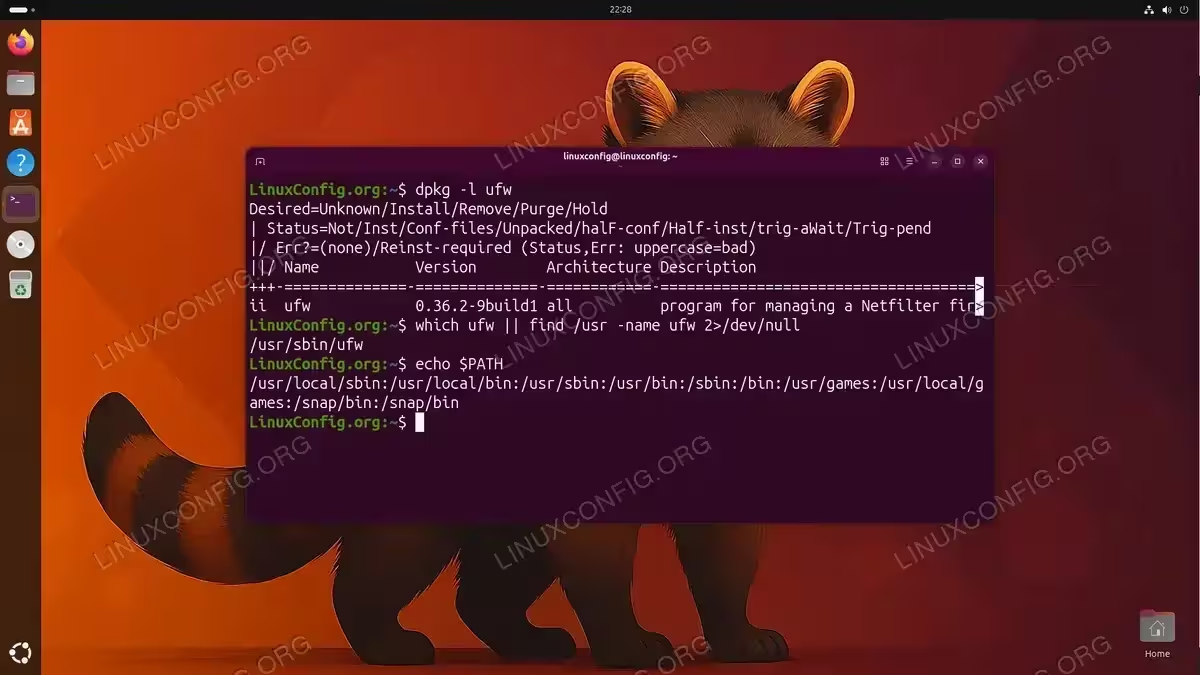
Step 1: Diagnose the Cause
Before applying any solution, determine which of the three root causes is responsible on your Ubuntu 26.04 system.
- Check if UFW is installed: Run the following command to query the package database:
$ dpkg -l ufw
If UFW is not installed, you will see
dpkg-query: no packages found matching ufw. Proceed to Step 2 to install it. - Locate the UFW binary: If UFW is installed, verify where the binary is located:
$ which ufw || find /usr -name ufw 2>/dev/null
On Ubuntu 26.04, UFW is located at
/usr/sbin/ufw. Ifwhich ufwreturns nothing butfindlocates it in/usr/sbin/, the issue is a missing$PATHentry. Proceed to Step 3. - Check your current PATH: Inspect the directories your shell is currently searching:
$ echo $PATH
On a standard Ubuntu 26.04 installation,
/usr/sbinis included in PATH by default. If it is absent from the output, proceed to Step 3.
Step 2: Install UFW if Missing
If the diagnosis in Step 1 confirmed that UFW is not installed, the fix is straightforward. UFW is available directly from Ubuntu’s official repositories, consequently no third-party sources are needed.
- Update the package index: Refresh the local package lists before installing:
$ sudo apt update
- Install UFW: Install the package with a single command:
$ sudo apt install ufw
The package manager will download and install UFW along with any required dependencies.
- Confirm the installation: Verify that the binary is now available:
$ sudo ufw version
IMPORTANT
UFW is installed in an inactive state by default on Ubuntu 26.04. Before enabling it, ensure you have an SSH allow rule in place if you are connected remotely. See how to enable the UFW firewall safely.
Step 3: Fix PATH Issues
On a standard Ubuntu 26.04 desktop or server installation, /usr/sbin is included in $PATH by default, so PATH-related errors are uncommon. However, this issue does arise in minimal installations, Docker containers, or when switching to root using su without the - flag.
- Use the full binary path (immediate fix): Invoke UFW directly using its absolute path without changing any configuration:
$ sudo /usr/sbin/ufw status
This approach works immediately and requires no system changes.
- Add /usr/sbin to PATH temporarily: Export an updated PATH for the current terminal session only:
$ export PATH="/usr/sbin:$PATH"
This change does not persist across sessions or reboots.
- Add /usr/sbin to PATH permanently: To make the fix permanent for your user, add the export line to your shell profile. For bash users:
$ echo 'export PATH="/usr/sbin:$PATH"' >> ~/.bashrc
$ source ~/.bashrc
For zsh users, replace
.bashrcwith.zshrc. - Use su – instead of su when switching to root: If you switch to root using
suwithout the hyphen, the root user’s login environment is not fully loaded, consequently/usr/sbinmay be excluded from PATH. Always use:$ su -
The hyphen simulates a full login shell and loads the correct PATH.
IMPORTANT
Permanently modifying PATH system-wide via /etc/environment or /etc/profile affects all users on the system. For most Ubuntu 26.04 setups, the recommended approach is simply to always use sudo ufw.
Step 4: Always Use sudo with UFW
On Ubuntu 26.04, the cleanest and most reliable approach is to always prefix UFW commands with sudo. UFW modifies kernel-level firewall rules, which requires root privileges. Moreover, sudo automatically uses a PATH that includes /usr/sbin, locating the UFW binary correctly regardless of your user environment.
The correct syntax for all UFW operations on Ubuntu 26.04 is:
$ sudo ufw status
$ sudo ufw enable
$ sudo ufw allow 22/tcp
$ sudo ufw deny 80/tcp
Running ufw without sudo as a regular user will produce the “command not found” error in environments where /usr/sbin is not in the user PATH. This is intentional, as /usr/sbin tools are designed for system administration and require elevated privileges.
You can read the full UFW manual page on Ubuntu’s documentation for a complete reference of available commands and options.
Step 5: Verify UFW is Working on Ubuntu 26.04
After applying the appropriate fix, confirm that UFW is fully operational before configuring any firewall rules.
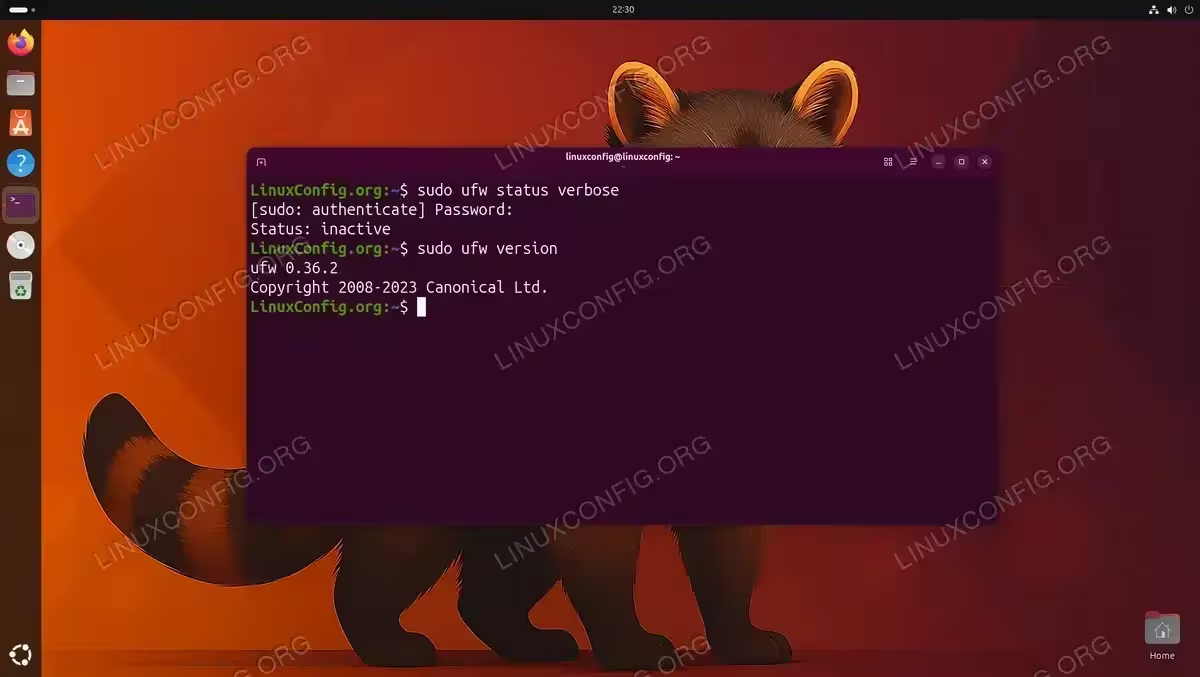
- Check UFW status: Query the current firewall state:
$ sudo ufw status verbose
If UFW was just installed, the status will show as inactive, confirming the command is working correctly.
- Check UFW version: Confirm the installed version:
$ sudo ufw version
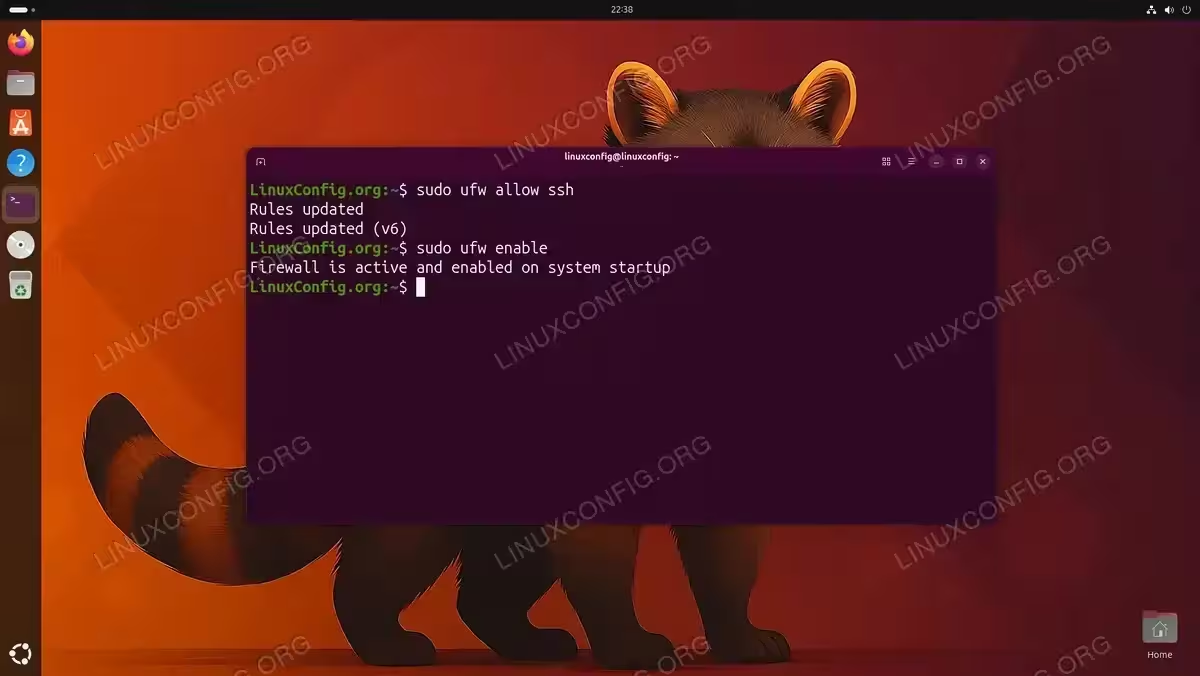
- Enable UFW with SSH protection: If you are ready to activate the firewall, allow SSH first to avoid locking yourself out, then enable UFW:
$ sudo ufw allow ssh
$ sudo ufw enable
Additionally, you can check the UFW firewall status at any time to review active rules.
COMPLETED
UFW is now installed and verified on your Ubuntu 26.04 system. You can proceed to configure firewall rules using the UFW firewall configuration guide.
Conclusion
The ufw troubleshoot ubuntu 26.04 process comes down to three possible causes: UFW is not installed, /usr/sbin is missing from your PATH, or you are running UFW without sudo. On a standard Ubuntu 26.04 installation, simply using sudo ufw resolves the error in the vast majority of cases. If UFW is genuinely absent, sudo apt install ufw restores it from Ubuntu’s official repositories in seconds. Working through the diagnostic steps in order ensures you identify and apply the correct fix without guesswork.
If you encounter other related issues, the guides on fixing SSH not working on Ubuntu 26.04 and fixing Nvidia driver issues on Ubuntu 26.04 follow the same structured troubleshooting methodology and may be useful for resolving other system problems.
Frequently Asked Questions
- Why does “ufw: command not found” appear even though UFW was working before? This typically happens after a system update, user environment change, or if UFW was accidentally removed as a dependency during package cleanup. Run
dpkg -l ufwto confirm whether the package is still installed, and reinstall withsudo apt install ufwif it is missing. - Why does UFW work with sudo but not without it? On Ubuntu 26.04, the UFW binary is located in
/usr/sbin/. In some environments, this directory is excluded from the$PATHof regular users. Thesudocommand uses a more complete PATH that always includes/usr/sbin, which is whysudo ufwsucceeds while plainufwmay not. - Is UFW pre-installed on Ubuntu 26.04? Yes, UFW is included by default on Ubuntu 26.04 desktop and server installations. However, minimal or container installations may omit it. Additionally, UFW is installed but left inactive by default, meaning firewall rules are not enforced until you explicitly run
sudo ufw enable. - What should I do if UFW is installed but “sudo ufw” still gives “command not found”? This rare scenario indicates that the UFW binary may be corrupted or the package installation is incomplete. Reinstall UFW to repair it by running
sudo apt install --reinstall ufw. This forces APT to re-download and overwrite all package files without removing your existing firewall rules.