
This quick reference guide covers how to check UFW firewall status on Ubuntu 26.04. Whether you need to verify if UFW is active, view current rules, or troubleshoot connectivity issues, this guide provides all the essential commands and their output interpretations.
Table of Contents
In this tutorial you will learn:
- Commands to check UFW firewall status
- How to interpret UFW status output
- Difference between basic and verbose status
- How to view numbered rules for rule management
Software Requirements
| Category | Requirements, Conventions or Software Version Used |
|---|---|
| System | Ubuntu 26.04 Resolute Raccoon |
| Software | UFW (Uncomplicated Firewall) – installed by default |
| Other | Privileged access to your Linux system as root or via the sudo command. |
| Conventions | # – requires given linux commands to be executed with root privileges either directly as a root user or by use of sudo command$ – requires given linux commands to be executed as a regular non-privileged user |
sudo ufw status. For detailed information use sudo ufw status verbose. To see numbered rules for management use sudo ufw status numbered.
| Command | Description |
|---|---|
sudo ufw status |
Basic status and rules list |
sudo ufw status verbose |
Detailed status with default policies |
sudo ufw status numbered |
Rules with line numbers for deletion |
Quick Reference Commands
The following table provides all commands for checking UFW status on Ubuntu 26.04:
| Command | Output | Use Case |
|---|---|---|
sudo ufw status |
Active/inactive state, current rules | Quick status check |
sudo ufw status verbose |
State, logging level, default policies, rules | Troubleshooting, full configuration view |
sudo ufw status numbered |
Rules with index numbers | Before deleting specific rules |
systemctl status ufw |
Service status, process info | Checking if UFW service is running |
sudo ufw show raw |
Raw iptables rules | Advanced debugging |
Understanding UFW Status Output on Ubuntu 26.04
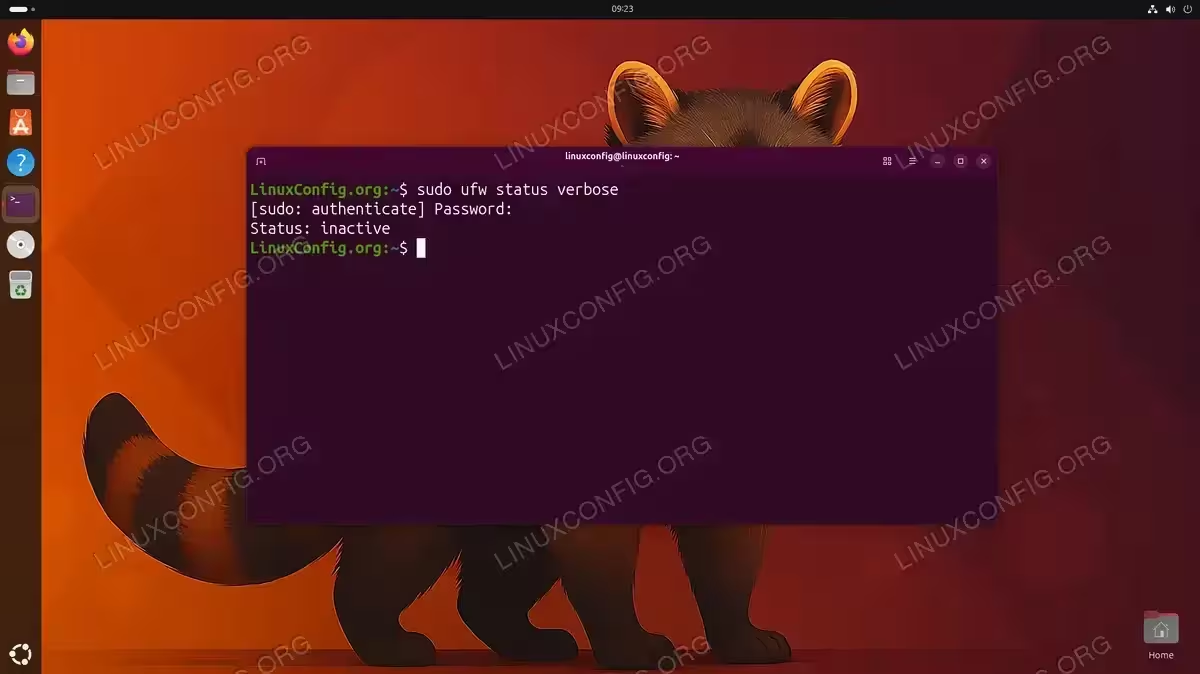
When you run the basic sudo ufw status command, UFW returns one of two states. If the firewall is inactive, you will see:
Status: inactive
This means UFW is installed but not currently filtering traffic. To enable UFW, use sudo ufw enable.
When UFW is active with rules configured, the output displays the current ruleset:
Status: active

To                         Action      From
--                         ------      ----
22/tcp                     ALLOW       Anywhere
80/tcp                     ALLOW       Anywhere
443/tcp                    ALLOW       Anywhere
22/tcp (v6)                ALLOW       Anywhere (v6)
80/tcp (v6)                ALLOW       Anywhere (v6)
443/tcp (v6)               ALLOW       Anywhere (v6)
The output columns indicate: To shows the destination port/protocol, Action shows whether traffic is allowed or denied, and From shows the source address filter. Rules ending with (v6) apply to IPv6 traffic.
Verbose Status Information
For comprehensive UFW status on Ubuntu 26.04, the verbose option provides additional configuration details:
$ sudo ufw status verbose
Status: active
Logging: on (low)
Default: deny (incoming), allow (outgoing), disabled (routed)
New profiles: skip

To                         Action      From
--                         ------      ----
22/tcp                     ALLOW IN    Anywhere
80/tcp                     ALLOW IN    Anywhere
443/tcp                    ALLOW IN    Anywhere
22/tcp (v6)                ALLOW IN    Anywhere (v6)
80/tcp (v6)                ALLOW IN    Anywhere (v6)
443/tcp (v6)               ALLOW IN    Anywhere (v6)
The verbose output reveals:
- Logging: Current logging level (off, low, medium, high, full)
- Default policies: How UFW handles traffic not matching any rule (incoming, outgoing, routed)
- Direction indicators: ALLOW IN vs ALLOW OUT clarifies traffic direction
Understanding default policies is essential for firewall settings management. The typical secure configuration denies incoming connections by default while allowing outgoing traffic.
Viewing Numbered Rules
When you need to check firewall rules for modification or deletion, the numbered output is essential:
$ sudo ufw status numbered
Status: active

     To                         Action      From
     --                         ------      ----
[ 1] 22/tcp                     ALLOW IN    Anywhere
[ 2] 80/tcp                     ALLOW IN    Anywhere
[ 3] 443/tcp                    ALLOW IN    Anywhere
[ 4] 22/tcp (v6)                ALLOW IN    Anywhere (v6)
[ 5] 80/tcp (v6)                ALLOW IN    Anywhere (v6)
[ 6] 443/tcp (v6)               ALLOW IN    Anywhere (v6)
These index numbers allow you to delete specific rules with sudo ufw delete [number]. After deleting a rule, remaining rules are renumbered, so always check the numbered status again before deleting additional rules.
IMPORTANT
UFW rules are processed in order. When checking status, note the rule order as it affects how traffic is filtered. The first matching rule determines the action taken.
To allow ports with UFW, you can insert rules at specific positions using the rule numbers as reference.
If the ufw command is not recognized, see our guide on how to fix UFW command not found errors.
Conclusion
You now have a complete reference for checking UFW firewall status on Ubuntu 26.04. The basic sudo ufw status command provides quick verification, while verbose and numbered options give detailed information for configuration management and troubleshooting. For complete UFW documentation, refer to the official Ubuntu UFW guide.
Frequently Asked Questions
- What does “Status: inactive” mean? This indicates UFW is installed but not currently enabled. The firewall is not filtering any traffic. Enable it with
sudo ufw enableafter configuring your rules to avoid locking yourself out. - Why do I see (v6) rules in my UFW status? UFW automatically creates IPv6 versions of rules when IPv6 is enabled on your system. These rules appear with the (v6) suffix and control IPv6 traffic separately from IPv4 rules.
- What is the difference between “ufw status” and “systemctl status ufw”? The
ufw statuscommand shows firewall rules and whether UFW is actively filtering traffic. Thesystemctl status ufwcommand shows the status of the UFW system service, including whether it is loaded and running at the system level. - How can I check if a specific port is allowed through UFW? Run
sudo ufw statusand look for the port number in the “To” column. If the port appears with “ALLOW” action, incoming traffic to that port is permitted.