
Whether you have changed network settings or are troubleshooting connectivity issues, knowing how to perform a network restart on Ubuntu 26.04 is essential. This quick reference guide covers all restart methods for both Desktop (NetworkManager) and Server (Netplan) environments, helping you get your network back online quickly.
Table of Contents
In this tutorial you will learn:
- How to restart network using NetworkManager on Ubuntu Desktop
- How to apply network changes with Netplan on Ubuntu Server
- GUI and command line restart methods
- How to verify network connectivity after restart

Software Requirements
| Category | Requirements, Conventions or Software Version Used |
|---|---|
| System | Ubuntu 26.04 Resolute Raccoon |
| Software | NetworkManager (Desktop), Netplan (Server) |
| Other | Privileged access to your Linux system as root or via the sudo command. |
| Conventions | # – requires given linux commands to be executed with root privileges either directly as a root user or by use of sudo command$ – requires given linux commands to be executed as a regular non-privileged user |
| Environment | Command |
|---|---|
| Desktop (NetworkManager) | sudo systemctl restart NetworkManager |
| Server (Netplan) | sudo netplan apply |
| Single interface restart | nmcli connection down "name" && nmcli connection up "name" |
Network Restart on Ubuntu 26.04 Desktop
Ubuntu Desktop uses NetworkManager to handle network connections. You can restart the network using either the GUI or command line.
GUI Method
The quickest way to restart a network connection on Ubuntu Desktop is through the system tray:
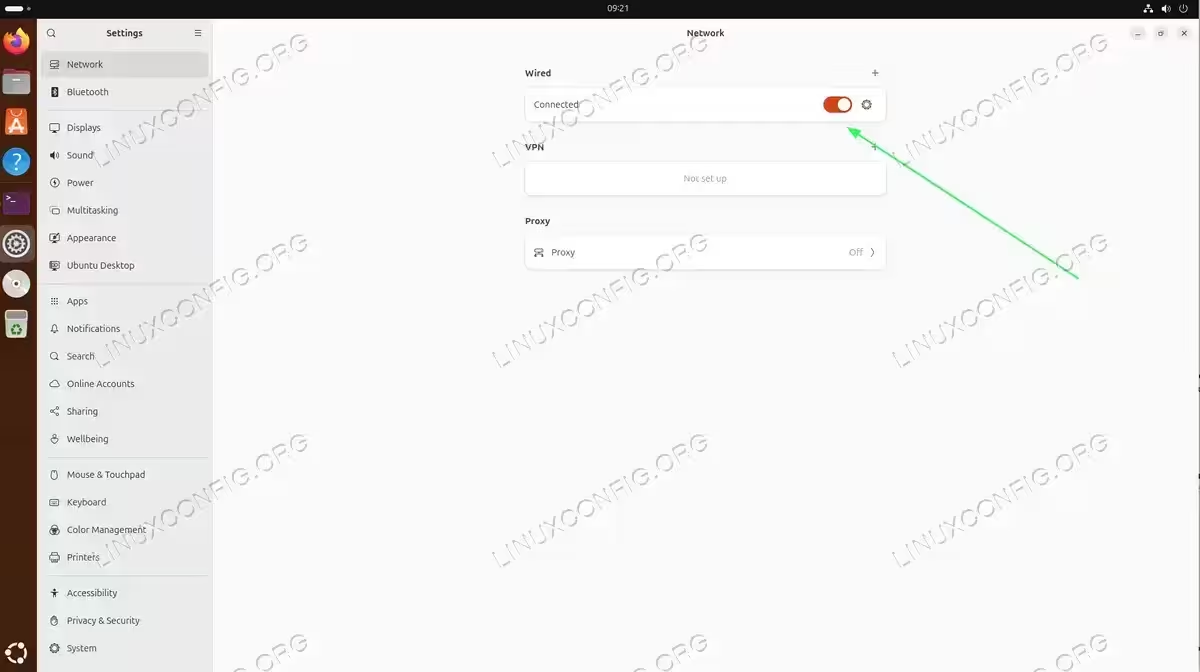
- Open Network Settings: Click the network icon in the top-right system tray, then select the connection name or click “Wired Settings” / “Wi-Fi Settings”.
- Toggle the connection: Click the toggle switch to turn the connection off, wait a few seconds, then toggle it back on.

Use the toggle switch to turn the network connection off and on to restart it
Command Line Methods
For command line control, NetworkManager provides several options to restart services and connections.
Restart NetworkManager Service
This restarts all network connections managed by NetworkManager:
$ sudo systemctl restart NetworkManager
Restart a Specific Connection
To restart only one connection without affecting others, first list your connections:
$ nmcli connection show
NAME           UUID                                  TYPE      DEVICE
netplan-ens18  64002eca-9493-3b7e-be64-07db9f81dd8b  ethernet  ens18
lo             c3abf166-02b3-4c60-8815-f093fd88dc79  loopback  lo
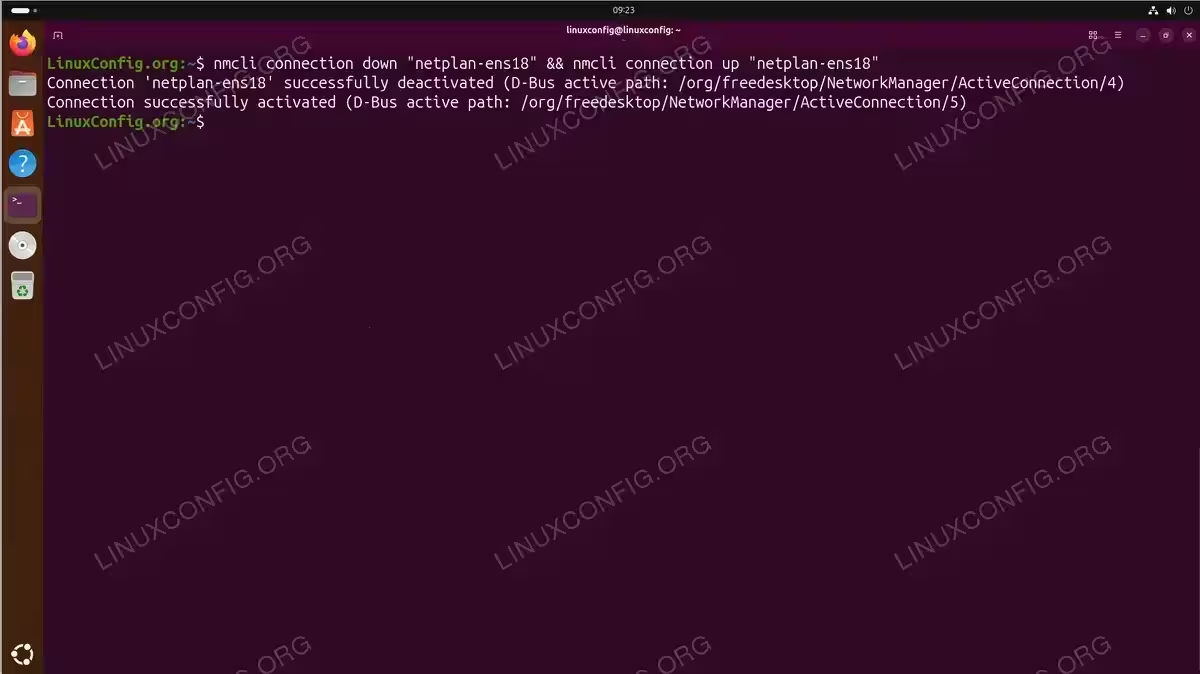
Then bring the connection down and up using the connection name:
$ nmcli connection down "netplan-ens18" && nmcli connection up "netplan-ens18"
IMPORTANT
When connected via SSH, restarting the network will disconnect your session. Consider using screen or tmux to maintain your session, or ensure you have physical or console access.
Network Restart on Ubuntu 26.04 Server
Ubuntu Server uses Netplan as the default network configuration tool. Unlike NetworkManager, Netplan works by generating backend configurations and applying them.
Apply Netplan Changes
After modifying network configuration files in /etc/netplan/, apply the changes with:
$ sudo netplan apply
This command reads your YAML configuration files, generates the appropriate backend configuration, and applies the new settings without requiring a full system restart.
Test Configuration Before Applying
To validate your configuration and test changes with automatic rollback:
$ sudo netplan try
This applies the configuration temporarily. If you do not confirm within 120 seconds (or press Enter to accept), the previous configuration is automatically restored. This is particularly useful when making changes over SSH.
Debug Configuration Issues
If you encounter problems, generate and review the configuration without applying:
$ sudo netplan generate
This validates the YAML syntax and shows any errors without making changes to the system.
Verify Network Status
After restarting the network, verify that your connection is working properly.
Check IP Address Assignment
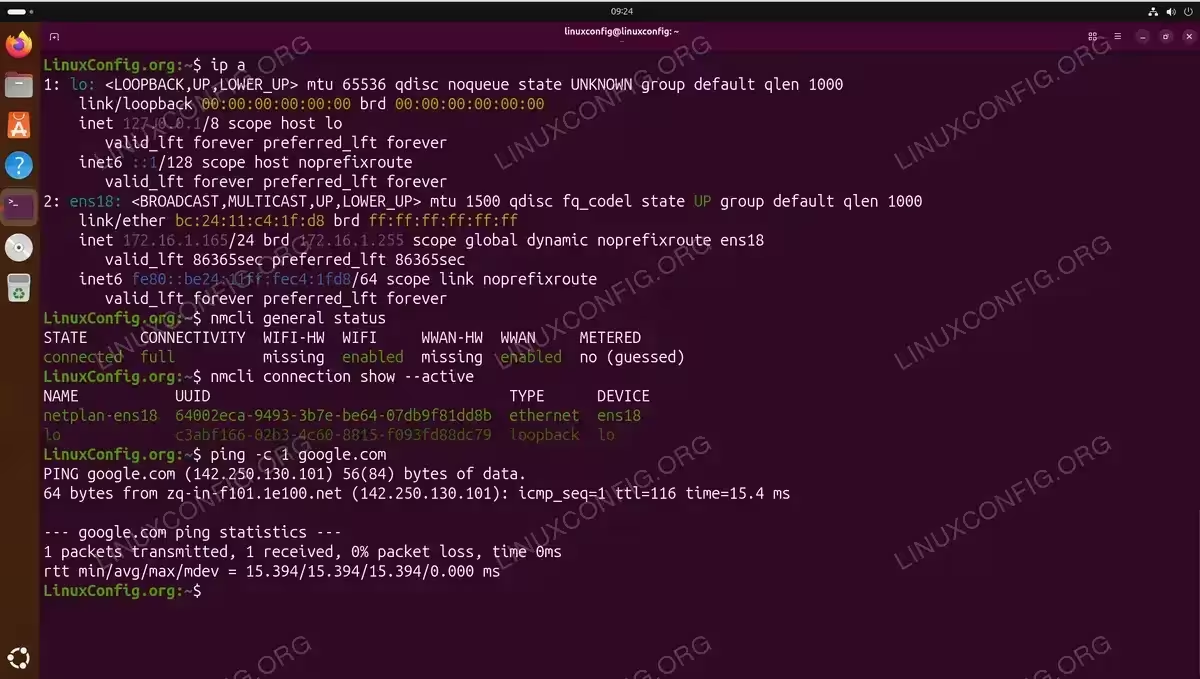
Verify your interface has the expected IP address:
$ ip a
2: ens18: <BROADCAST,MULTICAST,UP,LOWER_UP> mtu 1500 qdisc fq_codel state UP group default qlen 1000
    link/ether bc:24:11:c4:1f:d8 brd ff:ff:ff:ff:ff:ff
    inet 172.16.1.165/24 brd 172.16.1.255 scope global dynamic noprefixroute ens18
Test Connectivity
Ping an external host to confirm network connectivity:
$ ping -c 3 8.8.8.8
Test DNS resolution:
$ ping -c 3 google.com
Check NetworkManager Status (Desktop)
View the current state of NetworkManager and connections:
$ nmcli general status
$ nmcli connection show --active
Conclusion
Restarting the network on Ubuntu 26.04 depends on your environment. Desktop systems use NetworkManager with systemctl restart NetworkManager or nmcli for granular control. Server systems use Netplan with netplan apply to implement configuration changes. Always verify connectivity after a network restart, and use netplan try when making remote changes to avoid lockouts. For more comprehensive network configuration from the command line, refer to our detailed guide.
Frequently Asked Questions
- What is the difference between NetworkManager and Netplan? NetworkManager is a service that actively manages network connections and is used on Ubuntu Desktop. Netplan is a configuration utility that generates backend configurations from YAML files and is the default on Ubuntu Server. Desktop installations may use both, with Netplan generating NetworkManager configurations.
- Will restarting the network disconnect my SSH session? Yes, restarting the network service or applying new configurations will interrupt active connections. Use
netplan tryon servers for automatic rollback if you lose connectivity, or usescreen/tmuxto maintain your session. - How do I restart network without restarting other services? Use
nmcli connection down "connection-name" && nmcli connection up "connection-name"to restart only a specific connection. This leaves other network connections and services like Docker unaffected. - Why does netplan apply not restart my network? The
netplan applycommand applies configuration changes but does not restart connections that have not changed. If your configuration files have not been modified, running apply has no effect. Verify your YAML files are correctly formatted and saved.