
Docker Hub is the world’s largest container image registry and serves as the default repository for Docker images. This guide shows you how to use Docker Hub on Ubuntu 26.04, covering everything from authentication to pushing and pulling container images. Whether you’re sharing your own custom containers or downloading official images, understanding Docker Hub ubuntu 26.04 workflows is essential for any containerized development or deployment pipeline.
Table of Contents
In this tutorial you will learn:
- How to authenticate with Docker Hub using web-based device activation
- How to build and push your custom images to Docker Hub
- How to search for container images on Docker Hub
- How to pull official and community images
- How to manage your Docker Hub repositories
Software Requirements
| Category | Requirements, Conventions or Software Version Used |
|---|---|
| System | Ubuntu 26.04 Resolute Raccoon |
| Software | Docker Engine 28.x or later |
| Other | Privileged access to your Linux system as root or via the sudo command. A free Docker Hub account and a web browser for authentication. |
| Conventions | # – requires given linux commands to be executed with root privileges either directly as a root user or by use of sudo command$ – requires given linux commands to be executed as a regular non-privileged user |
docker login to authenticate via web browser, docker push to upload your images, docker search to find images, and docker pull to download them.
| Step | Command/Action |
|---|---|
| 1. Log in to Docker Hub | docker login |
| 2. Tag your image | docker tag lubos-image linuxconfig/lubos-image:1.0 |
| 3. Push to Docker Hub | docker push linuxconfig/lubos-image:1.0 |
| 4. Pull an image | docker pull linuxconfig/lubos-image:1.0 |
DOCKER HUB ACCOUNT TYPES
Free account: Unlimited public repositories, 1 private repository, 200 image pulls per 6 hours. Paid plans: Unlimited private repositories, higher pull limits, team collaboration features. This tutorial uses a free account with public repositories.
Logging into Docker Hub on Ubuntu 26.04
Before you can push images to Docker Hub, you need to authenticate. Docker now uses a web-based device activation flow for secure authentication. If you don’t have a Docker Hub account yet, create a free account at hub.docker.com before proceeding.
- Initiate the login process: Run the docker login command to start web-based authentication.
$ docker login
Docker displays a one-time device confirmation code and a URL. Press ENTER to open your browser automatically, or navigate to the URL manually.
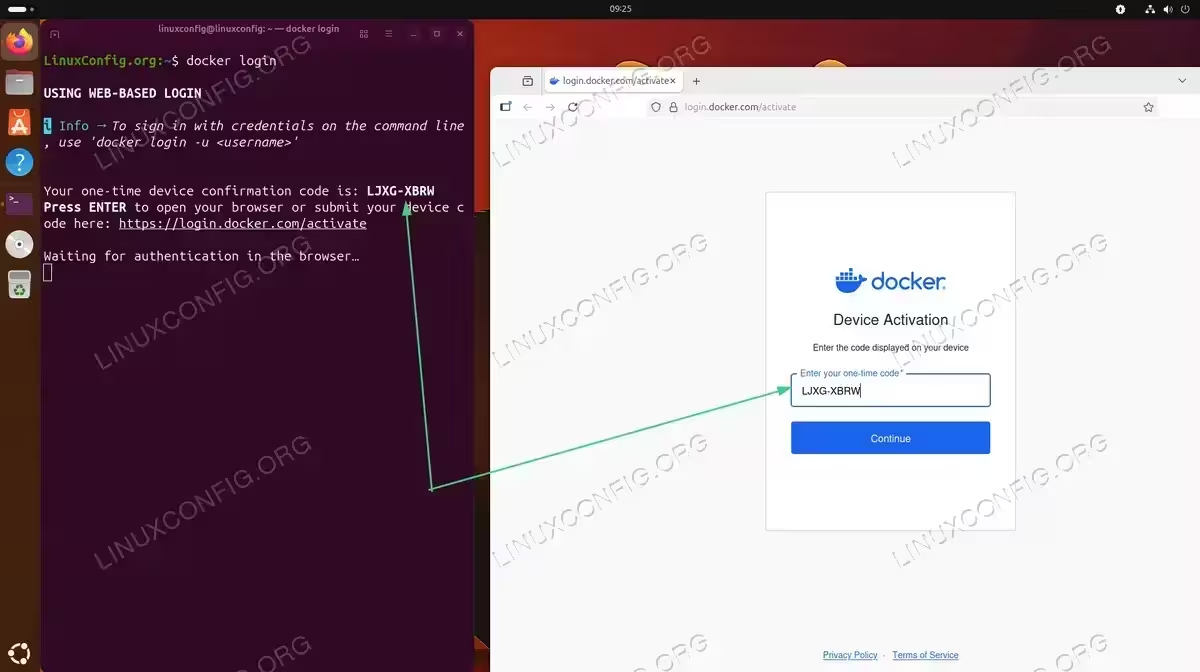
Running docker login displays a one-time code to enter in the Docker Device Activation page - Enter the device code: In your web browser, enter the one-time code displayed in your terminal on the Docker Device Activation page, then click Continue.
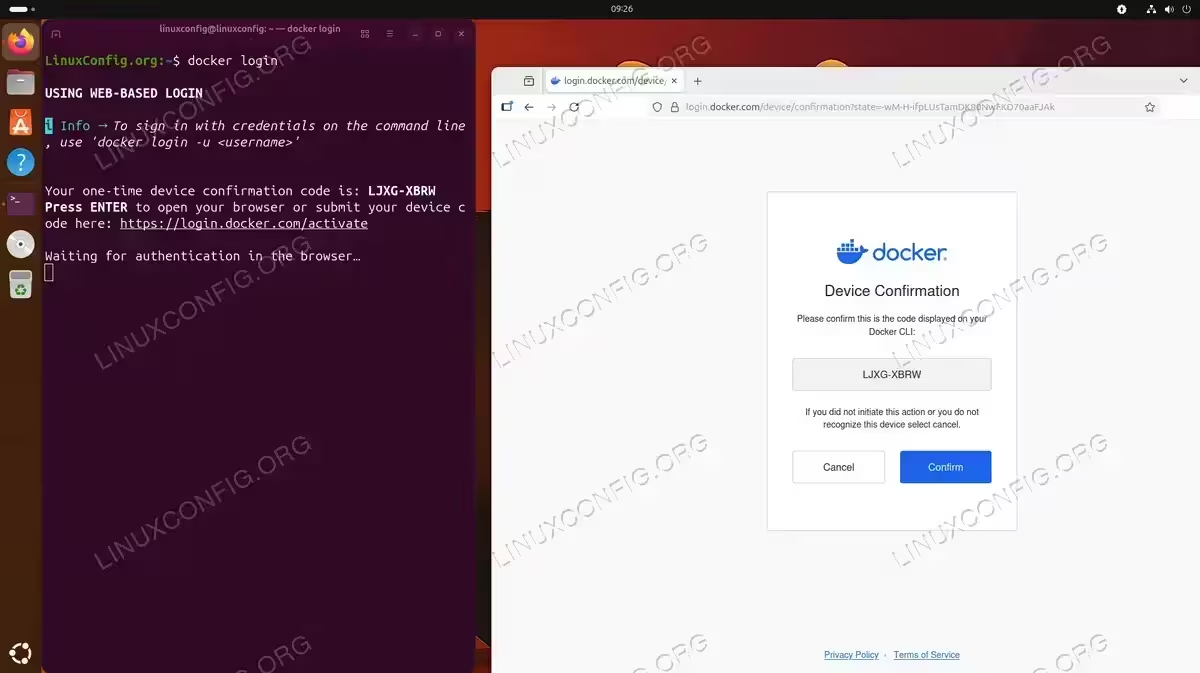
Confirm the device code matches what is displayed in your terminal before clicking Confirm - Authenticate with your credentials: Enter your Docker Hub password to complete the authentication.
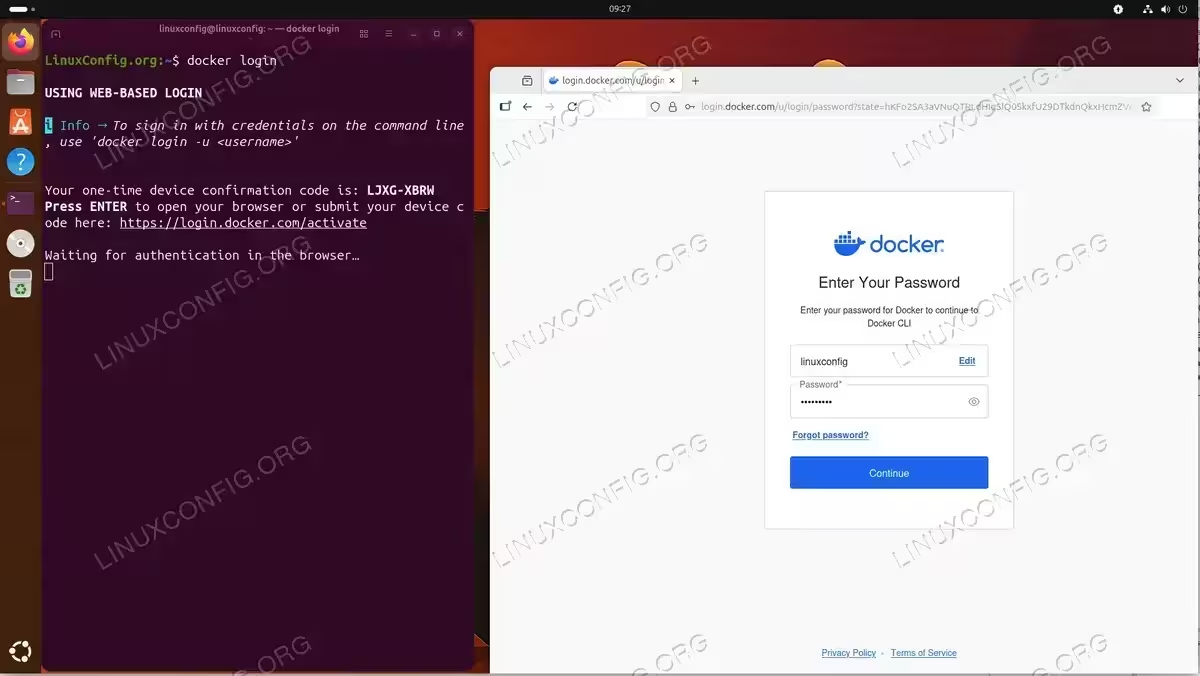
Enter your Docker Hub password to complete the authentication - Confirm successful login: Once authenticated, the browser shows “Congratulations, you’re all set!” and your terminal displays “Login Succeeded”.
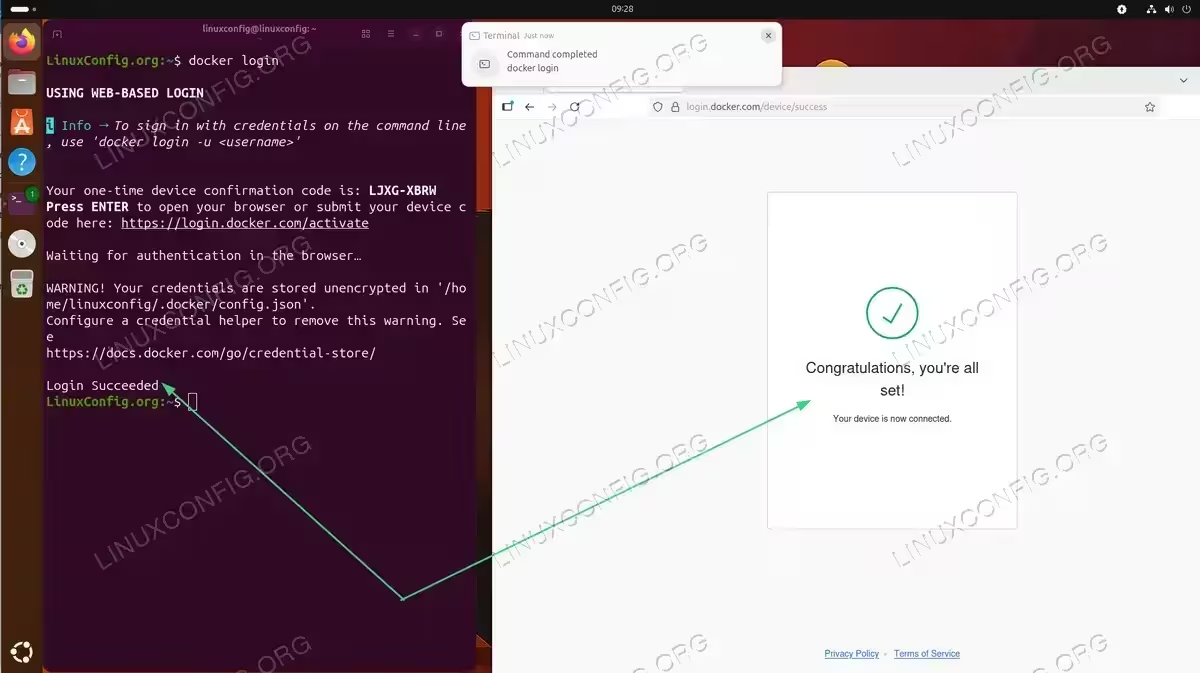
Login Succeeded confirms the Docker Hub authentication is complete
SECURITY ALERT
Your credentials are stored in ~/.docker/config.json. Never share this file as it contains your authentication data. For CI/CD pipelines, use Docker Hub access tokens with docker login -u username instead of the web-based flow.
If you need to restart Docker after configuration changes, your login session persists across restarts.
Building and Pushing Images to Docker Hub
Pushing images uploads your custom containers to Docker Hub, making them available for deployment or sharing with others. In this section, we’ll create a simple image and push it to a public repository. Before pushing, you must tag your image with your Docker Hub username and repository name.
IMPORTANT
The examples below use linuxconfig as the Docker Hub username. Replace this with your own Docker Hub username throughout the tutorial.
- Create a simple Dockerfile: Build an image that prints a message when run.
$ cat <<EOF > Dockerfile
FROM ubuntu:24.04
CMD ["echo", "linuxconfig.org"]
EOF
This creates a minimal Dockerfile that outputs “linuxconfig.org” when the container runs.
- Build the image with BuildKit: Create the Docker image from your Dockerfile.
$ DOCKER_BUILDKIT=1 docker build -t lubos-image .
Docker builds the image using BuildKit and tags it as
lubos-imagelocally.INSTALLATION TIPS
If you receive an error stating “BuildKit is enabled but the buildx component is missing or broken”, install the required package withsudo apt install docker-buildx.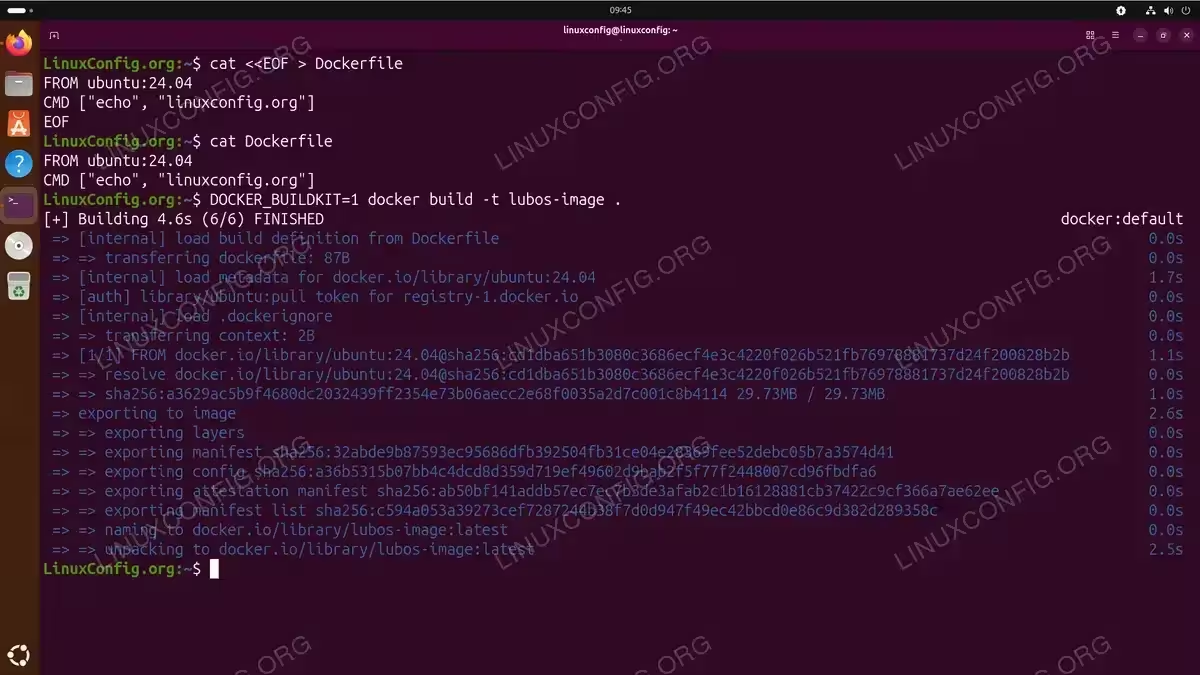
Building the lubos-image using DOCKER_BUILDKIT=1 docker build completes in 4.6 seconds - Test the image locally: Verify the image works before pushing.
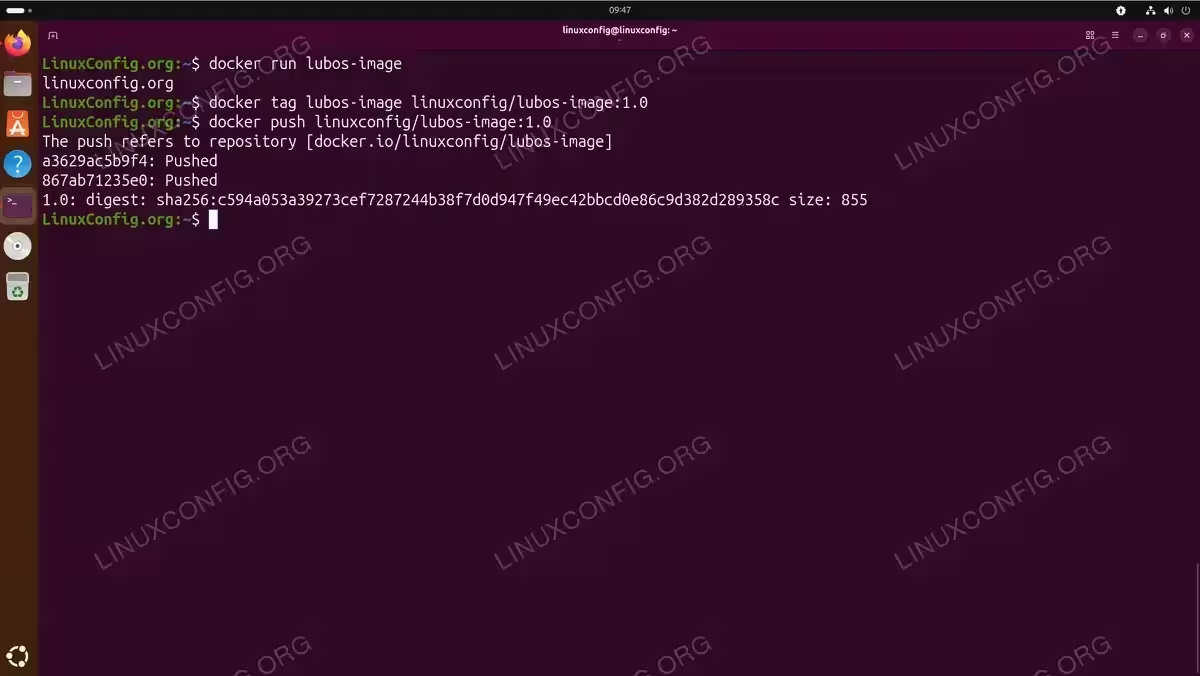
$ docker run lubos-image
You should see
linuxconfig.orgprinted to the terminal. - Tag the image for Docker Hub: Add your username and repository name to the image tag.
$ docker tag lubos-image linuxconfig/lubos-image:1.0
This creates a new tag pointing to the same image, formatted for Docker Hub.
- Push the image to Docker Hub: Upload your tagged image to your public repository.
$ docker push linuxconfig/lubos-image:1.0
Docker uploads each layer of your image to your repository.
For more complex container orchestration, you might want to install Docker Compose to manage multi-container applications. If you prefer a graphical interface for managing your Docker environment, Docker Desktop provides a convenient alternative to command-line operations.
Searching for Images on Docker Hub
Docker Hub hosts millions of container images, including official images maintained by Docker and community images contributed by users. You can search Docker Hub ubuntu 26.04 directly from the command line to find the images you need, including the image you just uploaded.
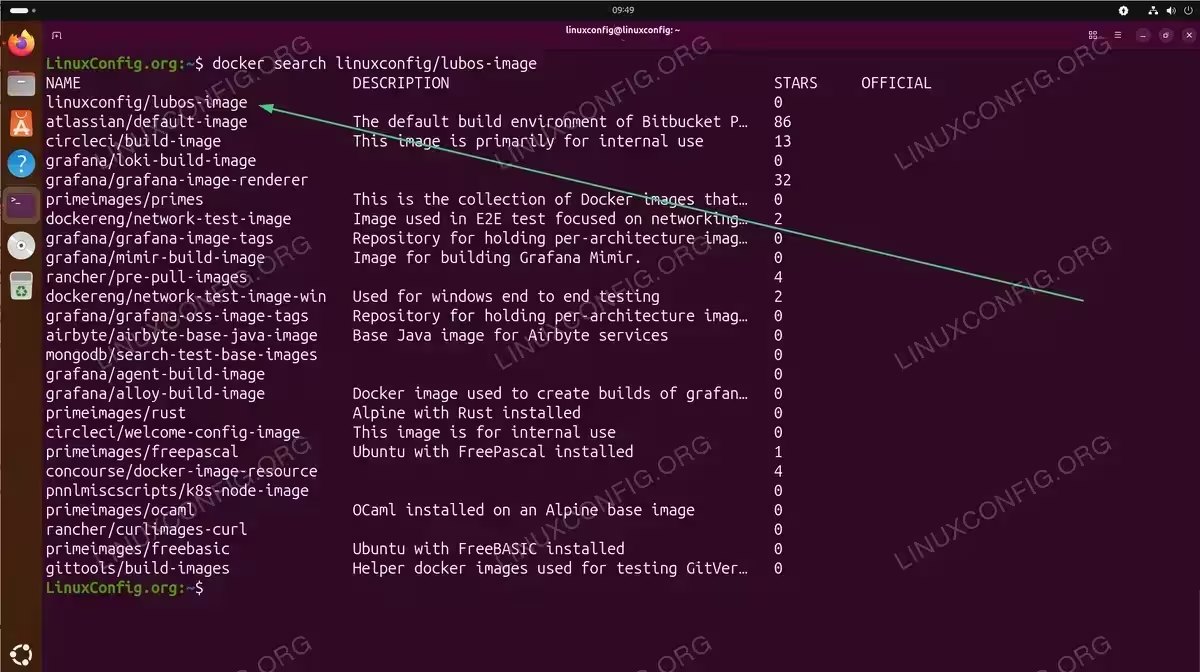
- Search for your uploaded image: Verify your image is available on Docker Hub.
$ docker search linuxconfig/lubos-image
Your recently pushed image should appear in the search results.
- Search for official images: Find images maintained by Docker or software vendors.
$ docker search --filter is-official=true nginx
This shows only official images, which are curated and receive regular security updates.
- Limit search results: Control the number of results returned.
$ docker search --limit 5 ubuntu
This limits output to the top 5 matching images.
The search results include several useful columns. The NAME column shows the image name, with official images appearing without a username prefix. The STARS column indicates popularity, while OFFICIAL shows whether Docker officially maintains the image. Understanding how to work with Docker images helps you make informed decisions about which images to use.
IMPORTANT
Official images are verified by Docker and receive regular security updates. When possible, prefer official images over community alternatives for production workloads.
Pulling Images from Docker Hub on Ubuntu 26.04
Pulling images downloads them from Docker Hub to your local system. Now that you’ve pushed your image, you can pull it on any system with Docker installed. First, let’s remove the local image to simulate pulling on a fresh system.
- Remove the local image: Delete your local copy to demonstrate pulling from Docker Hub.
$ docker rmi linuxconfig/lubos-image:1.0
$ docker rmi lubos-image
This removes both the tagged and original images from your local system.
- Pull your image from Docker Hub: Download the image you previously uploaded.
$ docker pull linuxconfig/lubos-image:1.0
Docker downloads the image from your public repository.
- Run the pulled image: Verify the image works after pulling.
$ docker run linuxconfig/lubos-image:1.0
You should see
linuxconfig.orgprinted, confirming the image was pulled and runs correctly. - Pull official images: Download images from Docker’s official repositories.
$ docker pull ubuntu:24.04
Tags allow you to pin specific versions, which is recommended for reproducible builds.
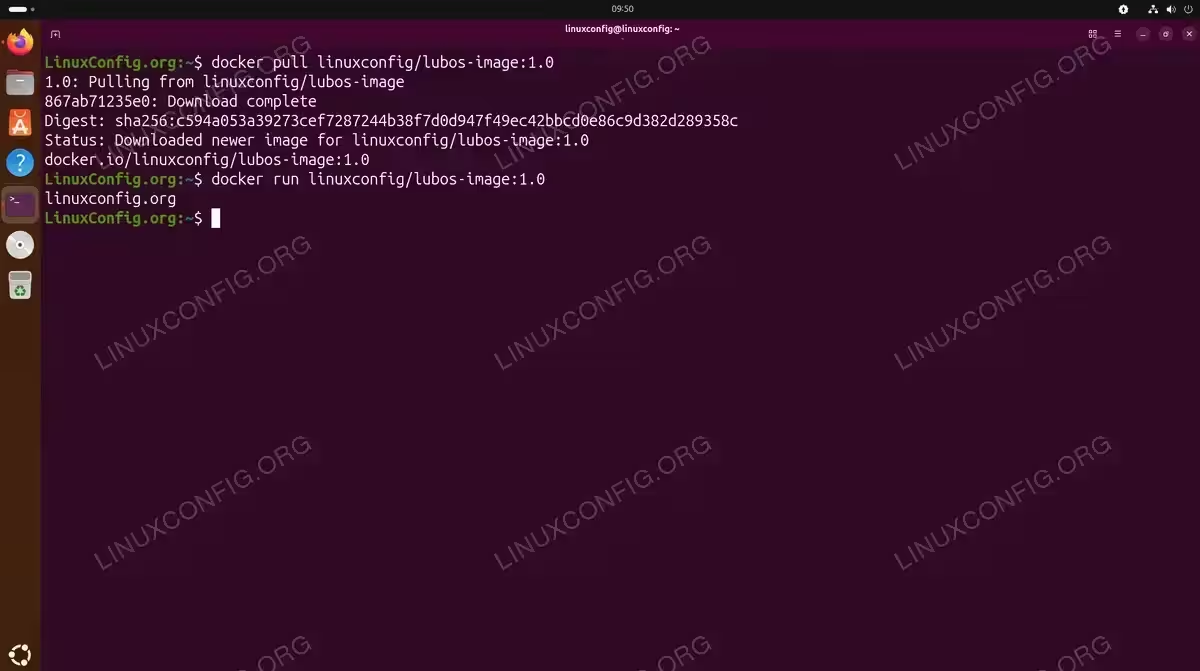
When you’re getting started with Docker, pulling official images is the quickest way to begin experimenting with containers. The download process shows progress for each layer, and Docker caches layers locally to speed up future pulls of related images.
Managing Docker Hub Repositories
Docker Hub repositories organize your images and control access. While most repository management happens through the web interface, several operations can be performed from the command line.
- List tags for a repository: View available tags for an image using the Docker Hub API.
$ curl -s "https://hub.docker.com/v2/repositories/library/ubuntu/tags?page_size=10" | jq '.results[].name'
This queries the Docker Hub API for the first 10 tags of the official Ubuntu image.
- Remove local images: Clean up images you no longer need locally.
$ docker rmi linuxconfig/lubos-image:1.0
This removes the image from your local system but not from Docker Hub.
- Log out from Docker Hub: Remove stored credentials when finished.
$ docker logout
This removes your authentication credentials from the local system.
For deleting images from Docker Hub itself or managing repository settings, use the Docker Hub web interface. The web interface also allows you to configure automated builds, webhooks, and access permissions for your repositories.
Conclusion
You now know how to use Docker Hub on Ubuntu 26.04 for all common container registry operations. From authenticating with docker login using the web-based device activation flow, to building with BuildKit, pushing, searching, and pulling images, these skills form the foundation of working with containerized applications. Docker Hub’s free tier with unlimited public repositories makes it easy to share your containers with the world, while the vast library of official images accelerates development.
Frequently Asked Questions
- How do I pull a private image from Docker Hub? First authenticate with
docker loginusing credentials that have access to the private repository. Then pull the image normally withdocker pull username/private-repo:tag. Docker automatically uses your stored credentials for private repository access. - What is the difference between Docker Hub and Docker Registry? Docker Hub is Docker’s hosted registry service with a web interface, automated builds, and team management features. Docker Registry is the open-source software you can run yourself to host your own private registry. Docker Hub uses Docker Registry technology under the hood.
- How can I automate Docker Hub logins in CI/CD pipelines? Generate an access token from Docker Hub’s Account Settings page and use it with
echo $DOCKER_TOKEN | docker login -u username --password-stdin. Store the token as a secret in your CI/CD platform. This approach bypasses the web-based authentication flow. - Why does my docker push fail with “denied: requested access to the resource is denied”? This error typically occurs when you’re not logged in or the image tag doesn’t include your Docker Hub username. Ensure you run
docker loginfirst and tag your image asyourusername/imagename:tagbefore pushing. - How do I delete an image from Docker Hub? You cannot delete remote images from the command line. Log in to hub.docker.com, navigate to your repository, select the tag you want to delete, and click the delete button. Alternatively, use the Docker Hub API with an appropriate access token.