
Startup Disk Creator is the official Ubuntu tool for creating bootable USB drives, making it essential when you need to disk install Ubuntu 26.04 on other machines. This utility allows you to write Ubuntu ISO images to USB flash drives, transforming them into installation media. Whether you are deploying Ubuntu across multiple workstations or simply preparing a recovery drive, Startup Disk Creator provides a straightforward graphical interface that simplifies the entire process.
Table of Contents
In this tutorial you will learn:
- How to install Startup Disk Creator from Ubuntu repositories
- How to launch the application from terminal and GUI
- How to create a bootable Ubuntu USB drive step by step
- How to verify your bootable USB works correctly
- How to troubleshoot common Startup Disk Creator issues
Software Requirements
| Category | Requirements, Conventions or Software Version Used |
|---|---|
| System | Ubuntu 26.04 Resolute Raccoon |
| Software | usb-creator-gtk 0.3.16 |
| Other | Privileged access to your Linux system as root or via the sudo command. USB flash drive with minimum 4GB capacity. Ubuntu ISO image file. |
| Conventions | # – requires given linux commands to be executed with root privileges either directly as a root user or by use of sudo command$ – requires given linux commands to be executed as a regular non-privileged user |
sudo apt install usb-creator-gtk, then launch it from the applications menu or terminal to create bootable USB drives from Ubuntu ISO images.
| Step | Command/Action |
|---|---|
| 1. Update package lists | sudo apt update |
| 2. Install Startup Disk Creator | sudo apt install usb-creator-gtk |
| 3. Launch the application | usb-creator-gtk |
Install Startup Disk Creator on Ubuntu 26.04
Startup Disk Creator is available in the official Ubuntu repositories, which makes the disk install Ubuntu 26.04 process straightforward. The package name is usb-creator-gtk for the graphical version. Follow these steps to install it on your system.
- Update the package index: Before installing any software, refresh your local package database to ensure you get the latest available version.
$ sudo apt update
This command downloads the package lists from the repositories and updates information about the newest versions of packages.
- Install the Startup Disk Creator package: Use APT to install the graphical USB creator tool.
$ sudo apt install usb-creator-gtk
APT will resolve all dependencies automatically and install the application along with any required libraries.
- Verify the installation: Confirm that Startup Disk Creator installed correctly by checking the package status.
$ apt list --installed | grep usb-creator
You should see output indicating that
usb-creator-gtkis installed on your system.
SERVER INSTALLATION
For Ubuntu Server installations without a graphical environment, you can use the command-line version instead: sudo apt install usb-creator-common. However, the GTK version requires a desktop environment to function properly.
Launch Startup Disk Creator
After installation, you can launch Startup Disk Creator through multiple methods. The application integrates with the GNOME desktop and appears in your applications menu.
Launch from Applications Menu
Open the Activities overview by pressing the Super key, then type “Startup Disk Creator” in the search field. Click on the application icon to launch it. The application requires administrative privileges to write to USB devices, so you may be prompted for your password.
Launch from Terminal
Alternatively, you can start Startup Disk Creator directly from the command line:
$ usb-creator-gtk
This method is useful when you need to see any error messages or debug output. For troubleshooting purposes, running from terminal provides visibility into what the application is doing.
Create a Bootable USB Drive on Ubuntu 26.04
Creating bootable installation media requires an Ubuntu ISO image and a USB flash drive with sufficient capacity. The process will erase all existing data on the USB drive, so ensure you have backed up any important files before proceeding.
Prerequisites
Before starting the disk install process on Ubuntu 26.04, prepare the following items:
- Download the Ubuntu 26.04 ISO image
- Insert a USB flash drive with at least 4GB capacity (8GB recommended for desktop images)
- Back up any data on the USB drive, as the process will completely erase it
Step-by-Step USB Creation Process
- Insert your USB drive: Connect your USB flash drive to an available USB port. Wait a few seconds for the system to detect the device. If you need to disk mount it manually, the system typically handles this automatically for USB drives.
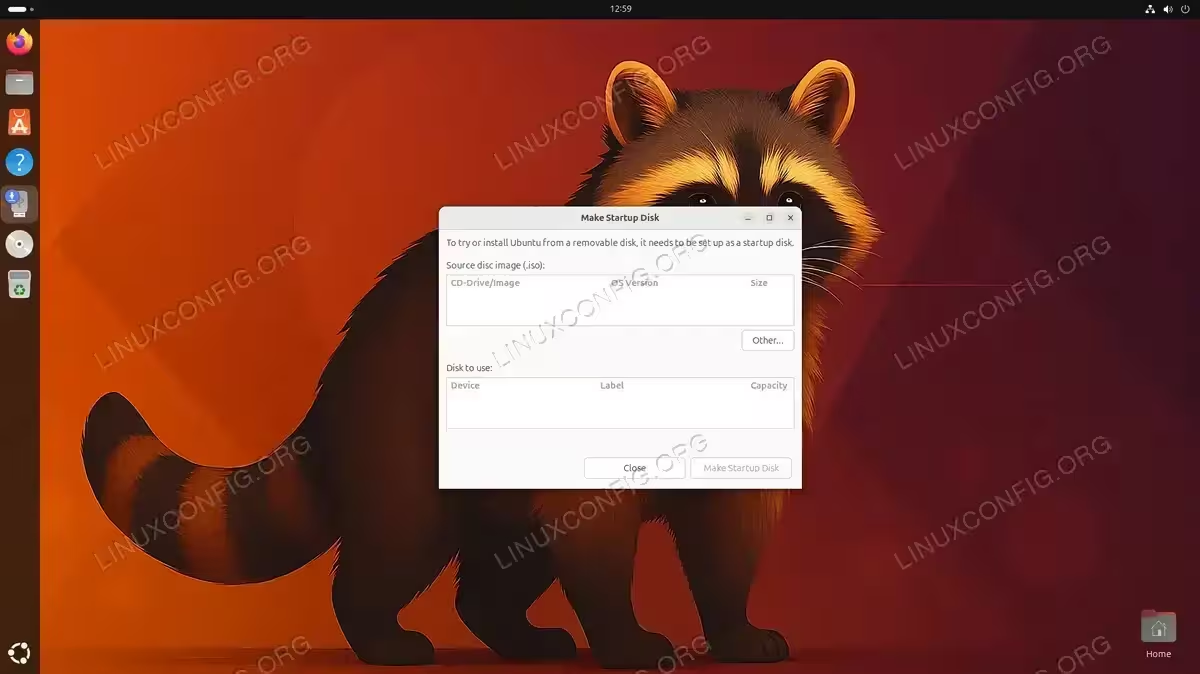
- Launch Startup Disk Creator: Open the application using your preferred method. The main window displays two sections: “Source disc image” at the top and “Disk to use” at the bottom.
- Select the source ISO image: If your ISO file is in the Downloads folder, Startup Disk Creator may detect it automatically. Otherwise, click “Other” to browse and select your Ubuntu ISO file.
- Select the target USB drive: The application displays all available removable drives in the lower section. Select your USB drive from the list. Verify you have chosen the correct device by checking the drive size and label.
$ lsblk
Running this command in a separate terminal helps confirm the correct device identifier.
- Start the creation process: Click “Make Startup Disk” to begin. You will be prompted to confirm the action since this will erase all data on the selected USB drive.
- Enter your password: Provide your administrator password when prompted. The application needs elevated privileges to write directly to the USB device.
- Wait for completion: The progress bar shows the current status. Writing a full Ubuntu desktop image typically takes 5-15 minutes depending on USB drive speed and USB port type (USB 3.0 is significantly faster than USB 2.0).
DATA LOSS WARNING
The USB creation process completely erases all existing data on the target drive. Double-check that you have selected the correct device and that no important data remains on the USB drive before proceeding.
Verify the Bootable USB
After the process completes, verify that your bootable USB drive works correctly:
- Check the USB contents: Open a file manager and browse to the USB drive. You should see Ubuntu installation files including directories like
boot,casper, andEFI.$ ls /media/$USER/Ubuntu*
This command lists the contents of the mounted Ubuntu USB drive.
- Test boot the USB: Restart your computer and access the boot menu (typically F12, F2, or Esc during startup, depending on your hardware manufacturer). Select the USB drive from the boot options to verify it loads the Ubuntu installer or live environment correctly.
Troubleshooting Common Issues
Several common problems can occur when using Startup Disk Creator. The following solutions address the most frequent issues users encounter.
USB Drive Not Detected
If your USB drive does not appear in Startup Disk Creator, try these solutions:
- Check if the system recognizes the drive: Run the following command to see if the kernel detected the USB device.
$ dmesg | tail -20
Look for messages about USB mass storage devices in the output.
- Verify the drive is not mounted elsewhere: Sometimes the drive mounts automatically to a location that prevents Startup Disk Creator from accessing it. Unmount it first.
$ sudo umount /dev/sdb1
Replace
/dev/sdb1with your actual device partition. - Try a different USB port: Some USB ports, particularly front panel ports, may have connectivity issues. Use a port directly on the motherboard for more reliable results.
Write Process Fails or Hangs
If the USB creation process fails partway through or appears to hang:
- Check available disk space: Ensure your USB drive has sufficient capacity for the ISO image.
$ df -h
The USB drive should have more space than the ISO file size.
- Verify ISO integrity: A corrupted ISO file will cause write failures. Check the ISO against the official SHA256 checksum.
$ sha256sum ubuntu-26.04-desktop-amd64.iso
Compare the output with the checksum published on the Ubuntu download page.
- Try a different USB drive: Failing USB drives may work for reading but fail during write operations. Test with another USB drive to rule out hardware failure.
ALTERNATIVE METHOD
If Startup Disk Creator continues to have issues, you can use the dd command as an alternative. However, dd requires more caution as it does not warn about overwriting the wrong device. Only use this method if you are comfortable with command-line disk operations.
Permission Denied Errors
Permission errors typically occur when the application cannot access the USB device:
- Ensure you are in the correct groups: Your user account should be a member of the
sudogroup to perform disk operations.$ groups $USER
Verify that
sudoappears in the output. - Run with explicit sudo: If issues persist, try launching with elevated privileges.
$ sudo usb-creator-gtk
This grants the application full access to block devices.
For systems requiring disk full encryption, note that Startup Disk Creator creates standard bootable media. Encryption is configured during the Ubuntu installation process after booting from the USB drive.
Conclusion
You have successfully installed Startup Disk Creator on Ubuntu 26.04 and learned how to create bootable USB drives for Ubuntu installation. This disk install method on Ubuntu 26.04 provides a reliable way to prepare installation media using official Ubuntu tools. The graphical interface makes the process accessible even for users who prefer not to work with command-line tools. Remember to always verify your bootable USB by test-booting before using it for actual system installation, and keep your ISO files in a dedicated location for future use.
Frequently Asked Questions
- Can I use Startup Disk Creator to create bootable USB drives for other Linux distributions? Startup Disk Creator is optimized for Ubuntu ISO images. While it may work with other Debian-based distributions, results vary. For non-Ubuntu distributions, consider using tools like Balena Etcher or Ventoy that support a wider range of ISO formats.
- How much space do I need on my USB drive for Ubuntu 26.04? The Ubuntu 26.04 desktop ISO requires approximately 5GB, so a 8GB USB drive is recommended to ensure sufficient space. For Ubuntu Server, a 4GB drive is typically adequate. Using a larger USB drive does not improve performance but provides margin for larger future releases.
- Can I use the USB drive for normal storage after creating a startup disk? Creating a startup disk reformats the USB drive with a specific partition layout for booting. To use the drive for normal storage again, you need to repartition and reformat it using tools like GNOME Disks or GParted. This will erase the bootable installation media.
- Why does Startup Disk Creator take so long to write the USB? Write speed depends on several factors: USB drive quality, USB port type (USB 2.0 vs 3.0), and system load. USB 3.0 ports and drives offer significantly faster transfer speeds. Low-quality USB drives with slow write speeds will take considerably longer regardless of the port type.
- Is there a command-line alternative to Startup Disk Creator? Yes, you can use the
ddcommand to write ISO images directly to USB drives. The command syntax issudo dd if=ubuntu.iso of=/dev/sdX bs=4M status=progress, where/dev/sdXis your USB device. Exercise extreme caution withddas it provides no confirmation prompts and can overwrite your system drive if the wrong device is specified.