
Configuring sudo without password on Ubuntu 26.04 allows designated users to execute administrative commands without being prompted for authentication. This approach is particularly useful for automated scripts, CI/CD pipelines, and situations where trusted users need streamlined access to privileged operations. However, removing password requirements introduces security considerations that must be carefully evaluated before implementation.
In this tutorial, you will learn how to configure sudo no password on Ubuntu 26.04 using the visudo command, which safely edits the sudoers configuration file. We will cover user-specific configurations, group-based approaches, and methods to restrict passwordless access to specific commands for enhanced security.
Table of Contents
In this tutorial you will learn:
- How the sudoers file controls privilege escalation
- How to configure passwordless sudo for a specific user
- How to grant passwordless sudo to an entire group
- How to restrict passwordless access to specific commands
- How to verify your passwordless sudo configuration
Software Requirements
| Category | Requirements, Conventions or Software Version Used |
|---|---|
| System | Ubuntu 26.04 Resolute Raccoon |
| Software | sudo 1.9.x (pre-installed) |
| Other | Privileged access to your Linux system as root or via the sudo command. |
| Conventions | # – requires given linux commands to be executed with root privileges either directly as a root user or by use of sudo command$ – requires given linux commands to be executed as a regular non-privileged user |
visudo to add a NOPASSWD rule for your user.
| Step | Command/Action |
|---|---|
| 1. Open sudoers file safely | sudo visudo |
| 2. Add NOPASSWD rule for user | linuxconfig ALL=(ALL) NOPASSWD: ALL |
| 3. Save and exit | Ctrl+X, Y, Enter (nano) |
| 4. Test the configuration | sudo whoami |
Understanding the Sudoers File
The sudoers file located at /etc/sudoers controls which users can execute commands with elevated privileges using the sudo command. This file uses a specific syntax to define permissions, and improper edits can lock you out of administrative access. Therefore, you should always use the visudo command to edit this file, as it performs syntax validation before saving changes.
The basic structure of a sudoers entry follows this format:
user HOST=(RUNAS) COMMANDS
Each component serves a specific purpose. The user field specifies the username or group (prefixed with %). The HOST field defines which hosts the rule applies to, typically set to ALL. The RUNAS field determines which users the commands can be run as, and COMMANDS specifies which commands are permitted.
To enable passwordless sudo, you add the NOPASSWD: directive before the commands specification. This tells sudo to skip password authentication for the matching rules.
SECURITY ALERT
Enabling passwordless sudo reduces system security. Only configure this for trusted users on systems where the security trade-off is acceptable, such as development environments or automated deployment scenarios.
Configure Sudo Without Password on Ubuntu 26.04
The most straightforward method to configure sudo without password on Ubuntu 26.04 involves adding a custom rule to the sudoers configuration. Rather than editing the main /etc/sudoers file directly, best practice recommends creating a separate file in the /etc/sudoers.d/ directory.
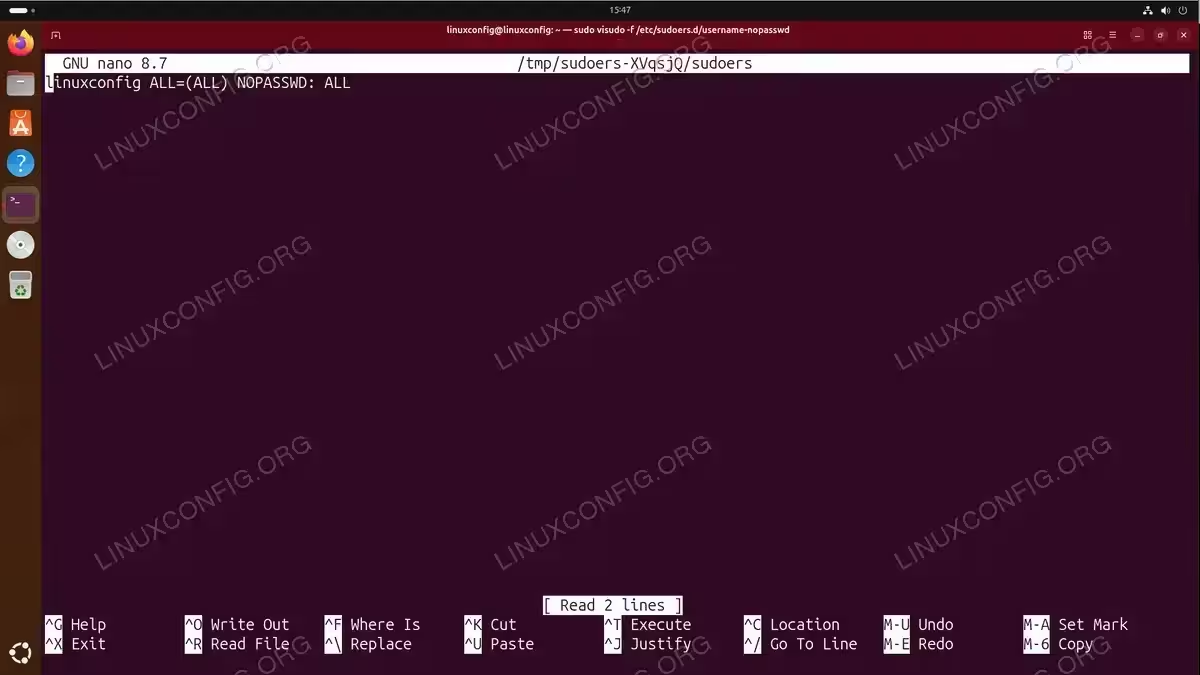
- Create a custom sudoers file: Use visudo with the -f flag to create a new configuration file for your user.
$ sudo visudo -f /etc/sudoers.d/linuxconfig-nopasswd
Replace
linuxconfigwith your actual username. This opens the nano editor by default on Ubuntu 26.04. - Add the NOPASSWD rule: Enter the following line.
linuxconfig ALL=(ALL) NOPASSWD: ALL
Replace
linuxconfigwith your username. This grants the specified user passwordless sudo access to all commands on all hosts. - Save and exit: Press Ctrl+X, then Y to confirm, and Enter to save. The visudo command validates the syntax before saving. If there are errors, it will prompt you to re-edit or discard changes.
- Set correct permissions: Files in
/etc/sudoers.d/must have mode 0440.$ sudo chmod 0440 /etc/sudoers.d/linuxconfig-nopasswd
IMPORTANT
The filename in /etc/sudoers.d/ should not contain dots (.) or end with a tilde (~), as such files are ignored by sudo. Use only alphanumeric characters and hyphens.
Grant Passwordless Sudo to a Group
When multiple users require passwordless sudo access, configuring a group-based rule is more maintainable than creating individual user entries. On Ubuntu 26.04, you can create a custom group and add users to the sudoers configuration with passwordless privileges.
- Create a sudoers configuration for the group: Open a new configuration file using visudo.
$ sudo visudo -f /etc/sudoers.d/nopasswd-linuxconfig-group
- Add the group NOPASSWD rule: Use the percent sign (%) to specify a group name.
%linuxconfig-group ALL=(ALL) NOPASSWD: ALL
Replace
linuxconfig-groupwith your desired group name. This grants all members of the specified group passwordless access to all commands. - Save the file and set permissions:
$ sudo chmod 0440 /etc/sudoers.d/nopasswd-linuxconfig-group
Any user who is a member of the specified group will now be able to execute commands without entering a password. You can verify group membership with the groups command:
$ groups linuxconfig
To add an existing user to the group, use:
$ sudo usermod -aG linuxconfig-group linuxconfig
Replace linuxconfig-group with your group name and linuxconfig with your username. Group membership changes do not take effect until the user starts a new session. Either log out and log back in, or use the newgrp command to activate the new group immediately:
$ newgrp linuxconfig-group
Limit Passwordless Sudo to Specific Commands
For improved security, you can restrict passwordless sudo to specific commands rather than granting unrestricted access. This approach follows the principle of least privilege and is recommended for production environments.
- Identify the full path of commands: Use the
whichcommand to find the absolute path of each command you want to allow.$ which systemctl apt reboot /usr/bin/systemctl /usr/bin/apt /usr/sbin/reboot
- Create the restricted sudoers rule: Open a new configuration file.
$ sudo visudo -f /etc/sudoers.d/linuxconfig-limited
- Add the limited NOPASSWD rule: Specify the full paths to allowed commands, separated by commas.
linuxconfig ALL=(ALL) NOPASSWD: /usr/bin/systemctl, /usr/bin/apt, /usr/sbin/reboot
Replace
linuxconfigwith your username. - Save and set permissions:
$ sudo chmod 0440 /etc/sudoers.d/linuxconfig-limited
With this configuration, the user can run sudo systemctl, sudo apt, and sudo reboot without a password, but all other sudo commands will still require authentication.
INSTALLATION TIPS
Always use absolute paths in sudoers rules. Relative paths create security vulnerabilities as attackers could place malicious executables in the user’s PATH.
You can further restrict commands by specifying arguments. For example, to allow only restarting the nginx service:
linuxconfig ALL=(ALL) NOPASSWD: /usr/bin/systemctl restart nginx
Verify Passwordless Sudo Configuration
After configuring sudo no password on Ubuntu 26.04, you should verify that the configuration works as expected. Testing ensures your changes are active and correctly applied.
- Test with a simple command: Run a sudo command that should now work without a password prompt.
$ sudo whoami
root
If the command executes immediately without asking for a password, your configuration is working.
- Check sudo privileges: Use the
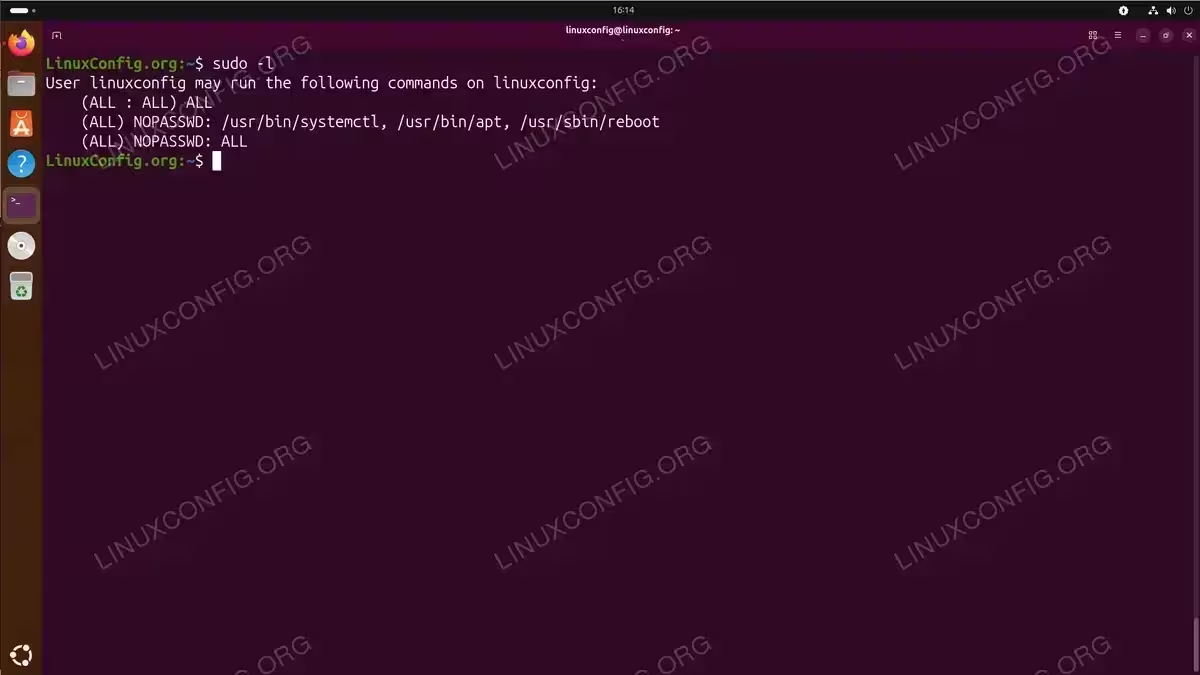
sudo -lcommand to list your current sudo permissions.$ sudo -l
The output will show your NOPASSWD entries along with other sudo rules.
- Validate sudoers syntax: You can check all sudoers files for syntax errors using visudo.
$ sudo visudo -c
/etc/sudoers: parsed OK
/etc/sudoers.d/linuxconfig-nopasswd: parsed OK
If passwordless sudo is not working, verify that your configuration file has the correct permissions (0440) and does not contain dots in the filename. You can also check the sudo logs for errors:
$ sudo journalctl -u sudo
Reverting Passwordless Sudo Configuration
If you need to restore password requirements, you can either remove the configuration file or comment out the NOPASSWD rule. To remove passwordless sudo completely:
$ sudo rm /etc/sudoers.d/linuxconfig-nopasswd
Alternatively, if you need to set a root password for direct root access instead of relying on sudo, that option remains available as a fallback authentication method. In cases where you have forgotten your password, you may need to reset the root password through recovery mode.
Conclusion
You have learned how to configure sudo without password on Ubuntu 26.04 using the visudo command and the NOPASSWD directive. We covered user-specific configurations, group-based approaches for multiple users, and security-focused methods that limit passwordless access to specific commands. For additional flexibility, you can also run sudo without password using alternative methods such as credential caching.
Remember that passwordless sudo should be used judiciously. While it provides convenience for trusted users and automation scenarios, it reduces the security barrier for privilege escalation. For production systems, consider limiting passwordless access to specific commands rather than granting unrestricted privileges. For more detailed information about sudoers configuration options, consult the official sudoers manual.
Frequently Asked Questions
- Why does my passwordless sudo configuration not work? The most common causes are incorrect file permissions and invalid filenames. Files in /etc/sudoers.d/ must have mode 0440 and cannot contain dots or tildes. Run
sudo visudo -cto check for syntax errors, and verify permissions withls -la /etc/sudoers.d/. - Is passwordless sudo safe for production servers? Passwordless sudo reduces security by removing an authentication barrier. For production environments, limit passwordless access to specific commands needed for automation, use dedicated service accounts, and implement additional security measures such as SSH key authentication and audit logging.
- Can I configure passwordless sudo for only certain commands? Yes, specify the full path to each allowed command in your sudoers rule. For example,
linuxconfig ALL=(ALL) NOPASSWD: /usr/bin/systemctl restart nginxallows only restarting nginx without a password while requiring authentication for all other sudo operations.