
By default, Ubuntu 26.04 ships without a root password set. Instead, the system relies on sudo to grant administrative privileges to your regular user account. However, there are situations where you may need to set a root password on Ubuntu 26.04, such as when configuring direct root access for recovery purposes, enabling the root login on specific services, or working in environments that require a dedicated root account. This guide walks you through the process of setting, verifying, and managing the root password on Ubuntu 26.04 Resolute Raccoon.
Table of Contents
In this tutorial you will learn:
- How to set a root password on Ubuntu 26.04
- How to verify the root password is active
- How to switch to the root user account
- How to lock and disable the root account when no longer needed
- Security best practices for root access management
Software Requirements
| Category | Requirements, Conventions or Software Version Used |
|---|---|
| System | Ubuntu 26.04 Resolute Raccoon Download |
| Software | passwd (pre-installed) |
| Other | Privileged access to your Linux system as root or via the sudo command. |
| Conventions | # – requires given linux commands to be executed with root privileges either directly as a root user or by use of sudo command$ – requires given linux commands to be executed as a regular non-privileged user |
sudo passwd root command. You will be prompted to enter and confirm the new password.
| Step | Command/Action |
|---|---|
| 1. Set root password | $ sudo passwd root |
| 2. Verify root account is unlocked | $ sudo passwd -S root |
| 3. Switch to root user | $ su - |
Setting the Root Password on Ubuntu 26.04
On a fresh Ubuntu 26.04 installation, the root account exists but has no usable password. Consequently, you cannot log in as root directly. The root account is locked by default, which means the password field in /etc/shadow contains a ! prefix that prevents authentication.
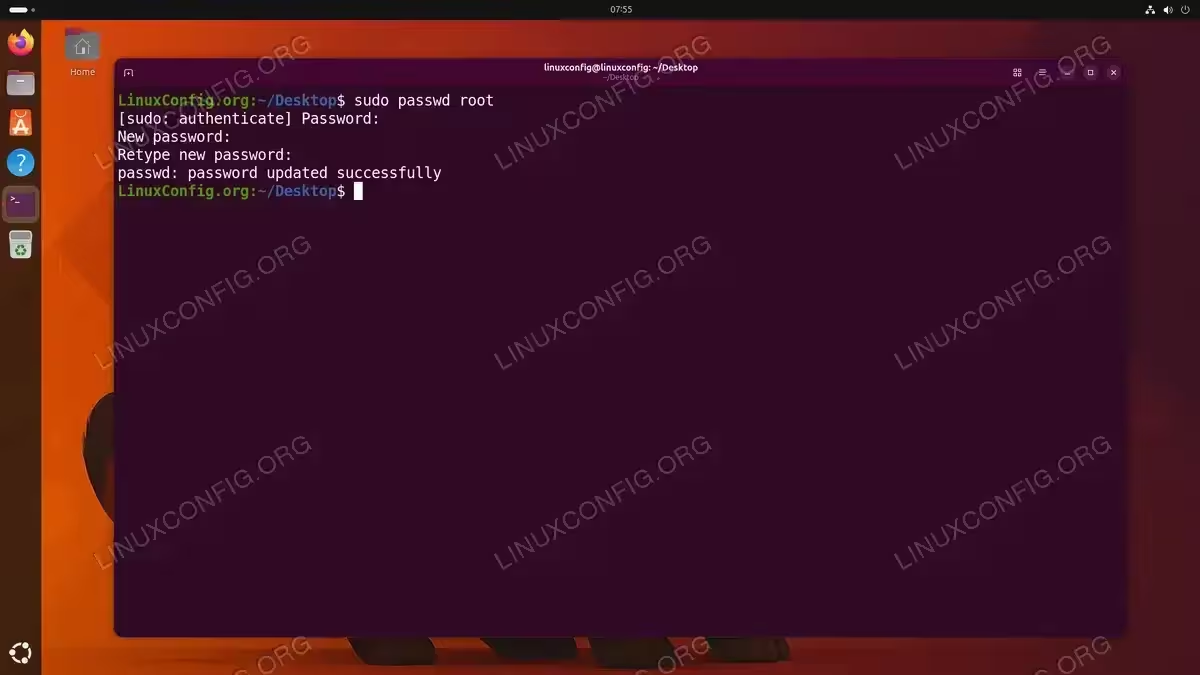
To set the root password on Ubuntu 26.04, open a terminal and run the following command:
$ sudo passwd root
You will be prompted to enter your own sudo password first, followed by the new root password twice for confirmation:
[sudo] password for linuxconfig:
New password:
Retype new password:
passwd: password updated successfully
IMPORTANT
Choose a strong root password that differs from your regular user password. Use a combination of uppercase and lowercase letters, numbers, and special characters with a minimum length of 12 characters.
Verifying the Root Password
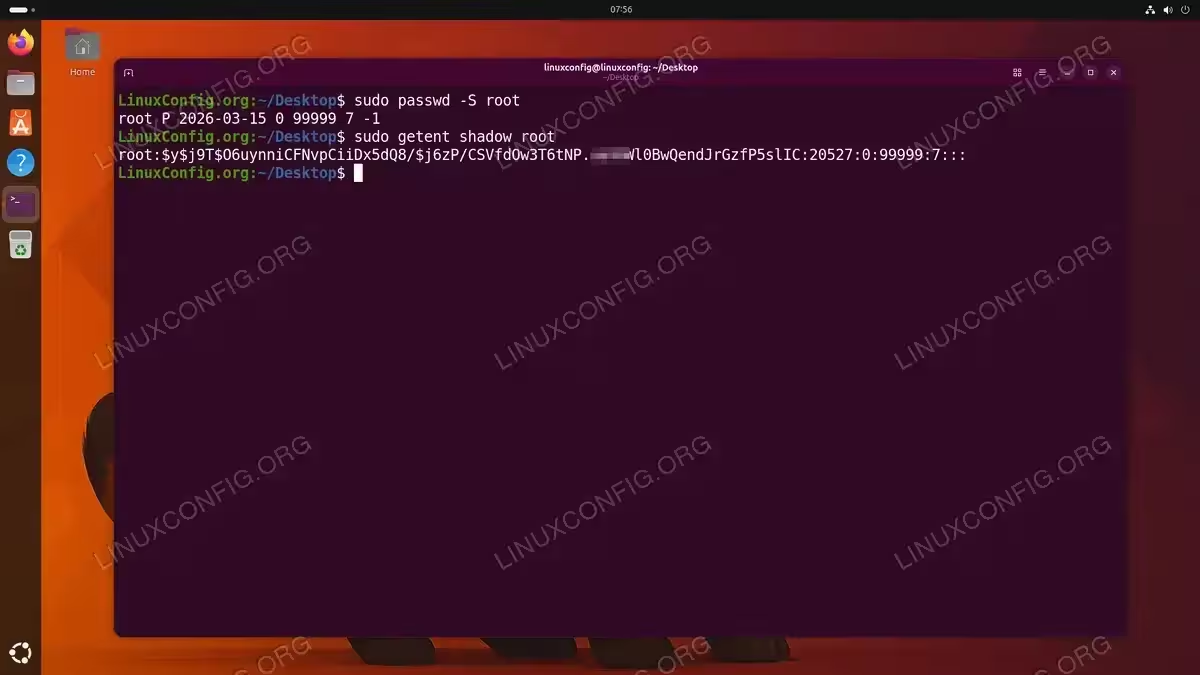
After setting the root password on Ubuntu 26.04, it is a good idea to verify that the account is now unlocked. You can check the status of the root account using the following command:
$ sudo passwd -S root
The output will display the account status:
root P 2026-03-16 0 99999 7 -1
The P in the second field indicates the account has a usable password. If you see L instead, the account is still locked. Additionally, you can inspect the /etc/shadow file directly:
$ sudo getent shadow root
A locked account shows a ! or !! prefix before the password hash, whereas an unlocked account displays the hash without any prefix.
Switching to the Root User
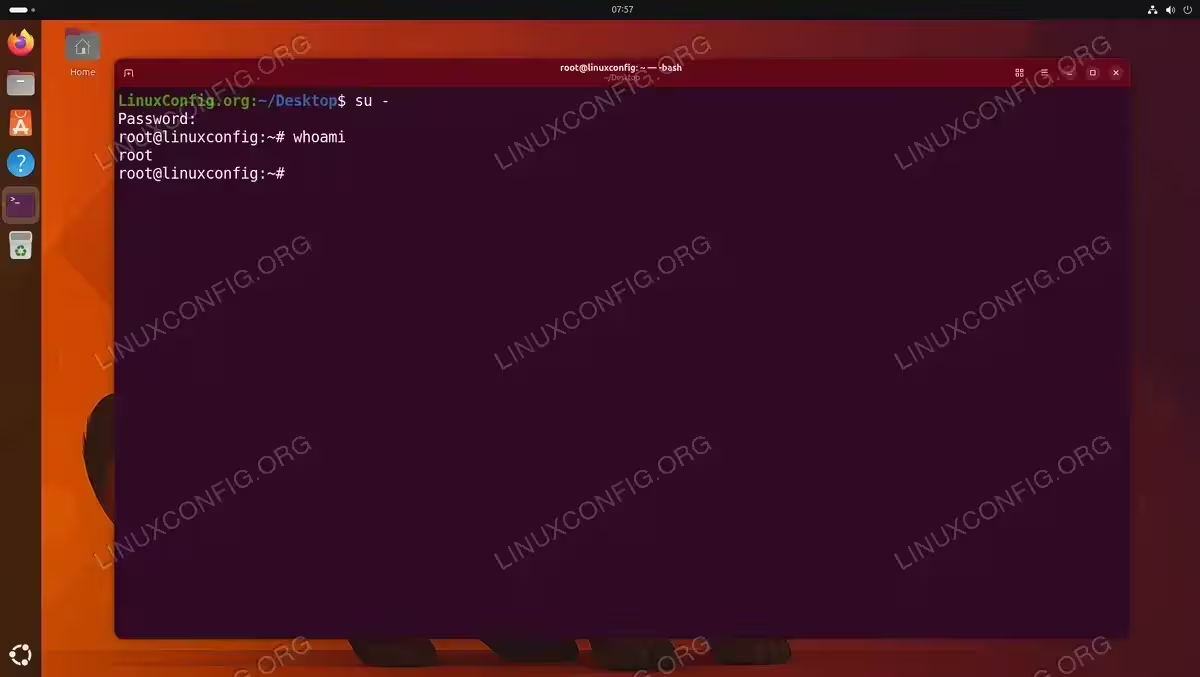
Once you have set the root password, you can switch to the root account using the su command. There are two common ways to do this:
- Full login shell: This method loads root’s complete environment, including environment variables and shell profile:
$ su -
After entering the root password, you will land in root’s home directory (
/root) with a full login shell. - Non-login shell: This method switches to root but preserves your current working directory and some environment variables:
$ su
This approach is useful when you need root privileges but want to remain in your current directory.
To return to your regular user account, simply type exit or press Ctrl+D.
IMPORTANT
Using su - (with the hyphen) is generally recommended because it provides a clean root environment. This prevents potential issues caused by inherited environment variables from your regular user session.
While switching to root is possible after setting a root password, Ubuntu’s recommended approach for administrative tasks is to use sudo. If you want to streamline sudo usage, consider learning how to configure sudo without a password or run sudo without a password.
Locking the Root Account
If you no longer need direct root access, it is strongly recommended to lock the root account again. This restores Ubuntu’s default security posture. To lock the root account, run:
$ sudo passwd -l root
The -l flag adds a ! prefix to the password hash in /etc/shadow, which effectively disables password-based authentication for the root account. Therefore, nobody can log in as root using a password.
Verify the account is locked:
$ sudo passwd -S root
The output should now show L in the second field:
root L 2026-03-16 0 99999 7 -1
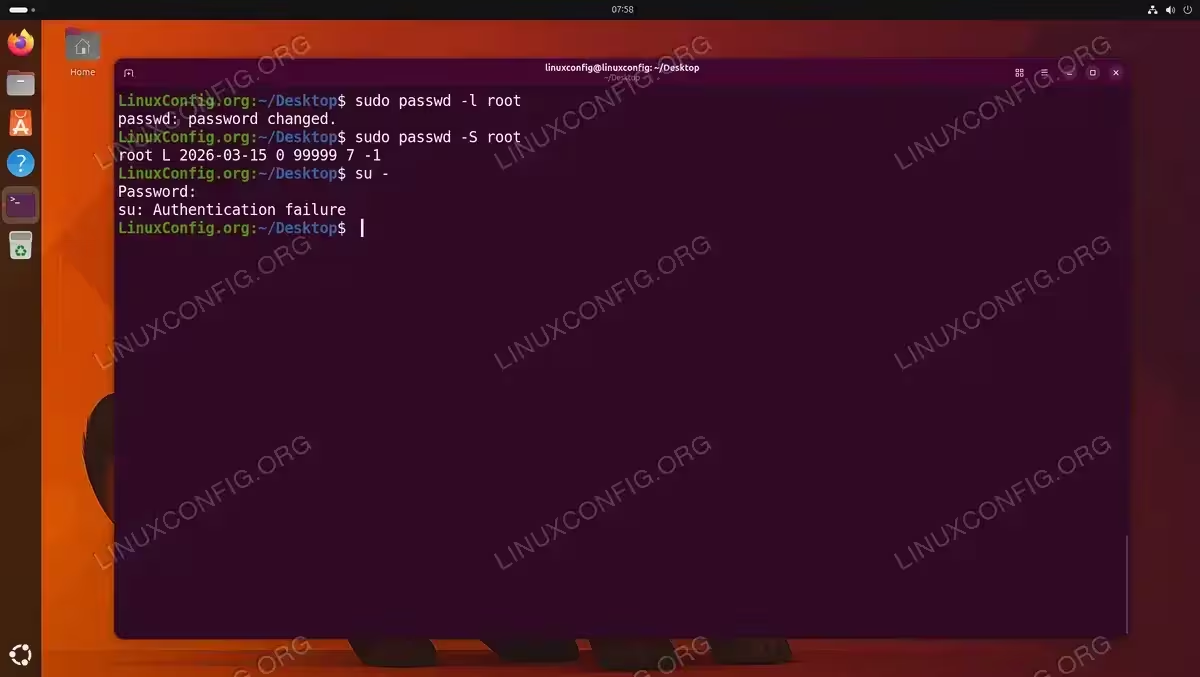
SECURITY ALERT
Locking the root account does not prevent sudo users from gaining root privileges. It only disables direct root login via password authentication. Your sudo-enabled user accounts can still perform administrative tasks normally.
If you need to change the root password in the future, or if you have been locked out entirely and need to reset the root password, refer to the dedicated guides for those procedures.
Security Considerations for Root Password on Ubuntu 26.04
Before deciding to set a root password on your Ubuntu 26.04 system, it is important to understand the security implications. Ubuntu disables the root account by default for good reasons, and keeping it that way is the recommended approach for most users.
Why Ubuntu disables root by default:
The sudo model provides several advantages over a traditional root password setup. First, it maintains an audit trail: every sudo command is logged to /var/log/auth.log, which means you can track exactly who performed which administrative action and when. In contrast, once multiple people know the root password, accountability becomes difficult.
Moreover, sudo allows fine-grained access control. Through the /etc/sudoers file, you can grant specific users access to only certain commands rather than full root privileges. This principle of least privilege reduces the attack surface of your system.
When setting a root password makes sense:
There are legitimate scenarios where having a root password is necessary. For instance, if you need to enable root login for certain services or recovery procedures, a root password is required. Additionally, some automated deployment tools or legacy applications may expect direct root access.
Best practices if you set a root password:
- Use a unique, strong password that is not shared with any user accounts
- Lock the root account immediately after completing the task that required it
- Never enable root login over SSH unless absolutely necessary, and if you do, restrict access by IP
- Consider using
sudo -ias an alternative tosu -since it provides a root shell while maintaining sudo’s audit logging - Regularly review
/var/log/auth.logfor any unauthorized root login attempts
For additional information about root account management, refer to the official Ubuntu Server documentation on user management.
Conclusion
Setting a root password on Ubuntu 26.04 is a straightforward process using the sudo passwd root command. While Ubuntu’s default configuration locks the root account in favor of the sudo model, there are valid use cases for enabling direct root access. Remember to lock the root account with sudo passwd -l root when you no longer need it, and always follow security best practices to keep your system safe.
Frequently Asked Questions
- Does Ubuntu 26.04 have a default root password? No, Ubuntu 26.04 does not come with a root password. The root account is locked by default, and administrative tasks are handled through the
sudocommand. You must explicitly set a root password usingsudo passwd rootif you need one. - What is the difference between su and sudo on Ubuntu 26.04? The
sucommand switches your entire session to the root user and requires the root password. Thesudocommand executes a single command with root privileges using your own user password. Ubuntu recommendssudobecause it provides better audit logging and does not require sharing a root password. - Can I set a root password on Ubuntu 26.04 without sudo access? No, you need an account with
sudoprivileges to set the root password. If you have lost both your sudo access and root password, you will need to boot into recovery mode to regain access. - Is it safe to enable the root account on Ubuntu 26.04? Enabling the root account is generally safe for temporary use, provided you follow security best practices such as using a strong password and locking the account when finished. However, leaving the root account permanently enabled is not recommended, especially on servers accessible from the internet.
- How do I disable the root password on Ubuntu 26.04? To disable the root password and return to Ubuntu’s default state, run
sudo passwd -l root. This locks the root account by prefixing the password hash with!, preventing direct root login while leavingsudofunctionality unaffected.