
When working with systemd commands like hostnamectl, timedatectl, or systemctl, you might encounter the error message “Failed to connect to system scope bus via local transport: No such file or directory”. This error indicates that systemd cannot communicate with the D-Bus system message bus, which is essential for inter-process communication in modern Linux systems. This tutorial will guide you through diagnosing and resolving this issue on Debian-based systems, though the concepts apply to other distributions as well.
In this tutorial you will learn:
- How to diagnose the “Failed to connect to system scope bus” error
- How to check if D-Bus service is running
- How to start and verify D-Bus service
- How to prevent this error in the future
| Category | Requirements, Conventions or Software Version Used |
|---|---|
| System | Any Linux distribution with systemd (Debian 13, Ubuntu, RHEL, etc.) |
| Software | systemd, dbus, dbus-daemon |
| Other | Root or sudo access for service management |
| Conventions | # – requires given linux commands to be executed with root privileges either directly as a root user or by use of sudo command$ – requires given linux commands to be executed as a regular non-privileged user |
Understanding the Error
The system scope bus error occurs when D-Bus service is not running, D-Bus socket is not available, systemd cannot establish communication with D-Bus, or permission issues prevent access to the D-Bus socket. D-Bus (Desktop Bus) is a message bus system that provides a simple way for applications to communicate with one another and with the system. Systemd relies heavily on D-Bus for its operation.
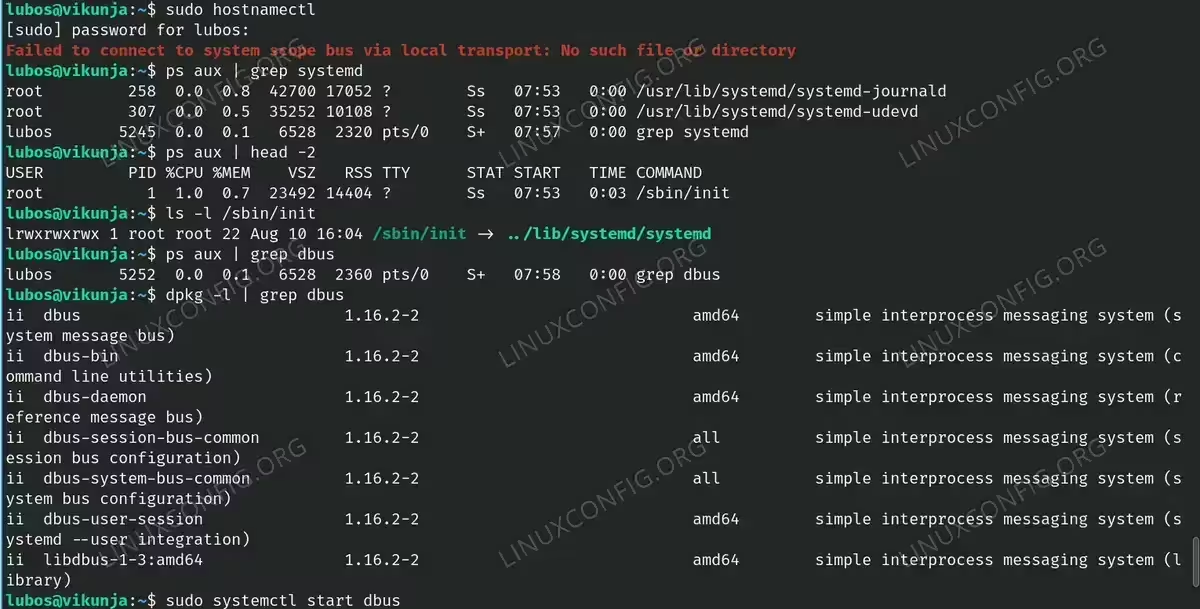
$ hostnamectl
Failed to connect to system scope bus via local transport: No such file or directory
Diagnostic Steps
Before attempting to fix the issue, it’s important to properly diagnose what’s causing the error. Follow these steps to identify the root cause:
- Check if systemd is running: First, verify that systemd is your init system and is running properly
$ ps aux | grep systemd
Expected output should show at least systemd-journald and systemd-udevd processes running.
- Verify PID 1: Check what’s running as PID 1 (the init process)
$ ps aux | head -2
The output should show /sbin/init as PID 1, which confirms systemd is the init system.
- Confirm systemd is the init system: Verify that /sbin/init points to systemd
$ ls -l /sbin/init
Expected output should show a symbolic link pointing to ../lib/systemd/systemd
- Check D-Bus status: The most common cause is D-Bus not running. Check if D-Bus processes are active
$ ps aux | grep dbus
If only grep itself appears in the output, D-Bus is not running and needs to be started.
- Verify D-Bus installation: Ensure D-Bus packages are installed
$ dpkg -l | grep dbus
You should see packages like dbus, dbus-daemon, dbus-system-bus-common, and libdbus-1-3

Entire terminal screenshot of how to fix the ‘Failed to connect to system scope bus’ Error step by step.
Solution
Once you’ve diagnosed that D-Bus is not running, the solution is straightforward:
- Start D-Bus Service: If D-Bus is installed but not running, start it manually
$ sudo systemctl start dbus
This command will start the D-Bus system message bus service immediately.
- Verify the Fix: Test if systemd commands now work
$ hostnamectl
Successful output will display system information including hostname, chassis type, virtualization, and operating system details.
- Check D-Bus Service Status: Verify D-Bus is running properly
$ sudo systemctl status dbus
The output should show “Active: active (running)” and may indicate it’s triggered by dbus.socket
Alternative Solutions
If the basic solution doesn’t work, try these alternative approaches:
- Check for error messages: Review system logs for D-Bus related errors
$ sudo journalctl -xe | grep dbus
This will show recent log entries that might indicate why D-Bus failed to start.
- Reinstall D-Bus packages: If D-Bus is corrupted, reinstall it
$ sudo apt-get install --reinstall dbus dbus-daemon
This will reinstall the D-Bus packages without removing configuration files.
- Check for socket file issues: Verify the D-Bus socket file exists
$ ls -la /var/run/dbus/system_bus_socket
The socket file should exist and be accessible by the system.
Conclusion
The “Failed to connect to system scope bus” error typically occurs when D-Bus is not running. Starting the D-Bus service with systemctl start dbus usually resolves the issue immediately. Since D-Bus is activated through socket activation in modern systemd implementations, it should start automatically on future boots without requiring explicit enabling. To prevent this issue in the future, ensure D-Bus starts at boot, keep system packages updated, and monitor system logs for D-Bus-related errors. For container environments, additional considerations may be needed as containers often run without full systemd support.
