
The objective of this tutorial is to show how to set the system time, as well as the date, on a Raspberry Pi. Whether you need to configure the correct time zone or manually adjust the system clock, knowing how to set time on a Raspberry Pi is essential for proper system operation. Picking the time zone for your Raspberry Pi is usually done during installation of the operating system, and then the system date and time will be automatically synchronized with time servers online, according to the time zone that you have chosen. However, there are situations that can require us to manually configure the date and time, or change the time zone if switching locations. Let’s see how to do it.
In this tutorial you will learn:
- How to set time zone via raspi-config utility
- How to set time on a Raspberry Pi via timedatectl
- How to manually set time and date via
datecommand

| Category | Requirements, Conventions or Software Version Used |
|---|---|
| System | Raspberry Pi OS |
| Software | raspi-config, timedatectl, date |
| Other | Privileged access to your Linux system as root or via the sudo command. |
| Conventions | # – requires given linux commands to be executed with root privileges either directly as a root user or by use of sudo command$ – requires given linux commands to be executed as a regular non-privileged user |
timedatectl, then either enable automatic synchronization with sudo timedatectl set-ntp on or manually set time using sudo date -s "DD MMM YYYY HH:MM:SS". For timezone configuration, use sudo timedatectl set-timezone Region/City or the raspi-config utility.
| Step | Command/Action |
|---|---|
| 1. Check current time and settings | timedatectl |
| 2. Enable automatic time sync (recommended) | sudo timedatectl set-ntp on |
| 3. Or manually set time (if needed) | sudo date -s "10 JAN 2025 12:00:00" |
| 4. Set timezone if needed | sudo timedatectl set-timezone Region/City |
Raspberry Pi set time: timedatectl and date methods
In most cases, when you need to set time on a Raspberry Pi, it just boils down to configuring the proper time zone on the device, and we’ll show you how below. But we will also cover the instructions for manually setting your system clock, in case you have a circumstance that requires you to set a different date or time than official time servers.
- Check current time settings: Open a terminal and type the following command to see what time zone your Raspberry Pi is currently configured for.
$ timedatectl Local time: Fri 2021-01-08 04:33:12 EST Universal time: Fri 2021-01-08 09:33:12 UTC RTC time: Fri 2021-01-08 09:33:11 Time zone: America/New_York (EST, -0500) System clock synchronized: no NTP service: n/a RTC in local TZ: no - List available time zones: List available time zones with the following command. Pick one relevant to your location, and we’ll configure your system to that time zone in the next step.
$ timedatectl list-timezones
Use the grep command to narrow down the search. In the example below this command will produce a list of all available time zones in Australia:
$ timedatectl list-timezones | grep Australia
Australia/Adelaide
Australia/Brisbane
Australia/Broken_Hill
Australia/Currie
Australia/Darwin
Australia/Eucla
Australia/Hobart
Australia/Lindeman
Australia/Lord_Howe
Australia/Melbourne
Australia/Perth
Australia/Sydney
- Configure time zone: Once you’ve picked the correct time zone from the list, use the following syntax to set your system’s time zone.
$ sudo timedatectl set-timezone Australia/Sydney
- Verify the changes: Confirm that the changes have been made with the
timedatectlcommand.$ timedatectl Local time: Sat 2021-01-09 14:15:11 AEDT Universal time: Sat 2021-01-09 03:15:11 UTC RTC time: Fri 2021-01-08 09:46:05 Time zone: Australia/Sydney (AEDT, +1100) System clock synchronized: no NTP service: n/a RTC in local TZ: no - Enable or disable time synchronization: To turn time synchronization on or off, use the respective command below.
$ sudo timedatectl set-ntp on
OR
$ sudo timedatectl set-ntp off
- Set manual date and time: If you’d like to set the system clock to some arbitrary date and time, ensure that time synchronization is off (as we’ve shown in the previous step) and use the following
datecommand. This command will set the date and time to10 January 2021, 12:00 PM, but substitute any values you want.$ sudo date -s "10 JAN 2021 12:00:00"
DID YOU KNOW?
If you later decide to turn time synchronization back on, your manual settings that were configured with thedatecommand will be disregarded in favor of systemd setting the time and date via official time servers online.
Set time zone via raspi-config
In case you need to change the time zone on your Raspberry Pi, the easiest way would be using the built in
raspi-config system utility. Follow the steps below to see how:
- Launch raspi-config: Start by opening a command line terminal and typing:
$ sudo raspi-config
- Navigate to Localisation Options: Next, open the Localisation Options.
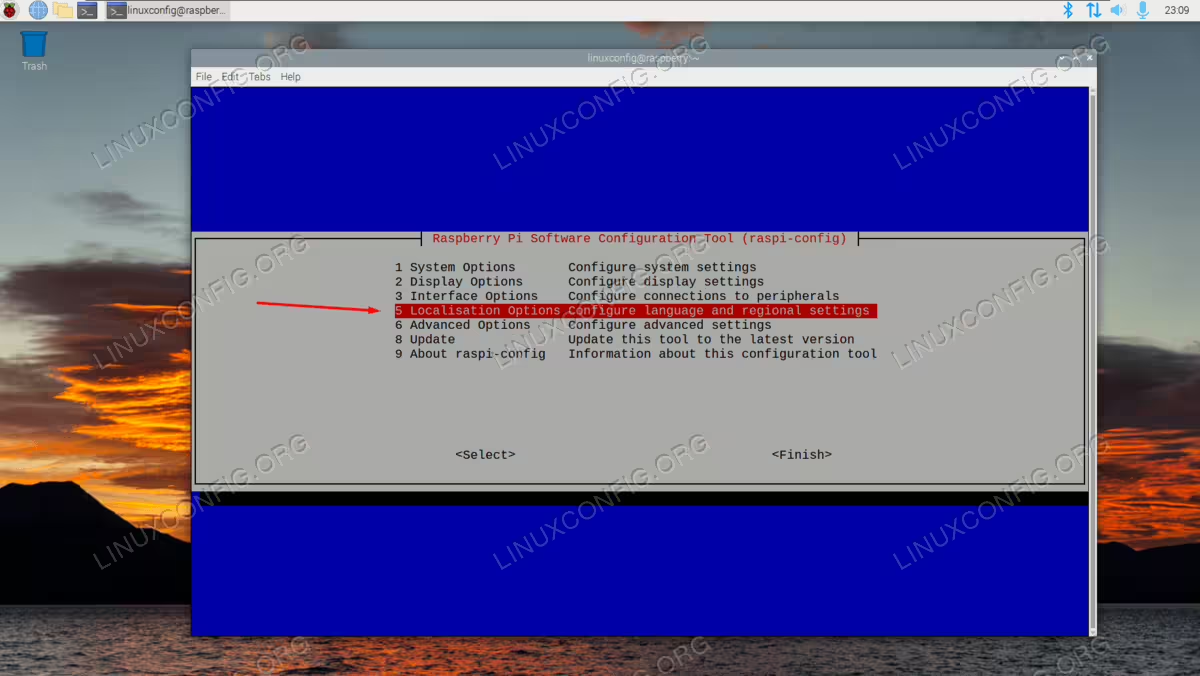
Opening the Localisation Options menu from raspi-config - Select Timezone: Then, proceed into the Timezone menu.
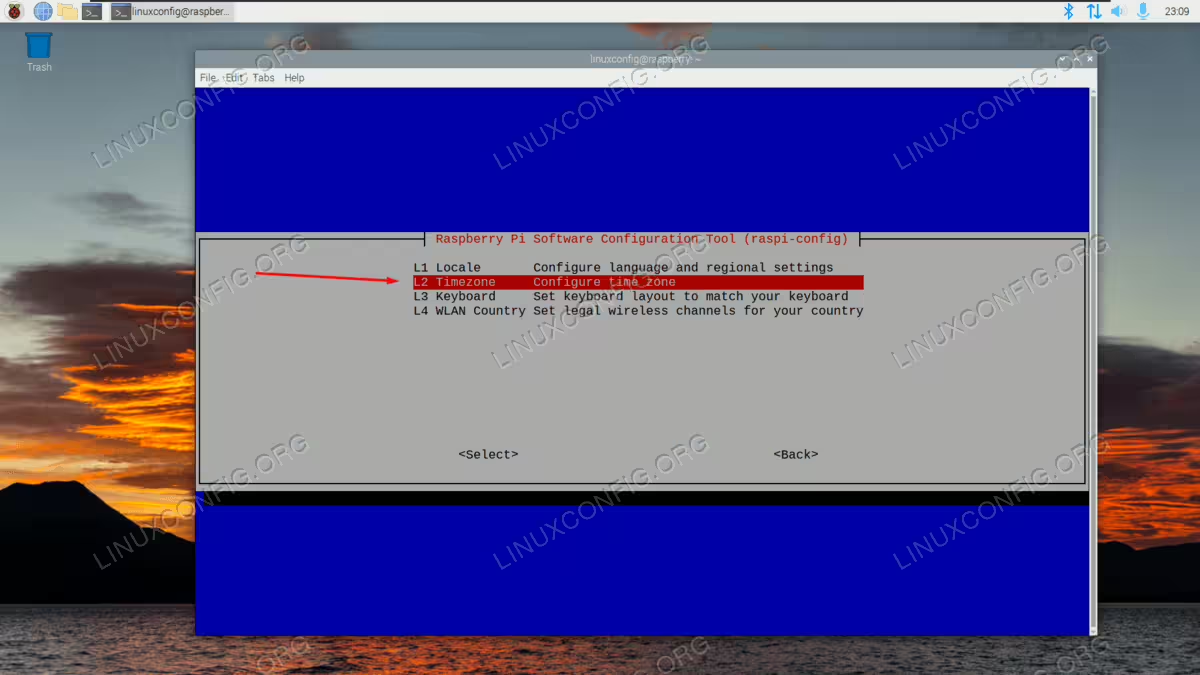
Open the Timezone settings in raspi-config - Choose your region: Choose the general region where your time zone resides, and then we will make a more granular selection next.
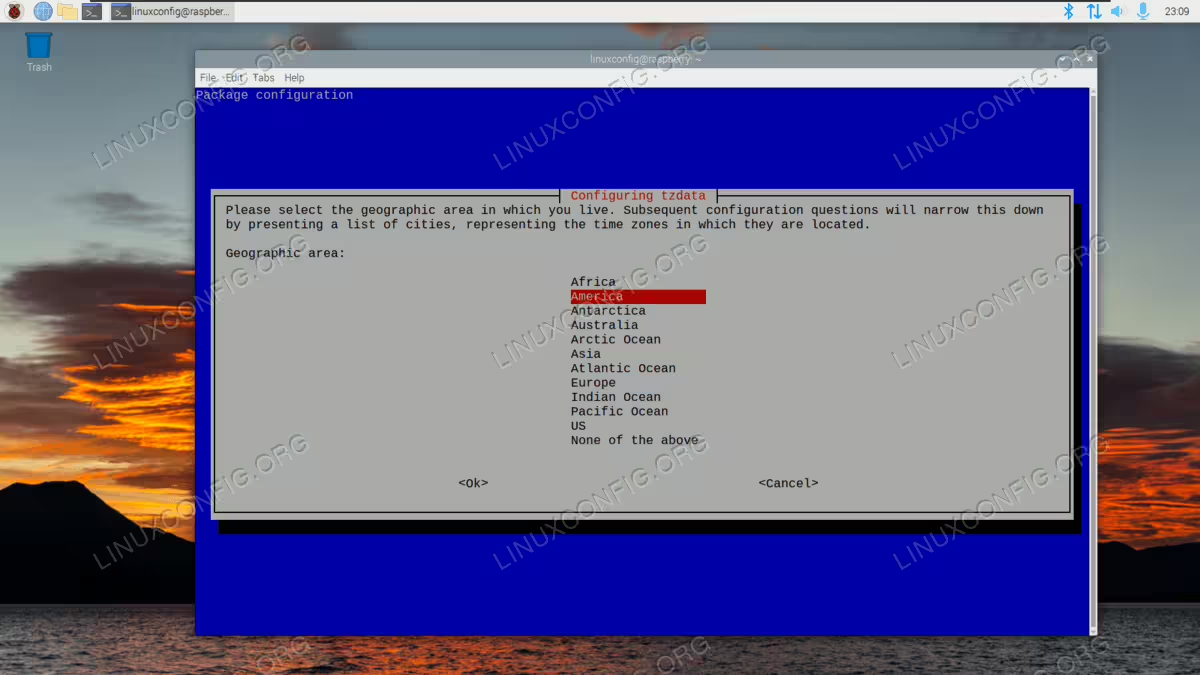
Choose the region for your time zone in raspi-config - Select specific location: Finally, select the city or region that best corresponds to your desired time zone for the Raspberry Pi.
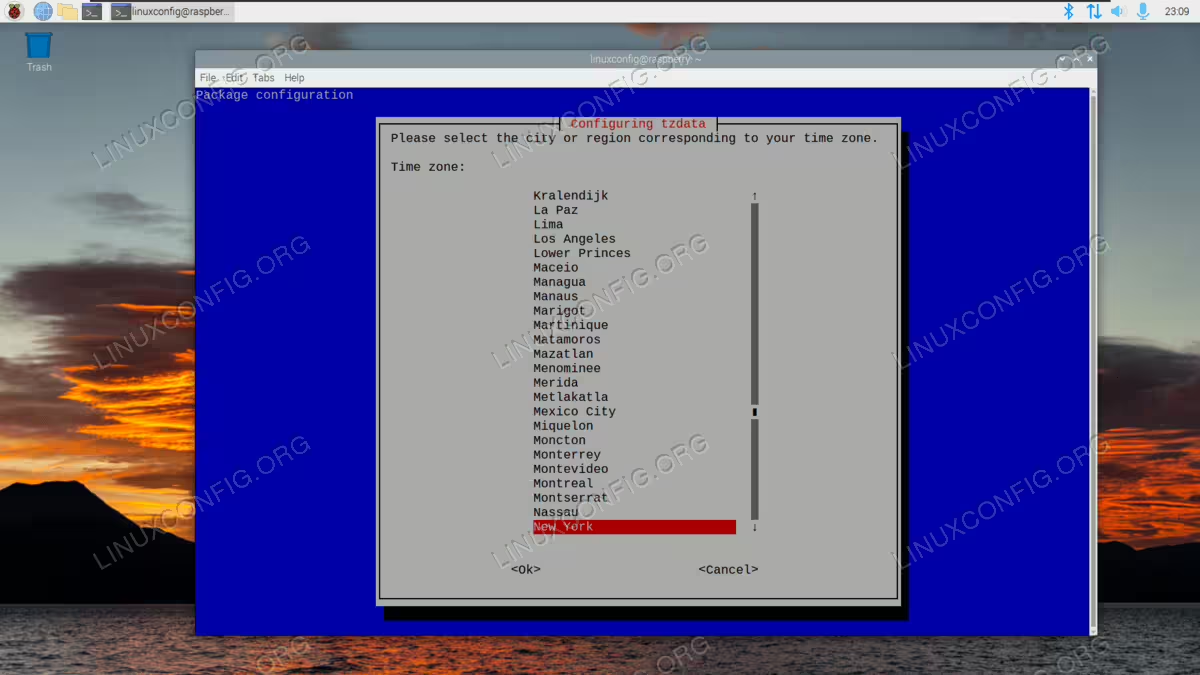
Select the closest city that resides in your desired time zone
Closing Thoughts
In this tutorial, we learned how to set time on a Raspberry Pi using multiple methods. This included changing the time zone via
raspi-config or timedatectl, as well as manually configuring an arbitrary date and time by turning off NTP synchronization and using the date command. For most users, the raspi-config utility will be the easiest way to configure time settings and suffices for almost all scenarios. For more advanced time management options and detailed configuration, refer to the official Raspberry Pi documentation.
Frequently Asked Questions
- Why is my Raspberry Pi time wrong after reboot?The Raspberry Pi does not have a built-in real-time clock (RTC) battery, which means it cannot maintain the time when powered off. When you reboot without an internet connection, the system time resets to the last known time before shutdown. To resolve this issue, ensure your Raspberry Pi connects to the internet during boot so it can synchronize with NTP servers automatically. Alternatively, you can add an external RTC module to maintain accurate time even when offline.
- What is the difference between timedatectl and raspi-config for setting time?Both tools can configure the time zone on your Raspberry Pi, but they offer different interfaces and capabilities. The
raspi-configutility provides a user-friendly menu-driven interface that’s ideal for beginners and can be navigated without memorizing commands. In contrast,timedatectlis a command-line tool that offers more advanced options, including the ability to enable or disable NTP synchronization, set manual time, and query detailed time information. For quick timezone changes, raspi-config is simpler, while timedatectl provides greater flexibility for scripting and advanced configurations. - Can I set time on Raspberry Pi without internet connection?Yes, you can manually set time on a Raspberry Pi without an internet connection using the
datecommand. First, disable NTP synchronization with:$ sudo timedatectl set-ntp off
Then set your desired date and time:
$ sudo date -s "DD MMM YYYY HH:MM:SS"
However, keep in mind that without an RTC module, the Raspberry Pi will lose this time setting after a reboot. For offline projects requiring accurate timekeeping, consider installing a DS3231 or similar RTC module.
- How do I verify if NTP time synchronization is working?To check if your Raspberry Pi is successfully synchronizing time with NTP servers, run the
timedatectlcommand and look for the “System clock synchronized” line. If it shows “yes”, your system is syncing properly. You can also check the NTP service status with:$ timedatectl status
Additionally, the
timedatectl timesync-statuscommand displays detailed information about the current NTP server connection, including the server address and the last synchronization time. If synchronization isn’t working, ensure your Raspberry Pi has internet connectivity and that the systemd-timesyncd service is running. - What happens if I change timezone while programs are running?Changing the timezone on your Raspberry Pi while programs are running is generally safe, but the behavior depends on how applications handle time. Most system services and properly written applications will automatically adjust to the new timezone without issues. However, some running programs may continue using the old timezone until they’re restarted. Database applications, cron jobs, and time-sensitive services might exhibit unexpected behavior if the timezone changes mid-operation. To ensure all applications recognize the new timezone setting, it’s recommended to reboot your Raspberry Pi after making timezone changes, especially if you’re running critical services or scheduled tasks.
