
If you’ve forgotten the root password or a sudo user’s password on your Ubuntu 26.04 system, don’t worry. Performing a root password reset on Ubuntu 26.04 is straightforward using the GRUB bootloader’s recovery mode. This guide walks you through the entire process step by step, so you can regain full administrative access to your system.
Table of Contents
In this tutorial you will learn:
- How root access works on Ubuntu 26.04
- How to reset a forgotten password using GRUB recovery mode
- How to verify the password reset was successful
Software Requirements
| Category | Requirements, Conventions or Software Version Used |
|---|---|
| System | Ubuntu 26.04 Resolute Raccoon |
| Software | GRUB bootloader (default), passwd command |
| Other | Physical or console access to the machine. |
| Conventions | # – requires given linux commands to be executed with root privileges either directly as a root user or by use of sudo command$ – requires given linux commands to be executed as a regular non-privileged user |
passwd to set a new password.
| Step | Command/Action |
|---|---|
| 1. Access GRUB menu | Hold Shift (BIOS) or press Esc (UEFI) during boot |
| 2. Edit boot entry | Press e, change ro quiet splash to rw init=/bin/bash |
| 3. Reset the password | passwd username or passwd root |
| 4. Reboot | exec /sbin/init or reboot -f |
Understanding the Root Password on Ubuntu 26.04
By default, Ubuntu 26.04 does not set a root password during installation. Instead, the first user account created is given administrative privileges through the sudo command. This means that if you forget your user password, you effectively lose all administrative access to the system.
Therefore, when we talk about a root password reset on Ubuntu 26.04, we typically mean resetting the password for your sudo-enabled user account. However, the same procedure also works if you have explicitly set a root password and need to reset it.
IMPORTANT
This procedure requires physical access (or console access for virtual machines) to the machine. It cannot be performed remotely over SSH. If you still have sudo access, you can simply change the root password directly using the passwd command without going through recovery mode.
Reset Password via GRUB Recovery Mode on Ubuntu 26.04
The most common method for a root password reset on Ubuntu 26.04 is through the GRUB bootloader. This approach works on both physical machines and virtual machines, and does not require any external media.
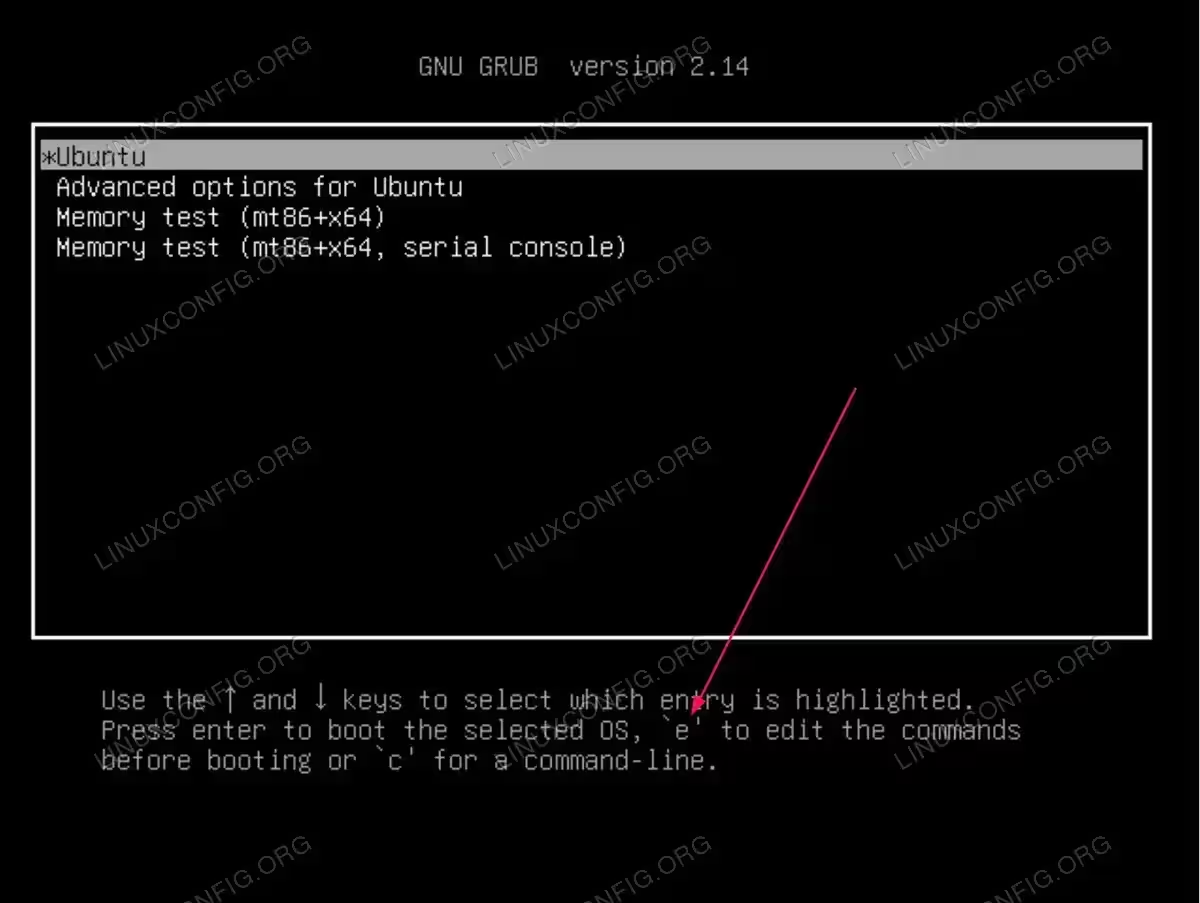
- Access the GRUB boot menu: Reboot your Ubuntu 26.04 system. As the machine starts, hold the
Shiftkey (for BIOS/legacy systems) or press theEsckey (for UEFI systems) to bring up the GRUB menu.TIP
If Ubuntu is the only operating system installed, GRUB may be configured to skip the menu by default. HoldingShiftimmediately after the BIOS/UEFI screen forces the menu to appear. - Edit the boot entry: In the GRUB menu, highlight the default Ubuntu entry (usually the first one) and press
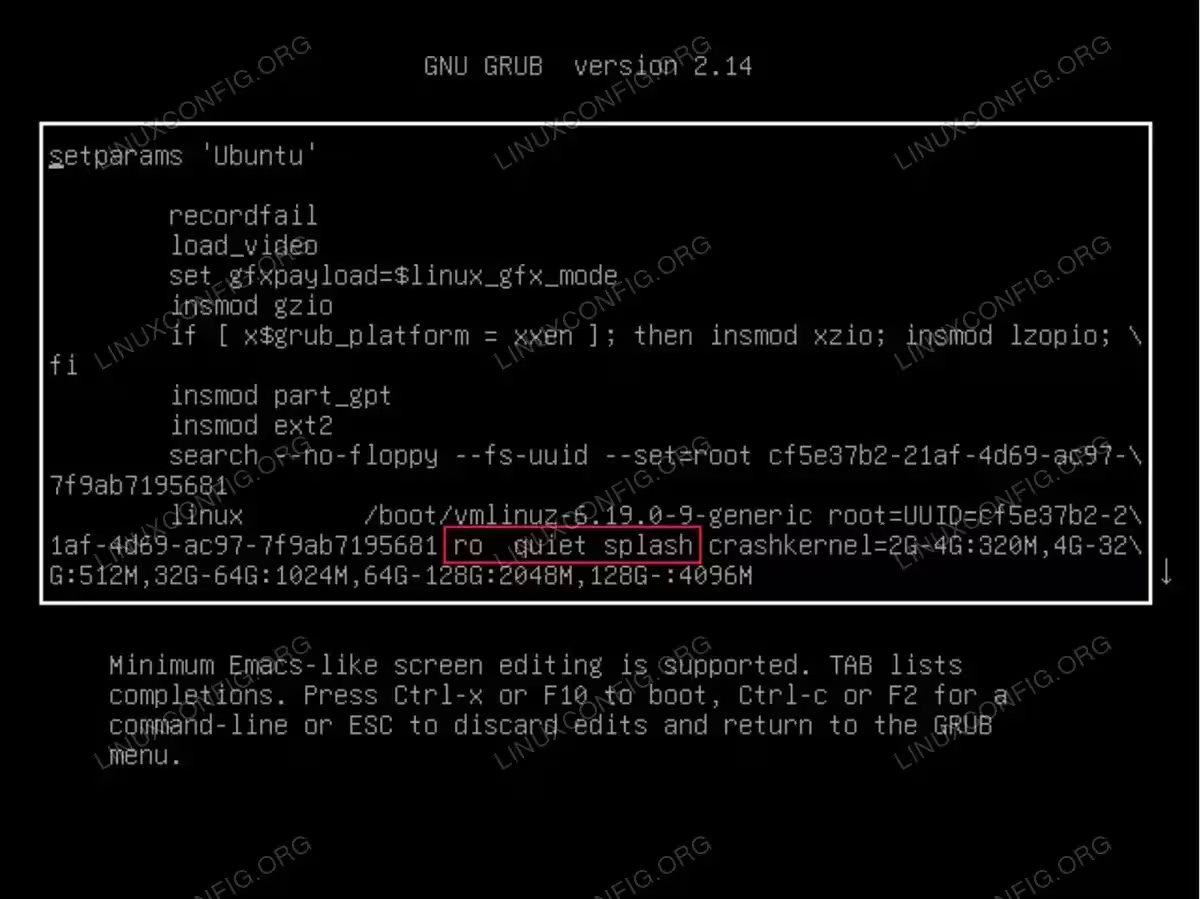
eto edit the boot parameters. Find the line that starts withlinuxand containsro quiet splash.
The GRUB boot menu with the default Ubuntu entry selected. Press ‘e’ to edit the boot parameters. - Modify the kernel boot parameters: On the
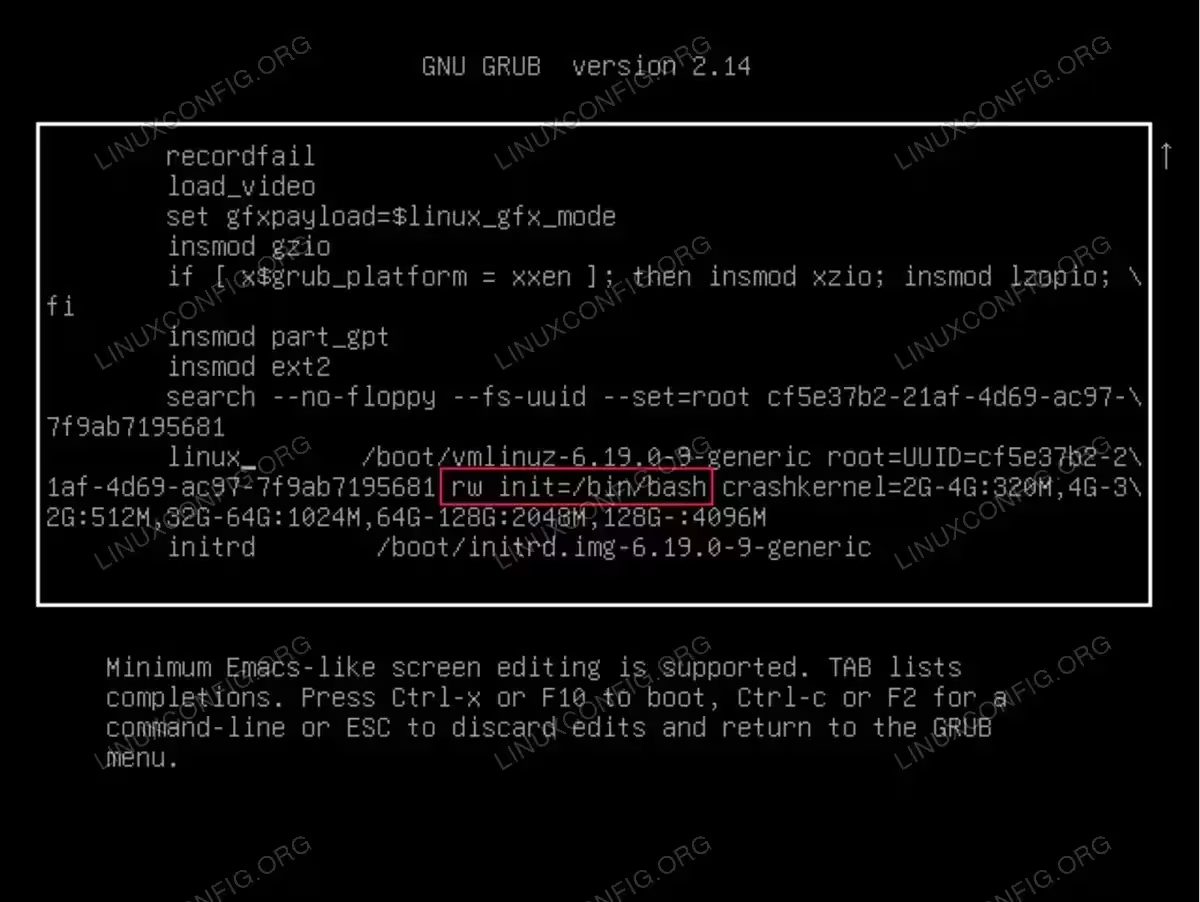
linuxline, replace:ro quiet splashwith:
rw init=/bin/bashThis tells the kernel to mount the root filesystem as read-write (
rw) and to start a bash shell (init=/bin/bash) instead of the normal init system. Consequently, you will boot directly into a root shell without needing any password.
The GRUB editor showing the kernel boot parameters. Locate ro quiet splash(highlighted) on thelinuxline and replace it withrw init=/bin/bash.
The GRUB editor after replacing ro quiet splashwithrw init=/bin/bash(highlighted). PressCtrl+XorF10to boot. - Boot with modified parameters: Press
Ctrl+XorF10to boot with the modified parameters. After a few moments, you will be dropped into a root shell prompt. - Verify the filesystem is writable: Although we specified
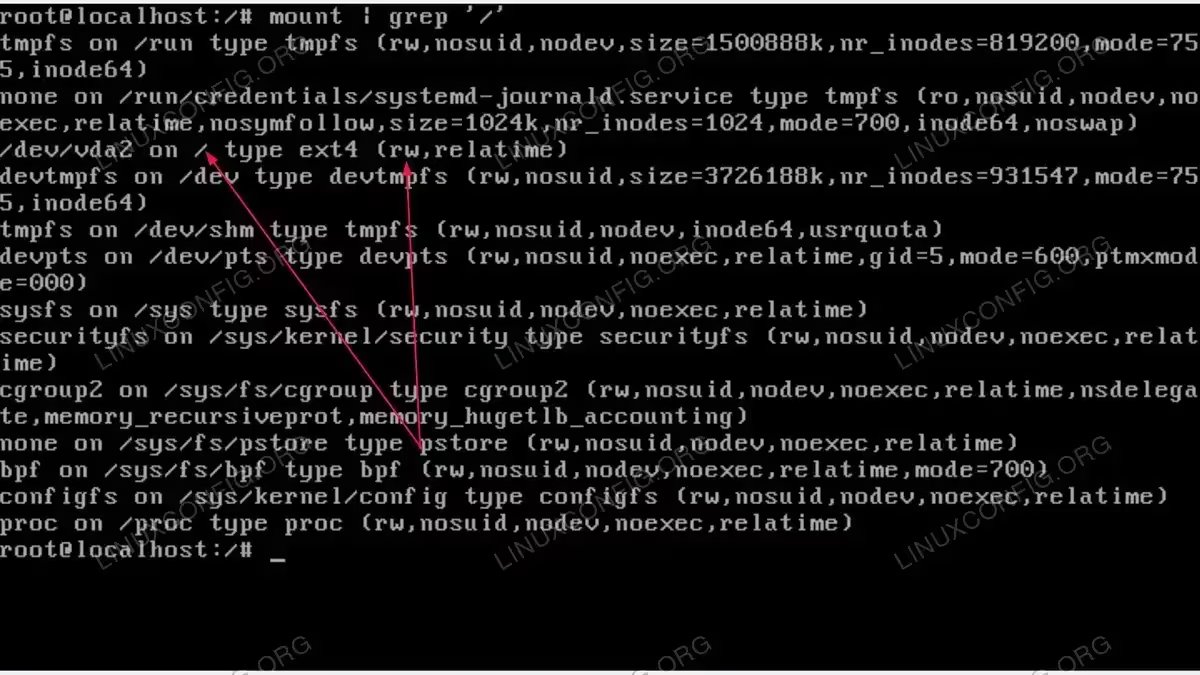
rwin the boot parameters, it is good practice to confirm the root filesystem is mounted as read-write:mount | grep ' / '
Look for
rwin the output.
The root shell after booting with modified GRUB parameters. The mount | grep '/'output confirms/dev/vda2is mounted as read-write (rw).If it shows
roinstead, remount it manually:mount -o remount,rw /
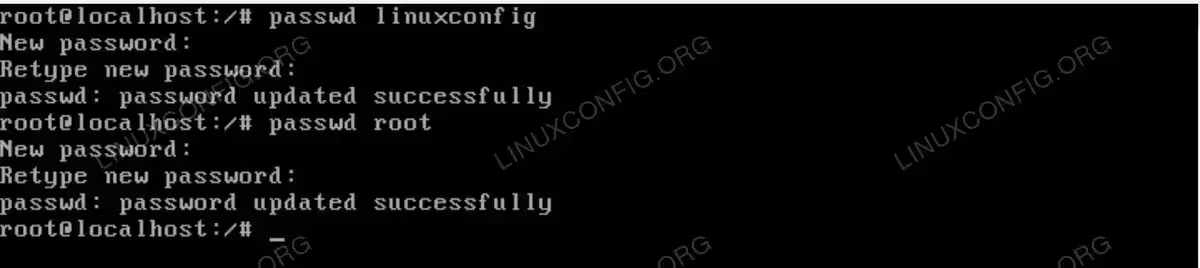
- Reset the password: Now reset the password for the desired account. To reset your regular user’s password (which has sudo privileges):
passwd linuxconfig
Replace
linuxconfigwith your actual username. To reset the root password directly:passwd root
Enter the new password when prompted and confirm it.

Using the passwdcommand to reset both thelinuxconfiguser androotpasswords from the GRUB recovery shell. - Reboot the system: Once the password has been changed, reboot the system:
exec /sbin/init
Alternatively, you can force a reboot:
reboot -f
After the system restarts, you should be able to log in with the newly set password.
Verifying the Password Reset on Ubuntu 26.04
After completing the root password reset on Ubuntu 26.04, verify that everything works correctly.
- Test login: Log in to the system using the new password, either through the graphical login screen or a TTY console (
Ctrl+Alt+F2). - Test sudo access: Confirm that sudo still works correctly for your user:
$ sudo whoami
The output should display
root, confirming your user retains administrative privileges. - Check account status: Verify the account is not locked or expired:
$ sudo passwd -S linuxconfig
The second field should show
P(password set), notL(locked) orNP(no password).
SECURITY RECOMMENDATION
After resetting your password, consider reviewing your system’s security. Anyone with physical access to a machine can use this same procedure to reset passwords. If this is a concern, you can set a GRUB password to protect the bootloader, or use full disk encryption (LUKS) which requires a passphrase at boot time before GRUB can access the kernel.
Conclusion
In this tutorial, we covered how to perform a root password reset on Ubuntu 26.04 using GRUB recovery mode. The process involves editing the kernel boot parameters to drop into a root shell, then using the passwd command to set a new password. This method requires physical or console access to the machine.
Additionally, if you ever need to configure sudo without a password or enable root login directly, we have dedicated guides for those tasks as well. For more information on Ubuntu’s password management, refer to the official Ubuntu Lost Password documentation.
Frequently Asked Questions
- Can I reset a password on Ubuntu 26.04 remotely over SSH? No, the GRUB recovery method requires physical or console access to the machine. If you still have another account with sudo privileges on the system, you can reset any user’s password remotely using
sudo passwd username. Otherwise, you will need direct access to the machine. - Does resetting the root password affect my files or installed software? No, a password reset only changes the authentication credentials for the specified account. All your files, applications, and system configurations remain untouched throughout the process.
- What if the GRUB menu does not appear when I reboot? If holding
Shiftor pressingEscdoes not bring up GRUB, try tapping the keys repeatedly during the early boot phase. On some UEFI systems, you may need to access the firmware settings and adjust the boot order or disable secure boot temporarily. - How can I prevent others from resetting my password using this method? Since anyone with physical access can use GRUB to reset passwords, you can protect your system by setting a GRUB bootloader password or by using full disk encryption with LUKS. Full disk encryption is the stronger option, as it requires a passphrase before the system can even boot.