
Docker is a popular containerization platform used by developers and system administrators to build, ship, and run applications in isolated environments. For Docker to function properly on Linux systems, the Docker daemon must be running. This tutorial covers various methods to start the Docker daemon on Linux distributions and ensure it starts automatically at boot time.
In This Tutorial, You Will Learn:
- How to manually start the Docker daemon
- How to configure Docker to start automatically at boot time
- How to check the Docker daemon status
- How to troubleshoot common Docker daemon startup issues
Software Requirements and Linux Command Line Conventions
| Category | Requirements, Conventions, or Software Version Used |
|---|---|
| System | Any Linux distribution (Ubuntu, Debian, CentOS, Fedora, etc.) |
| Software | Docker CE or Docker EE installed |
| Other | Root privileges or sudo access |
| Conventions | # – Requires commands to be executed with root privileges, either directly as root or using sudo.$ – Requires commands to be executed as a regular non-privileged user. |
Start Docker Daemon on Linux
IMPORTANT NOTE
The methods to start the Docker daemon may vary slightly depending on your Linux distribution and init system (systemd, SysVinit, Upstart). This tutorial covers the most common approaches.
The Docker daemon (dockerd) is the persistent process that manages containers on your Linux system. Starting and managing this daemon is essential for working with Docker containers and images. Let’s explore various methods to control the Docker daemon on Linux systems.
How to start, enable and restart docker daemon examples
- Starting Docker daemon using systemd: Most modern Linux distributions use systemd as their init system.
$ sudo systemctl start docker
This command starts the Docker daemon immediately. If the service starts successfully, there will be no output. You can verify the service is running with the status command described in step 3.
- Enabling Docker to start at boot time: To ensure Docker starts automatically when your system boots.
$ sudo systemctl enable docker
This command creates the necessary symbolic links to start Docker during system boot. You should see output indicating that the symlinks were created successfully.
- Checking Docker daemon status: To verify that the Docker daemon is running properly.
$ sudo systemctl status docker
This command shows the current status of the Docker service, including whether it’s active (running), enabled at boot, and recent log entries. Look for “Active: active (running)” to confirm the daemon is running correctly.
- Starting Docker on older distributions (SysVinit): For Linux distributions using the older SysVinit system.
$ sudo service docker start
This command starts the Docker daemon on systems using SysVinit. You can similarly use “docker status” to check if it’s running.
- Starting Docker daemon manually: In rare cases, you might need to start the daemon directly.
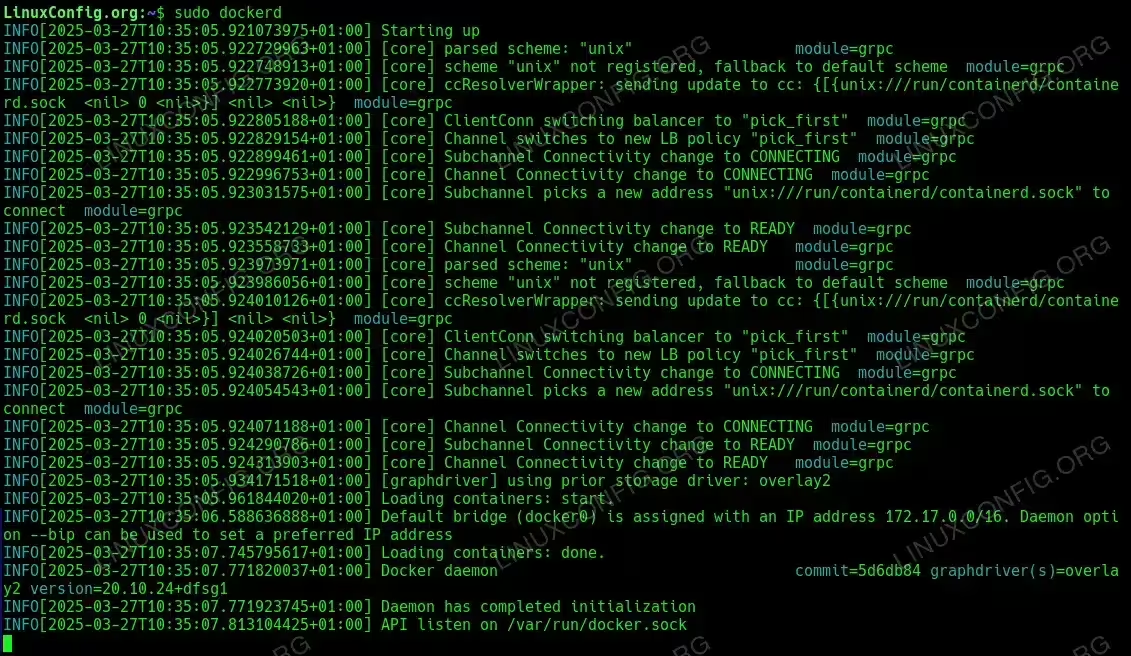
$ sudo dockerd
This command starts the Docker daemon in the foreground. Note that this will display all logs to the terminal and the process will stop if you close the terminal. This method is primarily for debugging purposes.

Starting Docker Manually for debugging purposes - Restarting the Docker daemon: If you need to restart the Docker service after making configuration changes.
$ sudo systemctl restart docker
This command stops and then starts the Docker daemon, applying any configuration changes you’ve made to the Docker daemon configuration files.
TROUBLESHOOTING DOCKER DAEMON ISSUES
If Docker fails to start, check the system logs for errors using:
journalctl -u docker.service on systemd-based systems or less /var/log/docker.log on some other distributions. Common issues include permission problems, port conflicts, or storage driver issues.
Conclusion
Starting and managing the Docker daemon is a fundamental skill for working with containers on Linux. Using systemd commands like “systemctl start docker” and “systemctl enable docker” are the most common methods for modern Linux distributions. Remember that Docker commands require root privileges or a user with sudo access who belongs to the docker group. If you encounter issues, checking the service status and system logs should provide the information needed to resolve them.
Frequently Asked Questions (FAQ)
-
How do I stop the Docker daemon?
To stop the Docker daemon, use the command
sudo systemctl stop dockeron systemd-based distributions orsudo service docker stopon SysVinit-based systems. Note that stopping the daemon will terminate all running containers unless you’ve configured them with restart policies. -
Why does Docker fail to start after installation?
Common reasons include missing dependencies, conflicts with other container technologies (like podman or LXC), incorrect file permissions, or insufficient system resources. Check the system logs with
journalctl -u docker.serviceto identify specific errors. Make sure your user is in the “docker” group, and that you’ve logged out and back in after adding your user to the group. -
How can I modify the Docker daemon configuration?
Docker daemon configuration is managed through the
/etc/docker/daemon.jsonfile. You can specify options like the default storage driver, registry mirrors, or network settings in this JSON file. After making changes, restart the daemon withsudo systemctl restart dockerto apply them. If the daemon fails to start after configuration changes, check the syntax of your JSON file. -
Can I run Docker without root privileges?
Yes, but you need to add your user to the “docker” group. Run
sudo usermod -aG docker $USER, then log out and back in for the changes to take effect. The Docker daemon itself runs with root privileges, but users in the docker group can interact with it without using sudo for each command. -
What’s the difference between ‘docker’ and ‘dockerd’ commands?
The
dockercommand is the client utility that sends commands to the Docker daemon. Thedockerdcommand directly starts the Docker daemon process. Normal users typically use only the docker client commands, while system administrators might need to work with dockerd for advanced configuration or troubleshooting.
