
In This Tutorial, You Will Learn:
- How to use the docker logs command for capturing output
- Best practices for logging in Docker containers
- How to analyze logs for debugging purposes
Software Requirements and Linux Command Line Conventions
| Category | Requirements, Conventions, or Software Version Used |
|---|---|
| System | Linux, macOS, or Windows with WSL2 |
| Software | Docker installed (version 19.03 or higher) |
| Other | A text editor for reviewing log files (optional) |
| Conventions | # – Requires commands to be executed with root privileges, either directly as root or using sudo.$ – Requires commands to be executed as a regular non-privileged user. |
Capturing and Analyzing Logs from Docker
UNDERSTANDING DOCKER LOGS
Docker captures the output (stdout and stderr) of your containers, which can be accessed using commands to help debug any issues.
This section will provide you with step-by-step instructions on how to capture and analyze logs when running Docker containers. Effective log management is critical in identifying and fixing issues swiftly.
Step-by-Step Instructions
- Run a Docker Container in Detached Mode: Start a container in the background while exposing necessary ports.
$ docker run -d --name linuxconfig -p 8888:80 httpd
Here,
httpdis the Apache HTTP Server image,linuxconfigis the name assigned to the container, and port 8888 on the host is mapped to port 80 in the container. The-doption runs the container in detached mode. - View Container Logs: Access the logs of your running container to monitor its output.
$ docker logs linuxconfig
This command displays all logs generated by the container since it started.
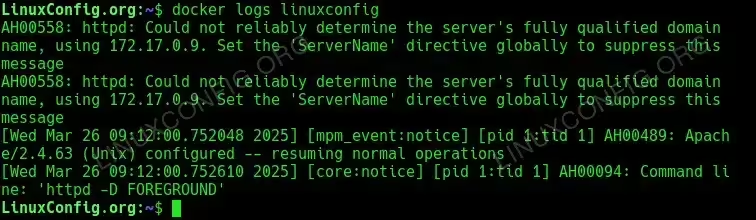
Basic docker command to view container Logs - Follow Real-time Logs: Monitor logs continuously as they are generated.
$ docker logs -f linuxconfig
The
-f(or--follow) option keeps the command running and displays new log entries as they occur, similar to usingtail -fon a log file.
Docker Logs Command Examples
Docker provides powerful logging capabilities that help developers troubleshoot issues and monitor container behavior. The following examples demonstrate various techniques for capturing, filtering, and analyzing container logs. From basic commands to advanced configurations, these examples cover a wide range of scenarios to help you effectively debug your containerized applications.
- Basic Log Retrieval: Get all logs from a container.
$ docker logs linuxconfig
This shows all logs generated since the container started running.
- Real-time Log Monitoring: Follow logs as they are generated.
$ docker logs --follow linuxconfig
Displays logs and continues to stream new output until you press Ctrl+C.
- Limiting Log Output: Retrieve only the most recent logs.
$ docker logs --tail=50 linuxconfig
Shows only the last 50 log lines, useful for containers with extensive logs.
- Viewing Logs with Timestamps: Display logs with time information.
$ docker logs --timestamps linuxconfig
Each log line is prefixed with its timestamp for better tracking of events.
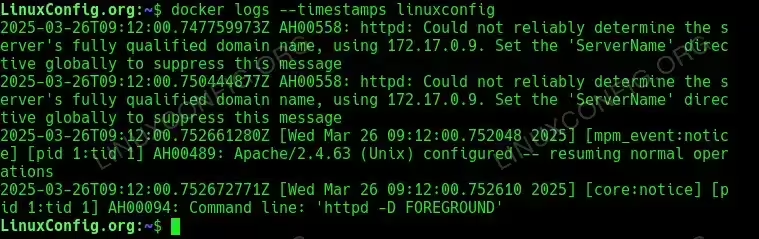
Viewing Logs with Timestamps - Capturing Time-bounded Logs: Get logs within a specific timeframe.
$ docker logs --since="2023-03-15T10:00:00" --until="2023-03-15T11:00:00" linuxconfig
Shows only logs generated within the specified time period.
- Relative Time Filtering: View logs from the last few minutes or hours.
$ docker logs --since=30m linuxconfig
Displays logs from the last 30 minutes. You can use s (seconds), m (minutes), h (hours), or d (days).
- Saving Logs to a File: Redirect logs to a file for further analysis.
$ docker logs linuxconfig > container_logs.txt 2>&1
Saves all container logs to a text file that can be shared or analyzed with other tools.
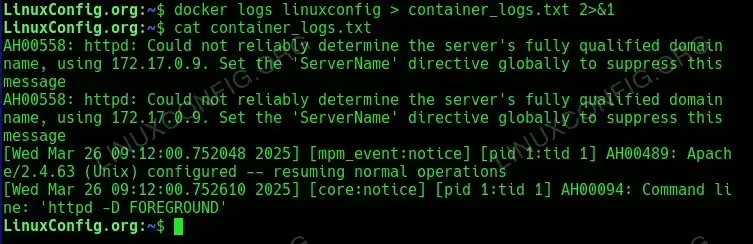
Saving Docker Container Logs to a File - Filtering Logs with grep: Search for specific patterns in logs.
$ docker logs linuxconfig 2>&1 | grep ERROR
Shows only log lines containing the word “ERROR”, making it easier to identify problems.
- Monitoring Multiple Containers: Use Docker Compose to see logs from a service stack.
$ docker-compose logs -f
When working with multiple containers defined in a Docker Compose file, this command shows logs from all services.
- Advanced Debugging with Log Drivers: Configure a container to use a specific logging driver.
$ docker run -d --name debug-container --log-driver=json-file --log-opt max-size=10m --log-opt max-file=3 nginx
Uses the JSON file driver with rotation settings, limiting log files to 10MB and keeping a maximum of 3 files.
- View Logs from a Stopped Container
$ docker logs my_old_container
Docker retains logs even if the container has stopped, unless removed.
- Use JSON Logging Driver (when starting container)
$ docker run -d --name jsonlogger --log-driver=json-file httpd
Uses the default `json-file` log driver; logs can be inspected with
docker logs. - Use a Custom Logging Driver (e.g., syslog)
$ docker run -d --name syslogger --log-driver=syslog httpd
Useful for sending logs to centralized systems (Syslog, Fluentd, etc.).
- Inspect Log Driver Settings
$ docker inspect --format='{{.HostConfig.LogConfig.Type}}' linuxconfigReturns the log driver currently used by the container.

Inspect Log Driver Settings – In this case the container is set to json-file driver - Analyzing Container Events: Track container lifecycle events.
$ docker events --filter container=linuxconfig
Shows events related to the container, such as starts, stops, or health status changes.
BEST PRACTICES
Consider using a centralized logging solution or a logging driver. Docker supports several logging drivers, including json-file and fluentd, which can help aggregate logs for easier querying.
Conclusion
Consistently capturing and analyzing logs from Docker containers is essential for effective debugging and issue resolution. By leveraging Docker’s native logging capabilities, you can gain valuable insights into your applications’ behavior and maintain efficient operations.
Remember to explore additional tools or frameworks that enhance logging effectiveness, such as Fluentd or ELK stack integration.
Frequently Asked Questions (FAQ)
-
Can I persist logs even if a container restarts?
Yes, using logging drivers such as json-file can help persist logs, making them available after container restarts.
-
What log formats does Docker support?
Docker primarily uses JSON format for logs but supports various logging drivers that can accommodate different formats, such as syslog or journald.
-
How do I view logs for all containers at once?
Use
$ docker logs $(docker ps -q)to fetch logs from all running containers if you want to analyze them collectively. -
Can I filter logs by specific keywords?
Yes, you can use grep with the logs command to filter relevant information. For example,
$ docker logs my_container | grep "ERROR".