
As Windows users migrate over to a Linux system, one of the first questions that arises is “what is the ipconfig Linux equivalent command?” Much like Microsoft Windows, any Linux system can output all manner of information regarding the IP address and interface configuration via the command line. In this tutorial, you will learn how to use the ip command, which is like the Linux version of the Windows ipconfig command.
From time to time, you may also see references to the ifconfig Linux command. Keep in mind that this command has been deprecated and replaced by the ip Linux command, which you will learn all about below. Let’s get started!
In this tutorial you will learn:
- How to use the Linux ipconfig command equivalent (the
ipcommand)

| Category | Requirements, Conventions or Software Version Used |
|---|---|
| System | Any Linux system |
| Software | N/A |
| Other | Privileged access to your Linux system as root or via the sudo command. |
| Conventions |
# – requires given linux commands to be executed with root privileges either directly as a root user or by use of sudo command$ – requires given linux commands to be executed as a regular non-privileged user |
Linux ipconfig equivalent
As a Windows user, or former Windows user, you usually execute the
ipconfig command to see IP addresses and related network information for all the interfaces on your system.
In Linux, the equivalent command is ip. You may also see the ifconfig command mentioned in some guides online, but that command has been deprecated and superseded by ip. All modern and up to date systems will use the ip command.
Check out some of the examples below to get acclimated with the ip command.
- The
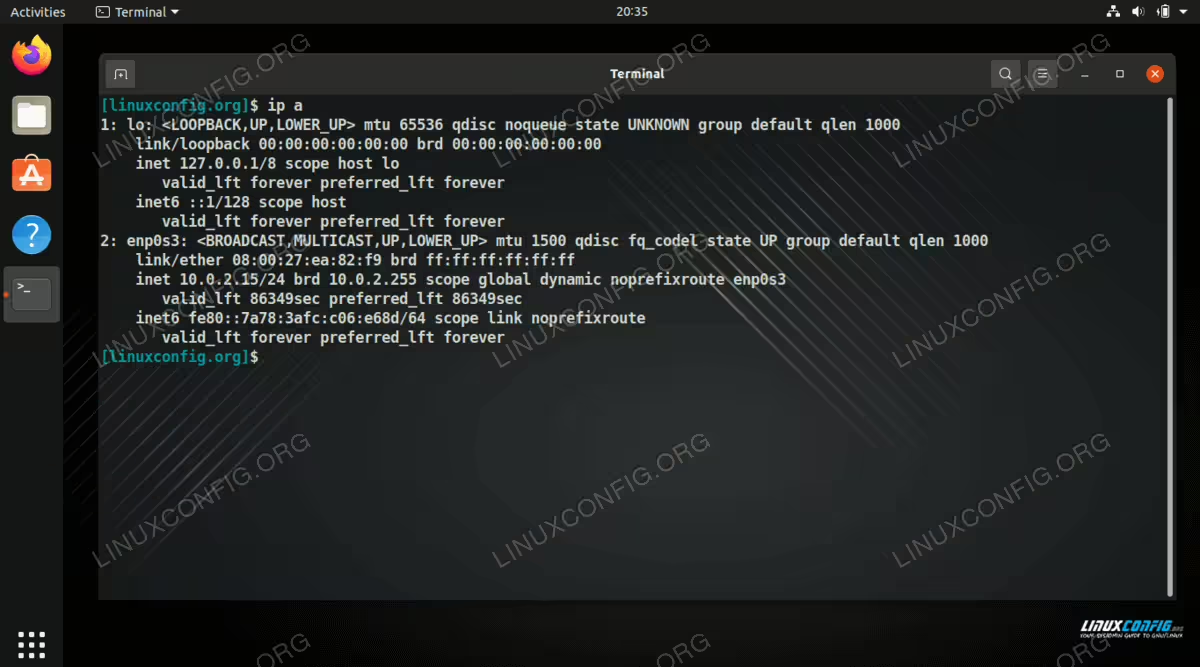
ipconfig /allcommand on Windows can be translated toip addressor simplyip afor short on Linux systems.$ ip a

Output of the ip a command on Linux (equivalent to ipconfig /all on Windows) - To display default gateway IP address, which is usually shown with
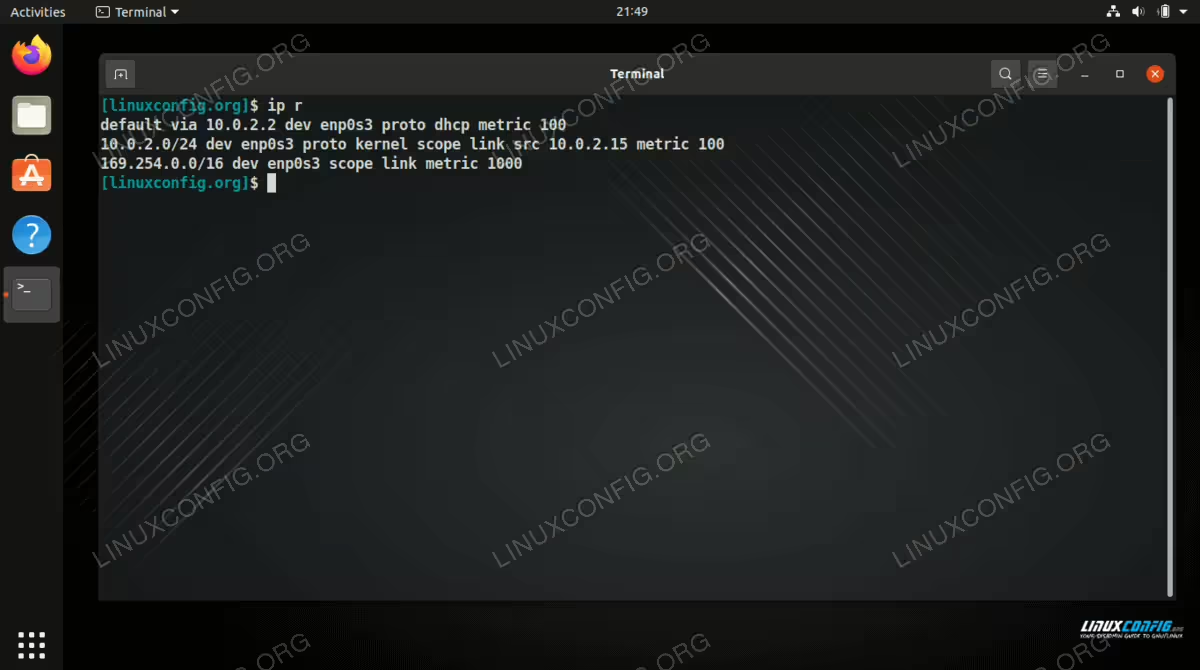
ipconfig /allon Windows, run theip rcommand on Linux.$ ip r

Viewing the default gateway on Linux - Show only the IPv4 or IPv6 addresses with the
-4or-6switch, respectively.$ ip -4 a OR $ ip -6 a
- If you want to show network information for a specific interface, just specify the name of that interface in your command. For example, this command will display information for the
enp0s3interface.$ ip a show enp0s3
- To show information only for active interfaces, and omitting information for the down interfaces, use the following command.
$ ip link ls up
- To assign an IP address to a particular interface, you can use the following command syntax. In this example, we will set IP address
192.168.1.150with subnet mask255.255.255.0on to interfaceenp0s3.$ sudo ip a add 192.168.1.150/255.255.255.0 dev enp0s3
- Similarly, you can remove the previous IP address from the interface with the same syntax but with the
deloption. In this example, we are using standard slash notation/24to represent our subnet mask.$ sudo ip a del 192.168.1.150/24 dev enp0s3
- Use the following command syntax to enable (put up) a network interface. This example will put the
enp0s3interface up.$ sudo ip link set enp0s3 up
- Use the following command syntax to disable (put down) a network interface. This example will put the
enp0s3interface down.$ sudo ip link set enp0s3 down
You can always use the man command to read more about the ip command and its official documentation. Click the previous link to see how to open the manual pages for any command on a Linux system.
Closing Thoughts
In this tutorial, we learned all about the ipconfig Linux equivalent command, which is ip. There is a lot of overlap between the ipconfig command on Windows and the ip command on Linux, so users should already have a jumpstart in understanding the ins and outs of Linux network configuration. You will find, though, that Linux has much more command options to learn and allows for much more granular control.
