
LaTeX is a typesetting system and markup language. It has many uses, but is most well known for creating scientific or mathematic documents, and is heavily used in academia and other research fields. LaTeX is popular because it can create polished documents with complex characters and formulas that would otherwise be difficult and time consuming to create in an ordinary text editor. You need to be a little familiar with LaTeX markup language to create these documents, but it is intuitive enough that most users will find themselves picking it up quickly.
In this tutorial, you will see how to install LaTeX on all major linux distros. We will also go over some basic usage so that you can get started with using the markup language to create documents. While the LaTeX language can be written in any type of text editor, it is necessary to use a compiler to interpret the markup and convert it to a human readable document, like a PDF. We will look at several applications that can help us do this.
DID YOU KNOW?
LaTeX is often used in book publications and articles. It is also used by the Wikimedia Foundation, so if you have ever visited a Wikipedia page that had some mathematical formulas nicely presented with the proper notation – that is LaTeX!
In this tutorial you will learn:
- How to install a LaTeX system on all major Linux distros
- How to install a LaTeX IDE
- How to install the LaTeX extension in Visual Studio Code
- How to compile a LaTeX document into a PDF file
- Language basics of the special characters that LaTeX uses

| Category | Requirements, Conventions or Software Version Used |
|---|---|
| System | Any Linux distribution |
| Software | texlive (LaTeX implementation), texworks, texmaker, LaTeX extension for VS Code |
| Other | Privileged access to your Linux system as root or via the sudo command. |
| Conventions |
# – requires given linux commands to be executed with root privileges either directly as a root user or by use of sudo command$ – requires given linux commands to be executed as a regular non-privileged user |
How to Install LaTeX on Linux
To install LaTeX, we will will download and install the texlive package from official software repositories. This is one such implementation of LaTeX, certainly not the only one, but it is probably the most popular choice for getting LaTex up and running on Linux distributions.
You can use the appropriate command below to install texlive with your system’s package manager.
To install texlive on Ubuntu, Debian, and Linux Mint:
$ sudo apt update
$ sudo apt install texlive
To install texlive on Fedora, CentOS, AlmaLinux, Rocky Linux, and Red Hat:
$ sudo dnf install texlive
To install texlive on Arch Linux and Manjaro Linux:
$ sudo pacman -S texlive
Optional: Install a LaTeX Editor
Now that LaTeX is installed, we can get started with typesetting documents. However, some users may prefer to use a text editor that is dedicated to LaTeX formatting. This part is not necessary, but we can install an IDE (Integrated Development Environment) to make working with LaTeX code more streamlined.
Here are some options:
- texworks – a lightweight IDE for LaTeX
- texmaker – a robust and feature rich IDE for LaTeX
- Visual Studio Code LaTeX Extension – an extension that allows VS Code to support LaTeX syntax highlighting and can compile documents
Other LaTeX editors which deserve at least a brief mention are LyX and Kile. Both of these are beefier projects that come with a lot of templates so you do not have to worry about repeating some of the most common markup that you are likely to use in your LaTeX documents.
Install a LaTeX IDE
If you want to install either of the first two editors, which are dedicated LaTeX IDEs, the commands for installing them are straightforward. Just use the appropriate command below that corresponds to your system’s package manager:
$ sudo apt install texworks texmaker
$ sudo dnf install texworks texmaker
$ sudo pacman -S texworks texmaker
Install VS Code LaTeX Extension
For those that enjoy using Visual Studio Code for their development projects, you can enable LaTeX syntax highlighting and the ability to compile LaTeX documents by installing the LaTeX Workshop extension. Follow the step by step instructions below to enable the extension for your environment:
- Open VS Code and click on the Extensions menu as indicated in the screenshot below.

Click on this icon to open the Extensions menu in VS Code - Type
latexinto the search menu and then clickInstallon the result that shows up called LaTeX Workshop.
Click the button from search results to begin installing LaTeX Workshop - The LaTeX Workshop extension will finish installing, and then you will be able to create LaTeX documents inside of VS Code. Open a file that has the
.texfile extension, then click on theTeXicon on the left side pane. You will be able to see your document in LaTeX syntax highlighting and compile the document directly from the VS Code menus.Using LaTeX inside of Visual Studio Code


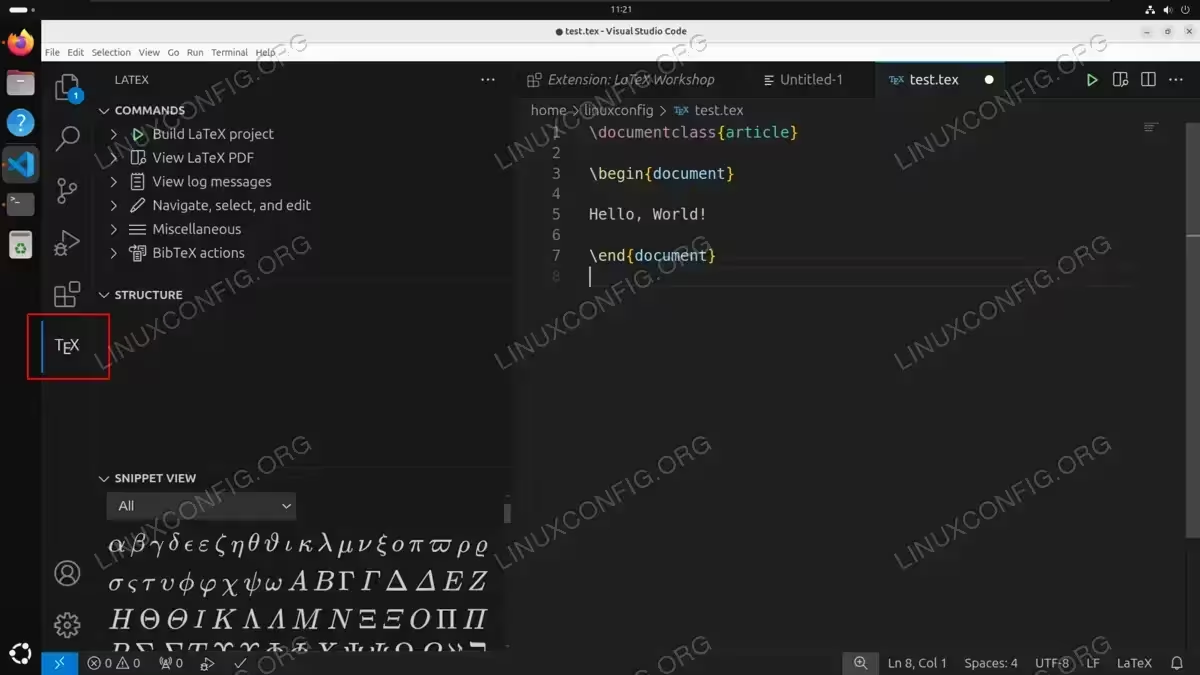
Get Started Using LaTeX on Linux
At this point, we have a LaTeX system installed in the form of texlive. And you had the option to install a dedicated LaTeX IDE as well, but that part is not strictly necessary for typesetting documents. If you did not install an IDE or the VS Code extension, then you can use a simple text editor like gedit, nano, vim, or many others to create some LaTeX markup.
Let’s see how to use LaTeX by creating an example document. We will skip the traditional “Hello World” example and see something more useful and unique to LaTeX, which is displaying formulas with the correct notation and styles. Get started by opening a text editor or LaTeX IDE. Then, paste the following text to create a simple mathematical formula:
\documentclass[a4paper,12pt]{article}
\begin{document}
$PV = \frac{FV}{(1+\textit{i})^n}$
\end{document}
You can save this markup as document.tex and then use the following command to convert it to PDF:
$ pdflatex document.tex
However, if you are using a LaTeX IDE, then you should be able to save and compile the document in the editor itself. In the case of TeXworks, you can click the Play button at the top left of the window to save the document and open it in PDF all at the same time.

Regardless of whether you used the pdflatex command our an IDE to convert the markup to PDF, you should get the following as the end result:

LaTeX Language Basics
After following along with the example above, you have some idea how to create a LaTeX document, but it is hard to get a sense of how the markup language works without having some information what the different characters represent in the LaTeX language.
Here is a table that goes over some of the characters that have a special meaning in LaTeX markup:
| Character | Description |
|---|---|
| \ | Backslahses usually indicate the beginning of a control sequence such as a formula or a specific symbol such as \alpha. They can also be used as escape characters (just like in Bash). |
| { } | Curly braces are used to group characters together, such as FV in our \frac{FV} markup example. |
| $ | Dollar signs indicate switching between normal text and text representing mathematical formulas, therefore you will always need to use them at the beginning and end of your formulas. |
| _ | Underscores are used for subscripts. If you need to write an actual underscore, it would need escaped first, \_ |
| ^ | Carats are used for superscripts (e.g., exponents). |
| % | Percent signs are used for comments. Text proceeding a percent sign will not be rendered on the document. |
Advanced LaTeX Example
Referring to the table above will help you learn some of the basics of the LaTeX markup language, but seeing these characters used in a real document will really help this knowledge sink in. Try out the following example in your LaTeX IDE or text editor. This is a quick page discussing valuation of FCFs and determining present value of capital with constant or variable growth:
\documentclass[a4paper,12pt]{article}
\begin{document}
\pagestyle{headings}
\markright{Valuation}


Valuation of Money is a concept the refers to the future value of
current capital. We can apply this concept to Free Cash Flows
(FCFs). The formula for FCF Valuation is as follows:

\[ \sum_{i=1}^\infty = \frac{FCF_i}{(1+WACC)^i} \]
\\
where:\\

$FVF_c =$ is the sum of all future cash flows of a company

$FVF_i =$ is the estimated fcf of a firm at year \textit{i}

$WACC =$ is the weighted average cost of capital\\

This formula works for both constant and variable rates of growth.
But the Gordon Model makes constant growth valuation a breeze!
The Gordon Model for constant valuation is:

\[ P_0 = \frac{D_1}{k-g} \]
\\
where:\\

$P_0 =$ current price

$g =$ expected growth

$k=$ expected return

\end{document}
If you have been following along in TeXworks, compile it now by pressing the play button or use the pdflatex command to generate the PDF. The compiled version will look like the screenshot below:

This document gives us a chance to use a lot of the special characters that we learned about in the prior section. In this .tex file, we used \[ and \] to also indicate math text, similarly to $. Double backslash is used indicate line breaks. We also used the \sum sequence to display summation.
Closing Thoughts
In this tutorial, we saw how to install a LaTeX system and get started with using the markup language for typesetting documents on a Linux system. We also went over the installation and use of various LaTeX editors, which are a good choice for developers that plan on using the language on a regular basis. For those that just need to make an occasional document, you can use a simple text editor and the
pdflatex command to get the final product.
