
In this comprehensive tutorial, we will discuss how to upgrade your Debian 12 Bookworm system to Debian 13 Trixie using the official upgrade procedure. This guide covers the complete upgrade process, including pre-upgrade preparation, system configuration changes, and post-upgrade verification steps to ensure a smooth transition to the latest stable Debian release.
Debian 13 Trixie represents a significant milestone in Debian’s evolution, bringing updated software packages, improved hardware support, enhanced security features, and modernized system components. The upgrade from Debian 12 Bookworm to Debian 13 Trixie is a straightforward process when following the official procedures, but proper preparation and understanding of the upgrade steps are essential for success.
Learning Objectives
In this tutorial you will learn:
- How to prepare your Debian 12 system for a safe upgrade to Debian 13
- Step-by-step procedures for modifying repository configurations
- Complete upgrade process using APT package management
- Post-upgrade verification and troubleshooting techniques
Requirements
| Category | Requirements, Conventions or Software Version Used |
|---|---|
| System | Debian 12 Bookworm running with latest updates |
| Software | APT package manager, at least 5GB free disk space |
| Other | Privileged access to your Linux system as root or via the sudo command. |
| Conventions | # – requires given linux commands to be executed with root privileges either directly as a root user or by use of sudo command$ – requires given linux commands to be executed as a regular non-privileged user |
Understanding Debian 13 Trixie
Debian 13 Trixie officially released on August 9, 2025, following Debian’s established release cycle. This major version introduces significant improvements including updated Linux kernel support, enhanced hardware compatibility, modernized desktop environments, and strengthened security frameworks. The upgrade process maintains Debian’s commitment to stability while providing access to cutting-edge software packages.
Trixie builds upon the solid foundation established by Bookworm, incorporating lessons learned from user feedback and addressing known issues from the previous release. The upgrade process has been thoroughly tested by the Debian community, with extensive documentation and automated tools to minimize potential complications during the transition.
RELEASE TIMELINE
Debian 13 Trixie officially became the stable release on August 9, 2025, making it safe for production systems to upgrade from Debian 12 Bookworm.
Pre-Upgrade System Preparation
- Create System Backup: Essential preparation before any major system upgrade
# tar -czf /backup/etc-backup-$(date +%Y%m%d).tar.gz /etc
# dpkg --get-selections > /backup/package-selections-$(date +%Y%m%d).txt
This creates compressed backups of your system configuration and installed package list for recovery purposes
- Update Current System: Ensure Debian 12 is fully updated before proceeding
# apt update
# apt upgrade
# apt dist-upgrade
These commands ensure your Bookworm installation has the latest security updates and package versions
- Clean Package Cache: Free up disk space for the upgrade process
# apt clean
# apt autoremove
This removes unnecessary packages and clears cached files to provide adequate space for new packages
- Check System Status: Verify system integrity before upgrade
# apt --fix-broken install
# dpkg --configure -a
These commands identify and resolve any existing package management issues that could complicate the upgrade
DISK SPACE WARNING
Ensure you have at least 5GB of free disk space on your root partition before beginning the upgrade process. Use ‘df -h /’ to check available space.
Repository Configuration Update
- Backup Sources Configuration: Create safety copy of repository settings
# cp /etc/apt/sources.list /etc/apt/sources.list.bookworm-backup
# cp -r /etc/apt/sources.list.d /etc/apt/sources.list.d.bookworm-backup
This preserves your current repository configuration for rollback if needed
- Update Main Sources List and Additional Repositories: Modify supplementary source files
# sed -i 's/bookworm/trixie/g' /etc/apt/sources.list
# find /etc/apt/sources.list.d -name "*.list" -exec sed -i 's/bookworm/trixie/g' {} \;
This systematically updates all repository references from Bookworm to Trixie across all configuration files. Make sure to check manually the correctness of all sources files to avoid issues down the track.
- Refresh Package Database: Update local package information
# apt update
This command downloads the latest package lists from the newly configured Trixie repositories
THIRD-PARTY REPOSITORIES
Third-party repositories may not immediately support Trixie. Consider temporarily disabling them by adding ‘#’ at the beginning of their lines in sources configuration files.
Debian 13 Upgrade Process
- Minimal Upgrade First: Perform conservative package updates
# apt upgrade --without-new-pkgs
This updates existing packages while avoiding potential dependency conflicts from new package installations
- Full Distribution Upgrade: Complete the system upgrade process
# apt full-upgrade
This command handles complex package dependencies, installs new packages, and removes obsoleted packages as needed
During the upgrade process, you may encounter prompts about service restarts and configuration file updates. Generally, choose to restart services automatically and keep your existing configuration files unless you have specific reasons to update them.
UPGRADE DURATION
The complete upgrade process typically takes 30-90 minutes depending on your system specifications and internet connection speed. The system will remain functional during most of the upgrade.
Post-Upgrade Verification
- Verify System Version: Confirm successful upgrade completion
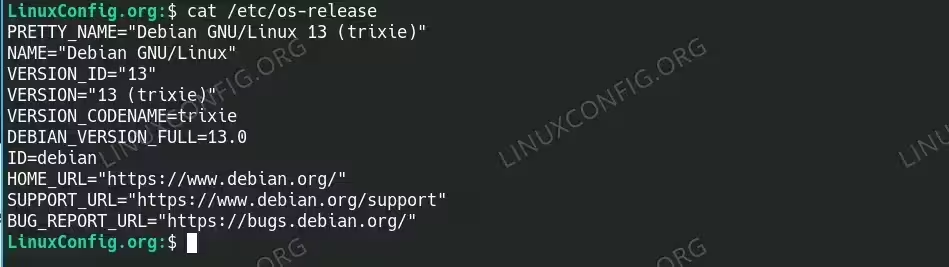
$ cat /etc/debian_version
$ lsb_release -a
$ cat /etc/os-release
These commands should display version 13.x and codename ‘trixie’ confirming successful upgrade

Confirming the Debian upgrade. Code name and version changed to Trixie and 13 - Clean Obsolete Packages: Remove packages no longer needed
# apt autoremove
# apt autoclean
This removes packages that were automatically installed as dependencies but are no longer needed
- Update Package Cache: Refresh system package information
# apt update
$ apt list --upgradable
This ensures your system has the latest package information and shows any remaining available updates
- System Reboot: Complete the upgrade process
# systemctl reboot
A reboot ensures all system services are running with updated configurations and the new kernel is loaded
Advanced Configuration Examples
Custom Repository Priority Configuration
# cat > /etc/apt/preferences.d/trixie-priority << EOF
Package: *
Pin: release n=trixie
Pin-Priority: 900

Package: *
Pin: release n=trixie-security
Pin-Priority: 950
EOF
Selective Package Hold During Upgrade
# apt-mark hold package-name
# apt full-upgrade
# apt-mark unhold package-name
Troubleshooting Common Issues
Package Dependency Conflicts
Common dependency issues include:
- Unmet dependencies – Use ‘apt –fix-broken install’ to resolve automatic dependency resolution
- Package conflicts – Remove conflicting packages manually before upgrading: ‘apt remove conflicting-package’
- Held packages – Check for held packages with ‘apt-mark showhold’ and release holds if safe
Repository Authentication Problems
Authentication errors may occur with third-party repositories:
- Missing GPG keys – Import required keys or temporarily disable problematic repositories
- Expired signatures – Update repository configuration or wait for maintainer updates
Testing Configuration Safely
Always test your configuration in a safe environment:
# apt full-upgrade --simulate
This shows what changes would be made without actually performing the upgrade, allowing you to identify potential issues beforehand.
EMERGENCY RECOVERY
If the upgrade fails and your system becomes unbootable, use a Debian 13 live USB to access recovery tools and restore your system from backups or fix package conflicts.
Additional Debian System Resources
For additional Debian upgrade topics, check out these comprehensive guides that complement this tutorial:
- APT Update vs Upgrade on Debian Systems – Detailed explanation of package management concepts and safe upgrade practices
For the most up-to-date information and advanced configuration options, refer to the official documentation:
- Debian 13 Trixie Release Notes – Official documentation containing detailed upgrade procedures and known issues
- Debian 13 Installation Guide – Comprehensive system installation and configuration guide for enterprise and advanced deployment scenarios
Conclusion
In this tutorial, you learned how to successfully upgrade your Debian 12 Bookworm system to Debian 13 Trixie. We covered comprehensive preparation steps, repository configuration updates, and the complete upgrade process, so that users with different system configurations and requirements can follow along effectively.
Your upgraded Debian 13 system will persist after reboots, and you will need to update your backup procedures and monitoring configurations to account for any new system components. The key takeaways from this guide include:
- Always create comprehensive system backups before attempting major upgrades
- Update repository configurations systematically from bookworm to trixie references
- Perform minimal upgrades first, followed by full distribution upgrades for safer transitions
- Verify system integrity and clean obsolete packages after successful upgrade completion
- Test configurations in safe environments and maintain recovery procedures for emergency situations
These best practices ensure your Debian 13 upgrade remains compatible with current and future system requirements while maintaining the stability and security that Debian is known for. Remember to always keep your system updated with regular security patches and monitor the Debian security announcements for important updates.