
If you currently use Windows as your primary operating system, but feel that you are missing out on some important Linux features, it is possible to install Ubuntu on Windows through the WSL (Windows Subsystem for Linux) feature. WSL is essentially virtualization, but it allows Ubuntu to closely integrate with Windows, resulting in only a small overhead to run the additional operating system, and the ability to natively access the entire Windows file system within Ubuntu.
Microsoft accomplishes this close integration between Ubuntu and Windows by installing a modified Linux kernel that has been configured to run on Hyper-V architecture (Windows’ native virtualization system) and fine tuned it to operate on top of Windows seamlessly. This is a much different virtualization experience than you might have come to expect with other software like VMware or VirtualBox.
In this tutorial, we will go over the step by step instructions of enabling WSL and installing Ubuntu on Windows.
OTHER OPTIONS
WSL is the perfect choice for users that want to execute Linux commands or utilize Linux software packages in the easiest way possible. However, if your Linux work is going to be more extensive, you may consider installing ubuntu alongside windows as dual boot operating systems, or using a dedicated hypervisor like VirtualBox to run a full Ubuntu installation with a GUI.
In this tutorial you will learn:
- How to enable Virtual Machine Platform and Windows Subsystem for Linux
- How to install Ubuntu for WSL via Microsoft Store
- How to launch Ubuntu via WSL on Windows
| Category | Requirements, Conventions or Software Version Used |
|---|---|
| System | Windows 11, Ubuntu 24.04 |
| Software | Windows Subsystem for Linux |
| Other | Privileged access to your Linux system as root or via the sudo command. |
| Conventions |
# – requires given linux commands to be executed with root privileges either directly as a root user or by use of sudo command$ – requires given linux commands to be executed as a regular non-privileged user |
Video Tutorial
Installing Ubuntu on Windows (WSL)
Follow along with the steps below to enable WSL and install Ubuntu on Windows:
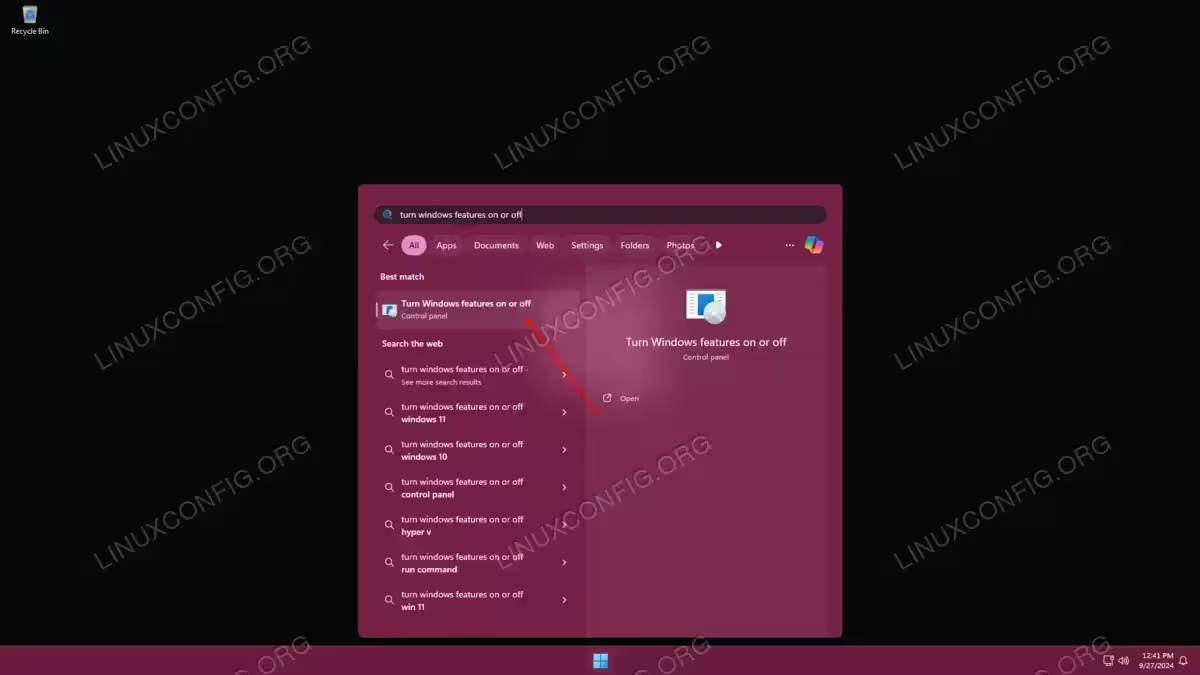
- The first step is to open the Windows Start menu and search for the
Turn Windows features on or offmenu. Click on the indicated option to open the Windows Features panel.
Open the Windows features control panel - Inside of the Windows Features window, check the boxes next to the
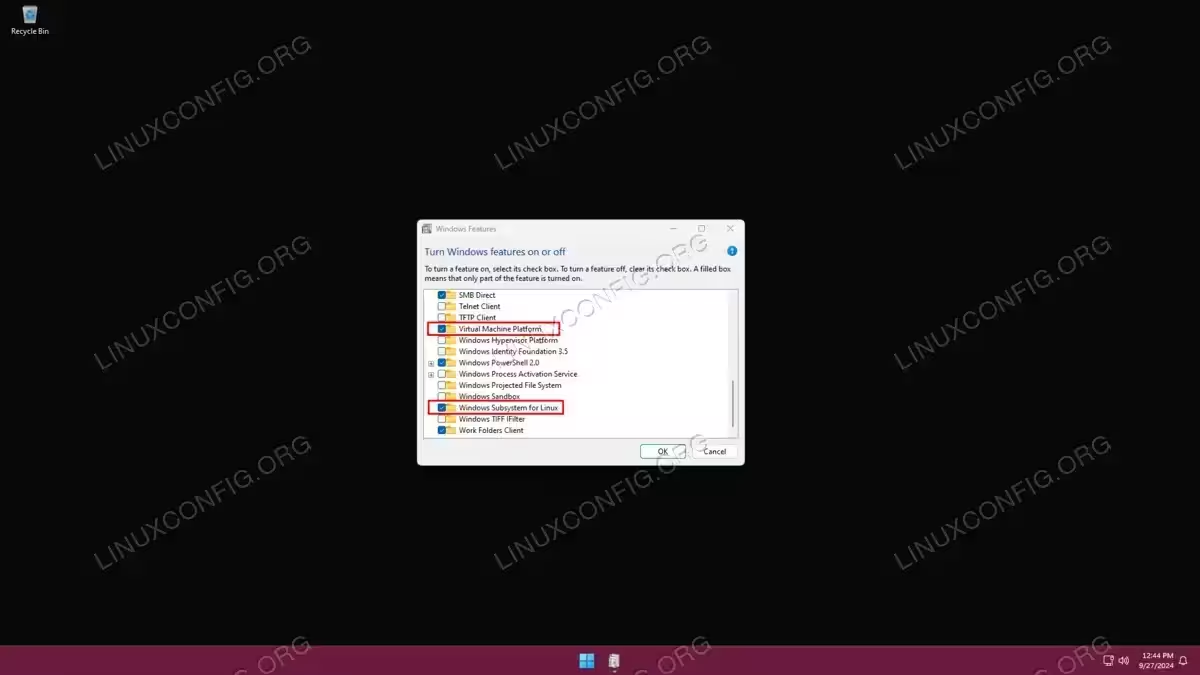
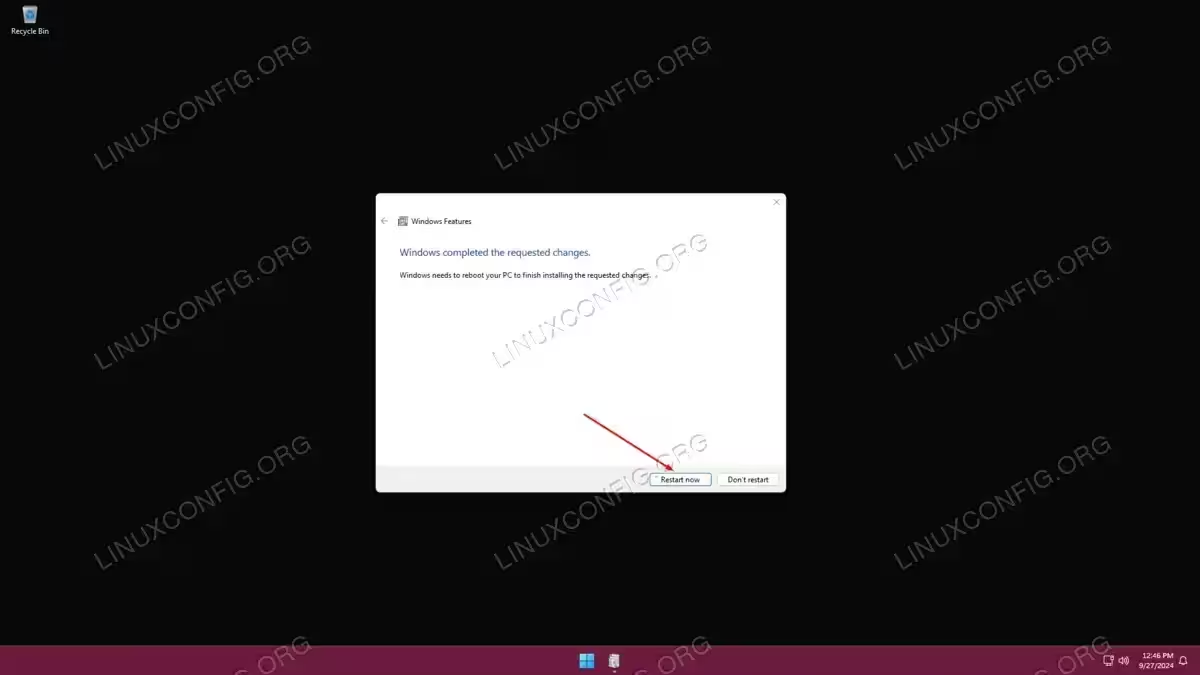
Virtual Machine PlatformandWindows Subsystem for Linuxoptions to turn on these features. Then, click OK to enable the features.Enable Virtual machine platform and Windows Subsystem for Linux - Windows will make the changes, which may take a minute or two, then ask you to restart your system for the changes to take effect. Proceed with the reboot.
Reboot your Windows system for the changes to take effect
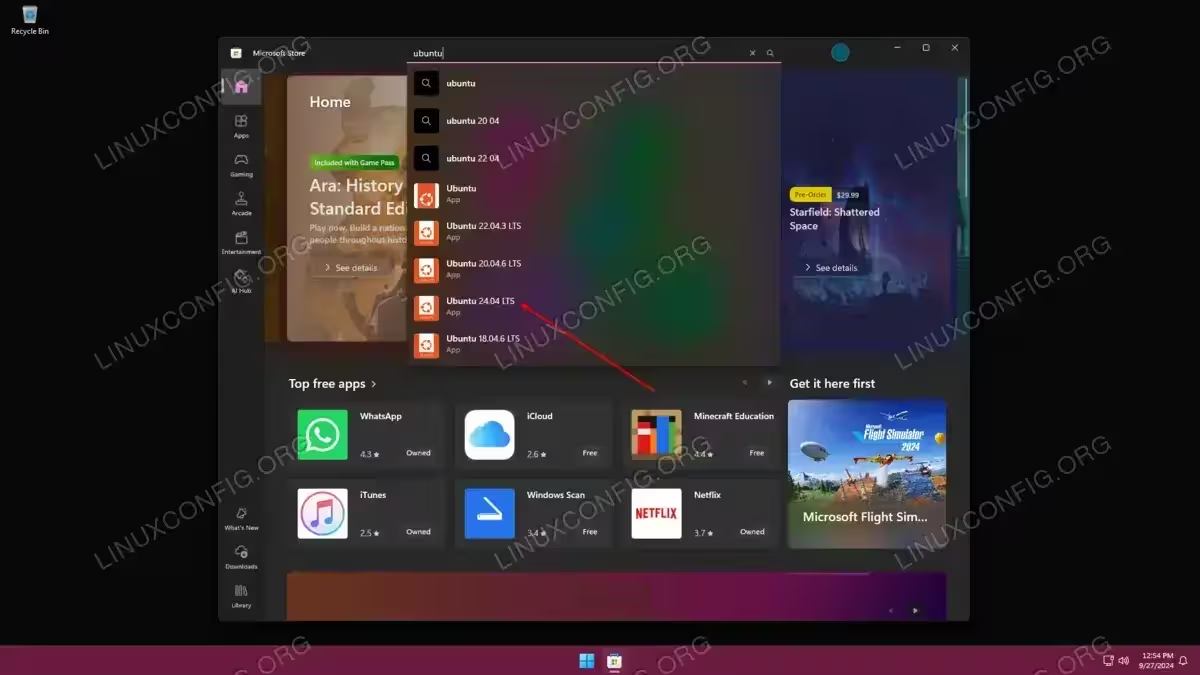
- Once Windows loads back to the desktop, open the Start menu and navigate to the Windows Store. Once there, search for
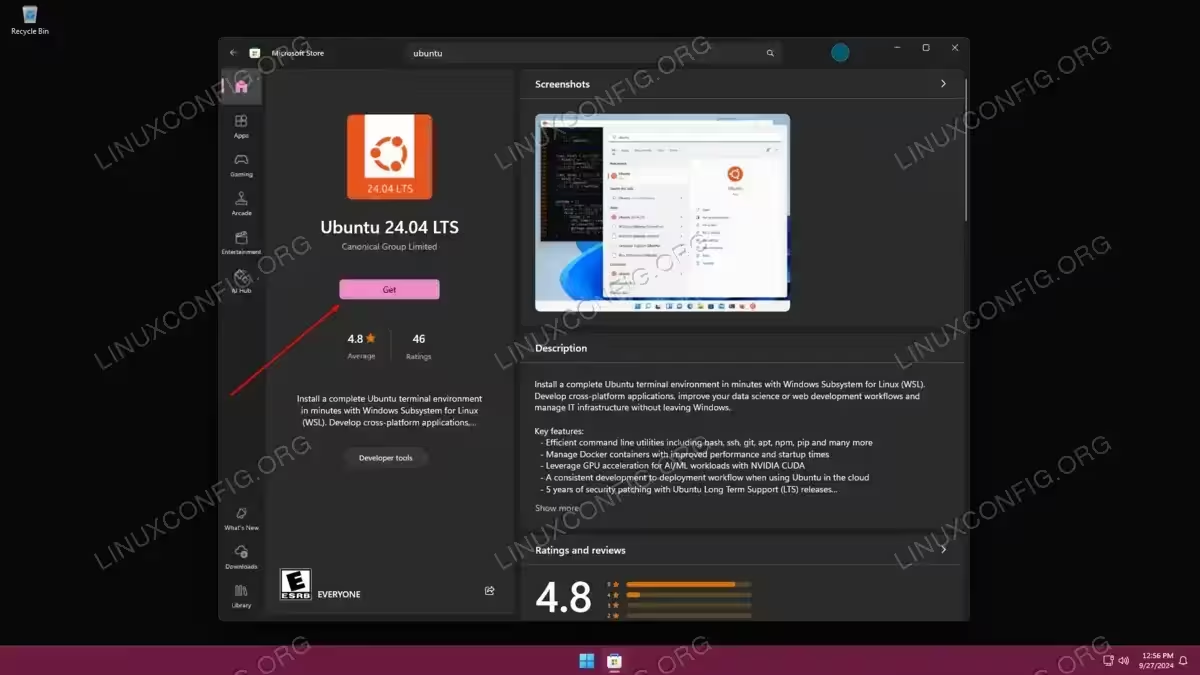
Ubuntuand click on the latest LTS release.Search for Ubuntu inside of the Microsoft Store - After clicking on the search result and loading into Ubuntu LTS page, click on the “Get” button to begin downloading and installing the operating system.
Start downloading Ubuntu for WSL - After the download is completed, it is recommended that you open a Windows command prompt and run the following command to ensure that the kernel is completely updated:
> wsl --update
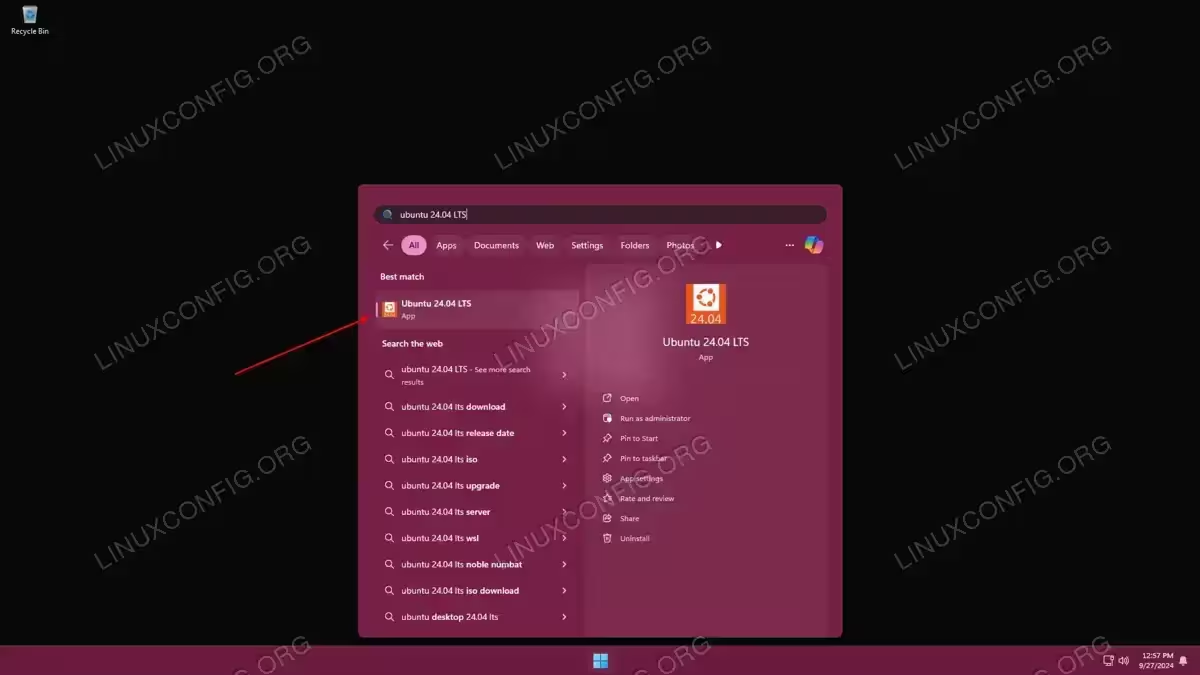
- Next, you can open the Windows Start menu and search for Ubuntu to open it.
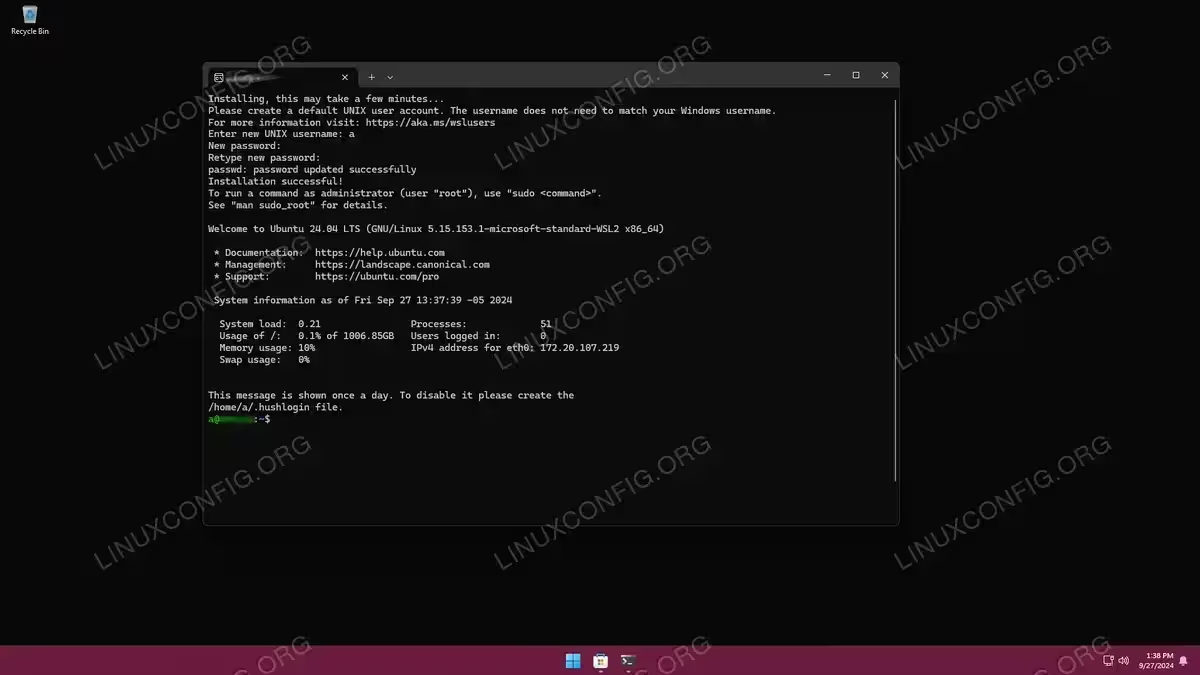
Opening Ubuntu from the Windows Start menu - You will be asked to create a new user for Ubuntu. Note that this does not need to be the same username or password as what you currently use for Windows.
Running Ubuntu via WSL on Windows
We are all done. Now you can proceed with using Ubuntu as you normally would. Get started by creating Bash scripts, installing additional software via the apt command, accessing the C: drive through the /mnt/c directory, and doing other activities.
Closing Thoughts
In this tutorial, we saw how to install Ubuntu on Windows. This was made possible by Windows Subsystem for Linux, which is virtualization that has been customized to run Linux on top of Windows in a very seamless way. This allows users to utilize Linux features and software with negligible overhead and easy access to the Windows file system.