
Safari, a popular web browser developed by Apple, is designed primarily for macOS and iOS devices. However, Linux users may want to experience Safari for testing purposes or simply out of curiosity. While Safari is not officially available for Linux, it can still be installed using tools like playonlinux and Wine. This guide walks you through the steps to install Safari on your Linux system.
In this tutorial you will learn:
- How to install PlayOnLinux on your Linux distribution
- How to use PlayOnLinux to install Safari

| Category | Requirements, Conventions or Software Version Used |
|---|---|
| System | A Linux distribution such as Debian, Ubuntu, Mint, or Fedora |
| Software | PlayOnLinux, Wine, Safari (Windows version) |
| Other | Internet connection for downloading required packages |
| Conventions | # – requires given linux commands to be executed with root privileges either directly as a root user or by use of sudo command$ – requires given linux commands to be executed as a regular non-privileged user |
Steps to Install Safari on Linux
Follow the steps below to install and run Safari on your Linux system.
- Install PlayOnLinux: Begin by installing PlayOnLinux, which is a graphical frontend for Wine.
Debian/Ubuntu/Mint:
$ sudo apt install playonlinux

Fedora:
$ sudo dnf install playonlinux
Use the appropriate command for your distribution to install PlayOnLinux. This tool will help in managing the Wine configurations for installing Safari.
- Start PlayOnLinux: Launch PlayOnLinux from your system menu.Open the application to access its user-friendly interface where you can install and manage Windows-based programs.
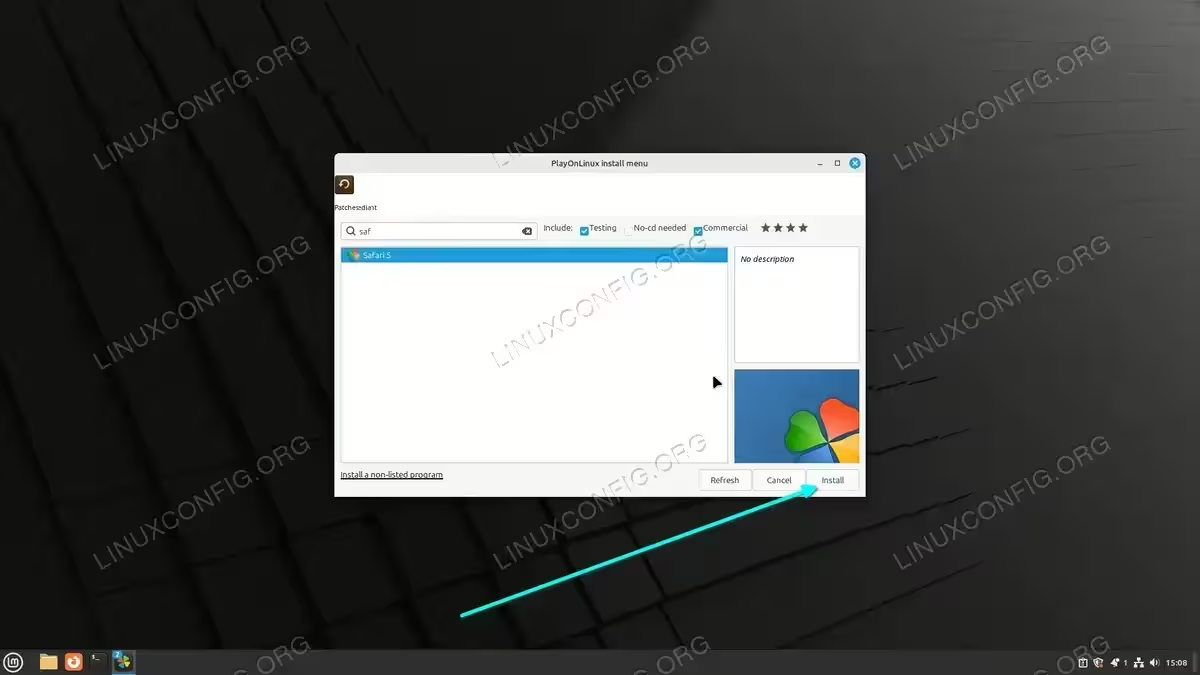
- Install Safari Using PlayOnLinux: Click the Install a program button in PlayOnLinux and search for Safari.Once you locate Safari in the list, select it and click the “Install” button. This will initiate the installation wizard.

Click the Install a program button in PlayOnLinux - Follow the Wizard: The installation wizard will automatically install prerequisites like Wine and other dependencies. Follow the on-screen instructions to proceed with the installation. Ensure all required components are properly installed.
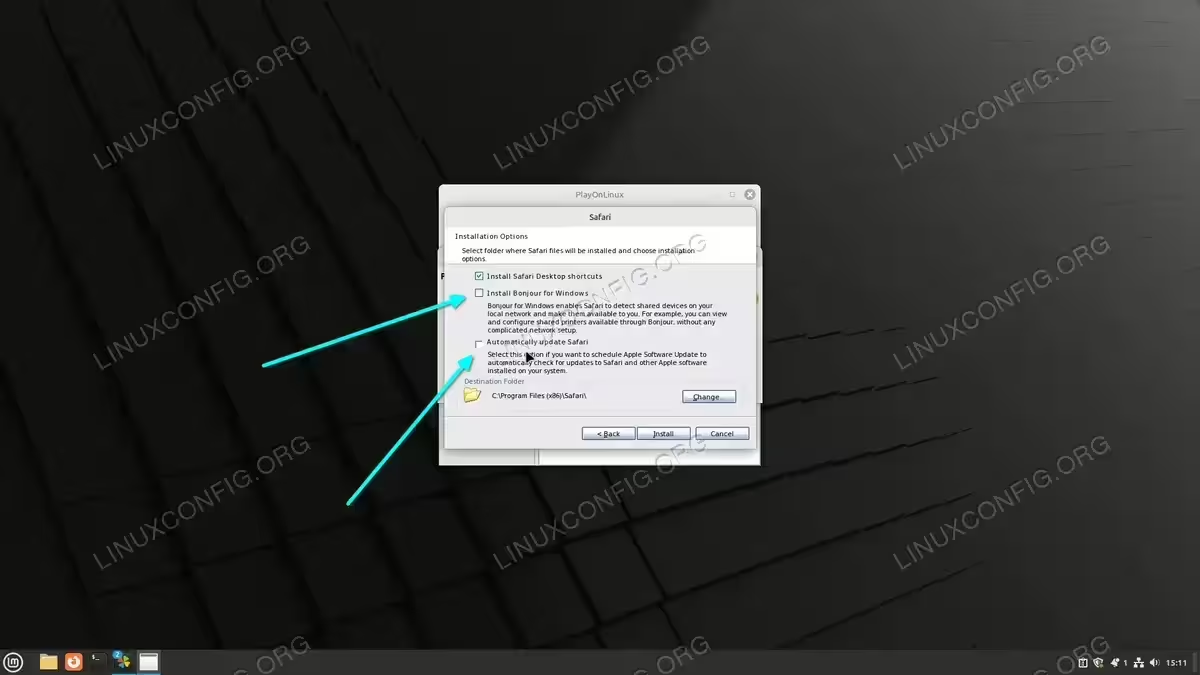
- Choose Installation Method: When prompted, select the Download the program option.Warning: During the installation, make sure to untick the options for Install Bonjour for Windows and Automatically update Safari. These features are not necessary for running Safari on Linux and might cause issues.
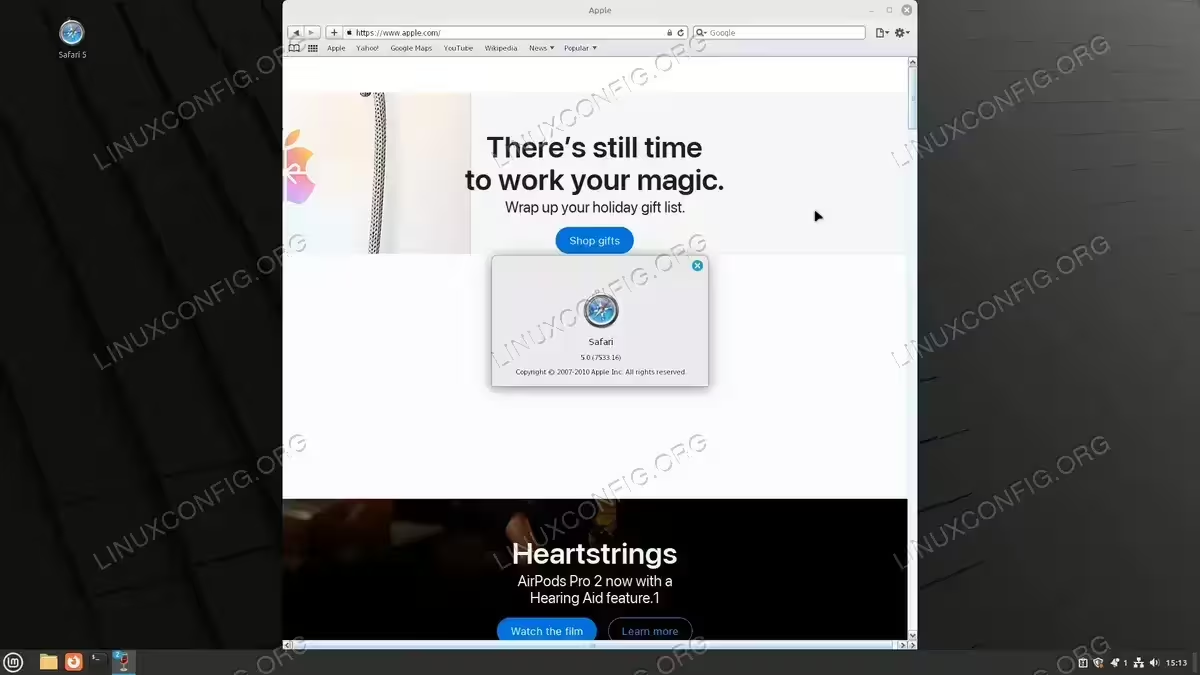
Untick the options for Install Bonjour for Windows and Automatically update Safari - Complete the Installation: Follow the remaining prompts to complete the Safari installation process. Once the installation is finished, you can start Safari from your system menu.
Launch Safari browser on Linux
Conclusion
By following the steps above, you can successfully install and use Safari on your Linux system. While the browser may not function as seamlessly as on its native platform, it provides a way to test and experience Safari within a Linux environment. PlayOnLinux simplifies the process, making it accessible even to less experienced users. Enjoy browsing with Safari on Linux!
