
Google Chrome is one of the most popular web browsers, known for its speed, reliability, and extensive ecosystem of extensions. In this guide, we will walk you through the detailed steps to install Google Chrome on Linux Mint, ensuring you have access to all its features and functionality. For other Linux distributions visit our Google Chrome on Linux installation page.
In this tutorial you will learn:
- How to download the Google Chrome .deb package
- How to install the downloaded package using the terminal
- How to launch Google Chrome after installation

| Category | Requirements, Conventions, or Software Version Used |
|---|---|
| System | Linux Mint 22 or later |
| Software | Google Chrome Browser .deb package |
| Other | Stable internet connection |
| Conventions | # – requires given Linux commands to be executed with root privileges either directly as a root user or by use of sudo command$ – requires given Linux commands to be executed as a regular non-privileged user |
Steps to Install Google Chrome on Linux Mint
Video
Follow these steps to install Google Chrome browser on Linux Mint:
- Download the Google Chrome .deb Package: Start by opening your existing web browser and navigating to the official Google Chrome download page. Select the version for Linux (Debian/Ubuntu-based distributions) and download the .deb package.
https://www.google.com/chrome/
This step ensures that you have the installation file needed to install Google Chrome on your system.
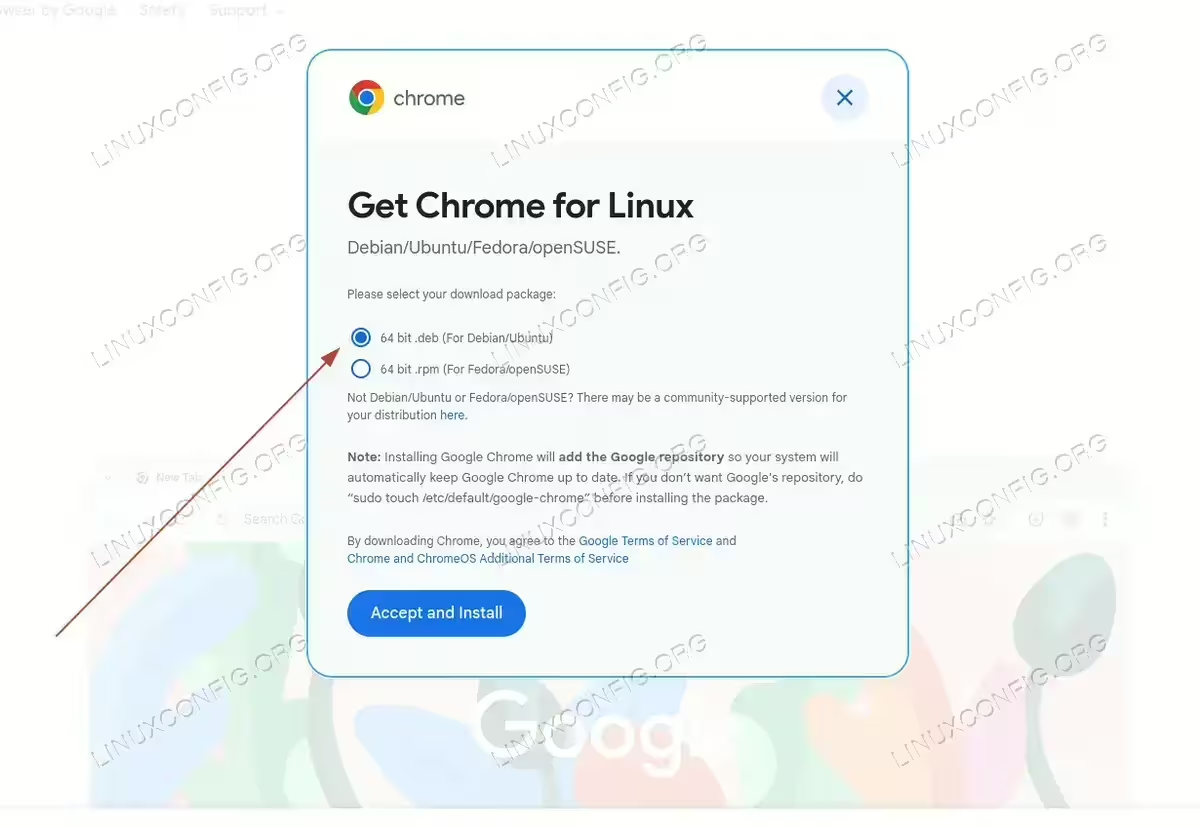
Download the Google Chrome .deb Package - Update Package Indexes: Open your terminal and update the package indexes to ensure your system is up to date.
$ sudo apt update
Keeping the package index updated helps avoid issues during the installation process.
- Install the Google Chrome Package: Navigate to the directory where the .deb file was downloaded (typically the
Downloadsfolder) and install the package using the following command:$ sudo apt install ./google-chrome-stable_current_amd64.deb
This command installs the Google Chrome browser on your system.
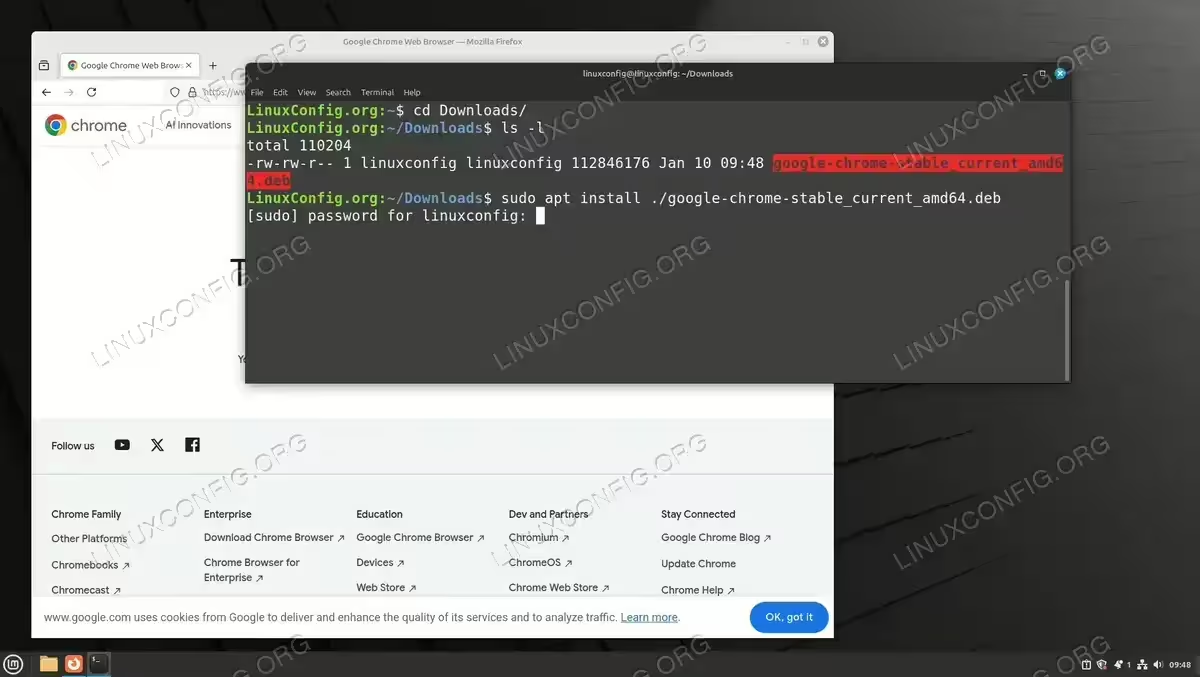
Install the Google Chrome Package - Launch Google Chrome: Once the installation is complete, you can log out and log back in to ensure all configurations are updated. Then, use the Start menu to search for “Google Chrome” and launch the browser.
This step confirms that the installation was successful and allows you to start using Google Chrome immediately.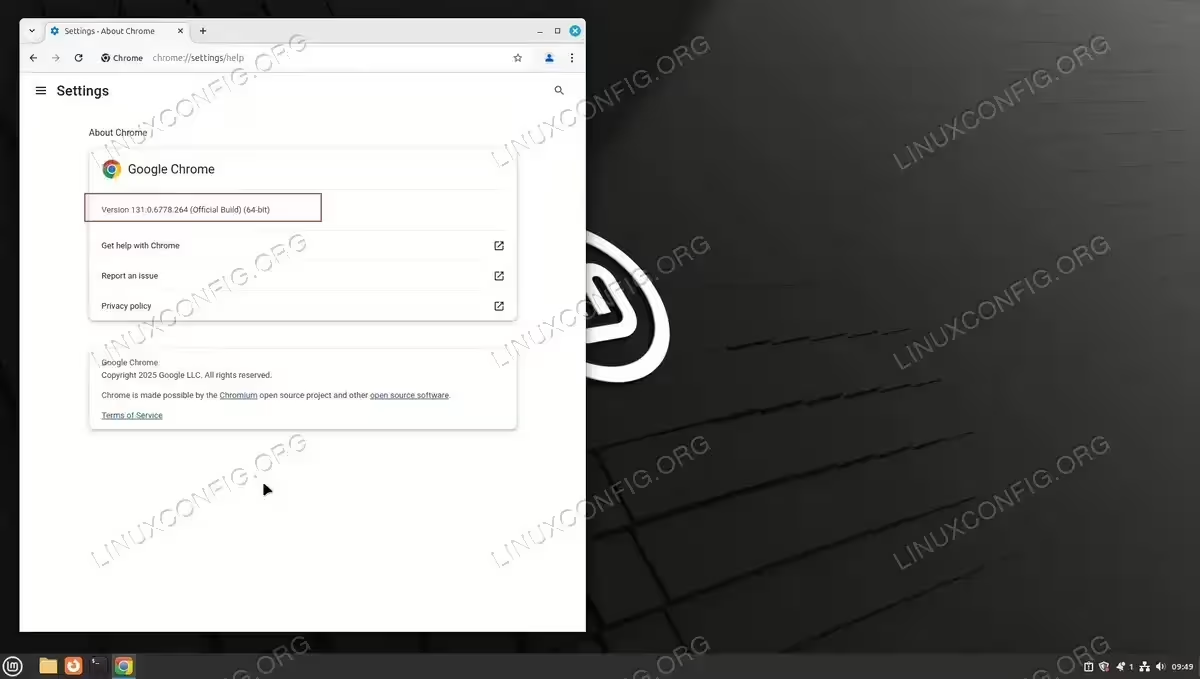
Launch Google Chrome
Conclusion
By following the steps outlined above, you can successfully install Google Chrome on your Linux Mint system. With its powerful features and seamless performance, Google Chrome will enhance your browsing experience. Remember to keep the browser updated to benefit from the latest features and security patches.
