
Google Chrome is a very popular, yet closed source web browser. This makes it a little tricky to install google chrome on Ubuntu or Debian and other Linux systems, as it’s pretty much never included by default on any distro, and usually not available for installation from official repositories. Contrast this to Mozilla Firefox, which is open source and ubiquitous across the most popular Linux distros.
There’s still a linux version of Chrome that’s developed by Google, you just have to jump through an extra hoop or two to get it installed. Despite all this, Google Chrome remains the most popular web browser these days. For this reason, it is often sought after for installation on Linux, even just as a backup browser in case a website is failing to load correctly. In this tutorial, we’ll go over the step by step instructions to install Google Chrome on all the most common Linux distros.
In this tutorial you will learn:
- How to install Google Chrome on Debian, Red Hat, and Arch Linux based systems
| Category | Requirements, Conventions or Software Version Used |
|---|---|
| System | Ubuntu 24.04 LTS, Ubuntu 22.04 LTS, Ubuntu 20.04 LTS, Ubuntu 18.04 LTS, Linux Mint 22, Linux Mint 21.3, Linux Mint 21.2, Arch Linux (rolling), Fedora 41, Fedora 40, Fedora 39, CentOS Stream 10, CentOS Stream 9, CentOS 7 – Linux distro |
| Software | Google Chrome |
| Other | Privileged access to your Linux system as root or via the sudo command. |
| Conventions | # – requires given linux commands to be executed with root privileges either directly as a root user or by use of sudo command$ – requires given linux commands to be executed as a regular non-privileged user |
Video Tutorial

Download and install Google Chrome for Linux
The closest open source alternative to Google Chrome would be the Chromium web browser. It doesn’t come with quite as many features, but is readily available for installation on all major linux distros.
Getting chrome for linux is straightforward. As stated earlier, Linux distros don’t typically include Chrome in a default repo, so it must first be downloaded from Google’s website. In the following instructions, we’ll be using the wget command to download Chrome and the distro’s package manager to locally install the downloaded file.
- An alternative approach is to download Google Chrome for Linux using any of your currently installed web browser by downloading the package from the following Google Chrome download page. Click on Download Chrome button.
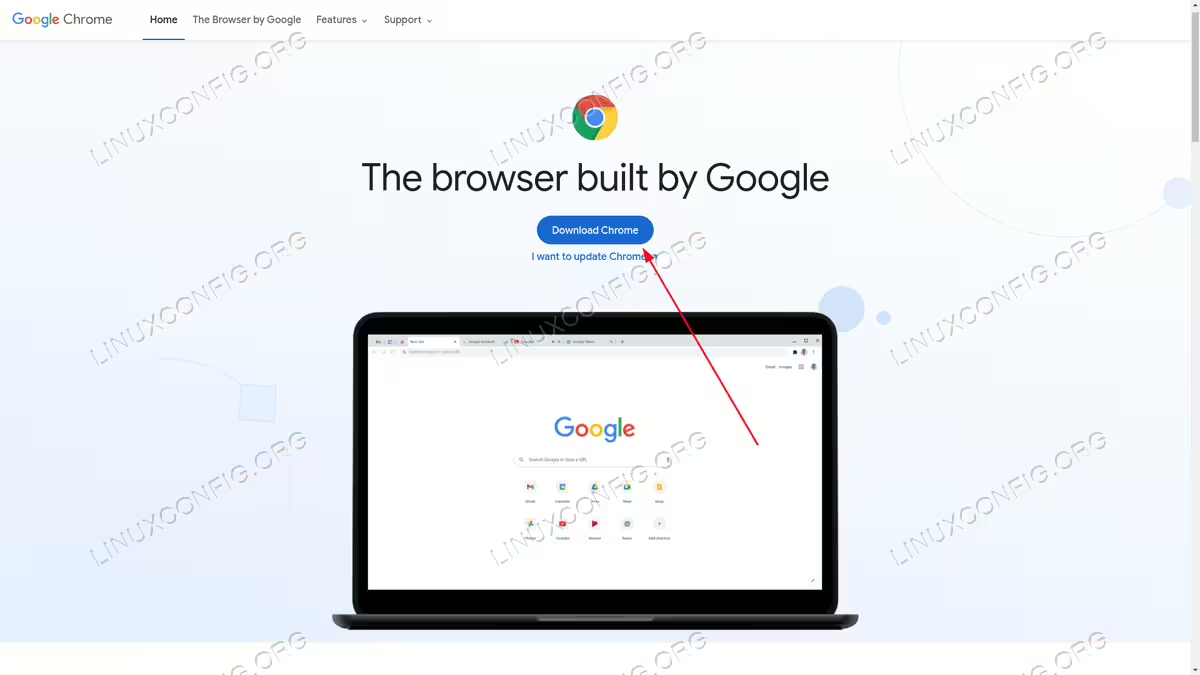
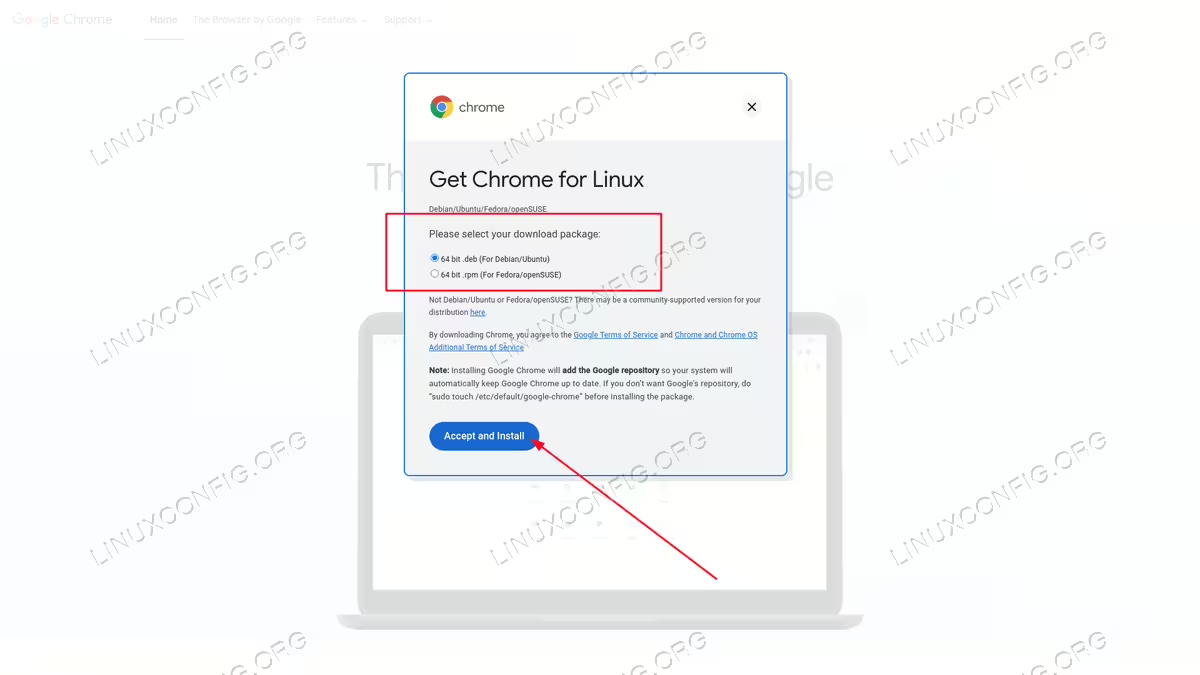
Click on Download Chrome button - On the page “Get Chrome for Linux” select a package matching your Linux distribution package management. So for example, for debian and ubuntu select DEB and for CentOS or RHEL select RPM package. Once ready, click Accept and Install.

Select the package which matches your Linux distro, then download
Install Chrome on Ubuntu, Debian, and Linux Mint
Open a terminal and use the following commands to install Google Chrome on Debian based Linux distributions, such as Ubuntu, Debian, Kali, and Linux Mint.
$ wget https://dl.google.com/linux/direct/google-chrome-stable_current_amd64.deb
$ sudo apt install ./google-chrome-stable_current_amd64.deb
Installing Chrome will also add the repository to your package manager. Use the following command to keep Chrome up to date on your system.
$ sudo apt install google-chrome-stable
If you decide that you’d like to remove Chrome from your system in the future, use the following command to uninstall the web browser.
$ sudo apt purge google-chrome-stable
See also our dedicated articles for installing Chrome on Ubuntu and installing Chrome on Kali Linux.
Install Chrome on Red Hat, CentOS, and Fedora
Open a terminal and use the following commands to install Google Chrome on Red Hat based Linux distributions, such as CentOS, Red Hat, and Fedora.
$ wget https://dl.google.com/linux/direct/google-chrome-stable_current_x86_64.rpm
$ sudo dnf localinstall ./google-chrome-stable_current_x86_64.rpm
Installing Chrome will also add the repository to your package manager. Use the following command to keep Chrome up to date on your system.
$ sudo dnf install google-chrome-stable
If you decide that you’d like to remove Chrome from your system in the future, use the following command to uninstall the web browser.
$ sudo dnf remove google-chrome-stable
Install Chrome on Arch Linux and Manjaro
Install Chrome on Arch Linux via GUI (Software Center)
For users who prefer a graphical interface, Arch Linux also offers Chrome installation through the software center:
- Open the Software Center or Add/Remove Software application from your applications menu
- Search for “Chrome” in the search bar
- Select the Google Chrome icon from the search results
- You’ll be taken to the Chrome details page in the software store
- Click the Install button
- Enter your password if prompted for authentication
- Wait for the installation to complete
The graphical method automatically handles all dependencies and installs Chrome through Flathub, making it the most user-friendly option for those who prefer point-and-click installation over command line methods.
These distros can install Chrome from the AUR, so we’ll use the
git and makepkg commands to help install Chrome. Open a terminal and use the following commands to install Google Chrome on Arch Linux based Linux distributions, such as Manjaro and Arch Linux.
$ sudo pacman -S --needed base-devel debugedit git
$ git clone https://aur.archlinux.org/google-chrome.git
$ cd google-chrome/
$ makepkg -si
$ sudo pacman -U --noconfirm google-chrome-*.zst
The Chrome Browser should now be installed on your Arch Linux machine. Confirm the installation:
$ google-chrome-stable --version
Keeping Chrome up to date is easiest to do with an AUR helper such as yay. See our guide on installing a package from the AUR for help setting that up.
If you decide that you’d like to remove Chrome from your system in the future, use the following command to uninstall the web browser.
$ sudo pacman -R google-chrome-stable
Install Chrome via Flatpak
Flatpak offers a universal installation method that works across all Linux distributions. First, install Flatpak and add the Flathub repository, then install Google Chrome.
# Ubuntu/Debian
$ sudo apt install flatpak

# Fedora
$ sudo dnf install flatpak

# openSUSE
sudo zypper install flatpak

# Arch Linux
sudo pacman -S flatpak

# RHEL/CentOS/AlmaLinux/Rocky Linux
$ sudo yum install flatpak
$ flatpak --user remote-add --if-not-exists flathub https://dl.flathub.org/repo/flathub.flatpakrepo
# Install Google Chrome Browser
$ flatpak install com.google.Chrome
After installation, you may need to restart your session for Chrome to appear in your application menu. To remove Chrome installed via Flatpak, use:
$ flatpak uninstall com.google.Chrome
While Chromium is the open-source foundation that Google Chrome is built upon, there are key differences for Linux users. Google Chrome includes proprietary features like automatic updates, built-in Flash Player support, licensed codecs for H.264 and AAC media formats, and Google’s branding. Chromium, being fully open-source, lacks these proprietary components but offers more transparency and is often available directly from Linux distribution repositories. Both browsers share the same core rendering engine and security features, but Chrome provides a more plug-and-play experience while Chromium appeals to users who prefer open-source software and don’t need the additional codecs or automatic updates.
Conclusion
In this guide, we saw how to install one of the world’s most common web browsers, Google Chrome, on an assortment of popular Linux distributions. Google Chrome for Linux is an alternative to the most common default Firefox browser on Linux Desktop. It can prove harder to install than many programs which are natively available in a distro’s repos, but following our tutorial should get it up and running quickly.
