
If you want to perform a snap remove on Ubuntu 26.04, you have two options: removing individual snap packages or completely purging the entire snapd daemon and ecosystem from your system. Many users choose to remove snapd to reduce system complexity, avoid automatic updates, or replace Snap packages with traditional APT alternatives. This guide walks you through both approaches in a clean, reliable way on Ubuntu 26.04 Resolute Raccoon.
Table of Contents
In this tutorial you will learn:
- How to list and remove individual snap packages
- How to completely purge snapd from Ubuntu 26.04
- How to prevent snapd from being silently reinstalled
- How to clean up leftover snap mount points and directories
- How to replace common Snap packages with APT alternatives
Software Requirements
| Category | Requirements, Conventions or Software Version Used |
|---|---|
| System | Ubuntu 26.04 Resolute Raccoon |
| Software | snapd (pre-installed), APT package manager |
| Other | Privileged access to your Linux system as root or via the sudo command. |
| Conventions | # – requires given linux commands to be executed with root privileges either directly as a root user or by use of sudo command$ – requires given linux commands to be executed as a regular non-privileged user |
TL;DR
snapd, and finally pin it to prevent reinstallation.
| Step | Command/Action |
|---|---|
| 1. List installed snaps | snap list |
| 2. Remove all snap packages | sudo snap remove --purge <package> |
| 3. Purge snapd | sudo apt purge snapd |
| 4. Pin snapd to prevent reinstall | sudo apt-mark hold snapd |
List Installed Snaps
Before performing a snap remove on Ubuntu 26.04, it is important to know exactly which snap packages are currently installed on your system. Removing snapd while snaps are still active can leave behind orphaned mount points and directories.
To see all installed snaps, run:
$ snap list
The output will display each installed snap along with its version, revision number, and publisher. On a freshly installed Ubuntu 26.04 desktop, the default set of snaps looks like this:
Name                       Version          Rev    Tracking       Publisher   Notes
bare                       1.0              5      latest/stable  canonical✓  base
core24                     20260211         1499   latest/stable  canonical✓  base
desktop-security-center    0+git.d4994c6    105    1/stable/…     canonical✓  -
firefox                    148.0.2-1        7966   latest/stable  mozilla✓    -
firmware-updater           0+git.fd7581a    212    1/stable/…     canonical✓  -
gnome-46-2404              0+git.f1cd5fa    153    latest/stable  canonical✓  -
gtk-common-themes          0.1-81-g442e511  1535   latest/stable  canonical✓  -
mesa-2404                  25.0.7-snap211   1165   latest/stable  canonical✓  -
prompting-client           0+git.e482705    185    1/stable/…     canonical✓  -
snap-store                 0+git.515109e7   1310   2/stable/…     canonical✓  -
snapd                      2.74.1           26698  latest/edge    canonical✓  snapd
snapd-desktop-integration  0.9              ...    latest/stable  canonical✓  -
IMPORTANT
Snaps have dependencies on base snaps (such as core22 or core24). You must remove dependent snaps before removing their base snap. Always remove user-facing snaps first.
Remove Individual Snap Packages
If you only want to remove specific snap packages rather than disabling the entire snap system, use the snap remove command. The --purge flag removes the snap along with all its saved data, which is recommended for a clean removal.
- Remove a single snap package: Use the following command, substituting the package name with the snap you want to remove:
$ sudo snap remove --purge firefox
This removes the Firefox snap and all associated data. If you want to keep snapshots of the application data for potential restoration, omit the
--purgeflag. - Remove dependent snaps in order: Some snaps depend on base snaps. Therefore, remove user-facing applications before base snaps. On a default Ubuntu 26.04 installation, the correct removal order is:
$ sudo snap remove --purge firefox
$ sudo snap remove --purge snap-store
$ sudo snap remove --purge firmware-updater
$ sudo snap remove --purge desktop-security-center
$ sudo snap remove --purge prompting-client
$ sudo snap remove --purge snapd-desktop-integration
$ sudo snap remove --purge gnome-46-2404
$ sudo snap remove --purge gtk-common-themes
$ sudo snap remove --purge mesa-2404
$ sudo snap remove --purge core24
$ sudo snap remove --purge bare
Attempting to remove a base snap while a dependent snap still relies on it will result in an error.
- Verify removal: Confirm the snap has been removed by running
snap listagain. The package should no longer appear in the output:$ snap list
IMPORTANT
If you previously used Snap to install Firefox, you will need to install Firefox without Snap via a PPA or the official Mozilla APT repository to continue using it after snapd removal.
Completely Remove Snapd on Ubuntu 26.04
Completely removing snapd involves stopping its services, purging the package, and cleaning up the residual configuration. This is the most effective way to perform a full snap remove on Ubuntu 26.04.
- Stop the snapd service: Before purging, reload systemd units first to avoid warnings, then stop all running snapd-related services:
$ sudo systemctl daemon-reload
$ sudo systemctl stop snapd snapd.socket snapd.seeded.service
Skipping the
daemon-reloadstep does not prevent the stop from succeeding, but it produces warnings about changed unit files on disk. - Purge snapd via APT: Use the
purgesubcommand to remove the package along with all its configuration files:$ sudo apt purge snapd
The
purgecommand goes further thanremoveby also deleting system-wide configuration files associated with snapd. - Remove automatically installed dependencies: After purging snapd, clean up any packages that were pulled in as dependencies and are no longer needed:
$ sudo apt autoremove --purge
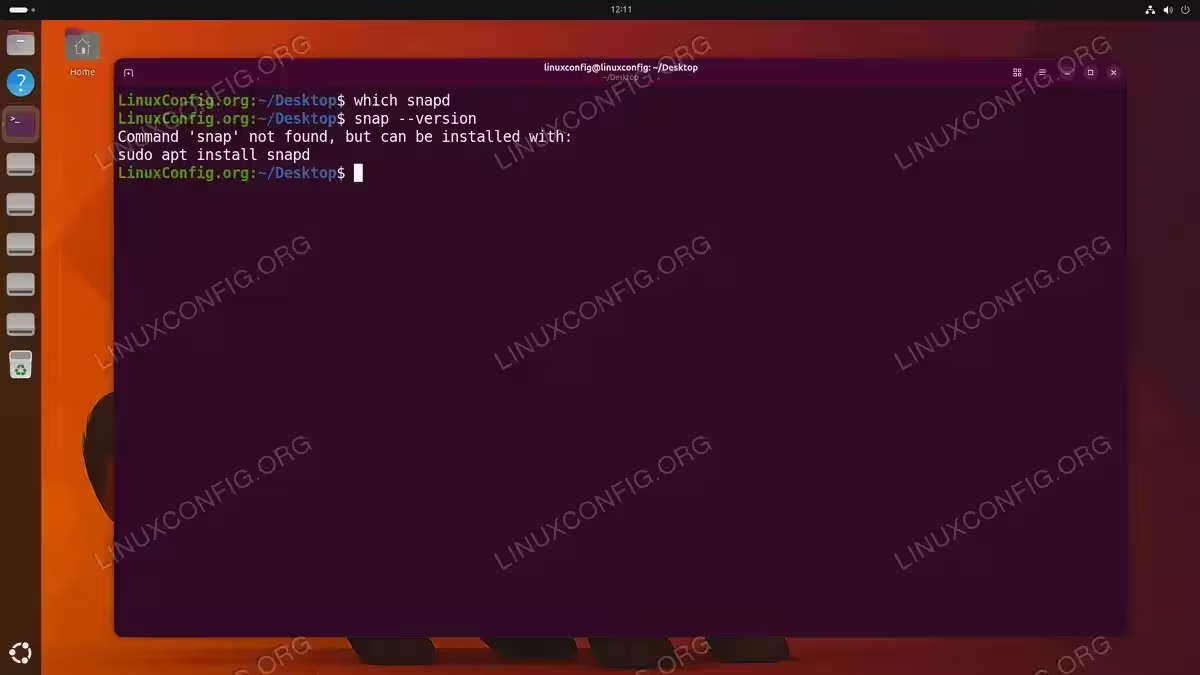
- Verify snapd is gone: Confirm the removal was successful:
$ which snapd
$ snap --version
Both commands should return no output or a “command not found” error, confirming snapd has been fully removed.
For reference, Canonical’s official documentation on the snap system is available at snapcraft.io/docs.
Prevent Snapd from Being Reinstalled
A common frustration is that snapd can be silently pulled back in as a dependency when installing certain packages via APT. To prevent this, you can use two complementary techniques.
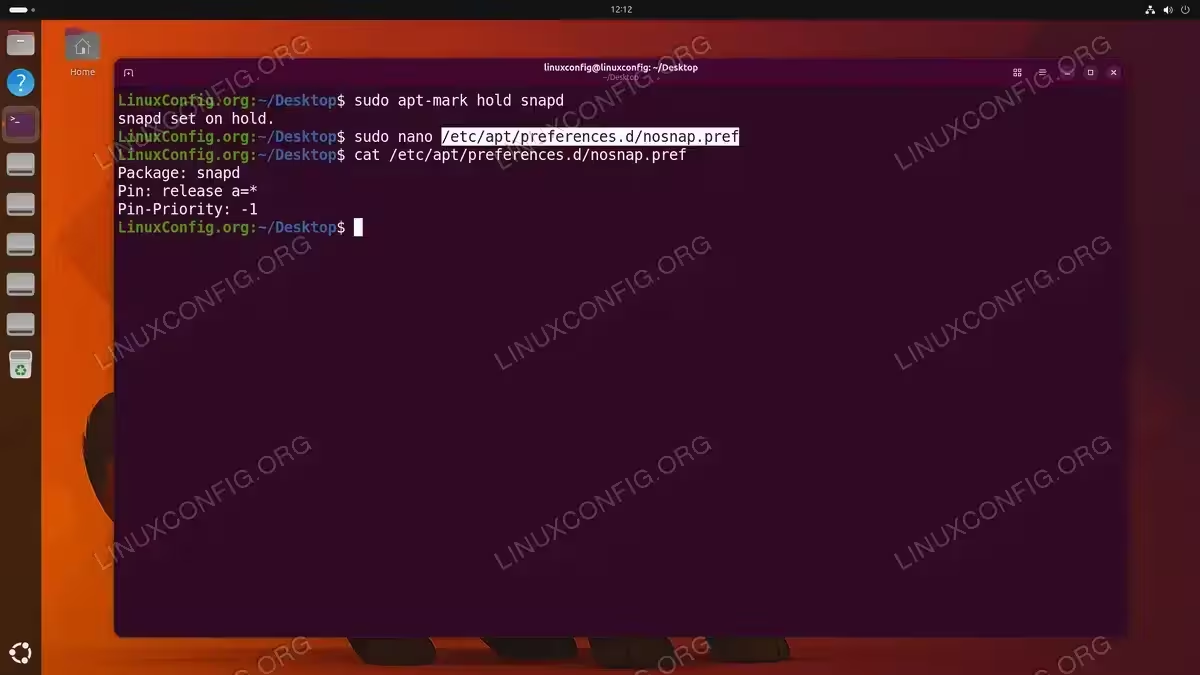
- Hold the snapd package: Use APT’s hold mechanism to mark snapd so it cannot be installed, upgraded, or reinstalled automatically:
$ sudo apt-mark hold snapd
Consequently, any APT operation that would trigger snapd installation will be blocked.
- Create an APT preference file to pin snapd: For a more robust solution, create an APT preferences file that explicitly prohibits snapd:
$ sudo nano /etc/apt/preferences.d/nosnap.prefAdd the following content to the file:
Package: snapd
Pin: release a=*
Pin-Priority: -1
Save and close the file. This configuration tells APT to always assign a negative priority to snapd, effectively blocking its installation from any repository.
IMPORTANT
If you later decide to reinstall snapd, you must first remove the preference file and unhold the package with sudo apt-mark unhold snapd before APT will allow the installation.
Similarly, if you ever need to remove Nvidia drivers that were installed via snap, you should follow the same snap removal procedure described above before purging snapd entirely.
Clean Up Leftover Snap Directories
Even after purging snapd, several directories may remain on your filesystem. These include mount points, snap data directories, and cache folders. Removing them ensures a completely clean system.
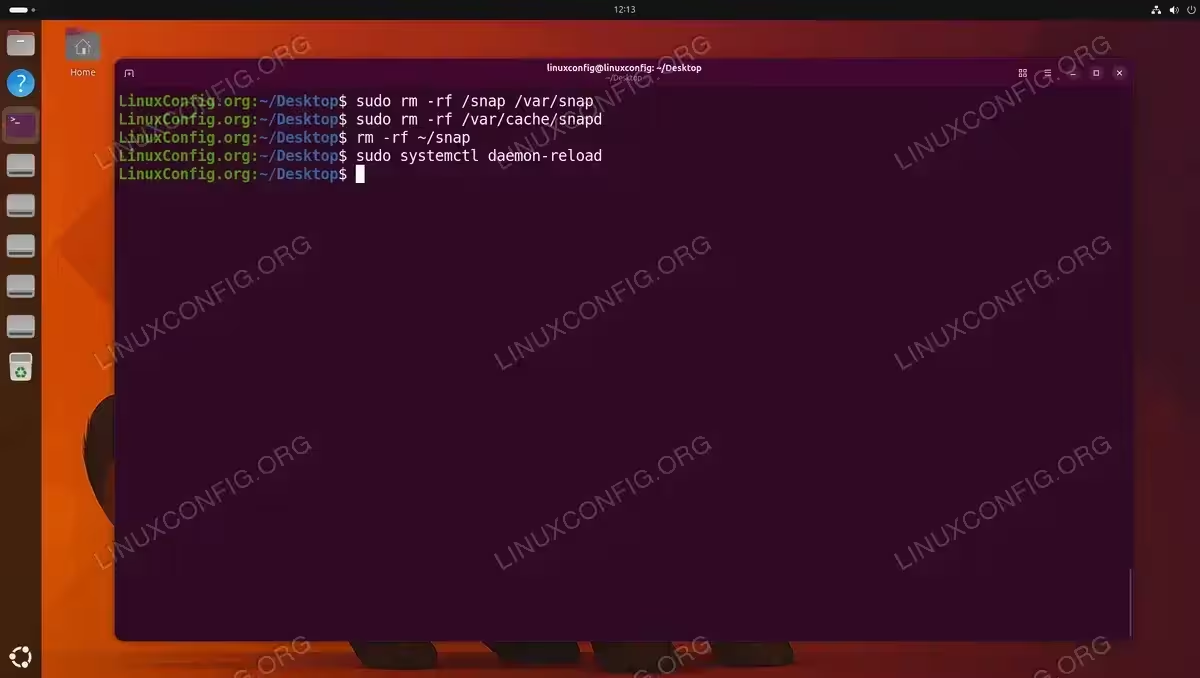
- Remove the main snap directories: The
/snapand/var/snapdirectories store mounted snaps and snap data respectively:$ sudo rm -rf /snap /var/snap
- Remove the snapd cache: Snap downloads are cached in
/var/cache/snapd:$ sudo rm -rf /var/cache/snapd
- Remove user snap directories: Each user account may have a
~/snapdirectory containing per-user snap data:$ rm -rf ~/snap
If there are multiple user accounts on the system, repeat this step for each user’s home directory.
- Reload systemd units and reboot: After removing snap mount points, reload systemd to clear any stale unit references:
$ sudo systemctl daemon-reload
$ sudo reboot
COMPLETED
Your system is now completely free of snapd and all related files. However, a reboot is required to fully clear the desktop environment. Until then, you may notice ghost icons in the application sidebar representing formerly snap-installed apps. These are stale desktop entries that disappear automatically after restarting the system.
Conclusion
Performing a snap remove on Ubuntu 26.04 is a straightforward process when approached in the correct order: remove individual snaps first, purge the snapd daemon, prevent reinstallation with APT pinning, and clean up residual directories. Whether you are removing a single snap package or eliminating the entire snap ecosystem, Ubuntu 26.04 gives you full control over your package management preferences. With snapd removed, you can rely entirely on APT, Flatpak, or other package managers that better suit your workflow.
Frequently Asked Questions
- Will removing snapd break my Ubuntu 26.04 desktop? Not if you replace snap-installed applications with APT or Flatpak equivalents first. On Ubuntu 26.04, Firefox is installed as a snap by default, so you should install an alternative version before removing it. Other system snaps like
core22can be safely removed once all dependent user snaps are gone. - Why does snapd keep coming back after I remove it? Certain APT packages list snapd as a recommended or suggested dependency. Additionally, some Ubuntu system tasks can trigger its reinstallation. To prevent this, create the
/etc/apt/preferences.d/nosnap.preffile with a negative pin priority as described in this guide. This reliably blocks snapd from returning. - Can I remove individual snaps without removing snapd entirely? Yes. The
sudo snap remove --purge <package-name>command removes a specific snap and its data without affecting the snapd daemon or other installed snaps. This is useful if you only want to switch a particular application from snap to an APT alternative. - What happens to snap loop mounts after snapd is removed? After purging snapd and removing the
/snapdirectory, snap loop mounts will disappear after a reboot. Runningsudo systemctl daemon-reloadimmediately after cleanup removes stale unit references without requiring a restart in most cases.