
A directory tree on a Linux system is a way to see all of the directory and sub directories in a provided filesystem path. In this tutorial you will learn how to print directory tree in Linux terminal and GUI.
This type of overview can be difficult to achieve in GUI file browsers or by simply changing directories on the command line. But there are a few tools in Linux that give us a birds eye view of how our directories and their contents are structured.
In this tutorial, you will see various ways to print a directory tree using command line or GUI on a Linux system.
In this tutorial you will learn:
- How to use
treecommand and its options - How to use
ls,du, andfindcommands to print directory tree - How to install tree and baobab
- How to use Disk Usage Analyzer GUI utility

| Category | Requirements, Conventions or Software Version Used |
|---|---|
| System | Any Linux distro |
| Software | tree, ls, du, find, Disk Usage Analyzer |
| Other | Privileged access to your Linux system as root or via the sudo command. |
| Conventions | # – requires given linux commands to be executed with root privileges either directly as a root user or by use of sudo command$ – requires given linux commands to be executed as a regular non-privileged user |
Print directory tree with tree command on Linux
Let’s just dive right into the best tool for the job. The
tree command is not usually included by default on Linux distros, but it is easily installable, and is perfect for lising the directory tree of any path.
In case you do not already have access to the command, you can use the appropriate command below to install tree with your system’s package manager.
To install tree on Ubuntu, Debian, and Linux Mint:
$ sudo apt install tree
To install tree on Fedora, CentOS, AlmaLinux, and Red Hat:
$ sudo dnf install tree
To install tree on Arch Linux and Manjaro:
$ sudo pacman -S tree
Now that you can use the tree command, see some of the examples below to learn how it works.
- The most simple way to print a directory tree is by using the
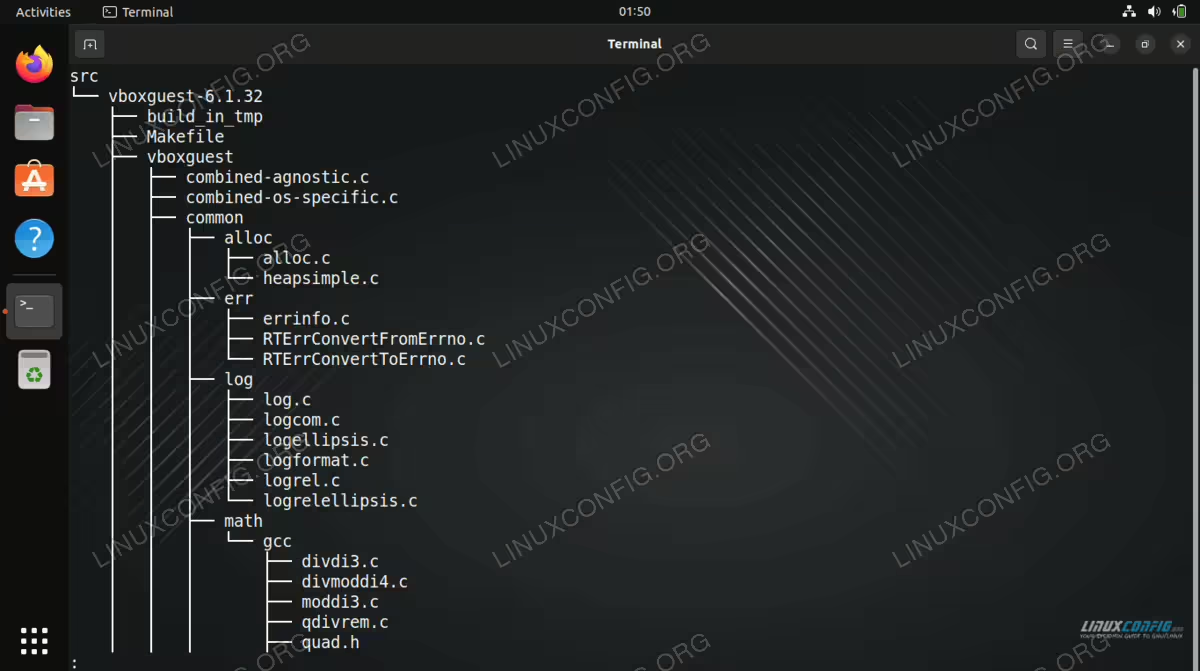
treecommand and the path you would like to print a directory tree for. If used without specifying a directory, it will print the structure for your present working directory. We recommend piping the output tolessif your directory contains many files and subdirectories.$ tree | less

Using the tree command to list directory tree on Linux - If you want to list only directories, use the
-doption.$ tree -d
- If you want to limit
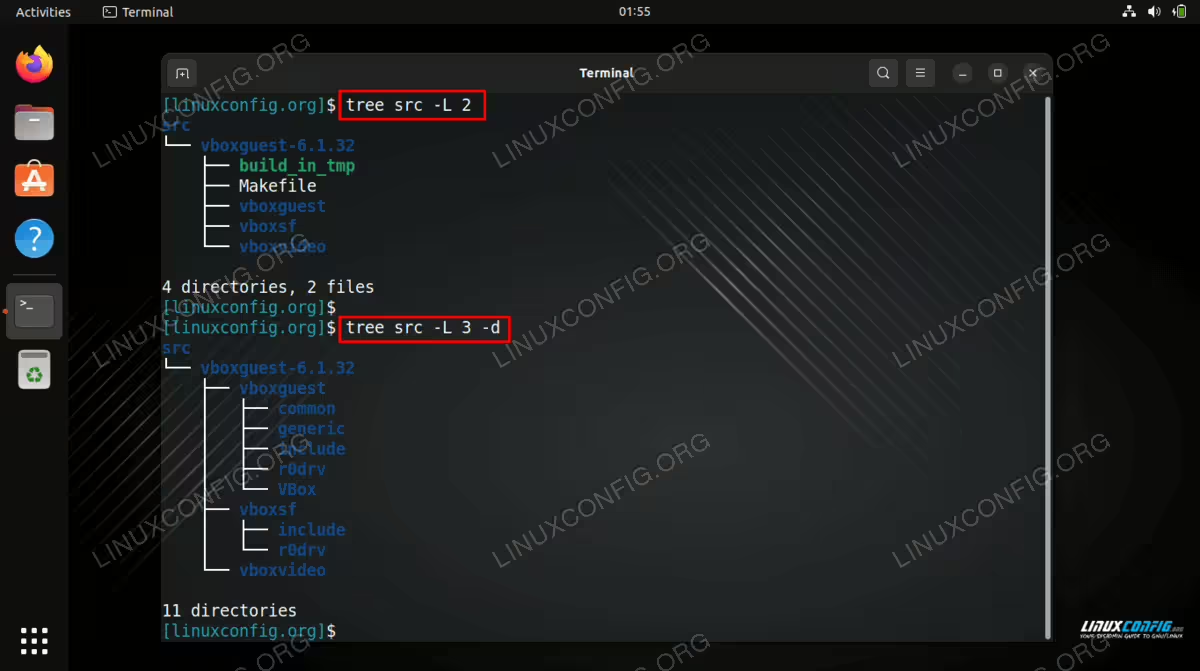
treeto displaying only a certain number of directories deep, use the-Loption and the number of subdirectories you wanttreeto traverse. For example, this command will limittreeto 3 subdirectories deep.
$ tree -L 3
Limiting our tree output to a certain number of subdirectories - If you want to include hidden files and directories in the
treeoutput, append the-aoption.$ tree -a
- Add the
-hoption if you want to include the size of the files intreeoutput.$ tree -h
Print directory tree with du, ls, and find commands on Linux
Although tree has to be the ideal command for listing directory trees, Linux comes with a few default commands that can also do the job, namely du, ls, and find. See some of the examples below to learn how to use these commands to list directory trees.
- The
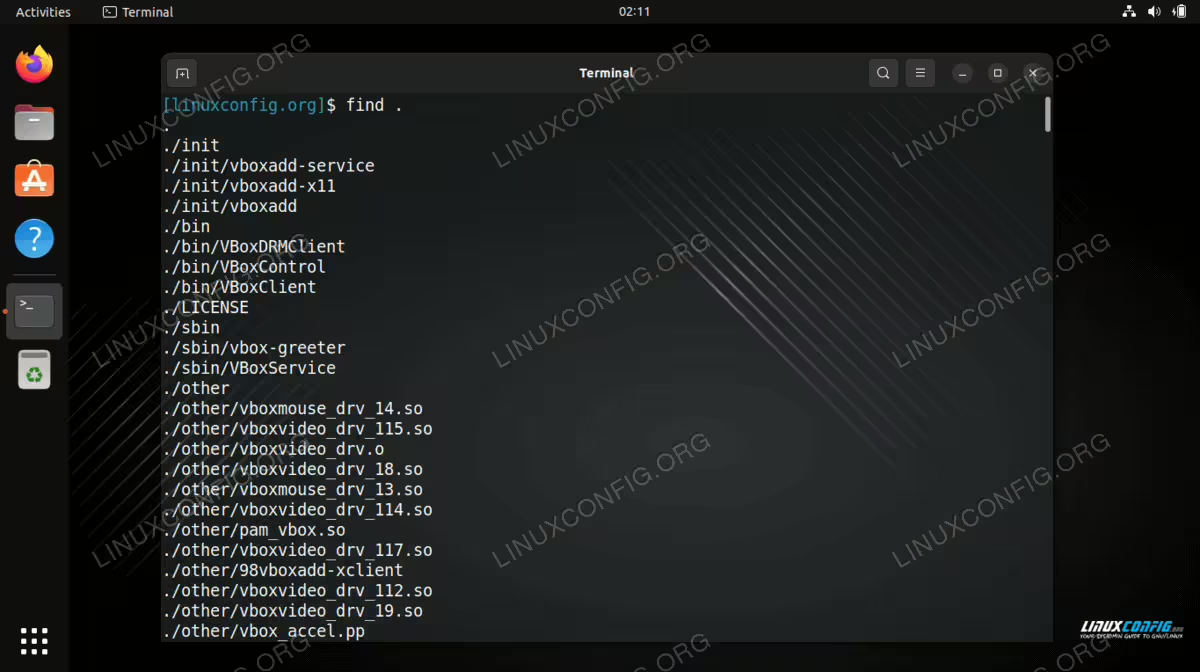
findcommand will list all files and directories in a given path. To search the present working directory, just use..$ find .

Using find command to print directory tree on Linux - If you only want the
findcommand to list directories and subdirectories, use the-type doption.$ find . -type d
- Use the
-maxdepthoption to limitfindto only traverse a specified number of subdirectories deep. This command limitsfindto two subdirectories deep.$ find . -maxdepth 2
- Everyone knows the
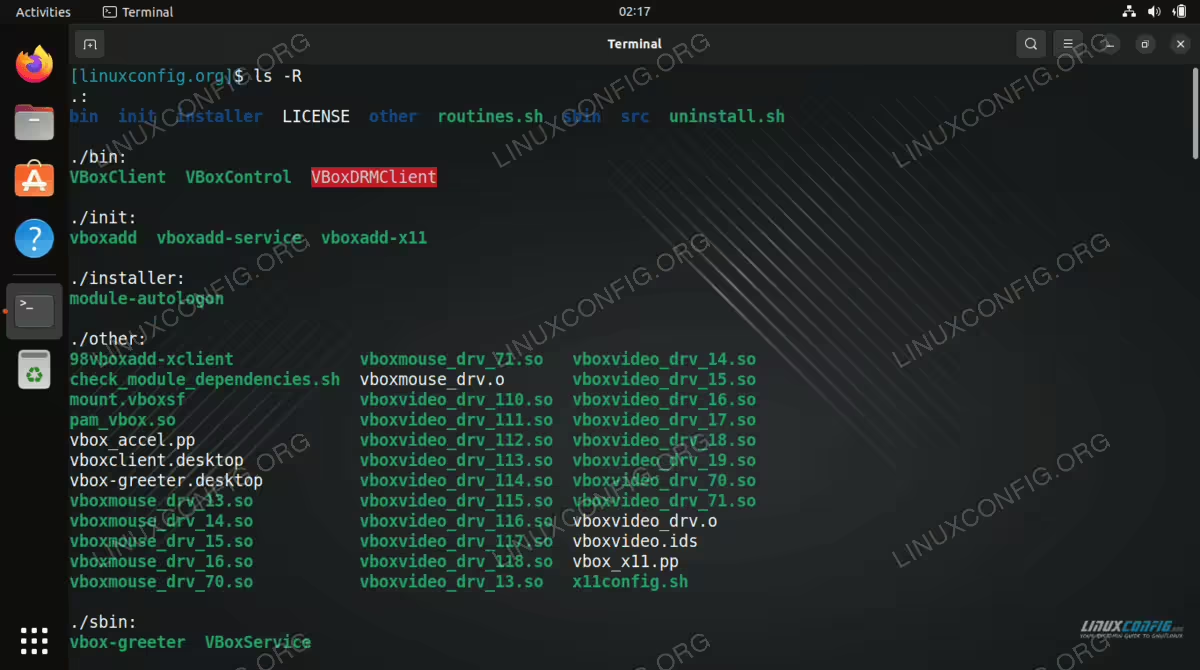
lscommand to list files on Linux, but it can also list subdirectories and their contents with the-R(recursive) option, effectively giving us a directory tree.$ ls -R

Listing directories recursively with the ls command - The
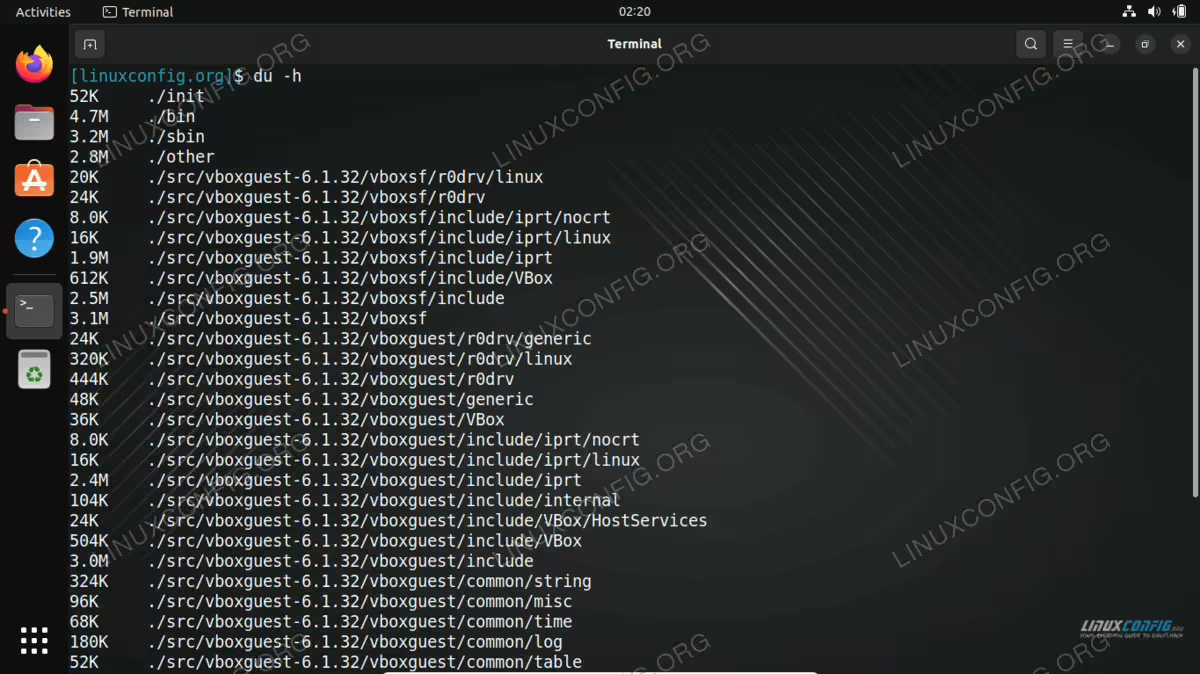
ducommand can also be used to print a directory tree. The main use of theducommand is to list file size and directory size, so our trees will also contain that information. Usually you will want to add the-hoption to make the sizes human readable.$ du -h

Listing directory tree and sizes with du command See our other guide on List all directories and sort by size for more ways to use
duto print directory trees.
Print directory tree via GUI on Linux
Sometimes, it is easier to visualize a directory tree if we use a GUI utility. One such application is called Disk Usage Analyzer, but it may not be installed by default on your Linux distro. Use the appropriate command below to install it with your system’s package manager.
You can use the appropriate command below to install Disk Usage Analyzer with your system’s package manager.
To install Disk Usage Analyzer on Ubuntu, Debian, and Linux Mint:
$ sudo apt install baobab
To install Disk Usage Analyzer on Fedora, CentOS, AlmaLinux, and Red Hat:
$ sudo dnf install baobab
To install Disk Usage Analyzer on Arch Linux and Manjaro:
$ sudo pacman -S baobab
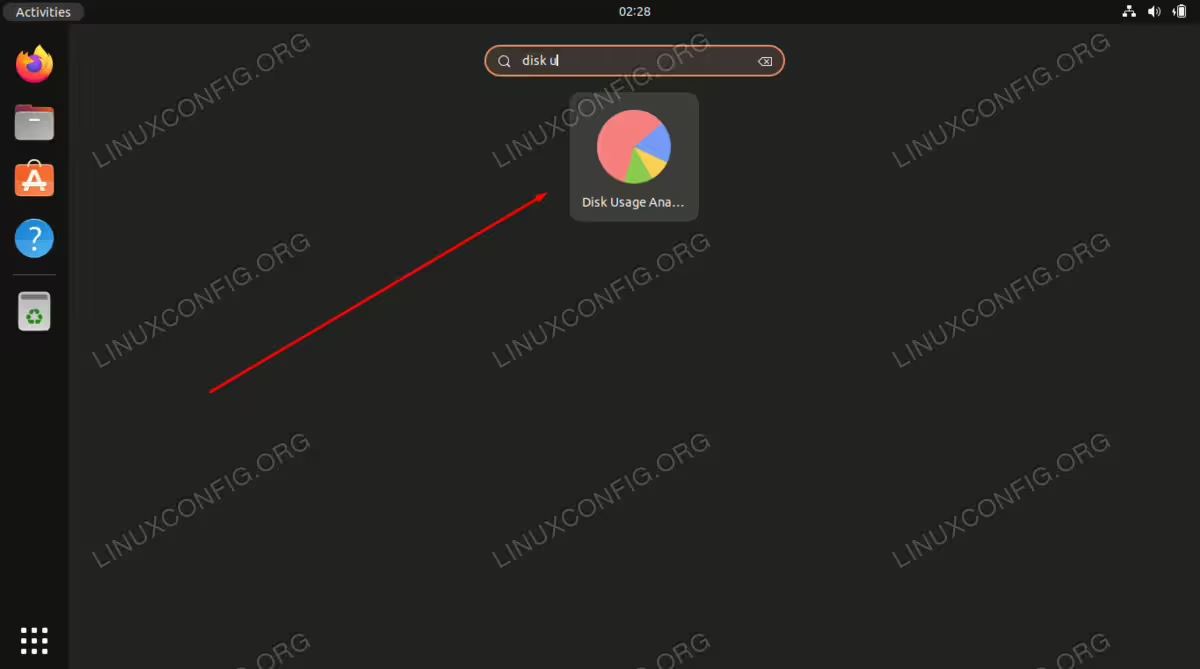
After it is installed, search for and open the application.
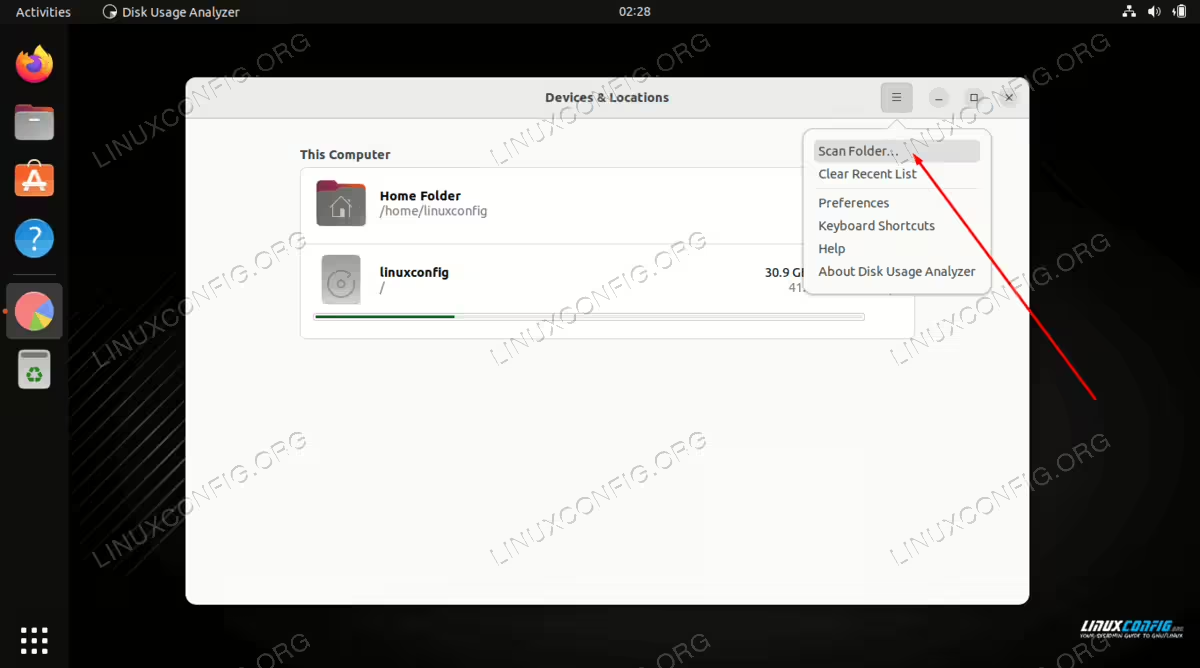
When the program opens, it will ask if you want it to scan the home directory or an entire disk. You can also click the options menu (three stacked lines) for the ability to scan a particular folder.
Make your selection and the utility will begin scanning for files. Once it finishes scanning for content, it will give you a full readout of how your hard disk space is being distributed to various directories on your system. There is also a graphical representation which you can move your mouse cursor over to get an even better idea. It lists directories by size, so you can quickly determine what’s chewing up the most disk space.
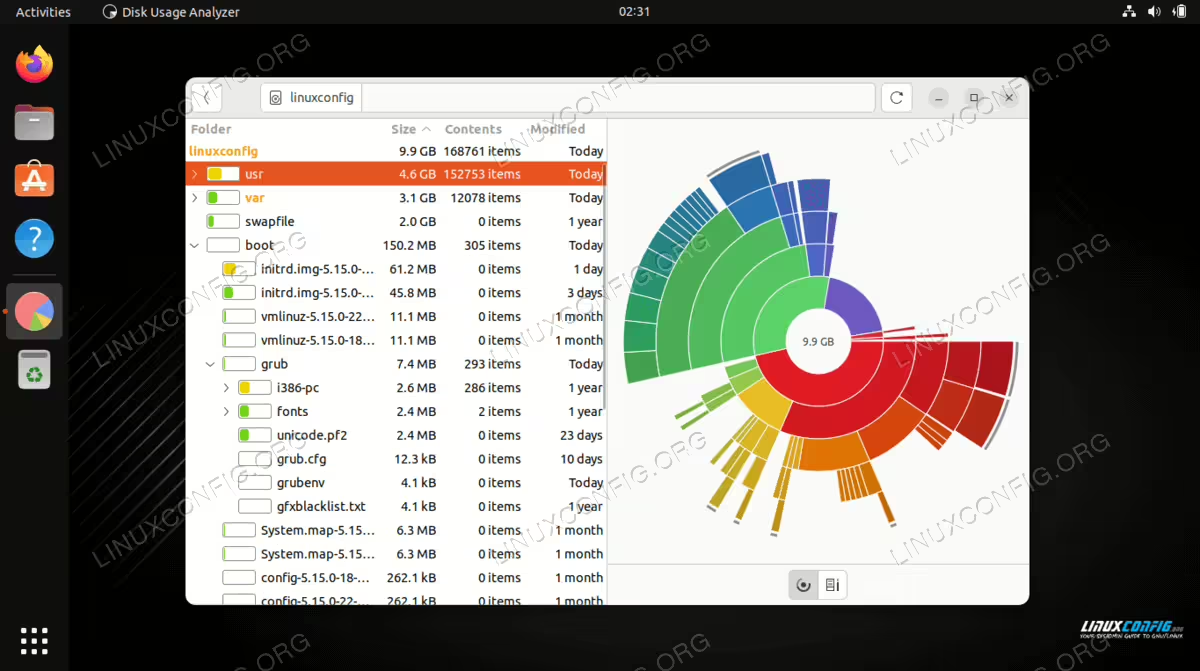
Use the arrows next to each directory to expand a list of files and subdirectories, effectively viewing the directory tree of any path you want
Closing Thoughts
In this tutorial, we saw how to print a directory tree on Linux from command line and GUI. The
tree command is our best recommendation, as it is meant especially for this purpose and comes loaded with a lot of options. But Linux also includes the default ls, find, and du commands, which can be equally as useful.
If you do not want to fiddle with the command line, then Disk Usage Analyzer works well at not only printing directory trees, but showing you how much space each directory is consuming.
