
Changing a user password in Linux is a common task, whether you’re a system administrator managing multiple accounts or a regular user wanting to update your login details. Linux offers easy ways to change user passwords, both through the command line and graphical interfaces like GNOME. In this guide, we’ll walk you through both methods, and remember: resetting the root user password is a different procedure, which you can learn about in another tutorial. Let’s get started!
In this tutorial you will learn:
- How to change a user password using the command line
- How to change a user password using the GNOME graphical interface
| Category | Requirements, Conventions or Software Version Used |
|---|---|
| System | Any Linux distribution (Debian, Ubuntu, CentOS, Fedora, etc.) |
| Software | GNOME for graphical method, terminal access for CLI |
| Other | A user account with the necessary privileges to change passwords |
| Conventions | # – requires given linux commands to be executed with root privileges either directly as a root user or by use of sudo command$ – requires given linux commands to be executed as a regular non-privileged user |
Changing a User Password in Linux via Command Line
One of the quickest ways to change a user account password is through the terminal using the `passwd` command. It’s a simple process that system administrators and regular users can follow. Here’s how to do it.
- Access the Terminal: Open your terminal by pressing
Ctrl+Alt+Tor searching for “Terminal” in your menu. Once you have access to the command line, type the following to change a user password.$ sudo passwd username
Replace
usernamewith the name of the specific user whose password you want to change. You’ll be prompted to enter your own password for authentication first (if you’re usingsudo), and then to set the new password for the user. Important: when typing the new password, you won’t actually see any characters on the screen as you type for security reasons, so don’t worry! - Enter and Confirm New Password: Once the command is executed, you’ll be prompted to enter the new password twice, like this:

Procedure for Changing Linux password for a specific user. The password and confirmation steps ensure you haven’t mistyped it. Once completed, you’ll get a “successfully” message, confirming the user’s password has been updated. This command line method is efficient, but remember, if you need to reset the root password, it’s done differently.

DID YOU KNOW?
You can force a password reset in Linux by using the sudo passwd -e username command. Replace username with the actual user. This forces the user to reset their password on the next login, enhancing security and ensuring password updates.
Changing a User Password in Linux via GNOME GUI
If the command line feels intimidating, you can always change user passwords in Linux using the GNOME graphical interface. It’s user-friendly and straightforward. Let’s go through the steps.
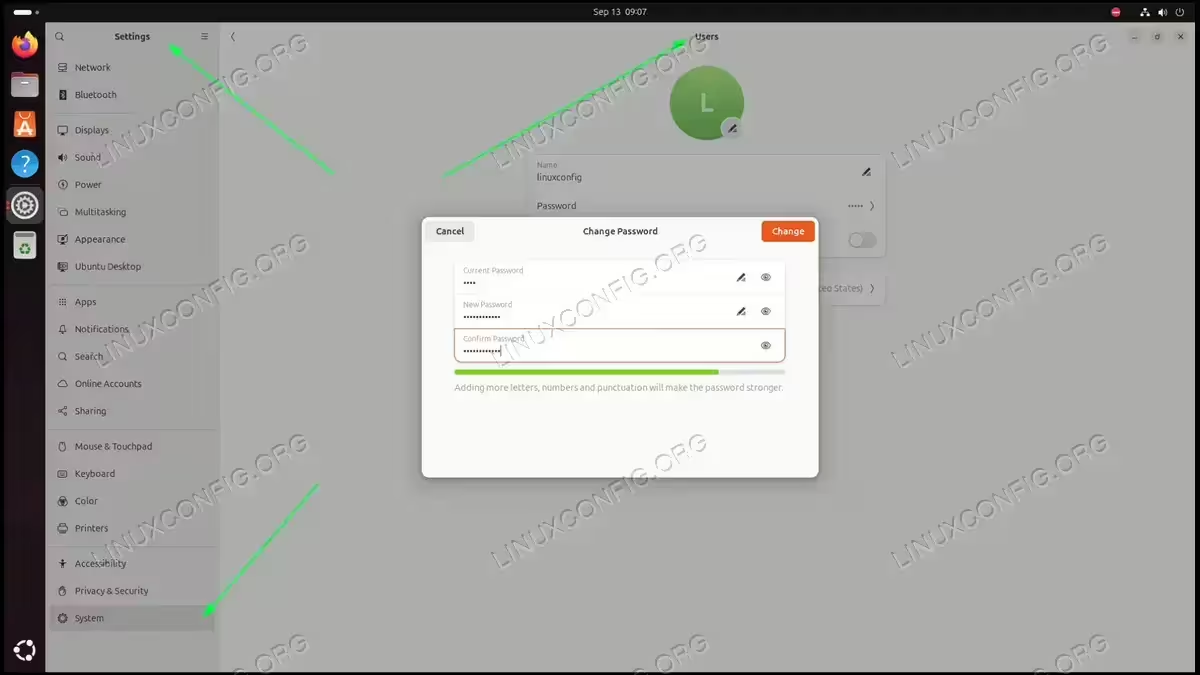
- Open User Settings: Start by opening the “Settings” application from the GNOME menu. Once you’re in the Settings window, find the tab “System” and “Users” section, usually located on the left-hand sidebar. This is where you’ll manage user accounts and passwords.
- Select the User: From the list of user accounts, click on the specific user for whom you want to change the password. You’ll see an option to change the password under their profile. Clicking this will open a new window asking for the current password.
- Change the Password: After entering the current password, you’ll be prompted to enter and confirm the new password. Once you’ve entered the password and confirmed it, hit “Change” to apply the changes. This method provides a simple way to update user passwords in Linux, especially for users who aren’t comfortable with the command line. It’s ideal for desktops running GNOME or any Linux operating system with a graphical interface.

Changing a User Password in Linux via GNOME GUI
Conclusion
Whether you prefer the command line method using the passwd command or the graphical approach via GNOME, changing user passwords in Linux is a straightforward process. System administrators might favor the command line for its speed, while other users might find the GUI method easier. No matter which path you choose, the user’s password will be updated successfully. Remember, resetting the root password involves a different set of steps, which you can explore in another tutorial.
