
Saving scripts directly from the terminal is a fundamental skill for anyone working with Linux. This skill is particularly useful for automating tasks, managing configurations, or executing sequences of commands with ease. In this guide, we’ll walk you through the detailed steps to save and run a Bash script in Linux using the terminal.
In this tutorial you will learn:
- How to create a new script file using the terminal
- How to write content into a script
- How to make a script executable
- How to execute the saved script
| Category | Requirements, Conventions or Software Version Used |
|---|---|
| System | Linux-based operating system (Ubuntu, Debian, Fedora, etc.) |
| Software | Bash Shell |
| Other | A text editor like nano or vim |
| Conventions | # – requires given linux commands to be executed with root privileges either directly as a root user or by use of sudo command$ – requires given linux commands to be executed as a regular non-privileged user |
How to Create and Save a Script in the Terminal
Creating and saving a script directly from the terminal can help streamline your workflow, especially when you need to automate tasks. Below are the steps to create, save, and run a script in Linux.
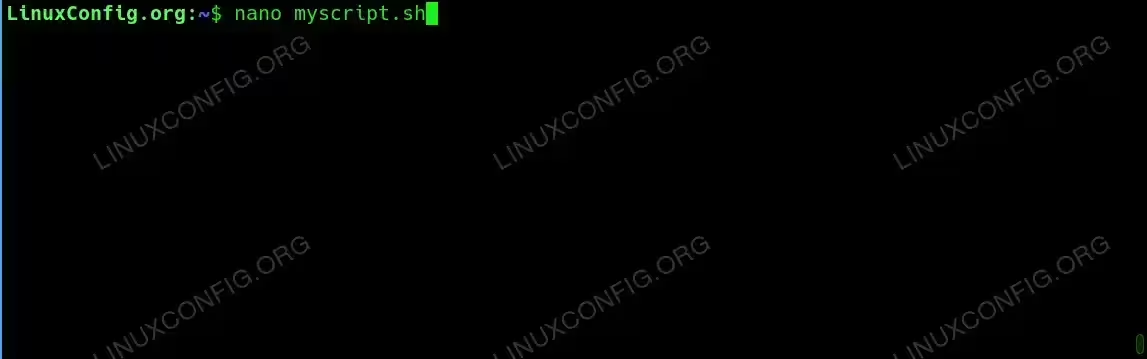
- Create a new script file: To create a new script file, use a text editor like
nanoorvimfrom the terminal. For this example, we will usenanoto create a file namedmyscript.sh:$ nano myscript.sh
This command opens the
nanotext editor with a new file namedmyscript.sh. If the file already exists, it will open the existing file for editing.
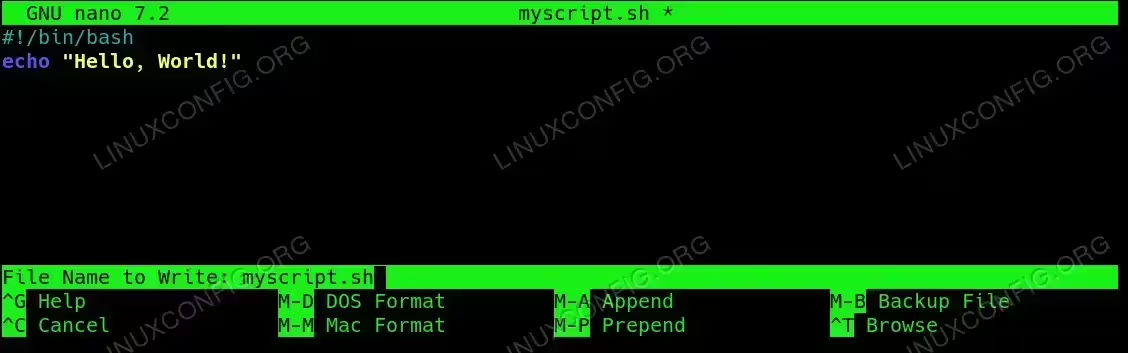
Create a new script file on terminal with nano text editor - Write your script: Once the editor is open, you can write your script. For instance, you can start with a simple “Hello, World!” script:
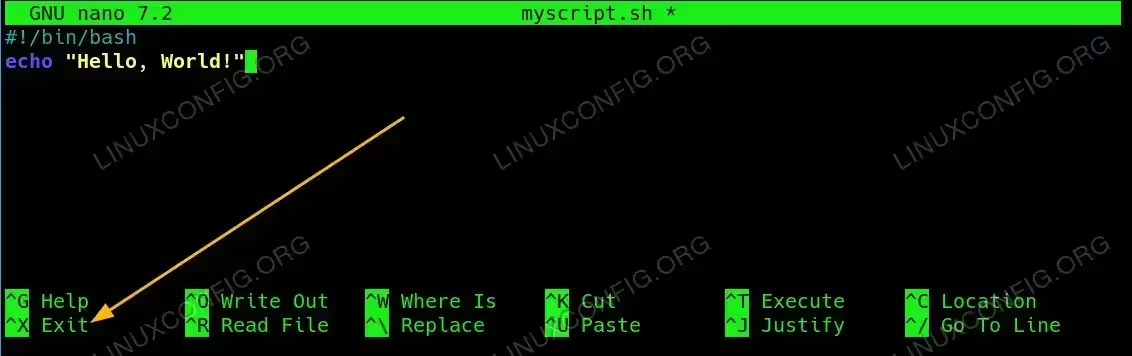
#!/bin/bash
echo "Hello, World!"
The
#!/bin/bashline is called a “shebang” and specifies that this script should be run with the Bash shell. Theechocommand is used to print text to the terminal. - Save and exit the editor: After writing your script, you need to save the file and exit the editor. In
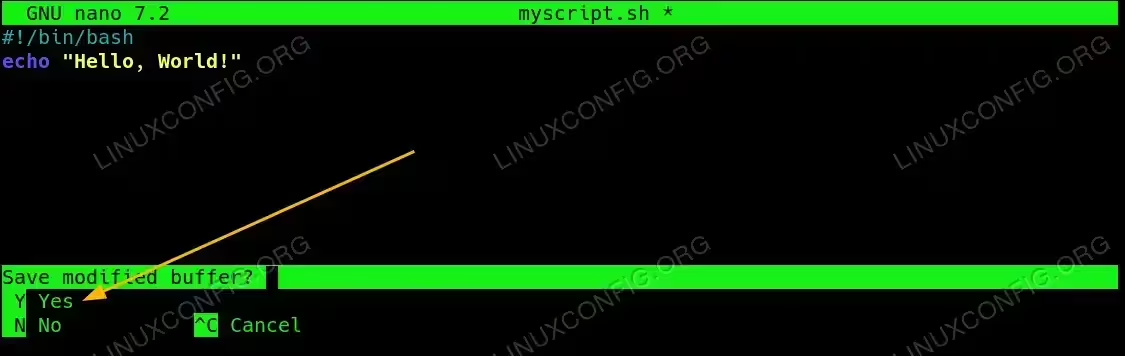
nano, pressCTRL + X, then pressYto confirm saving the changes, andEnterto finalize the file name. This will save the file and exitnano.
Press CTRL + X to initiated the script’s saving process. 
Press Y to confirm saving the script. 
Hit ENTER to finally save the script file - Make the script executable: Before running the script, you need to make it executable using the
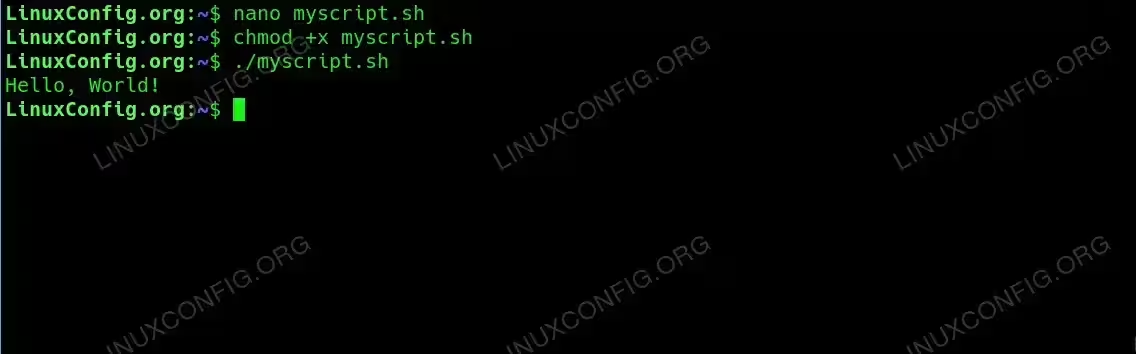
chmodcommand:$ chmod +x myscript.sh
This command changes the file’s permissions, allowing it to be executed as a program. Without this step, you would have to run the script by calling the Bash interpreter directly.
- Run the script: Now that your script is saved and executable, you can run it directly from the terminal:
$ ./myscript.sh
This command will execute
myscript.shand output “Hello, World!” to the terminal. If you encounter a “Permission denied” error, double-check that you have made the file executable using thechmodcommand.
Make the script executable and run it. - Edit an existing script: To modify an existing script, open it again in a text editor like
nano:$ nano myscript.sh
Make any necessary changes, then save and exit as described earlier. This allows you to easily update your scripts when needed.
Conclusion
Learning how to save a script on the terminal is an essential skill for anyone working with Linux. By following the steps above, you can easily create, save, and run scripts, allowing you to automate tasks and streamline your work. Remember to make your script executable and use the correct commands to avoid common issues. Whether you’re a beginner or an experienced user, mastering script creation is a valuable addition to your Linux toolkit.
