
Restarting Docker on Ubuntu 26.04 is a common task when applying configuration changes, recovering from an unresponsive daemon, or troubleshooting container issues. This guide covers every method for a docker restart ubuntu 26.04 scenario: restarting the Docker service itself via systemd, restarting individual containers, and performing a graceful restart to minimise downtime. Whether you are running a development workstation or a production server, understanding these methods ensures you can keep your Docker environment healthy and responsive.
Table of Contents
In this tutorial you will learn:
- How to restart the Docker daemon using systemd
- How to restart individual Docker containers by name or ID
- How to restart all running containers at once
- How to configure automatic restart policies for containers
- How to verify Docker is healthy after a restart
- How to diagnose and fix common Docker restart failures
[IMAGE PLACEHOLDER: Header image – abstract illustration representing Docker container restart operations on Ubuntu Linux]
Software Requirements
| Category | Requirements, Conventions or Software Version Used |
|---|---|
| System | Ubuntu 26.04 Resolute Raccoon |
| Software | Docker Engine 27.x or later |
| Other | Privileged access to your Linux system as root or via the sudo command. |
| Conventions | # – requires given linux commands to be executed with root privileges either directly as a root user or by use of sudo command$ – requires given linux commands to be executed as a regular non-privileged user |
systemctl to restart the daemon and docker restart to restart individual containers.
| Step | Command/Action |
|---|---|
| 1. Restart Docker daemon | sudo systemctl restart docker |
| 2. Restart a specific container | docker restart <container_name> |
| 3. Verify daemon is running | sudo systemctl status docker |
Restart the Docker Service on Ubuntu 26.04
The Docker service on Ubuntu 26.04 is managed by systemd, which means the standard systemctl commands apply. Restarting the Docker daemon is necessary when you edit the Docker configuration file (/etc/docker/daemon.json), upgrade the Docker Engine, or experience a frozen or unresponsive daemon. To restart the server service in general, the same systemd pattern applies.
- Restart the Docker daemon: Run the following command to stop and then start the Docker service in one operation:
$ sudo systemctl restart docker
This command sends a stop signal to the daemon, waits for it to shut down cleanly, and then starts it again. All containers that do not have a restart policy set will remain stopped after this operation.
- Reload the Docker daemon without a full restart (optional): If you only changed certain daemon options, you can attempt a soft reload:
$ sudo systemctl reload docker
Note that not all configuration changes are applied via reload. A full restart is always the safest option after editing
daemon.json.
IMPORTANT
Restarting the Docker daemon stops all running containers unless they have been configured with a restart policy such as always or unless-stopped. Plan maintenance accordingly in production environments.
Restart a Docker Container on Ubuntu 26.04
A docker restart ubuntu 26.04 operation does not always require touching the daemon. More commonly, you need to restart an individual container after a configuration change, a crash, or a code update. The docker restart command handles this cleanly without affecting other running containers.
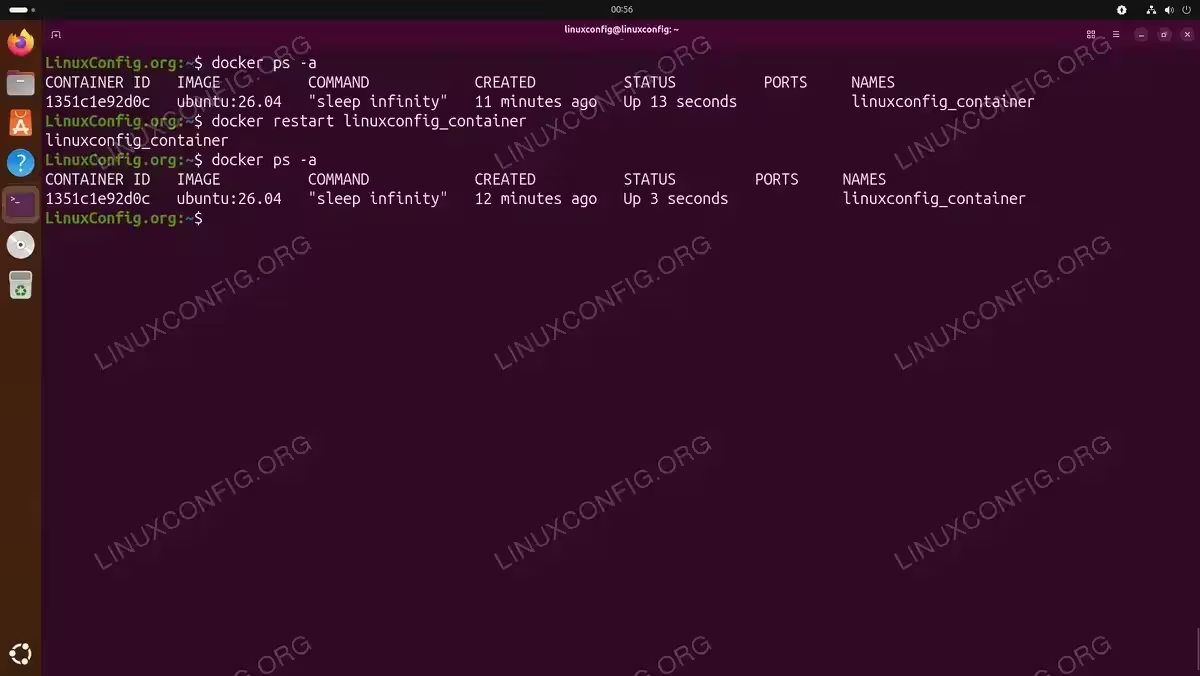
- Identify the container name or ID: List all containers, including stopped ones, to find the target:
$ docker ps -a
The output shows the container ID, image name, status, and the assigned name in the rightmost column. You can use either the container ID or the name in subsequent commands.
- Restart the container: Pass the container name or ID to the restart subcommand:
$ docker restart linuxconfig_container
Docker sends a SIGTERM signal to the main process inside the container, waits for a grace period (10 seconds by default), and then sends SIGKILL if the process has not exited. The container is then started fresh.
- Adjust the stop timeout (optional): For containers that need more time to shut down gracefully, use the
-tflag to specify a timeout in seconds:$ docker restart -t 30 linuxconfig_container
This example gives the container 30 seconds to exit cleanly before Docker forcefully kills it.
You can also reference Docker images to better understand the relationship between images and the containers you are restarting.
Restart All Running Containers on Ubuntu 26.04
There are situations where you need to restart every container simultaneously, for example after changing DNS settings that affect all containers, or after updating shared environment variables. Docker does not provide a single command for this purpose, but you can combine docker ps with docker restart to achieve it efficiently.
- Restart all currently running containers: Use command substitution to pass all running container IDs to
docker restart:$ docker restart $(docker ps -q)
The
-qflag ondocker psoutputs only container IDs, which are then passed as arguments. If no containers are running, the command exits without error. - Restart all containers including stopped ones (use with caution): To include every container regardless of state, add the
-aflag:$ docker restart $(docker ps -aq)
This starts previously stopped containers as well, so review the list with
docker ps -afirst to avoid starting containers unintentionally.
IMPORTANT
If you are working with Docker Compose, a more controlled approach is to run docker compose restart from the project directory. This restarts only the containers defined in that specific Compose file.
Configure Container Restart Policies on Ubuntu 26.04
Restart policies determine what Docker does automatically when a container exits. Configuring a policy is the recommended approach for any container that should survive a Docker daemon restart or host reboot. To get started with Docker, understanding restart policies is an essential early step.
The four available restart policies are described below:
| Policy | Behaviour |
|---|---|
no |
Default. Docker never automatically restarts the container. |
on-failure[:max-retries] |
Restarts only if the container exits with a non-zero exit code. Optionally limits the number of retries. |
always |
Always restarts the container regardless of exit code, including after a daemon restart. |
unless-stopped |
Same as always but does not restart if the container was manually stopped before the daemon restarted. |
- Set a restart policy when creating a container: Pass the
--restartflag todocker run:$ docker run -d --restart unless-stopped --name web nginx
This starts an Nginx container that restarts automatically unless you explicitly stop it with
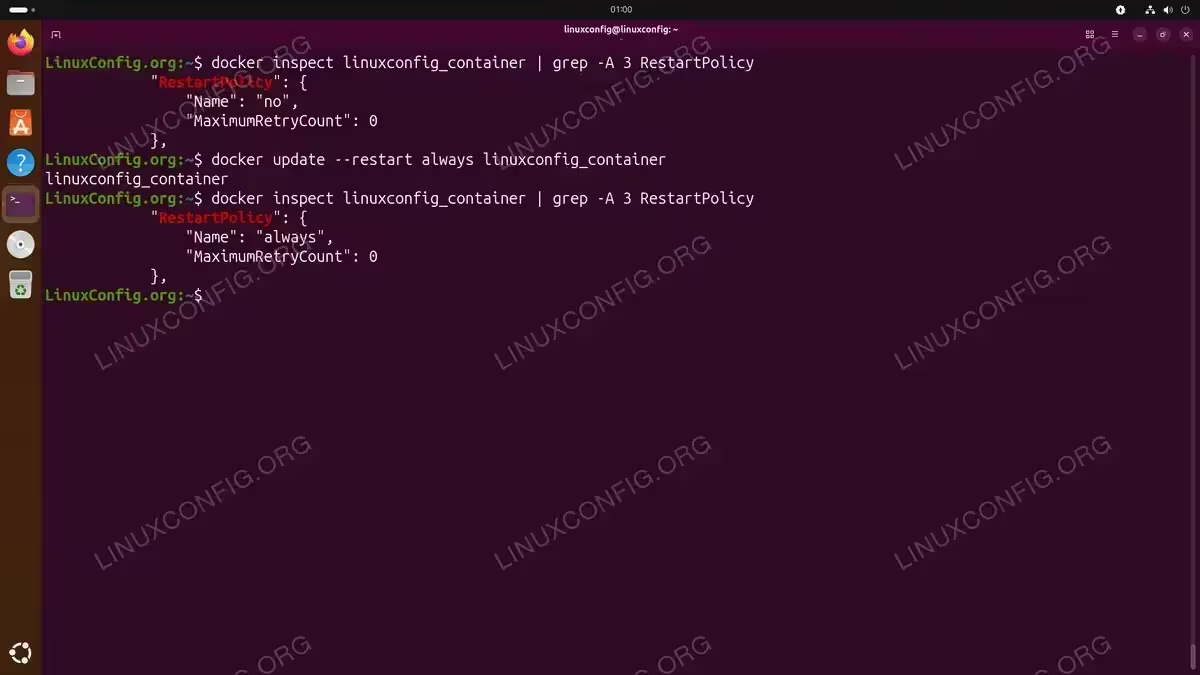
docker stop. - Update the restart policy on an existing container: Use
docker updateto change the policy without recreating the container:$ docker update --restart always linuxconfig_container
The new policy takes effect immediately and persists across daemon and host restarts.
Verify Docker Status After Restart on Ubuntu 26.04
After any docker restart ubuntu 26.04 operation, confirming that everything is healthy is important. The following commands give you a complete picture of the daemon and container states.
- Check the Docker daemon status:
$ sudo systemctl status docker
Look for
Active: active (running)in the output. If the daemon failed to start, the status will showfailedand the journal entries below will indicate the cause. - Check Docker daemon info:
$ docker info
This command outputs the number of running and stopped containers, the storage driver in use, and other daemon-level diagnostics. Consequently, it is one of the fastest ways to confirm the daemon is functioning correctly.
- List running containers:
$ docker ps
Verify that all expected containers are in the
Upstate. Any containers that exited unexpectedly will appear indocker ps -awith their exit code. - Review container logs after restart:
$ docker logs linuxconfig_container
Check application logs to confirm the process inside the container started without errors following the restart.
Additionally, if you need to restart the network stack on Ubuntu, the same systemd patterns used for Docker apply equally to NetworkManager and other services.
Troubleshooting Docker Restart Issues on Ubuntu 26.04
Sometimes a docker restart ubuntu 26.04 operation does not go as expected. The following covers the most common issues and their solutions.
- Docker daemon fails to start after restart: A syntax error in
/etc/docker/daemon.jsonis the most frequent cause. Validate the file before restarting:$ cat /etc/docker/daemon.json | python3 -m json.tool
If the command reports an error, correct the JSON and then retry
sudo systemctl restart docker. - Containers do not come back after daemon restart: This happens when no restart policy is set. Containers with the default
nopolicy remain stopped after the daemon restarts. Set an appropriate policy withdocker update --restart unless-stopped <container>and they will recover automatically in the future. - Container is stuck in a restart loop: A container configured with
on-failureoralwaysthat keeps crashing will enter a restart loop. Inspect the logs to find the root cause:$ docker logs --tail 50 linuxconfig_container
Additionally, check the restart count with
docker inspect linuxconfig_container | grep -i restartcount. - Permission denied when running docker commands: If your user is not in the
dockergroup, add them and apply the change:$ sudo usermod -aG docker linuxconfig $ newgrp docker
After this, Docker commands work without
sudoin new shell sessions.
COMPLETED
You now know all the primary methods to restart Docker and individual containers on Ubuntu 26.04. For official reference documentation, see the Docker CLI restart reference.
Conclusion
This guide covered the complete docker restart ubuntu 26.04 workflow, including restarting the Docker daemon via systemd, restarting individual containers and all containers at once, configuring restart policies for automatic recovery, verifying system health post-restart, and resolving common failure scenarios. Combining systemctl restart docker for daemon-level control with docker restart for container-level control gives you precise management over your Docker environment on Ubuntu 26.04. Moreover, setting appropriate restart policies ensures your workloads recover automatically from both application crashes and planned maintenance restarts.
If you also want to restart Ubuntu itself, the same systemd-based approach used here will feel familiar.
Frequently Asked Questions
- Does restarting the Docker daemon stop all my containers? Yes, restarting the Docker daemon stops all running containers unless they have a restart policy of
alwaysorunless-stoppedconfigured. Containers with those policies restart automatically once the daemon is back up. Containers using the defaultnopolicy, or those that were manually stopped, remain stopped. - What is the difference between
docker restartanddocker stopfollowed bydocker start? Thedocker restartcommand is functionally equivalent to runningdocker stopanddocker startin sequence, but it is a single atomic command. The key difference is thatdocker restartpreserves the container’s existing configuration, environment variables, and volume mounts without requiring you to specify them again. - How do I restart Docker automatically on boot in Ubuntu 26.04? The Docker service is enabled at boot by default when installed via the official repository. You can verify this with
sudo systemctl is-enabled docker. If it returnsdisabled, enable it withsudo systemctl enable docker. For containers to also restart on boot, configure them with the--restart alwaysor--restart unless-stoppedpolicy. - Can I restart a Docker container without root privileges? Yes, provided your user is a member of the
dockergroup. Rungroupsto check your current group memberships. Ifdockeris not listed, add yourself withsudo usermod -aG docker $USERand log out and back in for the change to take effect. After that,docker restartworks withoutsudo. - What happens to container data when I restart Docker? Data stored in Docker volumes is preserved across container and daemon restarts. Data written to the container’s writable layer (non-volume paths) is also preserved across restarts, because a restart does not recreate the container. However, if the container is removed and recreated from its image, only volume data persists.