
Installing the Rust programming language on Ubuntu 26.04 with rustup gives you a complete, up-to-date toolchain managed independently from your system packages. This guide walks you through the rust rustup install on Ubuntu 26.04, from prerequisites to creating your first project with Cargo.
Table of Contents
In this tutorial you will learn:
- How to install Rust using the official rustup installer
- How to verify the Rust compiler and Cargo package manager
- How to manage multiple Rust toolchains with rustup
- How to create, build, and run a Rust project with Cargo
- How to update and uninstall Rust cleanly
Software Requirements
| Category | Requirements, Conventions or Software Version Used |
|---|---|
| System | Ubuntu 26.04 Resolute Raccoon |
| Software | rustup, rustc, cargo |
| Other | Privileged access to your Linux system as root or via the sudo command. An active internet connection. |
| Conventions | # – requires given linux commands to be executed with root privileges either directly as a root user or by use of sudo command$ – requires given linux commands to be executed as a regular non-privileged user |
rustup installer. This sets up rustc, cargo, and toolchain management in your home directory.
| Step | Command/Action |
|---|---|
| 1. Install prerequisites | sudo apt update && sudo apt install curl build-essential |
| 2. Run the rustup installer | curl --proto '=https' --tlsv1.2 -sSf https://sh.rustup.rs | sh |
| 3. Load environment | source "$HOME/.cargo/env" |
| 4. Verify installation | rustc --version && cargo --version |
Understanding Rust and Rustup on Ubuntu 26.04
Rust is a systems programming language focused on performance, memory safety, and concurrency. While Ubuntu 26.04 does ship a rustc package through apt, the repository version is typically several releases behind the latest stable. Consequently, the Rust project officially recommends rustup as the preferred installation method.
Rustup is a toolchain multiplexer that installs and manages Rust compiler versions. It places everything under ~/.cargo and ~/.rustup in your home directory, keeping your system untouched. With rustup you get three core components: rustc (the compiler), cargo (the package manager and build system), and rustup itself for toolchain management.
DID YOU KNOW
Ubuntu 26.04 uses Rust-based coreutils (uutils-coreutils) as the default implementation of common commands like ls, cp, and cat. This means Rust is already running at the core of your system, even before you install the compiler.
Installing Rust with Rustup on Ubuntu 26.04
Follow these steps to perform a complete rust rustup install on your Ubuntu 26.04 system.
- Install build prerequisites: The Rust compiler needs a C linker and related tools to compile programs. Install the
build-essentialmeta-package along withcurlfor downloading the installer:$ sudo apt update $ sudo apt install curl build-essential
The
build-essentialpackage provides GCC,make, and the C library headers that Rust’s linker requires. - Run the rustup installer: Download and execute the official rustup installation script:
$ curl --proto '=https' --tlsv1.2 -sSf https://sh.rustup.rs | sh
The installer presents three options. Press
1to proceed with the default installation, which installs the latest stable toolchain.[IMAGE PLACEHOLDER: Screenshot showing the rustup installer interactive prompt with the three installation options]
- Load the Rust environment: After installation completes, load the Cargo environment into your current shell session:
$ source "$HOME/.cargo/env"
This adds
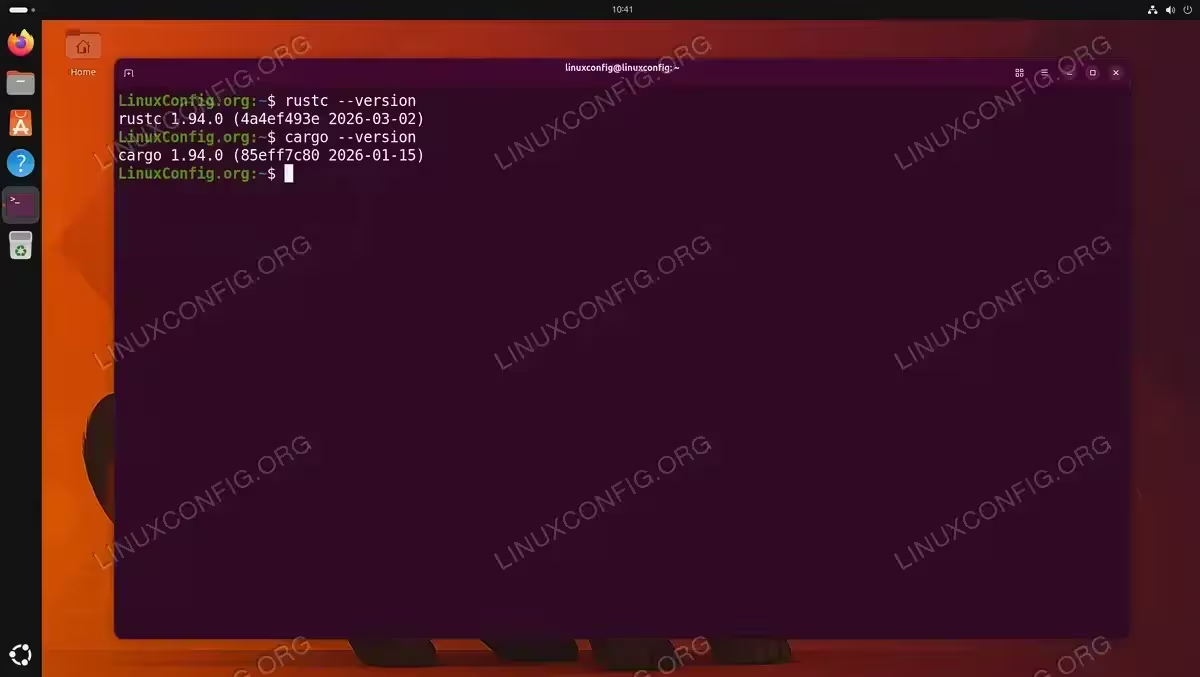
~/.cargo/binto yourPATH. The installer also modifies your shell profile (~/.bashrcor~/.profile), so future terminal sessions will load automatically. - Verify the installation: Confirm that both
rustcandcargoare accessible:$ rustc --version $ cargo --version

Confirming rustc 1.94.0 and cargo 1.94.0 are installed successfully
COMPLETED
Rust is now installed on your Ubuntu 26.04 system. You have the latest stable compiler, Cargo, and rustup ready to use.
Managing Rust Toolchains
Rustup allows you to install and switch between multiple Rust toolchains. This is particularly useful when a project requires a specific compiler version or when you need to test against nightly features.
Updating Rust
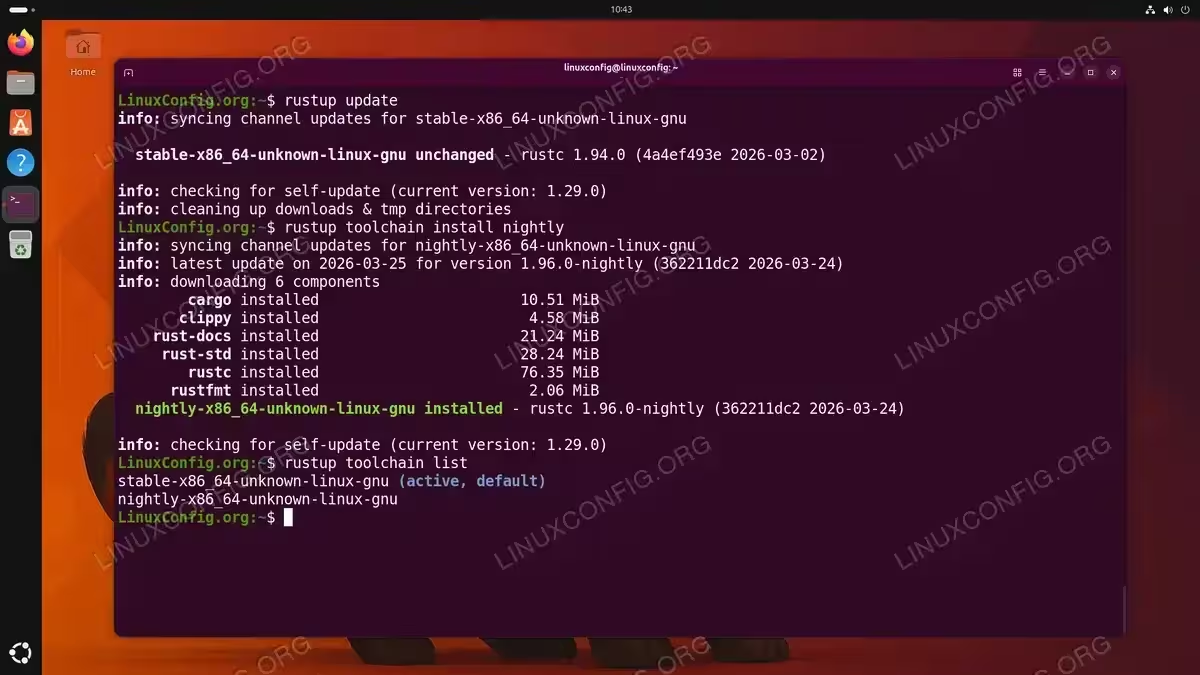
To update all installed toolchains to their latest versions, run:
$ rustup update
This downloads and installs the newest stable, beta, or nightly releases for any toolchains you have installed. It is good practice to run this command regularly.
Installing Additional Toolchains
Besides the default stable toolchain, you can install beta or nightly channels:
$ rustup toolchain install nightly
$ rustup toolchain install beta
To list all installed toolchains:
$ rustup toolchain list
Switching Toolchains
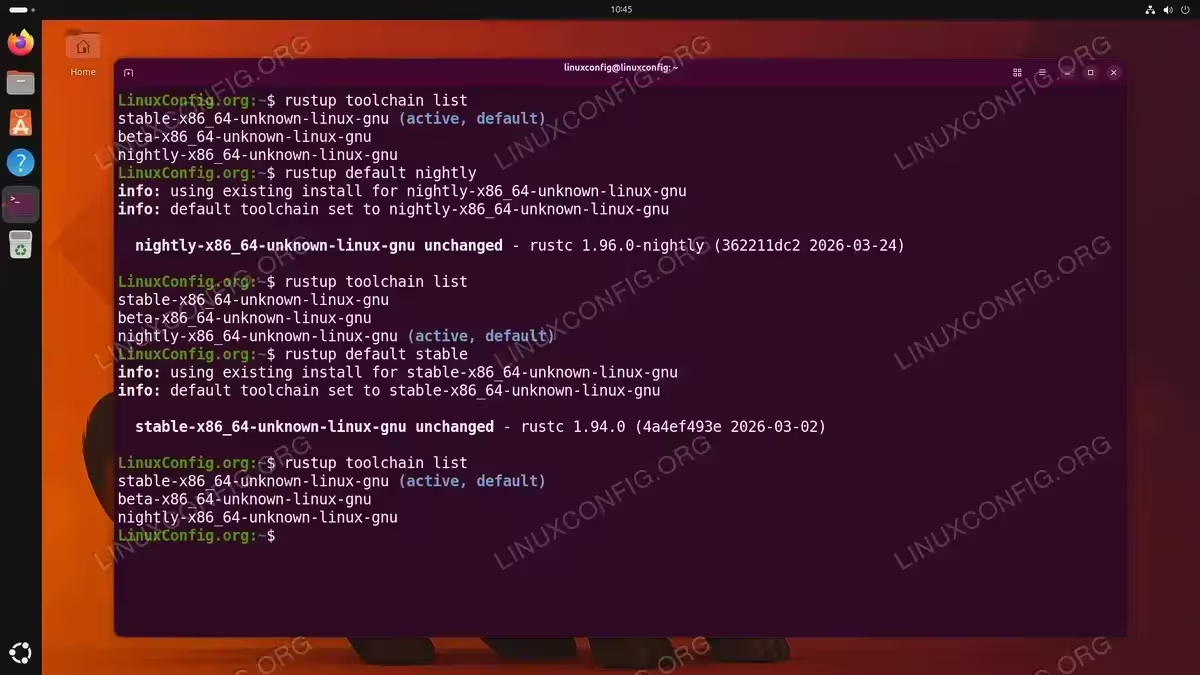
Set a different default toolchain for your entire system:
$ rustup default nightly
Alternatively, set a toolchain override for a specific project directory only:
$ cd ~/linuxconfig_project
$ rustup override set nightly
This creates a directory-level override without affecting your global default. To switch back to stable globally:
$ rustup default stable
Adding Compilation Targets
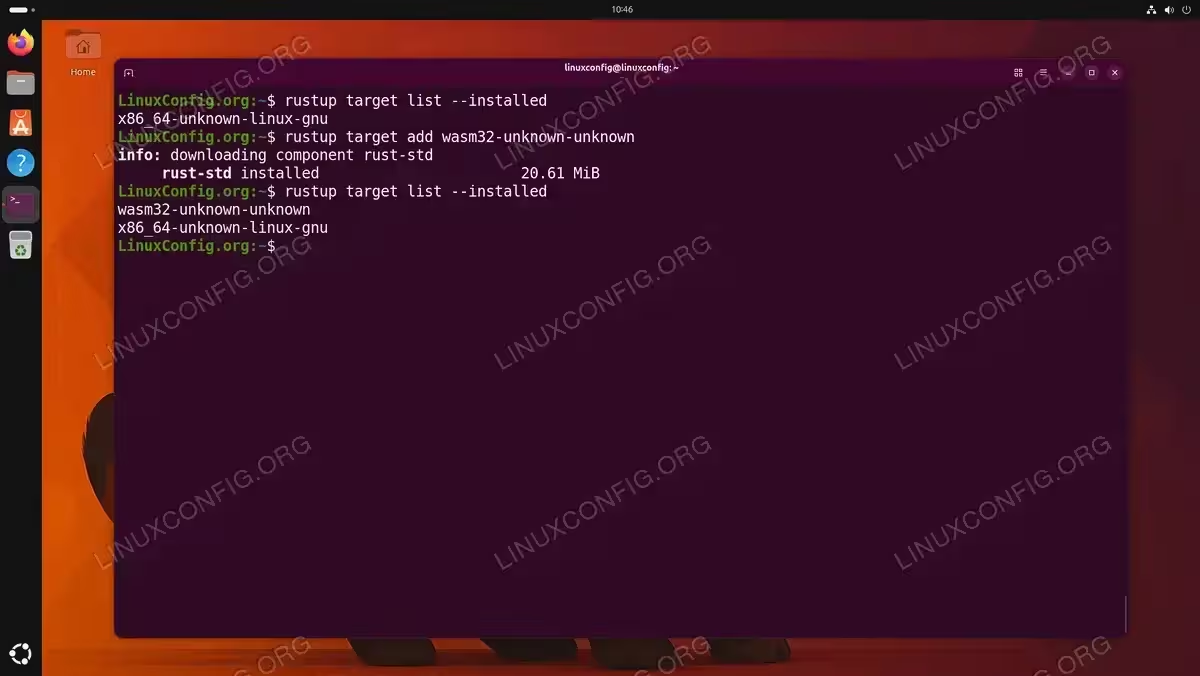
Rustup can also install cross-compilation targets. For example, to add the WebAssembly target:
$ rustup target add wasm32-unknown-unknown
List all installed targets with:
$ rustup target list --installed
Creating Your First Rust Project with Cargo
Cargo is Rust’s build system and package manager. It handles project creation, dependency management, compilation, and testing. Additionally, Cargo integrates with Git by initializing a repository automatically for each new project.
- Create a new project: Generate a new binary project using
cargo new:$ cargo new linuxconfig_project $ cd linuxconfig_project
This creates a directory with a
Cargo.tomlmanifest and asrc/main.rssource file. - Examine the project structure: Take a look at the generated files:
$ tree linuxconfig_project/
The key files are:
linuxconfig_project/
├── Cargo.toml
└── src
    └── main.rs
The
Cargo.tomlfile defines your project’s name, version, edition, and dependencies. Thesrc/main.rsfile contains your application code. - Edit the source code: Open
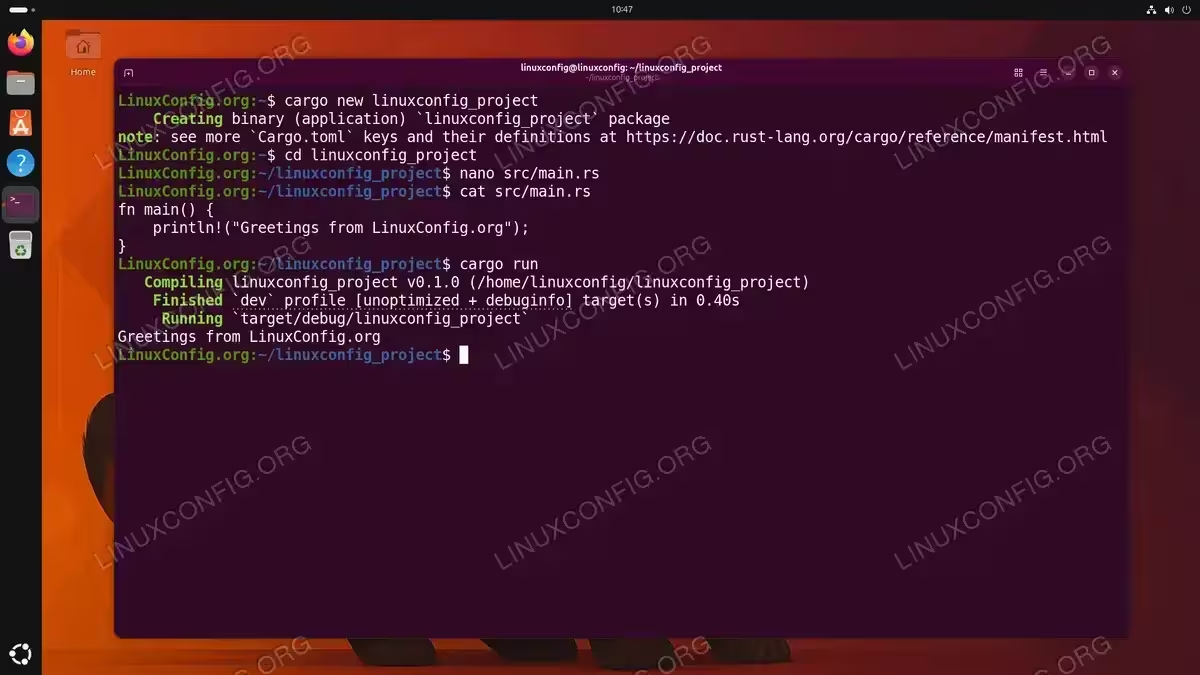
src/main.rsin your preferred text editor and replace the default content with a custom greeting:fn main() { println!("Greetings from LinuxConfig.org"); } - Build and run the project: Compile and execute your project in one step:
$ cargo run
Cargo compiles the source code and runs the resulting binary. You should see output similar to:
   Compiling linuxconfig_project v0.1.0 (/home/linuxconfig/linuxconfig_project)
    Finished `dev` profile [unoptimized + debuginfo] target(s)
     Running `target/debug/linuxconfig_project`
Greetings from LinuxConfig.org
Creating a new Rust project, editing the source code, and running it with Cargo - Build a release binary: For optimized production builds, use the
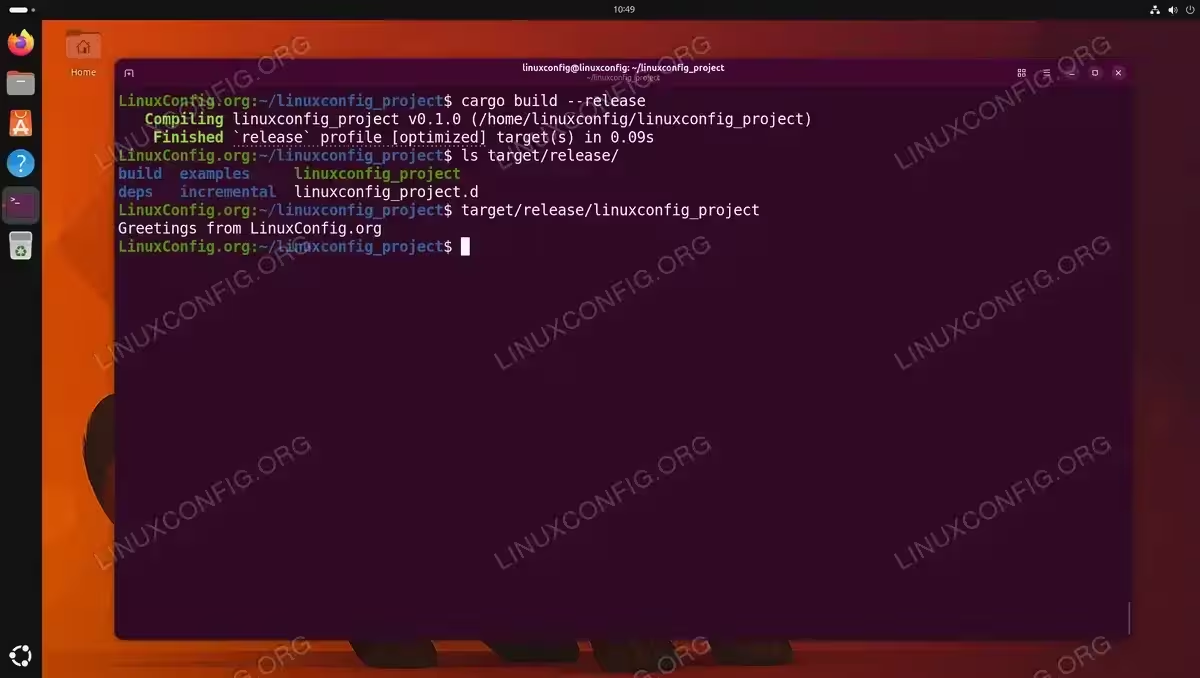
--releaseflag:$ cargo build --release
The optimized binary is placed in
target/release/rather thantarget/debug/.
Compiling an optimized release binary with Cargo and executing it directly
Uninstalling Rust
If you need to remove Rust from your system, rustup provides a clean uninstall command that removes all toolchains, components, and the rustup binary itself:
$ rustup self uninstall
This deletes the ~/.cargo and ~/.rustup directories and removes the PATH modification from your shell profile. No system files are affected since rustup installs everything within your home directory.
Conclusion
You have successfully completed the rust rustup install on Ubuntu 26.04. Your system now has the Rust compiler, the Cargo package manager, and rustup for toolchain management. From here you can install additional toolchains, add cross-compilation targets, and manage project dependencies entirely through Cargo. For further reading, consult the official Rust installation page and the Rust Book.
Frequently Asked Questions
- Should I install Rust from apt or use rustup on Ubuntu 26.04? Use rustup. The apt
rustcpackage is typically several versions behind the latest stable release and does not support toolchain switching or easy updates. Rustup gives you the latest compiler and lets you manage multiple versions side by side. - Where does rustup install Rust on my system? Rustup installs everything under two directories in your home folder:
~/.rustup(toolchains and components) and~/.cargo(binaries, the registry cache, and project build artifacts). No system-wide directories are modified. - How do I update Rust to the latest version? Run
rustup updateto update all installed toolchains. You can also runrustup update stableto update only the stable channel. Check your current version at any time withrustc --version. - Can I have both stable and nightly Rust installed at the same time? Yes. Rustup is designed to manage multiple toolchains simultaneously. Install nightly with
rustup toolchain install nightlyand switch between them usingrustup defaultor per-project overrides withrustup override set.