
PostgreSQL is an free-opensource object-relational database management system. The objective of this tutorial is to perform an installation and basic configuration of PostgreSQL server on RHEL 8 / CentOS 8 Linux server.
In this tutorial you will learn:
- How to install PostgreSQL database server on RHEL 8 / CentOS 8
- How to start and enable PostgreSQL database server
- How to access PostgreSQL database from localhost and remote location
- How to set password for the default
postgresuser - How to enable PostgreSQL to listen on all networks
- How to secure PostgreSQL remote connection with MD5 password authentication
- How to open PostgreSQL firewall port
- How to establish remote connection to PostgreSQL server using
psqlclient
Software Requirements and Conventions Used
| Category | Requirements, Conventions or Software Version Used |
|---|---|
| System | RHEL 8 / CentOS 8 |
| Software | PostgreSQL Server 10.5-1.el8 |
| Other | Privileged access to your Linux system as root or via the sudo command. |
| Conventions |
# – requires given linux commands to be executed with root privileges either directly as a root user or by use of sudo command$ – requires given linux commands to be executed as a regular non-privileged user |
Local PostgreSQL Installation and database access step by step instructions
- Install PostreSQL server. Execute the below
dnfcommand to perform a PostreSQL server package installation:# dnf install postgresql-server
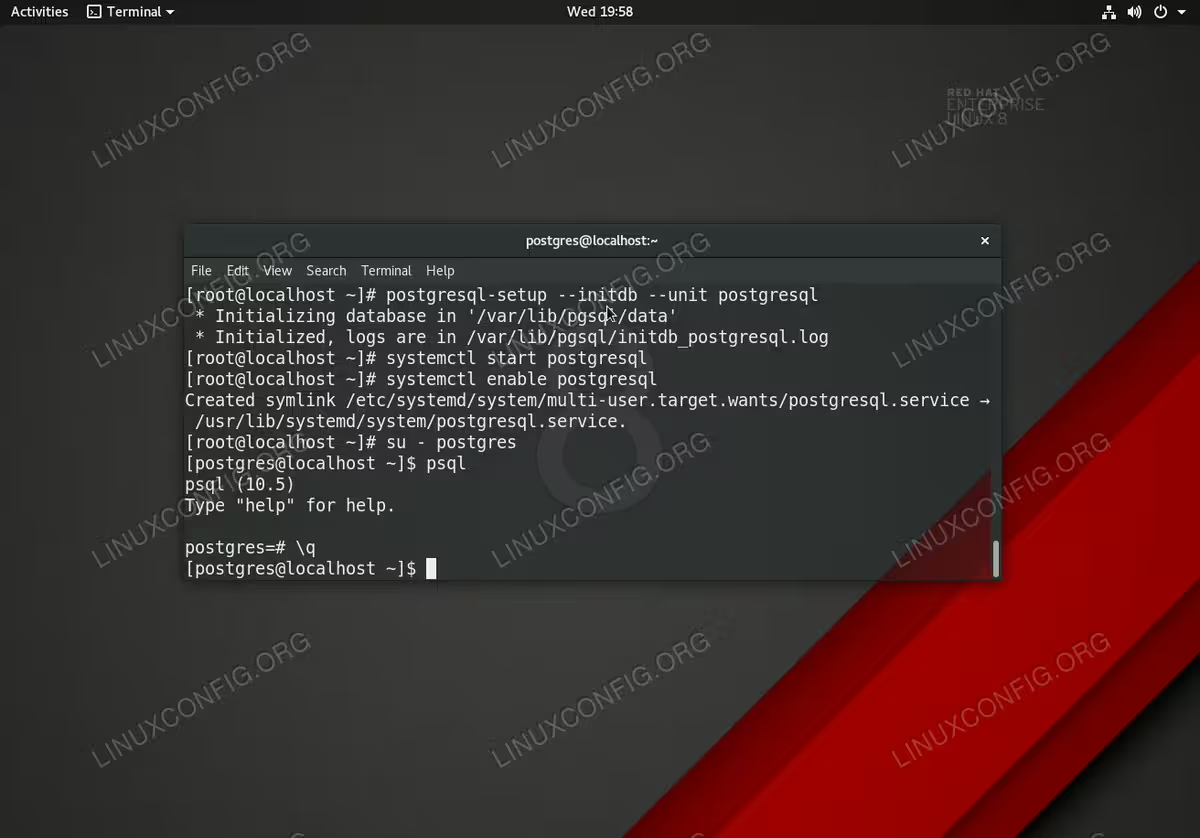
- Initialize PostgreSQL database:
# postgresql-setup --initdb --unit postgresql
 * Initializing database in '/var/lib/pgsql/data'
 * Initialized, logs are in /var/lib/pgsql/initdb_postgresql.log
- Start PostgreSQL and optionally enable it to start after reboot.
# systemctl start postgresql
# systemctl enable postgresql
At this point the PostreSQL server should be up and running and listening on localhost port
5432. Usesscommand to confirm that this is the case:$ ss -nlt State Recv-Q Send-Q Local Address:Port Peer Address:Port LISTEN 0 128 0.0.0.0:111 0.0.0.0:* LISTEN 0 32 192.168.122.1:53 0.0.0.0:* LISTEN 0 128 0.0.0.0:22 0.0.0.0:* LISTEN 0 128 127.0.0.1:5432 0.0.0.0:* LISTEN 0 128 [::]:111 [::]:* LISTEN 0 128 [::]:22 [::]:* LISTEN 0 128 [::1]:5432 [::]:* - Access PostreSQL database.When you install PostgreSQL database on yourRHEL 8 / CentOS 8 system the installer will also automatically create a new default user
postgres.The default password for
postgresuser is not set, hence it is empty. To access the PostgreSQL database first executesucommand as root user to switch to postres user. Then, typepsqlto login to the database.NOTE
Any attempt to access PostgreSQL database as a root user will result inpsql: FATAL: role "root" does not existerror message.Example:
# su - postgres
$ psql
psql (10.5)
Type "help" for help.

postgres=#
NOTE
To exit from PostreSQL database shell type\qor hitCTRL+dkey combination.
PostgreSQL database remote access and secure connection
- Set password for the
postgresuser.In order to access the PostreSQL server remotely we will first set password for thepostresuser:# su - postgres $ psql psql (10.5) Type "help" for help. postgres=# \password postgres Enter new password: Enter it again: postgres=# exit postgres-# \q
- Enable PostgreSQL server to listen on all available networks.Edit the main configuration file
/var/lib/pgsql/data/postgresql.conf:# nano /var/lib/pgsql/data/postgresql.conf
Once ready add the following line somewhere to the CONNECTIONS AND AUTHENTICATION section:
listen_addresses = '*'
WARNING
The above configuration will enable PostreSQL to listen on all available networks. It is recommended to set more strict rules to in order to allow access to PostgreSQL only from selected network(s).Use
sscommand to confirm that PostgreSQL is listening on0.0.0.0network:$ ss -nlt State Recv-Q Send-Q Local Address:Port Peer Address:Port LISTEN 0 128 0.0.0.0:111 0.0.0.0:* LISTEN 0 32 192.168.122.1:53 0.0.0.0:* LISTEN 0 128 0.0.0.0:22 0.0.0.0:* LISTEN 0 128 0.0.0.0:5432 0.0.0.0:* LISTEN 0 128 [::]:111 [::]:* LISTEN 0 128 [::]:22 [::]:* LISTEN 0 128 [::]:5432 [::]:* - Enable MD5-encrypted password authentication:
# echo "host all all 0.0.0.0/0 md5" >> /var/lib/pgsql/data/pg_hba.conf
- Apply PostgreSQL configuration changes:
# systemctl restart postgresql
- Open firewall port
5432for a remote PostgreSQL incoming traffic:# firewall-cmd --zone=public --permanent --add-service=postgresql # firewall-cmd --reload
- Connect to the PostgreSQL database server from a remote location.First install the
psqlPostgreSQL client tool on your remote host:RHEL/CENTOS # dnf install postgresql UBUNTU/DEBIAN # apt install postgresql-client
Create a remote connection to host eg.
192.168.1.151as apostgresuser and user password as defined in the aboveStep 1 :$ psql -h 192.168.1.151 -U postgres Password for user postgres: psql (10.6 (Ubuntu 10.6-0ubuntu0.18.04.1), server 10.5) Type "help" for help. postgres=#