
Linux Mint is a popular Linux distribution known for its simplicity and user-friendliness. While it primarily comes with Cinnamon, MATE, or Xfce desktop environments, users may prefer the polished and highly customizable KDE Plasma. This tutorial will guide you through the steps to install KDE Plasma on Linux Mint regardless of your Linux Mint version.
In this tutorial you will learn:
- How to prepare your system for KDE Plasma installation
- How to install KDE Plasma (minimal, standard, or full setup)
- How to configure your system to use KDE Plasma

| Category | Requirements, Conventions or Software Version Used |
|---|---|
| System | Linux Mint 20.x or later |
| Software | KDE Plasma desktop environment |
| Other | Stable internet connection |
| Conventions | # – requires given linux commands to be executed with root privileges either directly as a root user or by use of sudo command$ – requires given linux commands to be executed as a regular non-privileged user |
Installing KDE Plasma on Linux Mint
Video
Installing KDE Plasma on Linux Mint involves preparing your system, installing the desired KDE package, and configuring the desktop environment. Follow these steps carefully to ensure a smooth installation.
- Update Your System: Before installing KDE Plasma, ensure your system is updated to avoid conflicts.
$ sudo apt update && sudo apt upgrade -y
This command updates the package list and installs the latest versions of available software. Keeping the system updated helps prevent issues during installation.
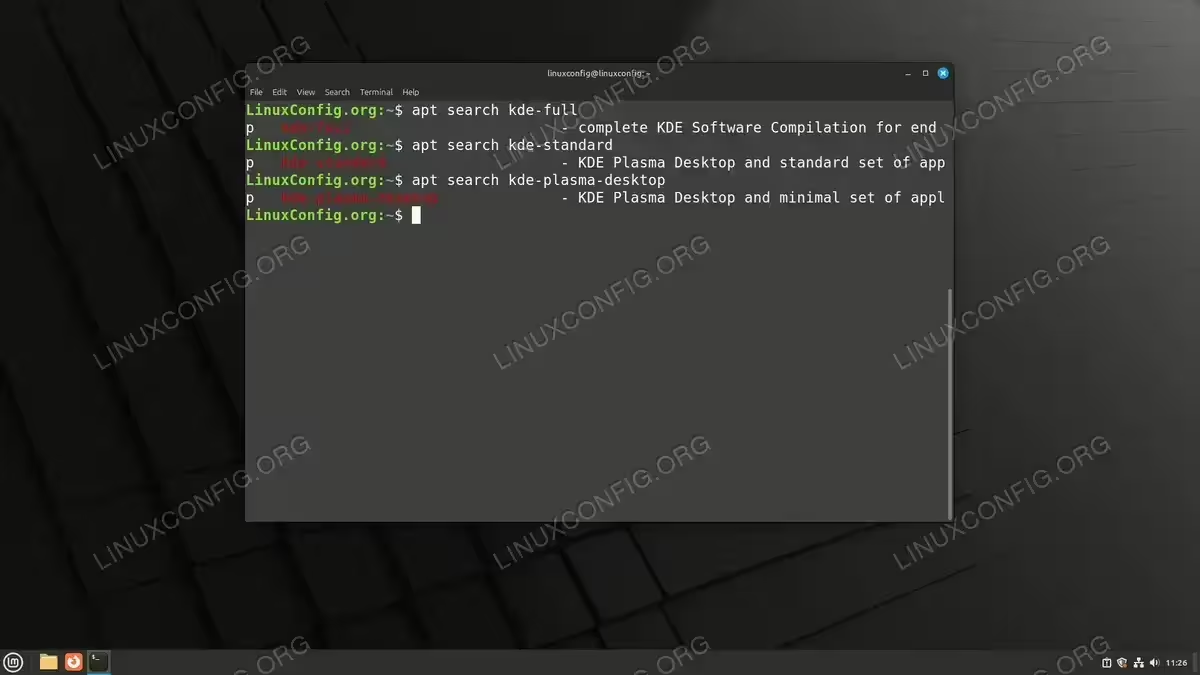
- Install KDE Plasma: Depending on your requirements, you can install a minimal, standard, or full KDE Plasma setup.
To install the minimal setup (approx: 1.2 GB disk space required):$ sudo apt install kde-plasma-desktop
This installs the core KDE Plasma desktop environment with essential components.
For the standard KDE Plasma setup (approx: 1.5 GB disk space required):
$ sudo apt install kde-standard
This includes additional KDE applications like text editors, terminal emulators, and system utilities.
To install the full KDE Plasma setup (approx: 3.4 GB disk space required):
$ sudo apt install kde-full
This installs the entire KDE software suite, including tools, games, and utilities.
Choose the setup based on your preferences and system resources.
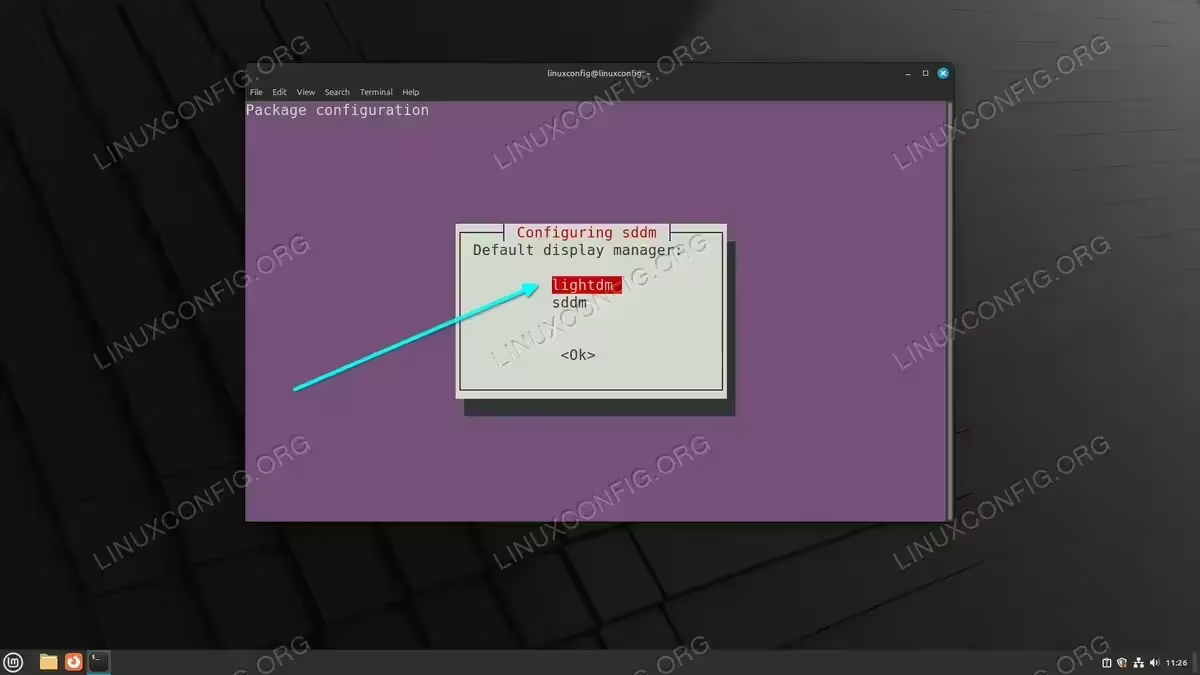
Install a minimal, standard, or full KDE Plasma Desktop - Select a Display Manager (May not be required): During the installation, you may be prompted to choose a display manager, typically between `sddm` and `lightdm`.
Select sddm for better KDE integration. However, I recommend to select lightdm to keep the default Linux Mint display manager.
Use the arrow keys to navigate and `Enter` to select your choice.Select a Display Manager - Reboot Your System and Choose KDE Plasma: After installation, reboot your system to switch to KDE Plasma.
$ sudo reboot
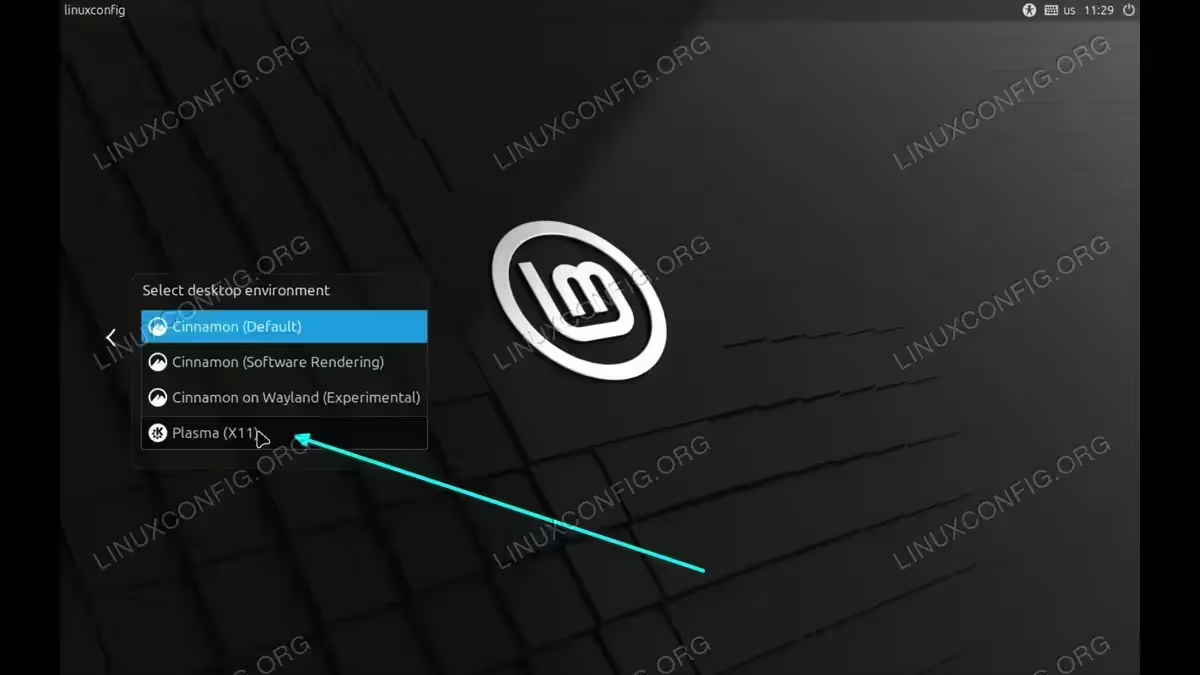
At the login screen, click the gear icon or session chooser and select Plasma (X11), then log in.
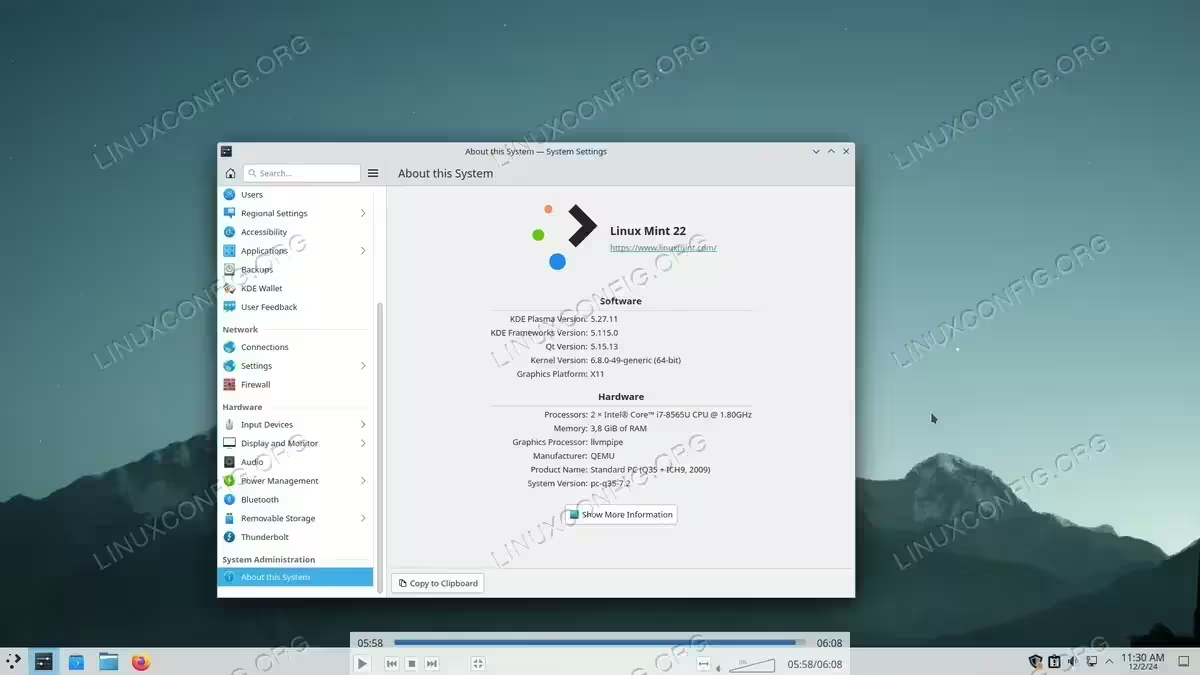
Select Plasma (X11) Your system will now load the KDE Plasma desktop.
KDE Desktop installed on Linux Mint - (Optional) Remove Cinnamon Desktop: If you want to exclusively use KDE Plasma, you can uninstall the default Cinnamon desktop environment.
$ sudo apt purge cinnamon-desktop-environment && sudo apt autoremove
This step is optional and should be performed only if you’re sure you no longer need Cinnamon.
How to Install KDE Plasma on Linux Mint Using GUI Software Manager
Video
Linux Mint is a popular Linux distribution with its default desktop environment being Cinnamon. However, if you prefer the KDE Plasma desktop, you can install it easily using the Software Manager, a graphical application for managing software on Linux Mint. This guide provides a detailed step-by-step process to achieve this.
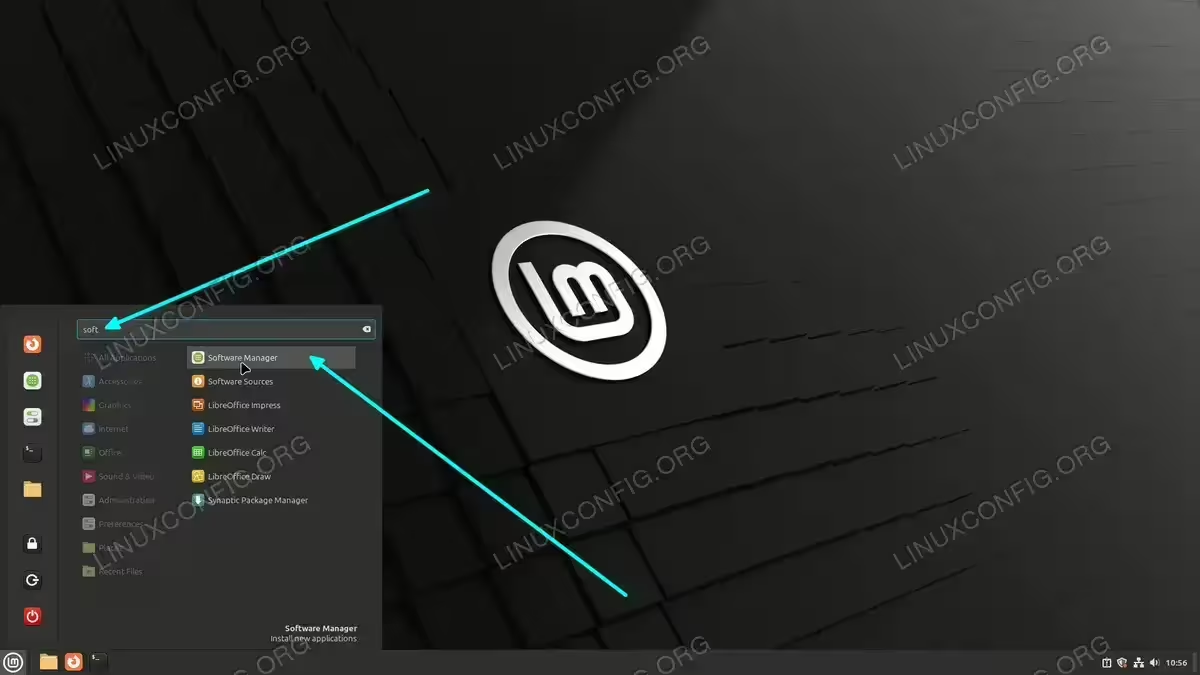
- Open the Software Manager: Launch the Software Manager by clicking on the menu and searching for “Software Manager.”
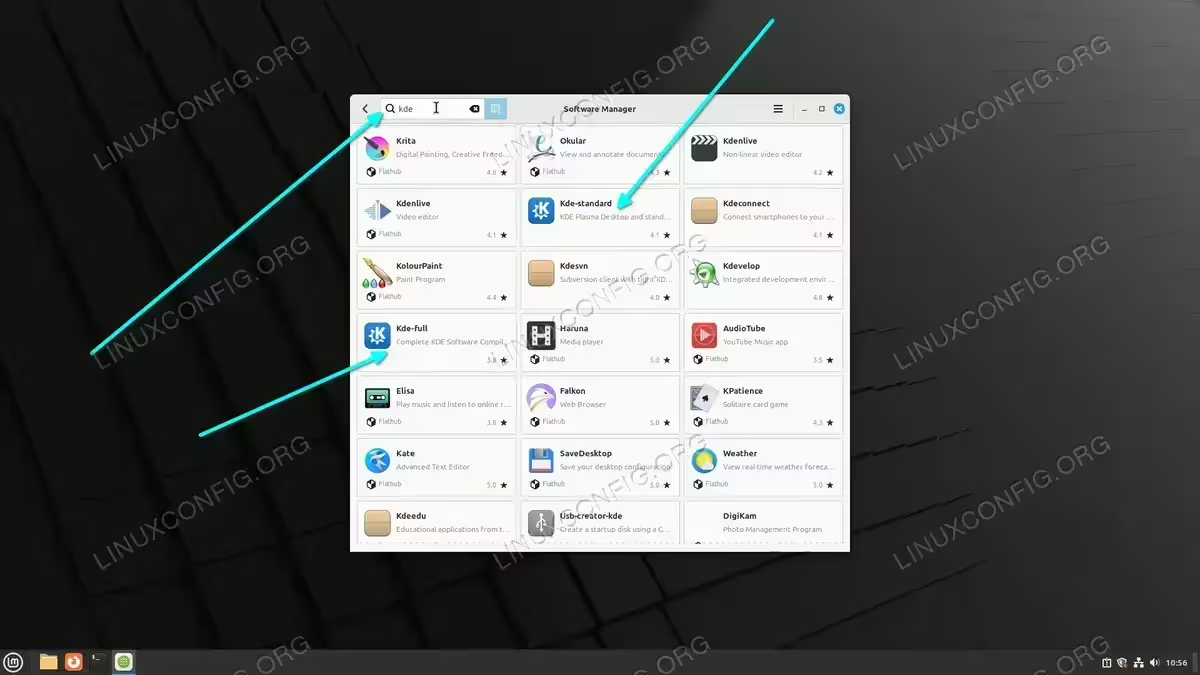
The Software Manager is the central hub for installing and managing software in Linux Mint. This is where you’ll search for KDE Plasma.Open the Software Manager - Search for KDE Plasma: In the Software Manager’s search bar, type “KDE Plasma” and press Enter.
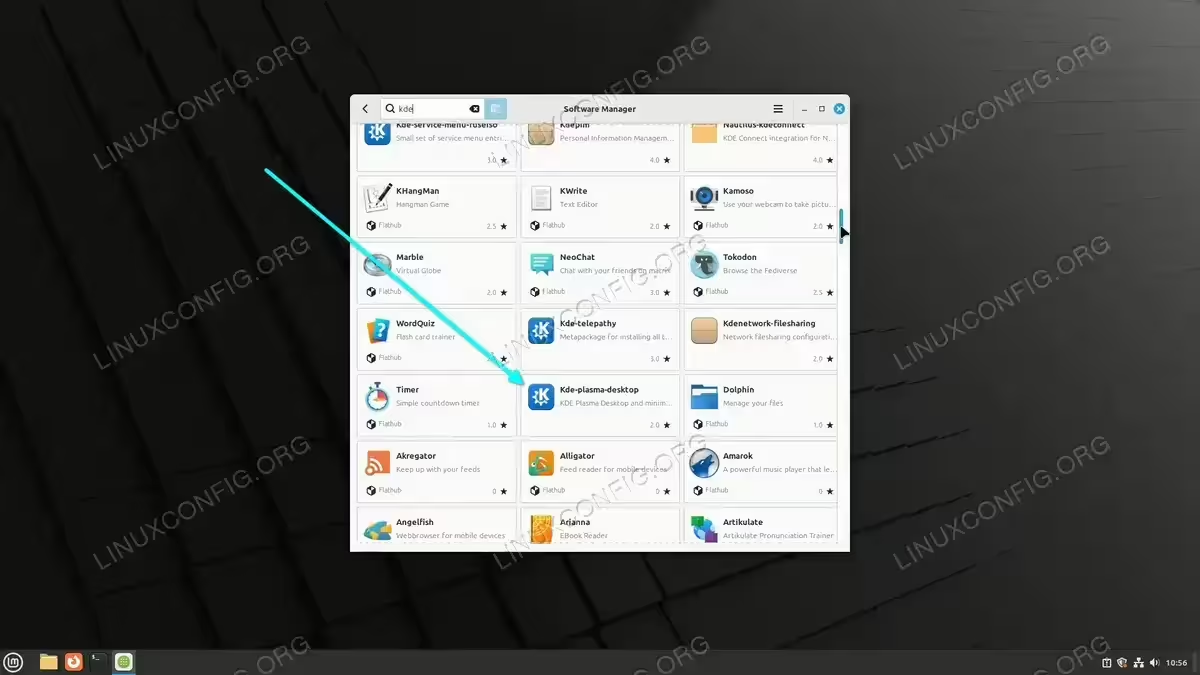
This step will display various KDE-related packages available in the repository.Search for KDE Plasma - Select KDE Plasma Desktop: Locate the “KDE Plasma Desktop” package from the search results and click on it.
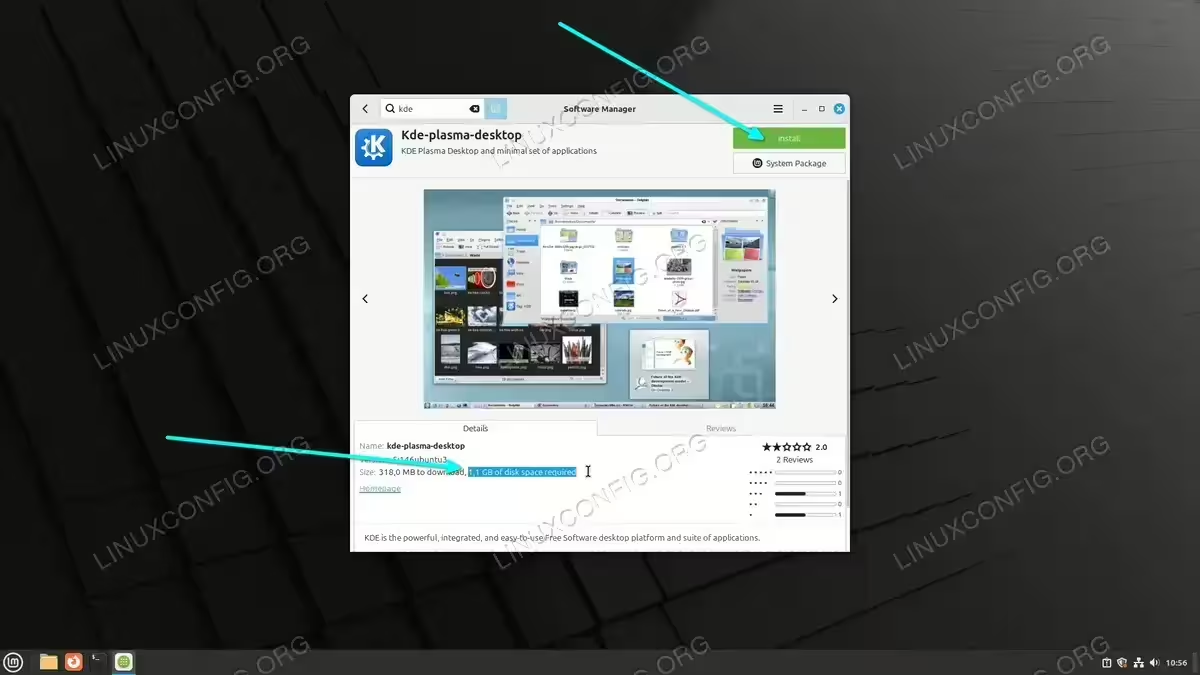
This is the core package that installs the KDE environment on your system.Select KDE Plasma Desktop - Install the KDE Plasma Package: Click the “Install” button to begin the installation process.
The Software Manager will now download and install all necessary packages. Ensure you have a stable internet connection during this process.Install KDE desktop package - Enter Your Password: When prompted, enter your password to authenticate the installation process.
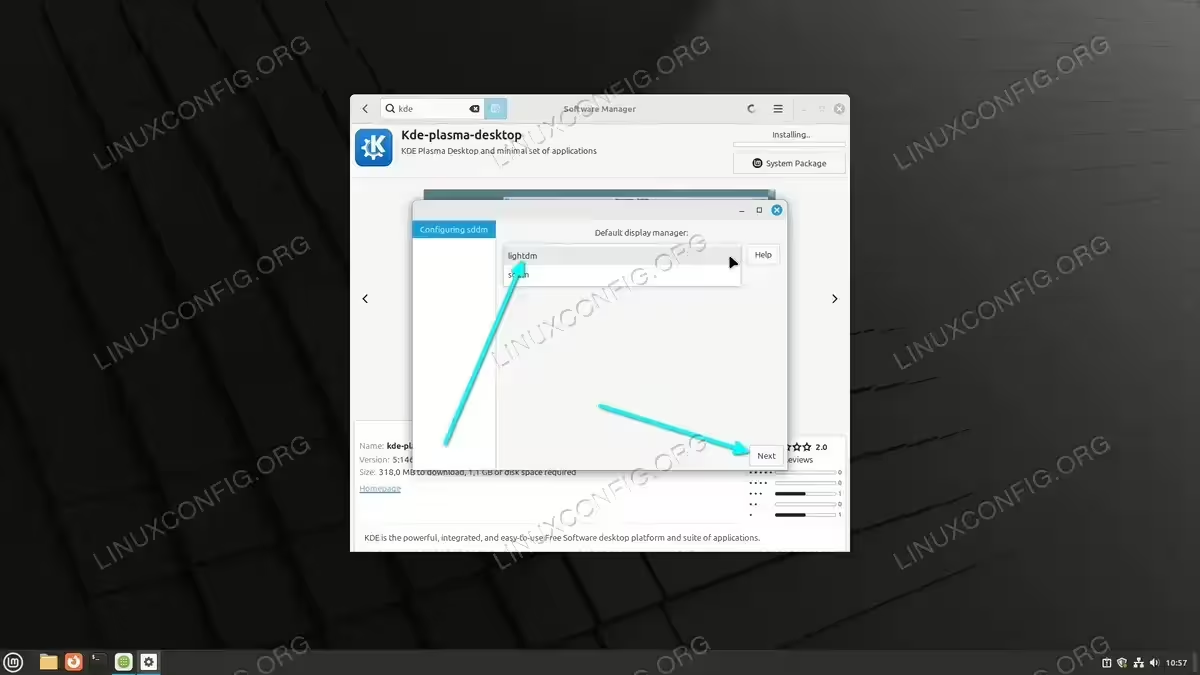
This step ensures that only authorized users can make changes to the system. - Wait for Installation to Complete: The installation process may take a few minutes. When prompted select LightDM as desktop manager. Wait patiently until it completes.
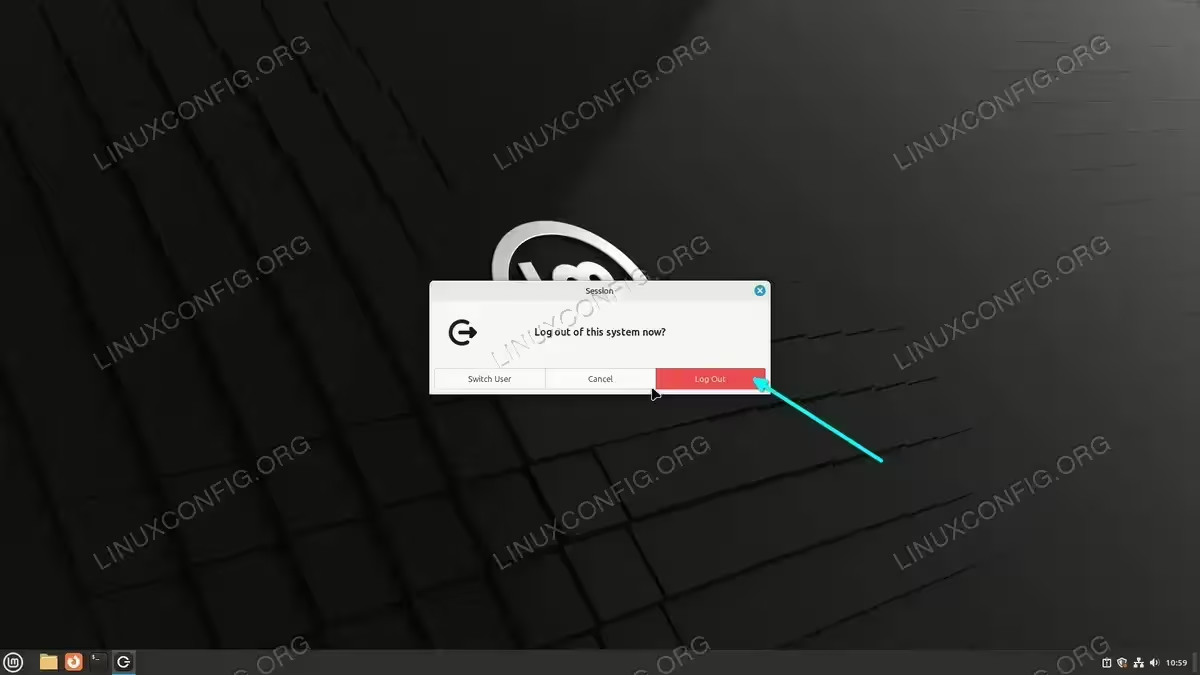
During this time, the Software Manager will configure all the necessary components for KDE Plasma.Select Desktop manager - Log Out of Your Current Session: After installation, log out of your current desktop session to switch to KDE Plasma.
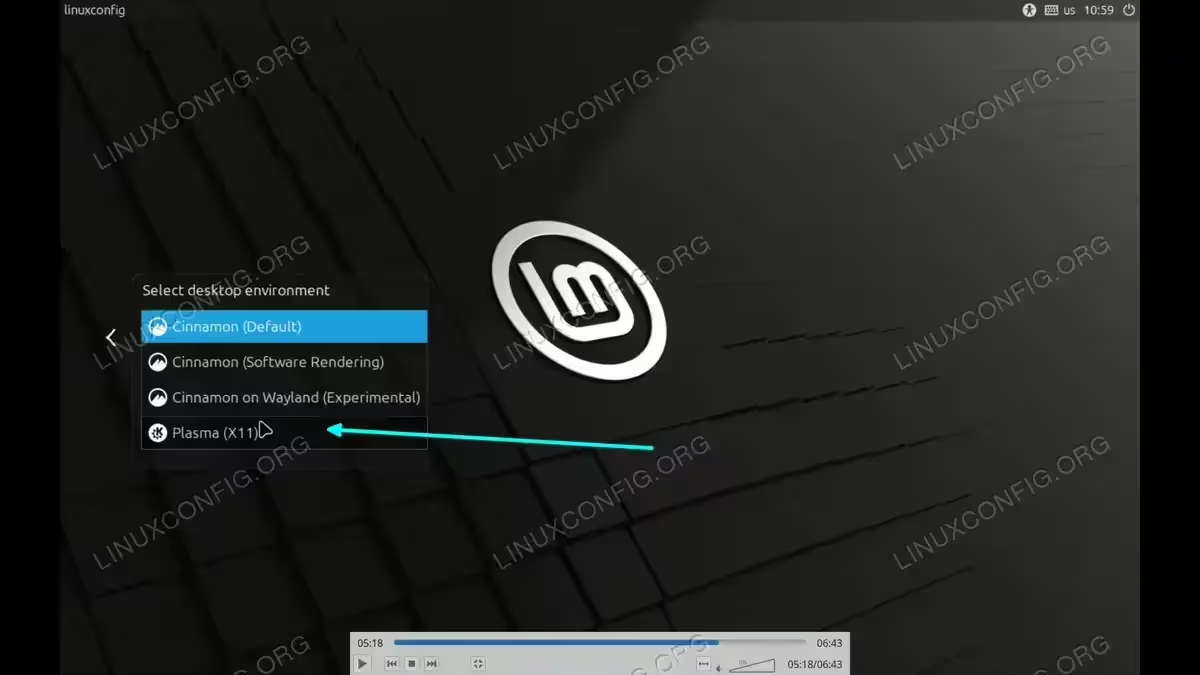
This is necessary to load the KDE Plasma desktop environment.Logout - Select KDE Plasma at Login: At the login screen, click on the desktop environment selector and choose “KDE Plasma.”
This ensures that you are logging into the newly installed KDE Plasma desktop environment.Select KDE Plasma at Login - Log In to KDE Plasma: Enter your username and password to log in to the KDE Plasma desktop environment.
You will now experience the KDE Plasma desktop with its modern and highly customizable interface. - Explore KDE Plasma: Take a moment to explore the KDE Plasma environment and its features.
Customize it to suit your workflow and enjoy the new desktop environment.
Conclusion
KDE Plasma offers a highly customizable and visually appealing desktop experience on Linux Mint. By following the steps in this guide, you can easily install and configure KDE Plasma to suit your needs. Whether you prefer the minimal setup or the full suite of KDE applications, the flexibility of Linux Mint allows you to make it your own.
