
Apache Spark is a powerful unified analytics engine designed for large-scale data processing. Whether you are working with batch data, real-time streams, or machine learning pipelines, Spark provides a fast and flexible framework. In this tutorial, you will learn how to install Apache Spark on Ubuntu 26.04, configure it for local development, and verify the installation with practical examples in both Scala and Python. Since Spark requires a compatible Java version, this guide also covers the necessary Java setup before proceeding with the install Apache Spark Ubuntu 26.04 process.
Table of Contents
In this tutorial you will learn:
- How to install the correct Java version required by Apache Spark on Ubuntu 26.04
- How to download and install Apache Spark 4.1.1
- How to configure
SPARK_HOMEand related environment variables - How to verify the installation using the Spark Shell (Scala) and PySpark (Python)
- How to run a sample Spark application using
spark-submit
Software Requirements
| Category | Requirements, Conventions or Software Version Used |
|---|---|
| System | Ubuntu 26.04 Resolute Raccoon |
| Software | Apache Spark 4.1.1, OpenJDK 17 or 21 |
| Other | Privileged access to your Linux system as root or via the sudo command. |
| Conventions | # – requires given linux commands to be executed with root privileges either directly as a root user or by use of sudo command$ – requires given linux commands to be executed as a regular non-privileged user |
| Step | Command/Action |
|---|---|
| 1. Install Java | $ sudo apt install openjdk-21-jdk |
| 2. Download and extract Spark | $ wget https://dlcdn.apache.org/spark/spark-4.1.1/spark-4.1.1-bin-hadoop3.tgz && tar xzf spark-4.1.1-bin-hadoop3.tgz |
| 3. Move to /opt and set environment | $ sudo mv spark-4.1.1-bin-hadoop3 /opt/spark |
| 4. Verify installation | $ spark-shell |
Prerequisites: Install Java for Apache Spark on Ubuntu 26.04
Apache Spark 4.1.1 requires Java 17 or 21 to run. Ubuntu 26.04 ships with OpenJDK 25 as the default Java version, which is not officially supported by Spark at this time. Therefore, you must install a specific Java version on Ubuntu 26.04 before proceeding.
- Install OpenJDK 21: This is the recommended version for Spark 4.x.
$ sudo apt update
$ sudo apt install openjdk-21-jdk
- Set OpenJDK 21 as the active version: If you have multiple Java versions installed, switch to OpenJDK 21 using
update-alternatives.$ sudo update-alternatives --config java $ sudo update-alternatives --config javac
Select OpenJDK 21 from the list for both commands.
- Set JAVA_HOME: If you have not already configured
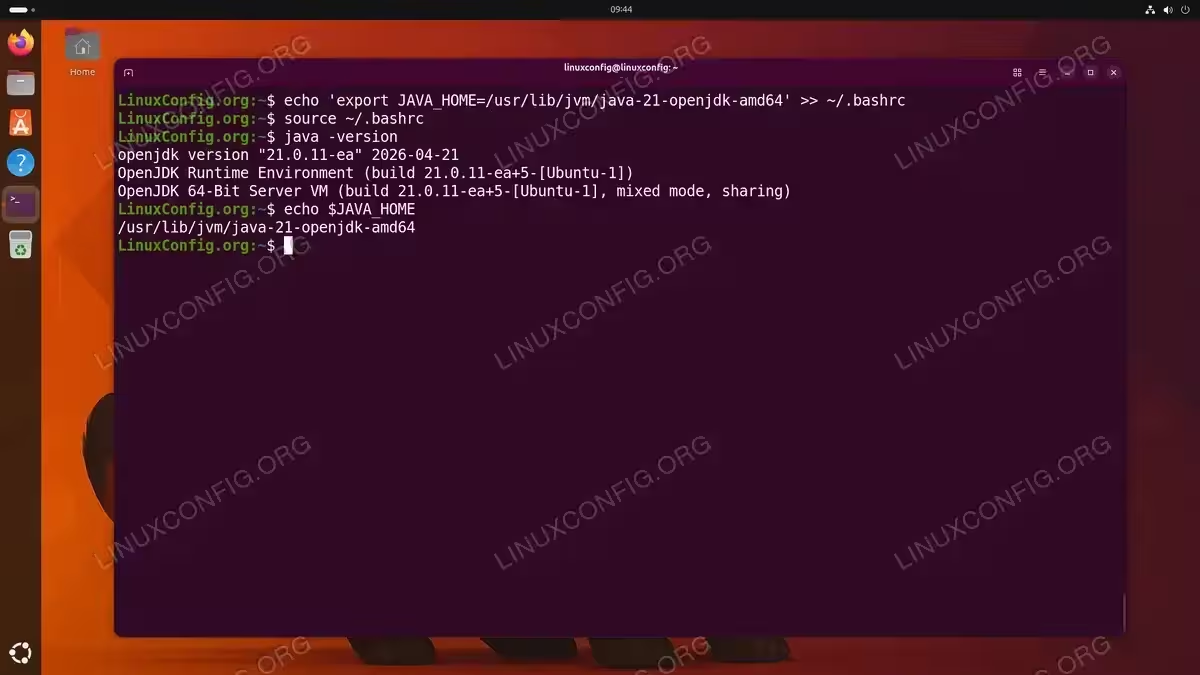
JAVA_HOME, set it now. For a detailed walkthrough, see our guide on how to install Java on Ubuntu 26.04.$ echo 'export JAVA_HOME=/usr/lib/jvm/java-21-openjdk-amd64' >> ~/.bashrc $ source ~/.bashrc
- Verify Java:
$ java -version
IMPORTANT
Apache Spark 4.x officially supports Java 17 and 21. While OpenJDK 25 (the Ubuntu 26.04 default) may work in some cases, it is not officially supported and may produce unexpected errors. Use OpenJDK 21 for the best compatibility.
Download and Install Apache Spark on Ubuntu 26.04
Apache Spark is distributed as a pre-built binary archive. The installation process consists of downloading the archive, extracting it, and placing it in a suitable location on your system.
- Download the Spark binary: Fetch the latest stable release of Apache Spark 4.1.1 pre-built with Hadoop 3 support.
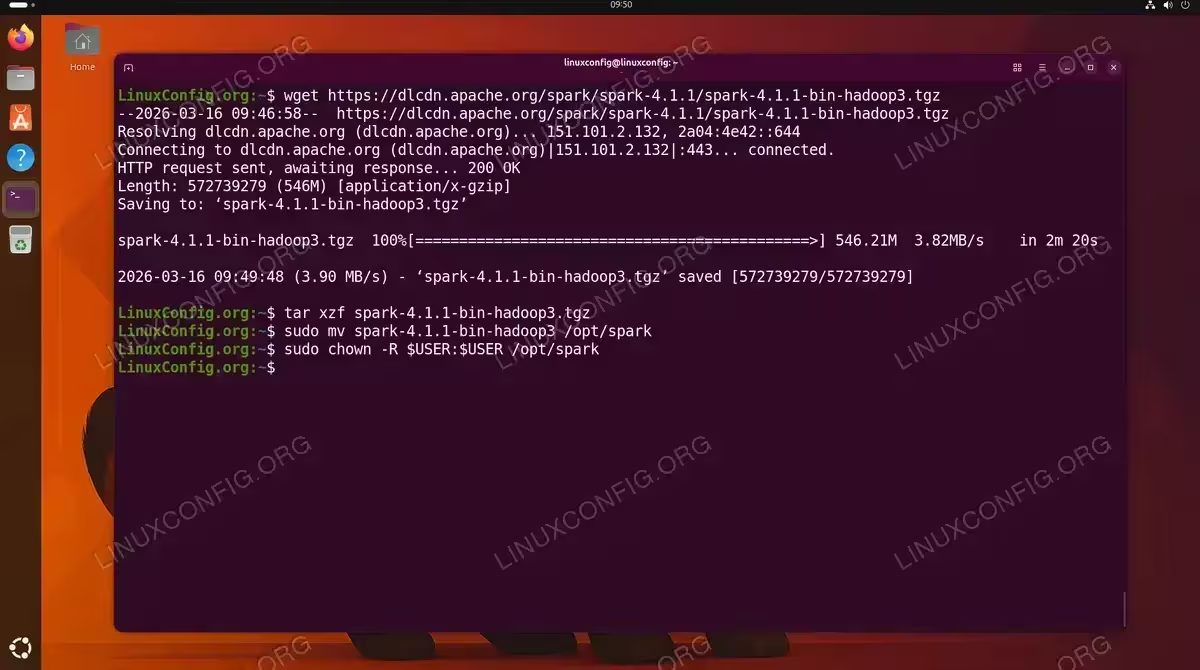
$ wget https://dlcdn.apache.org/spark/spark-4.1.1/spark-4.1.1-bin-hadoop3.tgz
- Extract the archive:
$ tar xzf spark-4.1.1-bin-hadoop3.tgz
- Move Spark to /opt: Place the Spark installation in the
/optdirectory, which is the conventional location for optional software on Linux.$ sudo mv spark-4.1.1-bin-hadoop3 /opt/spark
- Set ownership (optional): If you want your regular user to manage the Spark installation without sudo:
$ sudo chown -R $USER:$USER /opt/spark
Configure Environment Variables for Apache Spark
To use Spark commands from any directory, you need to set the SPARK_HOME environment variable and add the Spark binaries to your PATH. This is an essential step to install Apache Spark on Ubuntu 26.04 properly.
- Add Spark environment variables to your shell profile: Append the following lines to your
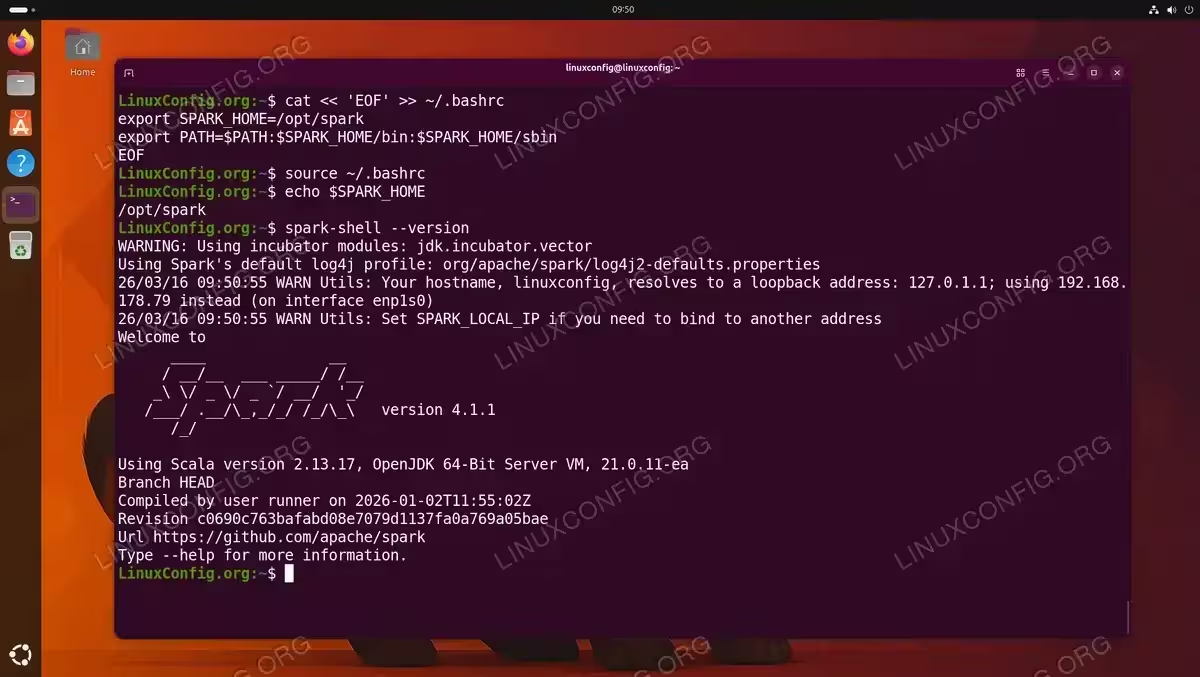
~/.bashrcfile.$ cat << 'EOF' >> ~/.bashrc export SPARK_HOME=/opt/spark export PATH=$PATH:$SPARK_HOME/bin:$SPARK_HOME/sbin EOF
- Apply the changes:
$ source ~/.bashrc
- Verify the environment: Confirm that the
SPARK_HOMEvariable is set and the Spark binaries are accessible.$ echo $SPARK_HOME $ spark-shell --version
Verify Apache Spark Installation with Spark Shell (Scala)
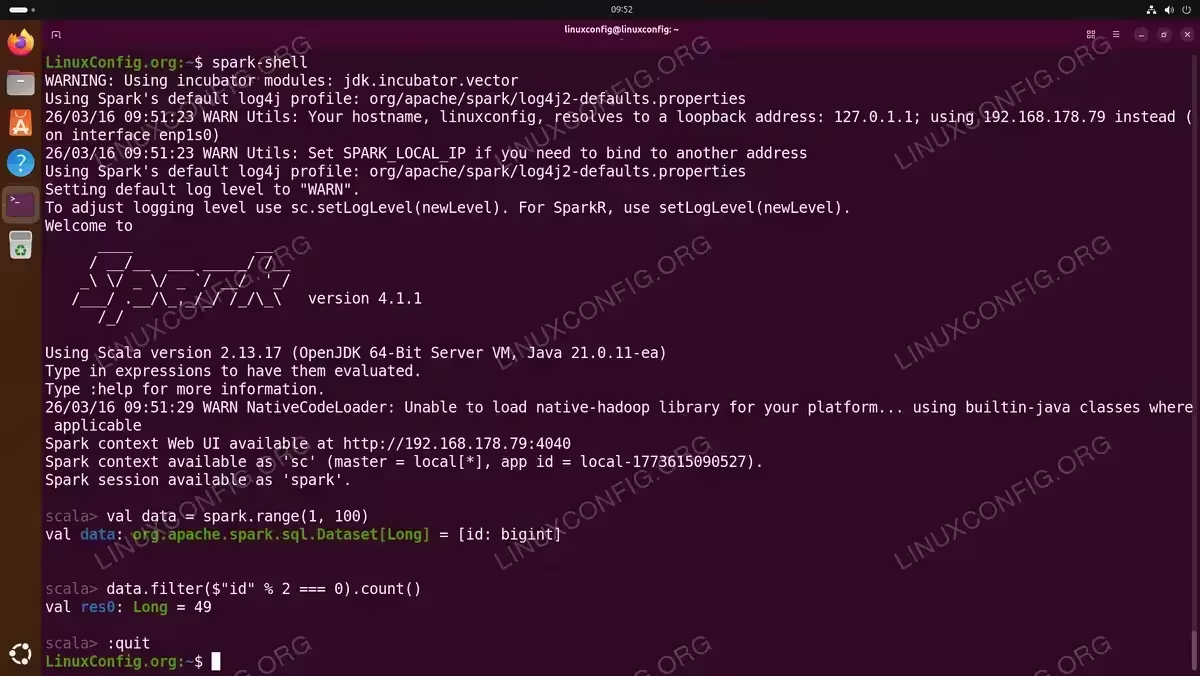
The Spark Shell provides an interactive Scala REPL that connects to a local Spark instance. This is the quickest way to verify that your installation is working correctly.
- Launch the Spark Shell:
$ spark-shell
After a few moments, you will see the Spark logo and the
scala>prompt, indicating that Spark is running. - Run a basic test: Create a simple dataset and perform a filter operation to confirm Spark is processing data correctly.
val data = spark.range(1, 100)
data.filter($"id" % 2 === 0).count()
This creates a dataset of numbers 1 through 99 and counts the even numbers. The expected result is
49. - Exit the Spark Shell:
:quit
Verify Apache Spark Installation with PySpark (Python)
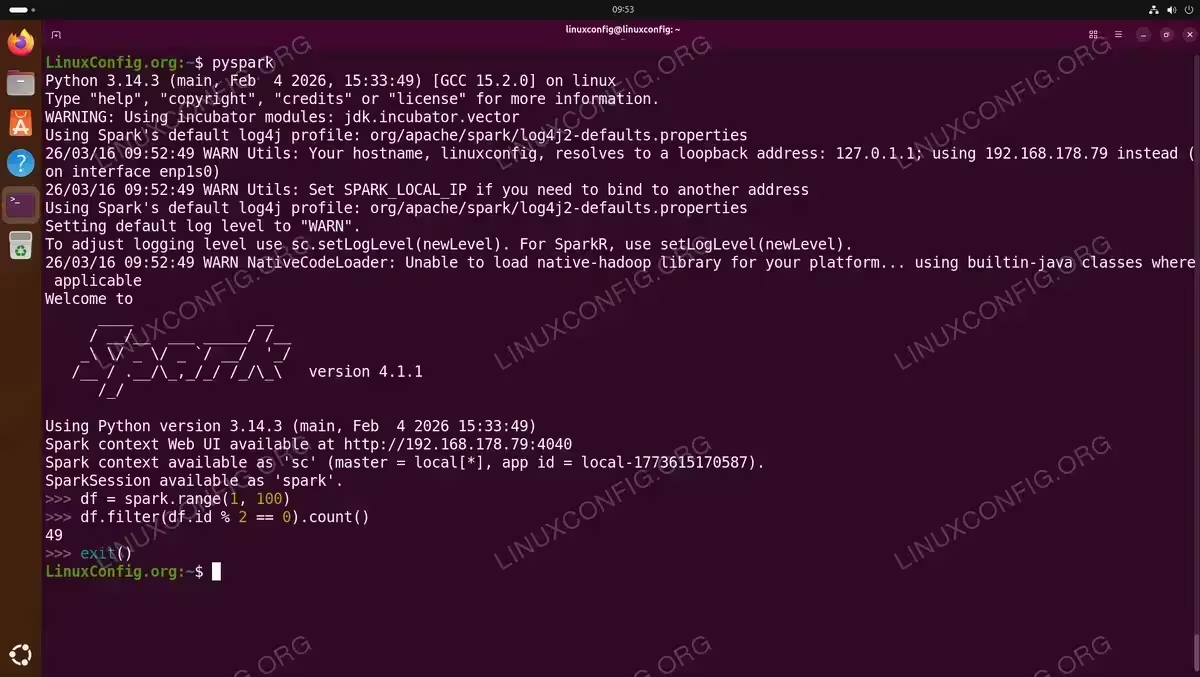
PySpark is the Python API for Apache Spark. It is included in the Spark distribution, so no additional installation is required. Consequently, you can use PySpark immediately after the install Apache Spark Ubuntu 26.04 process is complete.
- Launch PySpark:
$ pyspark
You will see the Spark logo and the Python
>>>prompt. - Run a basic test: Perform the same filter operation using the Python API.
df = spark.range(1, 100)
df.filter(df.id % 2 == 0).count()
The expected result is
49, confirming that PySpark is functioning correctly. - Exit PySpark:
exit()
Run a Spark Application with spark-submit
In addition to the interactive shells, Spark includes a spark-submit command for running standalone applications. Apache Spark ships with several example programs that you can use to verify your setup further.
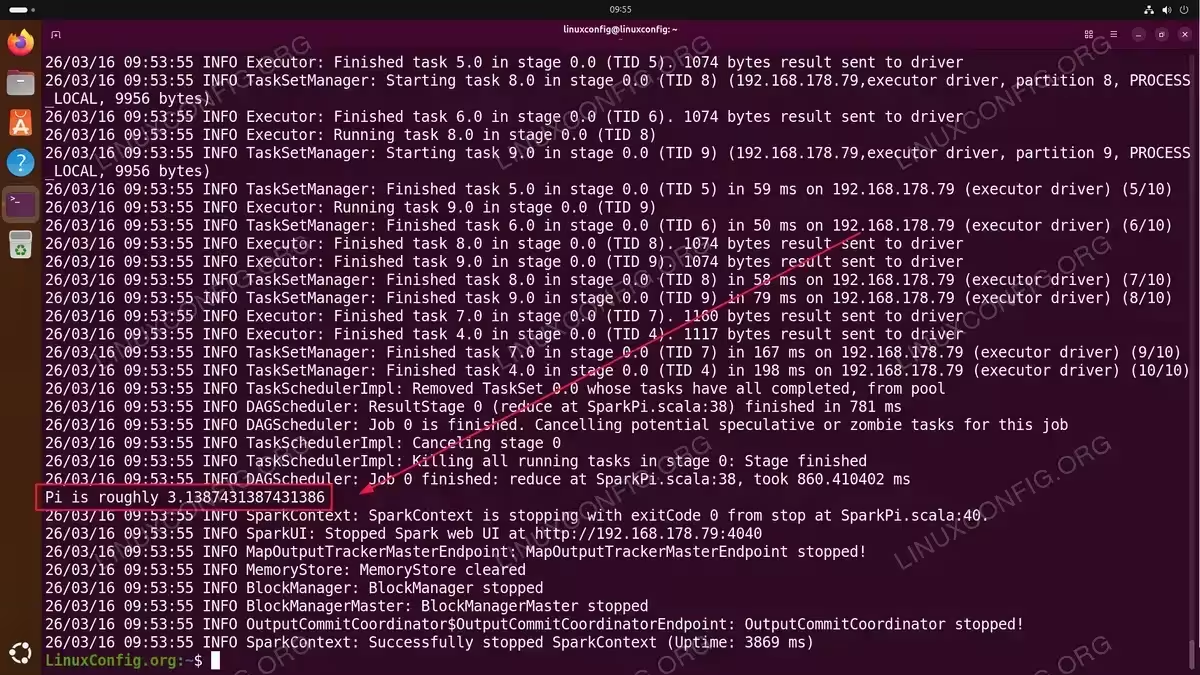
- Run the Pi estimation example: This bundled example uses a Monte Carlo method to estimate the value of Pi.
$ spark-submit --class org.apache.spark.examples.SparkPi $SPARK_HOME/examples/jars/spark-examples_2.13-4.1.1.jar 10
After the computation completes, look for the line containing
Pi is roughly 3.14in the output.
COMPLETED
If you see the Pi estimation result, your Apache Spark installation on Ubuntu 26.04 is fully operational. You are now ready to develop and run Spark applications locally.
Conclusion
You have successfully installed Apache Spark on Ubuntu 26.04 and verified the installation using the Spark Shell, PySpark, and spark-submit. With Spark configured in /opt/spark and the environment variables set, you can now develop data processing applications, run machine learning pipelines, or experiment with Spark SQL from your local machine.
Keep in mind that Apache Spark 4.x requires Java 17 or 21. If you need to manage multiple Java versions, our guide on how to install a specific Java version on Ubuntu 26.04 covers the full process. For more detailed information about Spark configuration and usage, consult the official Apache Spark documentation.
Frequently Asked Questions
- Does Apache Spark work with OpenJDK 25 on Ubuntu 26.04? Apache Spark 4.x officially supports Java 17 and 21. While OpenJDK 25 may work for basic tasks, it is not officially tested or supported by the Spark project. For production use and to avoid unexpected issues, install OpenJDK 21 using
sudo apt install openjdk-21-jdk. - Do I need Hadoop installed to run Apache Spark? No. The pre-built Spark binary (
spark-4.1.1-bin-hadoop3.tgz) bundles the necessary Hadoop client libraries. You can run Spark in standalone or local mode without a separate Hadoop installation. - How do I update Apache Spark to a newer version? Download the new version, extract it, and replace the contents of
/opt/spark. Since theSPARK_HOMEenvironment variable points to this directory, no further configuration changes are needed. - What is the difference between spark-shell and PySpark?
spark-shellis the interactive Scala REPL for Spark, whilepysparkis the Python equivalent. Both connect to a local Spark instance and provide full access to the Spark API in their respective languages. - Can I install PySpark separately using pip? Yes. You can run
pip install pysparkto install PySpark as a Python package. However, this is primarily intended for connecting to an existing Spark cluster. For local development with the full Spark distribution, the manual installation described in this guide is recommended.