
If you need a fast, feature-rich web browser on your Ubuntu 26.04 system, Google Chrome is a popular choice. While Ubuntu ships with Firefox by default, many users prefer Chrome for its tight integration with Google services, extensive extension library, and consistent cross-platform experience. In this tutorial, we will walk through how to install Google Chrome on Ubuntu 26.04, configure it as your default browser, and keep it updated. If you are looking to install Google Chrome on a different Linux distribution, check out our comprehensive Google Chrome installation guide for Linux covering Ubuntu 24.04, Fedora, Linux Mint, Arch Linux, CentOS, and more.
Table of Contents
In this tutorial you will learn:
- How to install Google Chrome on Ubuntu 26.04 from the command line
- How to launch and set Chrome as your default browser
- How to keep Google Chrome updated
- How to completely remove Google Chrome from your system

Software Requirements
| Category | Requirements, Conventions or Software Version Used |
|---|---|
| System | Ubuntu 26.04 Resolute Raccoon |
| Software | Google Chrome (latest stable) |
| Other | Privileged access to your Linux system as root or via the sudo command. An active Internet connection. |
| Conventions | # – requires given linux commands to be executed with root privileges either directly as a root user or by use of sudo command$ – requires given linux commands to be executed as a regular non-privileged user |
.deb package and install it with apt. The installation automatically adds the Google repository for future updates.
| Step | Command/Action |
|---|---|
| 1. Download Chrome .deb package | $ wget https://dl.google.com/linux/direct/google-chrome-stable_current_amd64.deb |
| 2. Install the package | $ sudo apt install ./google-chrome-stable_current_amd64.deb |
| 3. Launch Chrome | $ google-chrome |
Installing Google Chrome on Ubuntu 26.04 via Command Line
Google Chrome is not available in the default Ubuntu repositories because it is proprietary software. Therefore, you need to download the official .deb package directly from Google. The command line method is the most straightforward approach to install Google Chrome on Ubuntu 26.04.
- Update your system packages: Before installing any new software, it is good practice to update your package index:
$ sudo apt update
- Download the Google Chrome .deb package: Use
wgetto download the latest stable version of Google Chrome directly from Google’s servers:$ wget https://dl.google.com/linux/direct/google-chrome-stable_current_amd64.deb
This downloads the 64-bit version of Chrome, which is the only architecture supported on modern Ubuntu systems.
- Install the downloaded package: Use
aptto install the.debfile. This will automatically resolve and install any required dependencies:$ sudo apt install ./google-chrome-stable_current_amd64.deb
IMPORTANT
The./prefix is required when installing a local.debfile withapt. Without it,aptwill search the repositories instead of the local filesystem. - Verify the installation: Confirm that Google Chrome was installed successfully by checking its version:
$ google-chrome --version
You should see output similar to:
Google Chrome 146.x.xxxx.xx
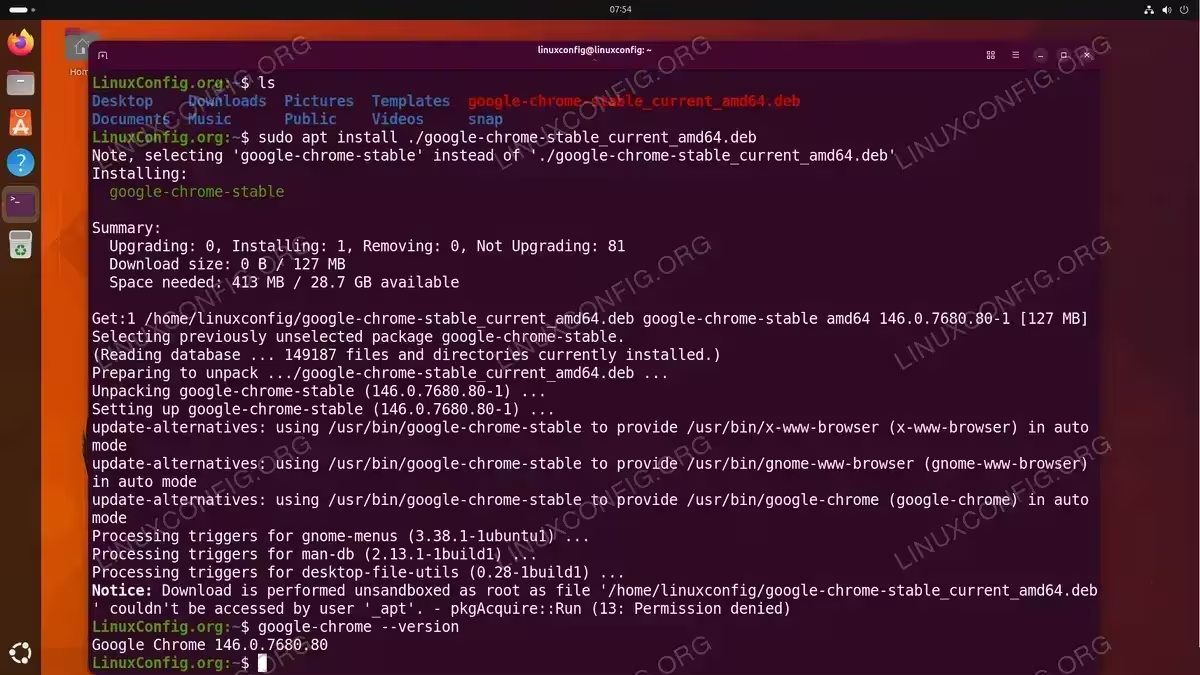
Installing Google Chrome 146.0.7680.80 on Ubuntu 26.04 using the apt package manager
IMPORTANT
During installation, Google Chrome automatically adds its official APT repository to your system at /etc/apt/sources.list.d/google-chrome.list. This ensures that Chrome receives updates through the standard apt update && apt upgrade process.
Launching Google Chrome on Ubuntu 26.04
After installation, you can launch Google Chrome using several methods.
From the Activities menu: Click Activities in the top-left corner (or press the Super key), type Chrome, and click the Google Chrome icon.
From the terminal: Run the following command to start Chrome:
$ google-chrome
To launch Chrome in the background without blocking your terminal, append an ampersand:
$ google-chrome &
On its first launch, Chrome will ask whether you want to set it as the default browser and whether to send usage statistics to Google. Adjust these options according to your preference.
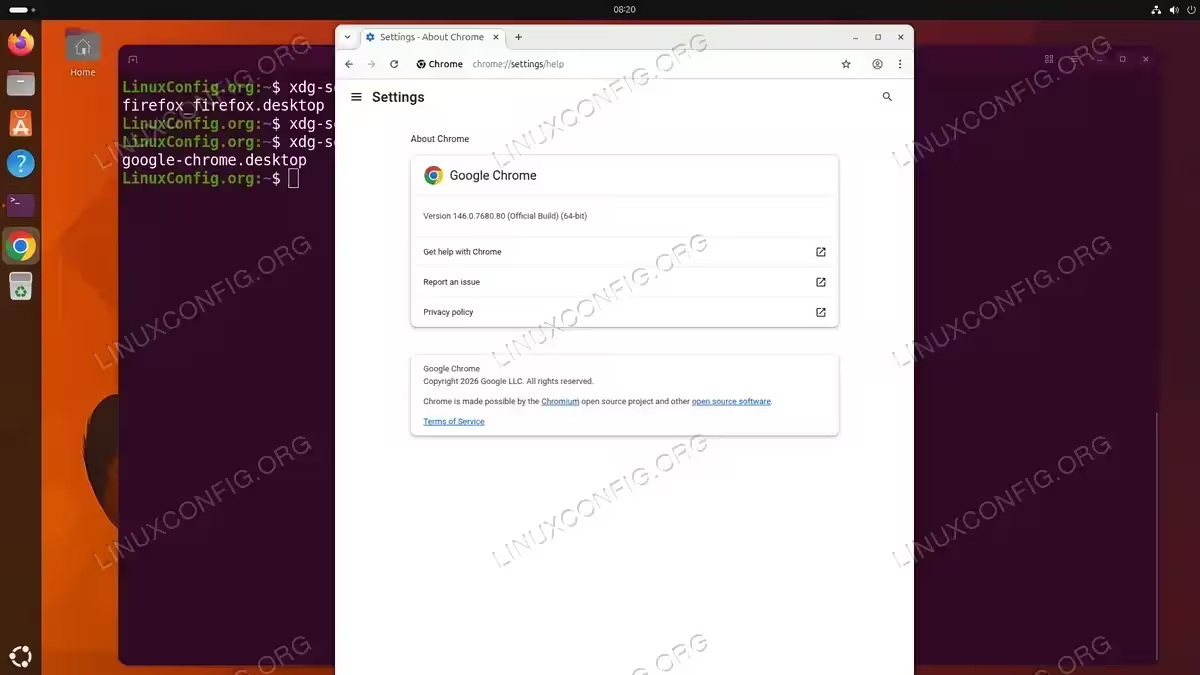
Setting Google Chrome as Default Browser on Ubuntu 26.04
If you did not set Chrome as the default browser during the first launch, you can configure it manually.
From the command line: Use the xdg-settings utility to set Chrome as your default web browser:
$ xdg-settings set default-web-browser google-chrome.desktop
Verify the change:
$ xdg-settings get default-web-browser
The output should display:
google-chrome.desktop
From GNOME Settings: Open Settings, navigate to Default Applications, and select Google Chrome from the Web dropdown menu.
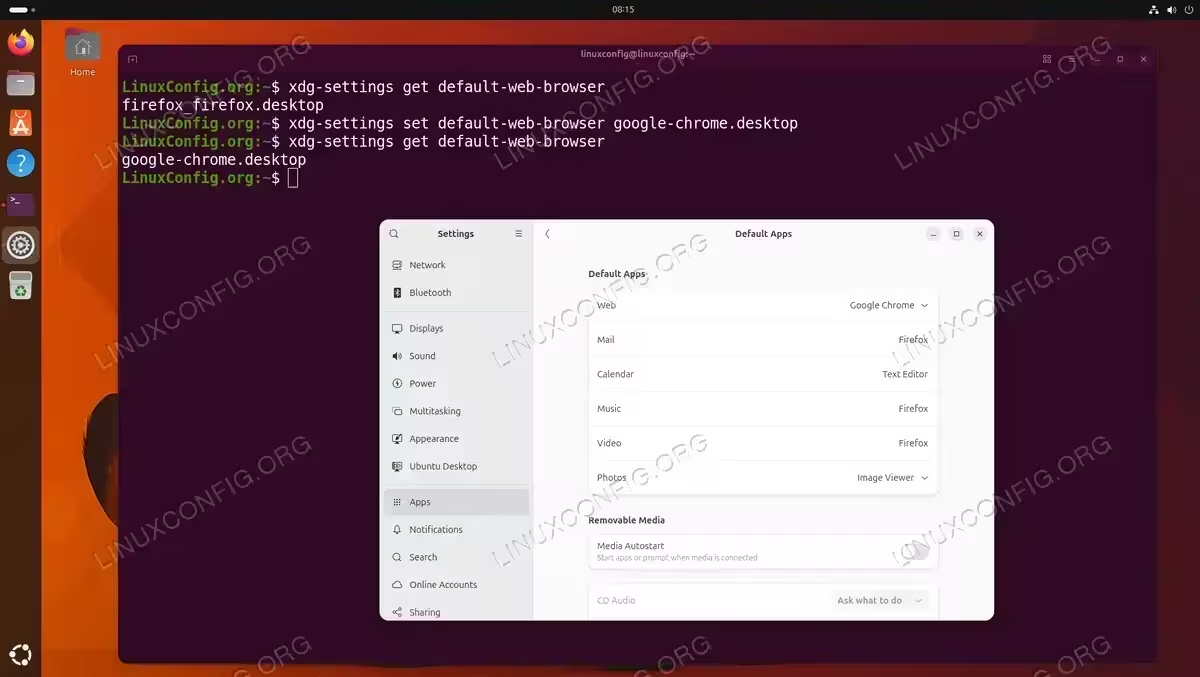
Updating Google Chrome on Ubuntu 26.04
When you installed the .deb package, Google Chrome automatically added its official repository to your system. Consequently, Chrome updates are handled through the standard APT package management workflow. To update Chrome along with all other system packages, simply run:
$ sudo apt update
$ sudo apt upgrade
You can also update Chrome specifically:
$ sudo apt install --only-upgrade google-chrome-stable
Additionally, Chrome checks for updates in the background and will notify you when a new version is available. However, applying the update still requires the APT commands shown above.
Uninstalling Google Chrome from Ubuntu 26.04
If you decide to remove Google Chrome from your system, follow these steps.
- Remove the Google Chrome package: Use
aptto purge Chrome along with its configuration files:$ sudo apt purge google-chrome-stable
- Remove the Google repository: Delete the APT source file that was added during installation:
$ sudo rm /etc/apt/sources.list.d/google-chrome.list
- Remove the Google signing key (optional): If you no longer need the Google signing key, remove it:
$ sudo rm /etc/apt/trusted.gpg.d/google-chrome.gpg
- Clean up user data (optional): To remove your Chrome profile data, bookmarks, and cache:
$ rm -rf ~/.config/google-chrome
$ rm -rf ~/.cache/google-chrome
Conclusion
You have successfully learned how to install Google Chrome on Ubuntu 26.04 using the command line. The installation process is straightforward: download the official .deb package from Google and install it with apt. Chrome’s automatic repository setup ensures you always receive the latest updates through the standard Ubuntu update mechanism. If you need to install Chrome on other Linux distributions, refer to our Google Chrome installation guide for Linux for distribution-specific instructions.
Frequently Asked Questions
- Is Google Chrome available in the Ubuntu repositories? No, Google Chrome is proprietary software and is not included in the official Ubuntu repositories. You must download the
.debpackage directly from Google. However, the open-source Chromium browser is available in the Ubuntu repositories as an alternative. - What is the difference between Google Chrome and Chromium on Ubuntu 26.04? Google Chrome is a proprietary browser built on the open-source Chromium project. Chrome includes additional features such as automatic updates via its own repository, built-in support for certain media codecs (like AAC and H.264), and integration with Google services. Chromium lacks these proprietary components but is fully open source.
- Can I install Google Chrome on a 32-bit Ubuntu system? No, Google discontinued 32-bit Linux builds of Chrome in 2016. The
.debpackage is only available for 64-bit (amd64) systems. All modern Ubuntu 26.04 installations run on 64-bit architecture. - How do I install a beta or development version of Google Chrome? Google provides separate packages for the beta and development channels. Replace
stablewithbetaorunstablein the download URL. For example:wget https://dl.google.com/linux/direct/google-chrome-beta_current_amd64.deb. You can install multiple channels side by side. - Why does Chrome ask to be the default keyring manager on first launch? Chrome uses the GNOME Keyring to securely store passwords and cookies. On first launch, it may prompt you to create or unlock a keyring. This is normal behavior and helps protect your stored credentials.